(GDPR) and California Consumer Privacy Act (CCPA). These tools allow for the access of individual consumer data and deletion of consumer data, which are requirements of GDPR and CCPA. There is no need to forward requests to Bazaarvoice when a consumer submits a request to not sell their information, as Bazaarvoice does not sell consumer information collected on behalf of a client.
Use these Bazaarvoice tools to manage consumers' privacy-related requests:
- Privacy API—Build automated processes to respond to consumer requests to retrieve or delete data.
- Privacy app—Initiate data subject access requests and requests to delete personal data.
Both solutions provide human and machine-readable information for you to distribute to consumers, and allow for data portability. If consumers find any data they would like to correct, you can work with your support team to correct that information.
As always, consumers can restrict processing of their data through an opt-out request via our Privacy Policy .
Consumer data requests through the API
Use the Privacy API to make requests for `right to be forgotten` and `right of access requests` directly. For more Privacy API information, refer to the documentation in the Bazaarvoice Developer portal.
Consumer data requests through the Bazaarvoice Portal
Use the Privacy app in the Bazaarvoice Portal to make individual data access or removal requests. To use the Privacy app, you must have a Bazaarvoice single sign-on (SSO) account with the Privacy Manager role.
- If you are an account administrator and need the Privacy Manager role, contact Bazaarvoice support and open a support case.
-
If you are a user and need the Privacy Manager role, you can request access from account administrators with that role. If you're not sure who your account administrators are, you can view a list:
-
From the upper-right corner, select the settings icon
 .
.
- Select Profile.
- Click View Administrators.
-
From the upper-right corner, select the settings icon

Grant access to the Privacy app
If you're an account administrator with the Privacy Manager role, follow these steps to grant Privacy app access to your users.
- Sign in to the Bazaarvoice Portal.
-
From the upper-right corner, select the settings icon .
-
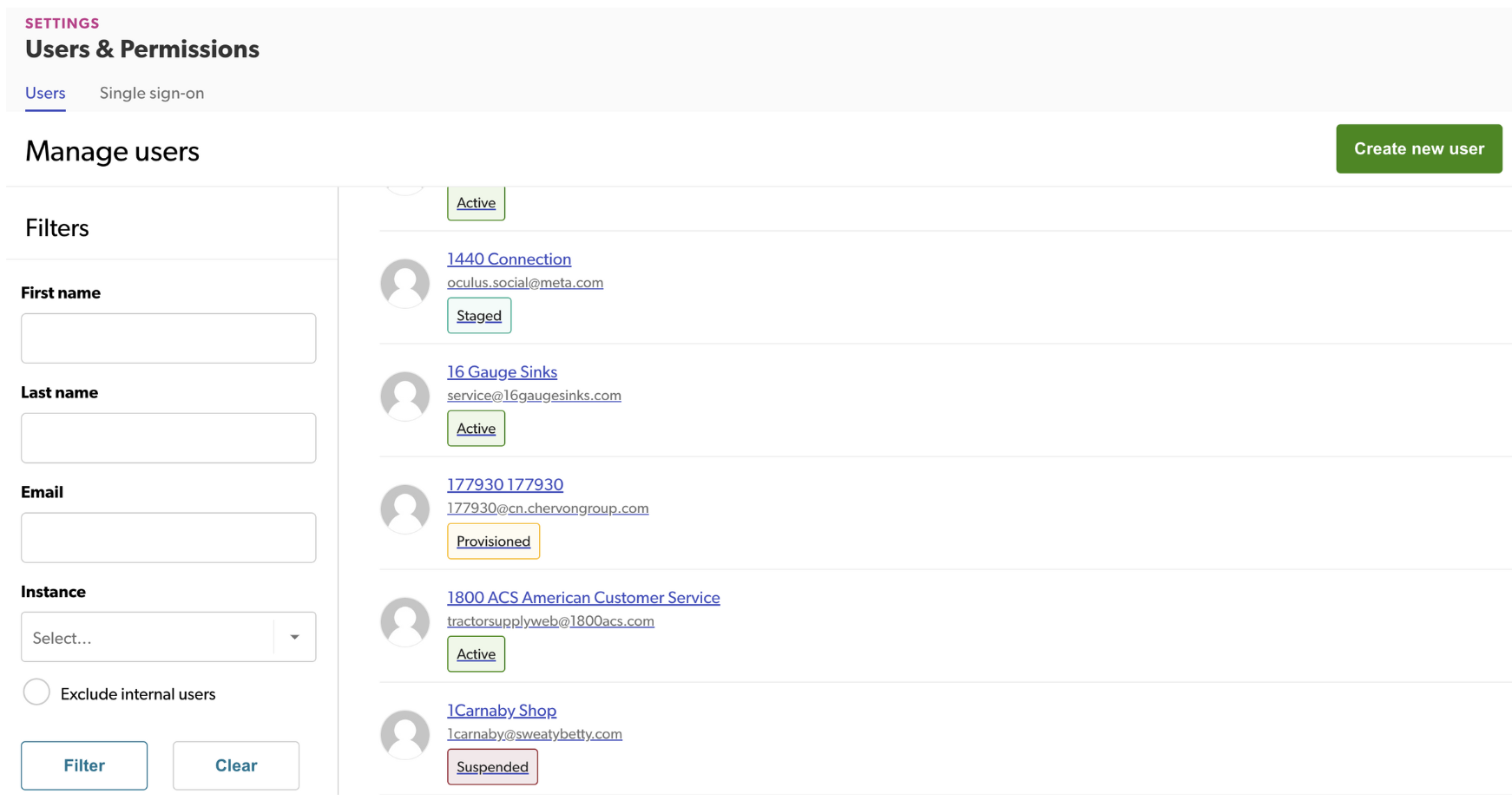
Select Manage Users to open the Users & Permissions page.
-
Under Manage Users
-
To set up a new BV SSO account, follow these steps:
- Click Create new user
-
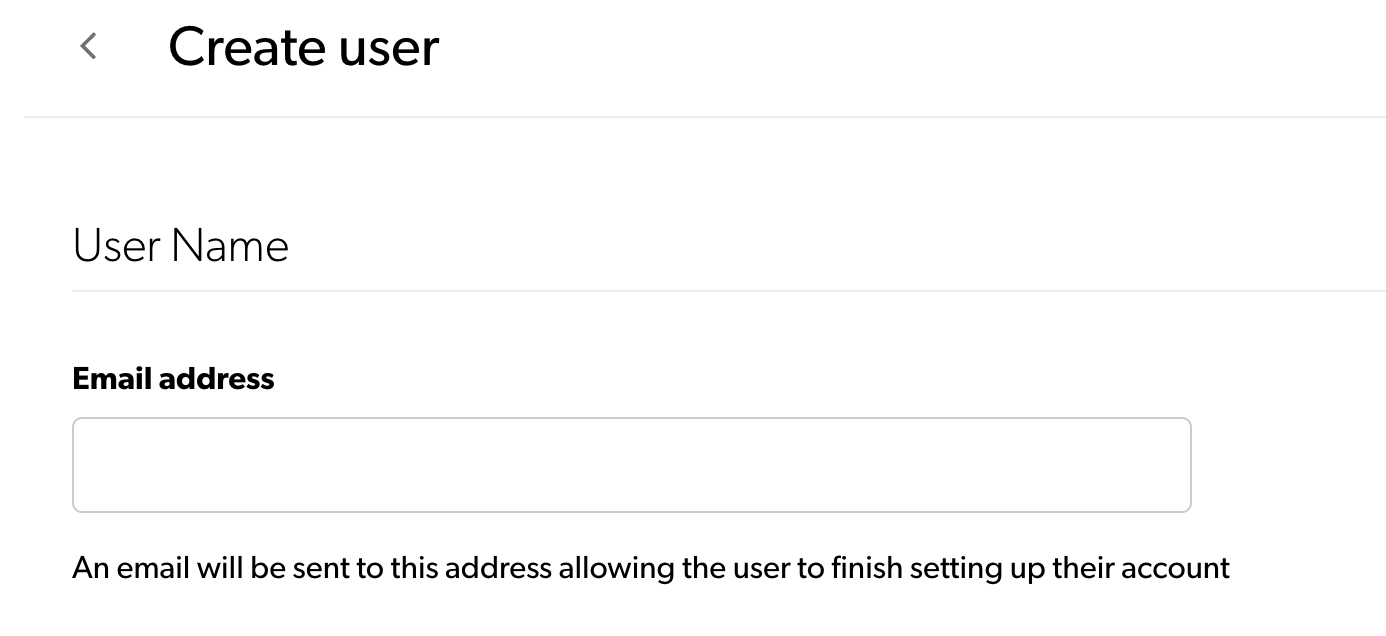
Enter the email address for which you want to create a BV SSO account in the User Name section.
-
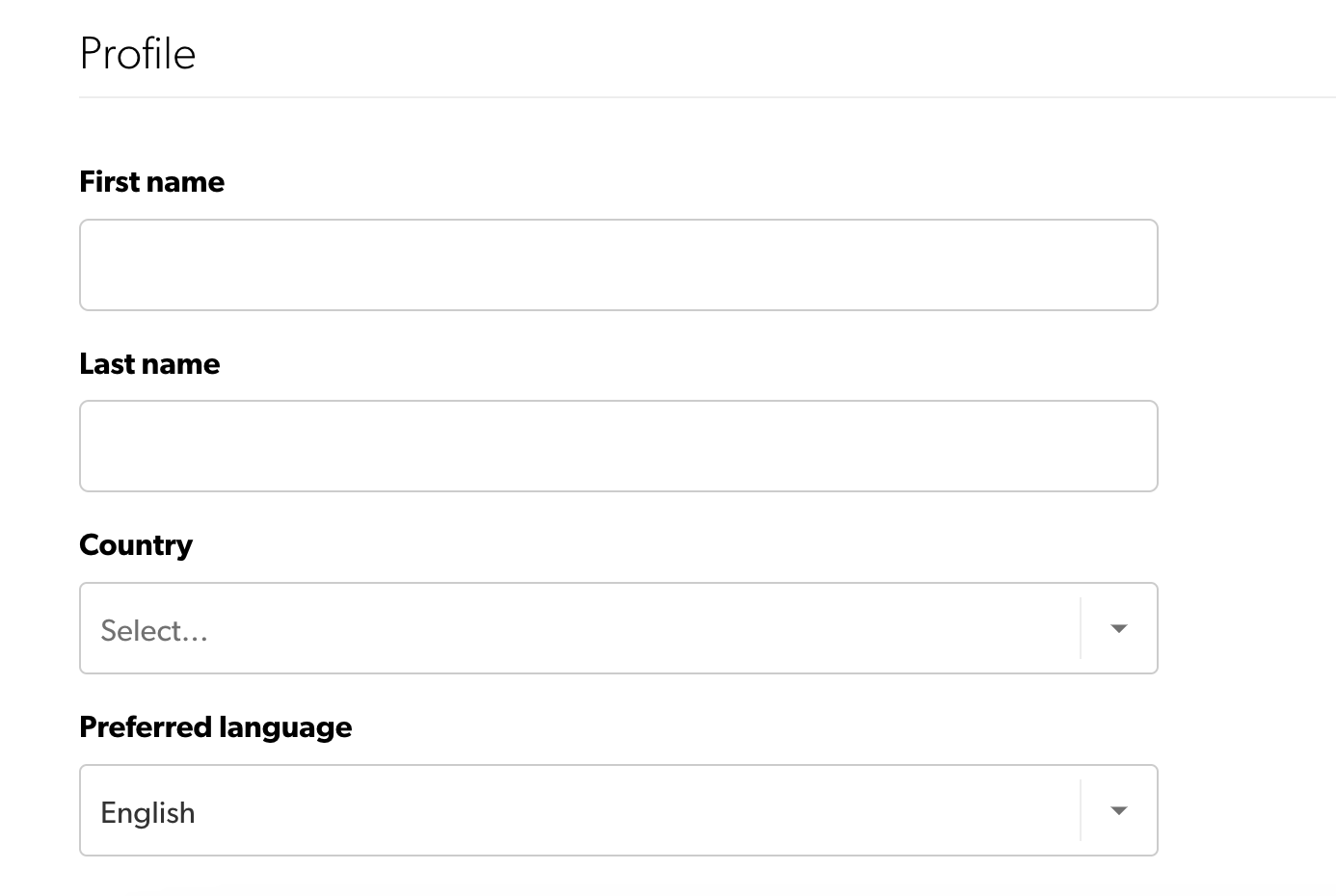
Enter all the required details in the Profile section.
-
In the Access section, select the required instance, solution, and portal roles. For this case, choose Privacy Manager as the portal role.
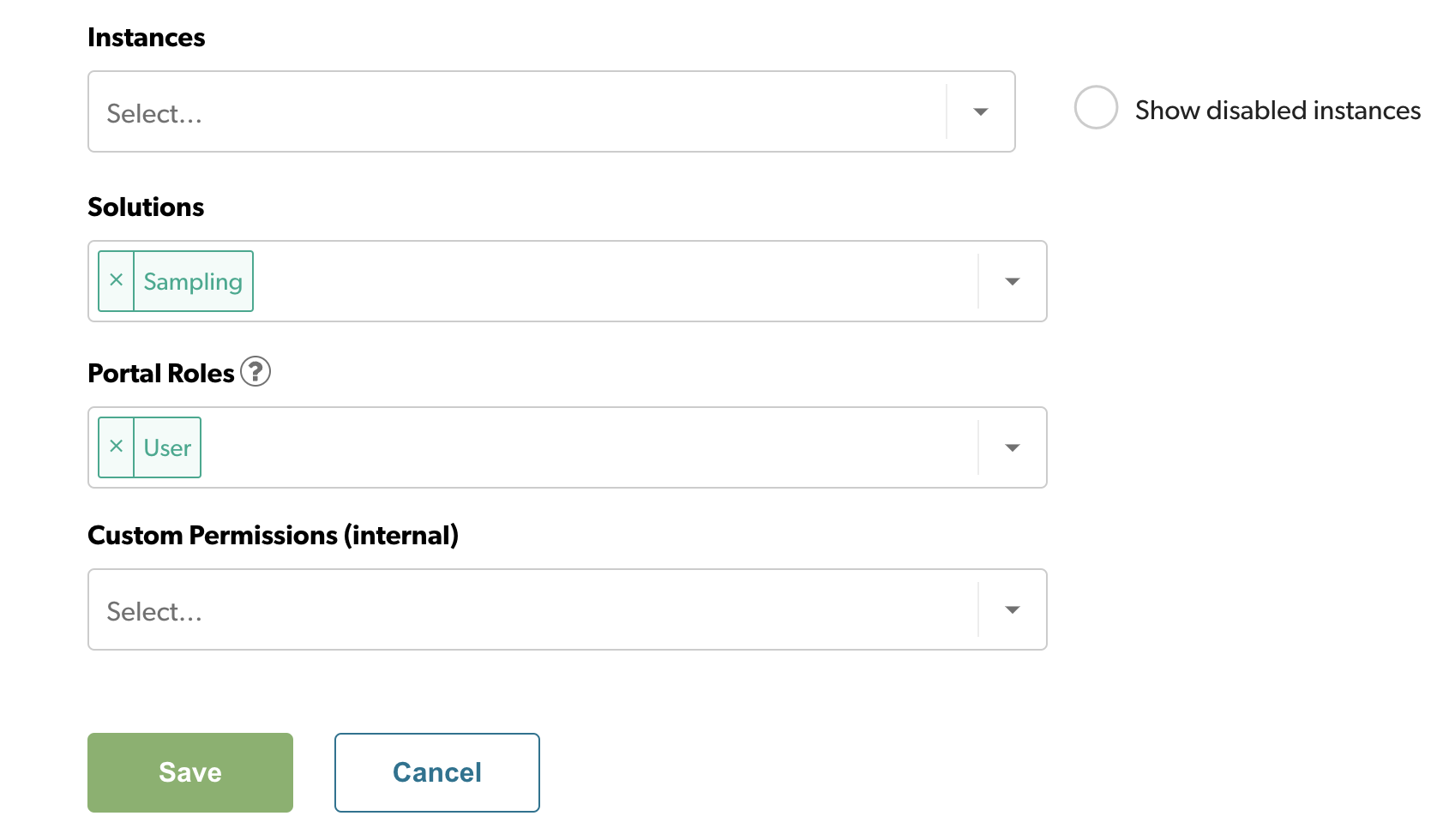
Note: If you want the user to access only the Privacy app, do not select any values under Solutions.
- For existing BV SSO accounts, use the filter in the Manage Users page to locate a user by name or email, edit the user account, and add the Privacy Manager role. Do not remove the User role.
-
To set up a new BV SSO account, follow these steps:
- Click Save. Bazaarvoice will send a verification email to the new user.

Make data access or removal requests
Follow these steps to make data access or removal requests:
- Sign in to the Bazaarvoice Portal.
-
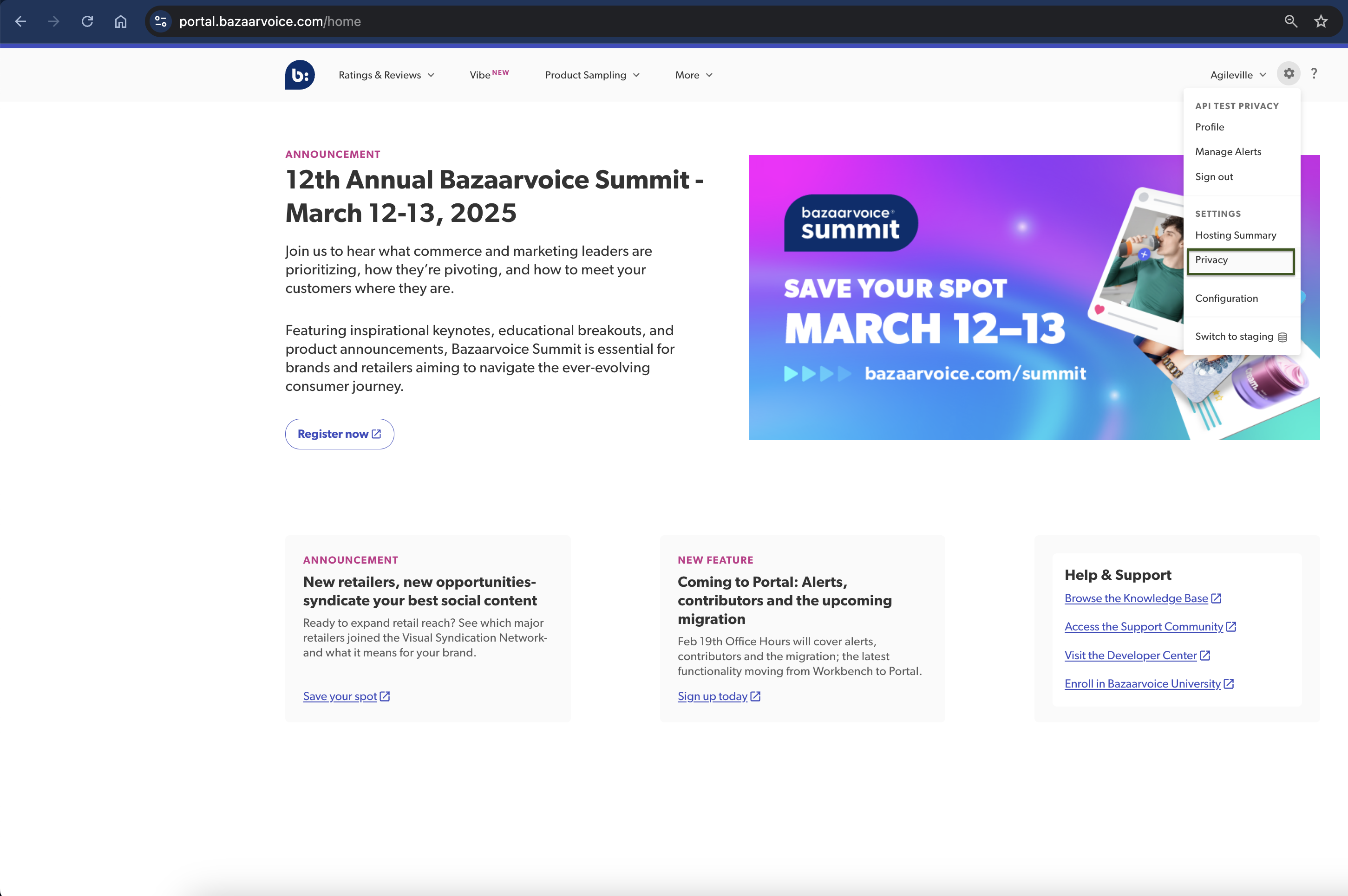
From the upper-right corner, select the settings icon .
-
Select Privacy.
-
Select a Request Type.
-
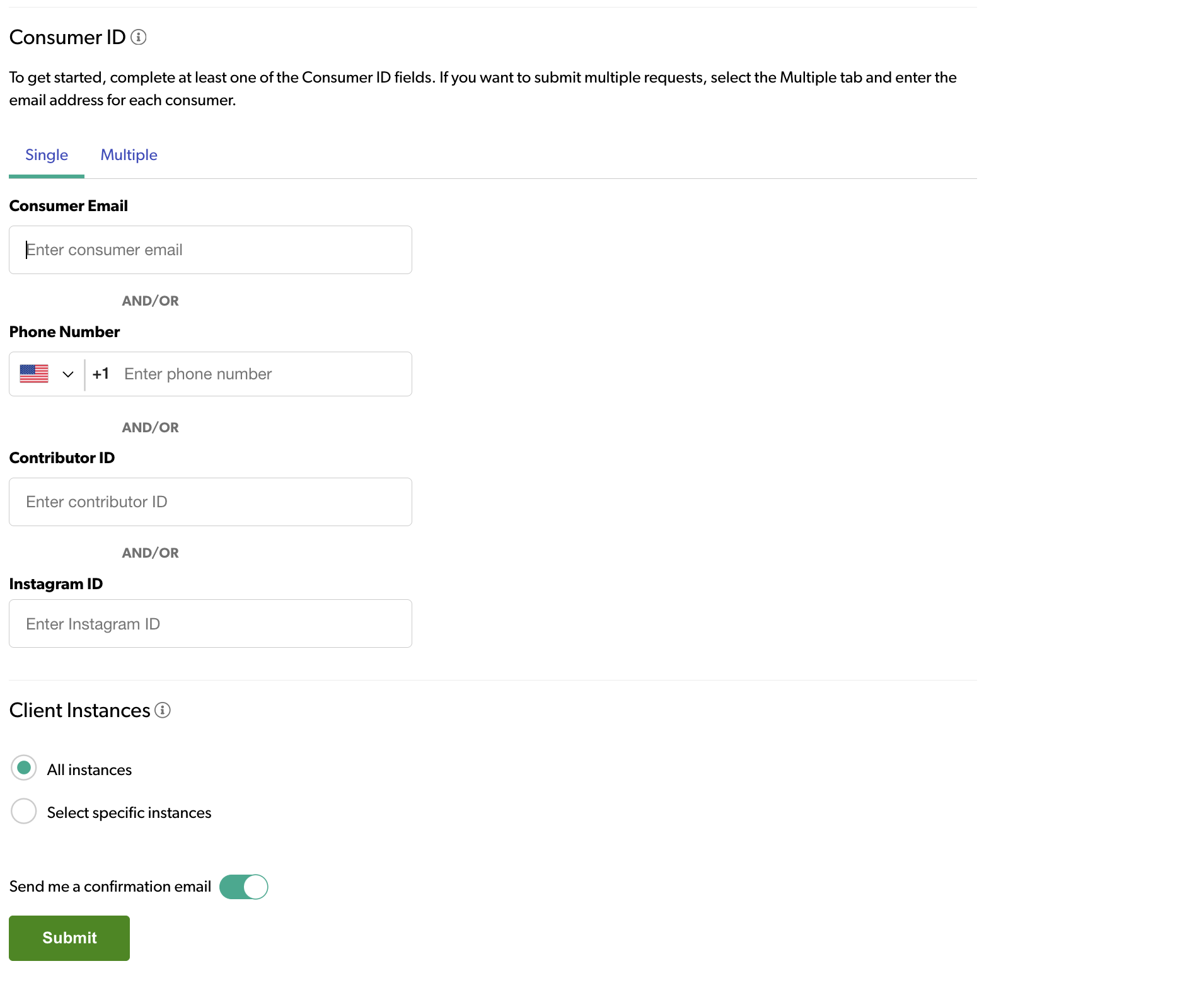
Under Consumer ID, select the Single or Multiple tab to indicate if you are submitting a request for one consumer or multiple consumers.
Note: If you select Multiple, you can submit up to 500 requests in one day and the request can be made using only the Consumer email. -
Select one of the following Consumer ID types:
- Consumer Email (recommended) - Consumer’s email address. To submit a request for multiple consumers, you must provide the email address for each consumer.
- Phone Number - Consumer's phone number.
-
Contributor ID - Unique identifier you have assigned to an authenticated user of your site.
 The Contributor ID is not the same as the nickname. Contributor IDs may not be unique across all of your sites. This may result in the retrieval or deletion of data that belongs to multiple consumers. Please proceed with caution if you are entering a Contributor ID.
 -
Instagram ID - Consumer’s instagram handle.
-
Under Client Instances, select the instances from which you want to access or remove a consumer’s data:
Caution: You cannot cancel a 'right of access' or 'right to be forgotten' request once it has been submitted. Deleting a consumer’s data is an irreversible action.
- Select All instances to search all properties for which you have administrative access.
- Choose Select specific instances to individually select the instances you want to include in your request.
- If you don’t want to receive privacy request submission and completion emails, select the Send me a confirmation email toggle. This is turned on by default and for multiple privacy requests, this results in multiple emails for each consumer or email address.
-
Review the form entries before clicking Submit. Requests cannot be submitted if there are any errors or warnings in your entries.
On submission, the app displays the following success message: Your request has been submitted. All the pending request appears in the audit log under Submitted Requests.
The audit log includes details about the request including the form fields you entered, date and time of submission, and completion status. Once a request to retrieve data has been completed, a link becomes available in the audit log to access the data download. Data is available for download for 30 days before expiring. Once data expires, that information is no longer available in the audit log.
You will receive a confirmation email when a request is submitted and another when it has been completed. For Right of Access requests, you must return to the Privacy app to access the data download. Only one consumer can be entered into the form at a time. The form will reset on submission, enabling another request to be submitted.
Consumer privacy rights FAQs
Does Bazaarvoice validate the consumer identifiers for each request?
No. It is your responsibility to verify that the known identifiers provided to Bazaarvoice are correct and point to the correct consumer before making a request. Bazaarvoice trusts all requests from you on behalf of the consumer.
Can you accelerate my privacy request?
No. While GDPR requires that privacy requests be completed within 30 days and the CCPA 45 days, both can be extended to 90 days. Due to system limitations, we can't accelerate individual requests.
Is there any way to speed up the process?
No. Once a request is submitted through the Privacy API or Portal, processing begins within 5 days and cannot be accelerated. Requests involve multiple datasets and concurrent submissions, which impacts the processing speed.
Can I track the status of my request?
No. We don’t offer real-time tracking as it increases system traffic and slows down request processing. You'll receive a confirmation email message once the request is complete.
Is my data still being tracked after I submit a privacy request?
No. Once a right-to-be-forgotten request is initiated, data tracking stops to ensure proper deletion of personal data and to allow for verification.
Should I submit my privacy request early?
Yes. We recommend submitting requests as early as possible to avoid last-minute delays.
Can you help me submit my request efficiently?
Yes. If you need help using the Privacy API or Portal, contact Bazaarvoice Support for assistance.
Does a 'right to be forgotten (RTBF)' or 'right of access (ROA)' request remove or return all content associated with the verified identifier in the form?
Bazaarvoice will make every effort to provide all data associated with the provided identifier. However, if the identifier is linked to email addresses that Bazaarvoice has not confirmed as related, data from those email addresses will not be included in the request.
Example:
-
If the provided
userid(Contributor ID) is linked to two email addresses associated with different reviews, the content from these emails will only be included if the user has verified them by clicking the confirmation link sent by Bazaarvoice. - If neither email is verified, the associated content is considered "not confirmed" and will be excluded from the response.
- If the identifier provided is not an email or does not match the linked email addresses, the related content will also be excluded.
Does a 'right to be forgotten' request remove a consumer's email address from the unsubscribe list?
No. Because we cannot send email to consumers who have unsubscribed, we must store that information. The right of access result is a compressed file containing multiple data records from our systems, including unsubscribe records if they exist. That data will be included in all future right of access requests.
Does a 'right to be forgotten' request remove both Personally Identifiable Information (PII) data and the submitted content?
Yes. Both the PII data and the submitted content will be removed.
Does the consumer receive any type of success confirmation after submitting a RTBF or ROA request?
No. The consumer does not receive any confirmation from Bazaarvoice. The confirmation to the consumer is managed exclusively by the client.
Does the consumer have access to privacy management?
No. the consumer does not have access to privacy management. They can only submit an RTBF or ROA request to the client. The client then initiates the request to Bazaarvoice through the Privacy app on behalf of the consumer.
If I syndicate native content to other retail or brand sites, can I request to have a consumer's data or content removed from those sites?
If you are syndicating on Bazaarvoice’s network and submit a request for a user’s data to be removed from your site, we will pull the data from syndication partners as well. If you are syndicating with other providers outside of our network, including PowerReviews, you will need to contact those providers to pull content down from their sites. It is your responsibility as the owner of the native content to submit data removal and access requests on behalf of consumers.
If I syndicate native content to other retail or brand sites, can I request to have a consumer's data or content removed from those sites?
If you are syndicating on Bazaarvoice’s network and submit a request for a user’s data to be removed from your site, we will pull the data from syndication partners as well. If you are syndicating with other providers outside of our network, including PowerReviews, you will need to contact those providers to pull content down from their sites. It is your responsibility as the owner of the native content to submit data removal and access requests on behalf of consumers.
If I syndicate content to search engine partners like Google or Bing and submit a right of access or right to be forgotten request to Bazaarvoice, will the consumer’s content be removed from those partners’ sites as well?
No. Partner syndication is not included in right to be forgotten or right of access requests. If you syndicate with one of our third-party partners such as Google or Microsoft, you must contact those data processors directly to ensure the request is honored.
Can I delete personal data that has been downloaded into my Salesforce Connector environment through the Ratings & Reviews API?
Yes. There are two ways to delete a consumer's data from Salesforce:
Delete data through the Salesforce Developer Console
Complete the following steps to delete data using an Anonymous Window in the Developer Console:
- Sign in to your Salesforce Org.
- Open the Developer Console.
- From the Debug menu in the console, select Open Anonymous Window.
-
Copy the following Apex code and paste it into the Anonymous Window.
Apex//Search all Email Addresses matching records:matching. String EmailAddressToDelete = 'testuser@bazaarvoice.com'; List<BV2__Interaction__c> lstInteractions = [select id, BV2__bazaarvoice_setting__c, BV2__Author_Email_Address__c, BV2__Time__c, BV2__Product__c, BV2__Contact__c from BV2__Interaction__c where BV2__Author_Email_Address__c = '']; //Search related Cases to above list of Interactions. List<case> c = [select id, BV2__Original_Interaction__c from Case WHERE BV2__Original_Interaction__c IN: lstInteractions]; List<BV2__Author__c> lstAuthorRel = new List<BV2__Author__c>(); List<BV2__product__c> lstProduct = new List<BV2__product__c>(); List<product_category__c> lstProductCategory = List<product_category__c>(); List<Contact> lstContact = new List<Contact>(); for (BV2__Interaction__c intr : lstInteractions) { lstAuthorRel.add( intr.BV2__Author__c); lstProduct.add( intr.BV2__Product__c); lstContact.add( intr.BV2__Contact__c); } //Search related Author to above list of Interactions. List<BV2__Author__c> lstAuthor = [select id, BV2__bazaarvoice_setting__c from BV2__Author__c where Id IN: lstAuthorRel]; //Search related Product to above list of Interactions. List<BV2__product__c> lstProd = [select id,bazaarvoice_setting__c from product__c where Id IN: lstProduct]; //Search related Product Category to above list of Interactions List<product_category__c> listProdCat = [select id,bazaarvoice_setting__c from product_category__c where Id IN: lstProductCategory]; //Search related Photo to above list of Interactions. List<BV2__photo__c> lstPhotos = [select id, BV2__Interaction__c from BV2__photo__c WHERE BV2__Interaction__c IN: lstInteractions]; //Search related Video to above list of Interactions. List<BV2__Video__c> lstVideo = [select id, BV2__Interaction__c from BV2__Video__c WHERE BV2__Interaction__c IN: lstInteractions]; //Search related Contacts to above list of Interactions List<contact> lstContacts = [select id from contact WHERE Id IN: lstContact]; //Delete all the related records delete lstInteractions; delete c; delete lstAuthor; delete lstPhotos; delete lstVideo; delete lstProd; delete listProdCat; delete lstContacts; - Click Execute at the bottom of the console.
Delete data through Salesforce Workbench
Complete the following steps to delete data using Salesforce Workbench:
-
Open Salesforce Workbench .
- Select the appropriate Environment and API Version.
- Click Login with Salesforce, and sign in using your credentials.
- From the Jump to: drop-down, select Apex Execute. Click Select.
-
Copy the following Apex code and paste it into the text area field.
Apex//Search all Email Address matching records:matching //Search all Email Addresses matching records:matching. String EmailAddressToDelete = 'testuser@bazaarvoice.com'; List<BV2__Interaction__c> lstInteractions = [select id, BV2__bazaarvoice_setting__c, BV2__Author_Email_Address__c, BV2__Time__c, BV2__Product__c, BV2__Contact__c from BV2__Interaction__c where BV2__Author_Email_Address__c = '']; //Search related Cases to above list of Interactions. List<case> c = [select id, BV2__Original_Interaction__c from Case WHERE BV2__Original_Interaction__c IN: lstInteractions]; List<BV2__Author__c> lstAuthorRel = new List<BV2__Author__c>(); List<BV2__product__c> lstProduct = new List<BV2__product__c>(); List<product_category__c> lstProductCategory = List<product_category__c>(); List<Contact> lstContact = new List<Contact>(); for (BV2__Interaction__c intr : lstInteractions) { lstAuthorRel.add( intr.BV2__Author__c); lstProduct.add( intr.BV2__Product__c); lstContact.add( intr.BV2__Contact__c); } //Search related Author to above list of Interactions. List<BV2__Author__c> lstAuthor = [select id, BV2__bazaarvoice_setting__c from BV2__Author__c where Id IN: lstAuthorRel]; //Search related Product to above list of Interactions. List<BV2__product__c> lstProd = [select id,bazaarvoice_setting__c from product__c where Id IN: lstProduct]; //Search related Product Category to above list of Interactions List<product_category__c> listProdCat = [select id,bazaarvoice_setting__c from product_category__c where Id IN: lstProductCategory]; //Search related Photo to above list of Interactions. List<BV2__photo__c> lstPhotos = [select id, BV2__Interaction__c from BV2__photo__c WHERE BV2__Interaction__c IN: lstInteractions]; //Search related Video to above list of Interactions. List<BV2__Video__c> lstVideo = [select id, BV2__Interaction__c from BV2__Video__c WHERE BV2__Interaction__c IN: lstInteractions]; //Search related Contacts to above list of Interactions List<contact> lstContacts = [select id from contact WHERE Id IN: lstContact]; //Delete all the related records delete lstInteractions; delete c; delete lstAuthor; delete lstPhotos; delete lstVideo; delete lstProd; delete listProdCat; delete lstContacts; - Click Execute.
How can consumers opt out of future personal data collection and tracking by Bazaarvoice?
See our Privacy Policy for more information about how users can opt out of sending their analytics and tracking data across the Bazaarvoice Network.
If you have implemented BV Pixel and you want to provide a means for users to indicate that they do not want to share any of their personal data across your domain, you can use the doNotTrack() function. See the Bazaarvoice Developer portal for more information.
Learn more
For additional information about our approach to GDPR and CCPA, sign in to the Support Community or visit the Bazaarvoice website.
Support Community
Bazaarvoice site
Bazaarvoice has always taken protecting client and consumer information seriously. As part of our GDPR and CCPA preparation, we reviewed and enhanced our internal data protection policies and procedures including data handling, product design, and vendor management. These policies ensure we consider the protection of subject data when addressing any processing of personal information both within our companies and within the processors we use in fulfilling our services.