What you'll learn
- Why add schema.org markup?
- Schema.org formats
- Why should I switch to JSON-LD?
- Add JSON-LD schema.org markup
- Frequently asked questions
Using this article
To add schema.org markup to your display pages, you can complete step 1 in this article by yourself. However, we recommend you ask your developers to complete steps 2 and 3.
Why add schema.org markup?
Customers often find products through search engines. Adding schema.org markup to your product detail pages (PDPs) makes it easier for search engines such as Google, Yahoo, and Bing to understand your site’s content and display rich snippets such as star ratings, review summaries, and aggregate scores in the search engine results page (SERPs).
As 95% of consumers read reviews before making a purchase online, rich snippets, or “rich results”, such as star ratings or review summaries help you to:
- drive organic traffic to your PDPs. Product pages with rich snippets see a significant lift in clickthrough rate (CTR). Standing out in search results helps to attract customers to your site.
- protect and improve search rankings. While schema.org markup doesn’t directly affect search engine optimization (SEO) or search rankings, the lift in CTR from rich snippets can help push your PDPs up SERPs.
- make your user-generated content (UGC) relevant to AI. Bazaarvoice-implemented JSON-LD and microdata enhancements use APIs to make your UGC accessible to all major AI crawlers. For example, ChatGPT, Claude, and Gemini.
- increase conversion rates. Displaying UGC that customers can see before selecting a link on your site prepares them to make a purchase once your PDP opens.
- make your content stand out on search results pages
- align with industry standards

Rich snippet types
Although there are dozens of rich snippet types available, only a handful apply to retail and brand sites. AggregateRating and Review are two of the most valuable markup types you can add to Bazaarvoice Ratings & Reviews UGC.
-
AggregateRating: This snippet type gives search engines the number of aggregated reviews and star rating (out of 5) for a product.
-
Review: This snippet type gives search engines specific review related information about a product.
Here’s an example of a rich snippet:
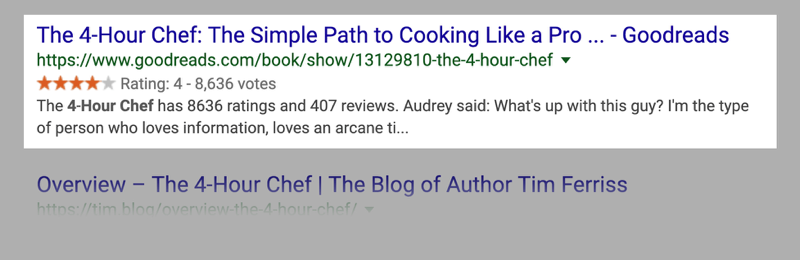
Schema.org formats
We support structured data in two formats:
- JSON-LD
- Microdata
While Google supports both formats, they have announced JSON-LD as their preferred format for structured data. Read the technical information in the following table for more details about JSON-LD and microdata.
| Format | Description and placement |
|---|---|
| JSON-LD (Recommended) | JSON-LD stands for JavaScript Object Notation for Linked Data. JSON is a lightweight data-interchange format, which is easy for humans to read and write and for machines to parse and generate. Instead of adding schema.org attributes to individual elements on a page like microdata does, JSON-LD allows you to mark rich snippets you want to expose in a standalone block of JavaScript code. This makes JSON-LD structured data easy to add, update, or remove.
Note: Embed your JSON-LD structured code in a
<script> tag in the head section of your HTML page.
|
| Microdata | Microdata uses HTML tag attributes to mark the content you want to expose as structured data. Microdata-structured data communicates the same information that JSON-LD does. However, using the microdata format can be messy as structured data is nested inline within the HTML content.
Note: Microdata is embedded in
<div> tags and typically placed inline to elements in your HTML page’s Document Object Model (DOM).
|
Why should I switch to JSON-LD?
If you are a Bazaarvoice client currently using microdata-structured markup, we recommend migrating to JSON-LD. Google supports both formats, but recommends using JSON-LD.
We recommend using JSON-LD as:
- it is a lightweight format that is easy for humans to read and write and for search engines to parse and generate. As a result, it helps search engines and generative AI tools to see your brand as authoritative and prioritize your data.
- it increases the success of your SEO and ROI efforts by making your UGC accessible to AI systems and traditional search engines and helping them read and index all of the consumer reviews and questions on your site. This makes it easier for shoppers to discover your products in search results.
- it is simpler and cleaner for developers to implement and manage than microdata.
- you can add, update, or remove JSON-LD quickly without breaking your page layout or design standards.
If your UGC is not delivered in JSON-LD, your PDPs are less likely to appear in high-ranking positions in search results and you may miss opportunities to organically acquire new customers.
Pre-migration steps
Before you migrate from a microdata-structured data format to JSON-LD, ask your developer to remove any existing microdata from your HTML pages.
Add JSON-LD schema.org markup
Complete these steps to add JSON-LD schema.org markup.
Step 1: Enable JSON-LD
-
Sign in to the Bazaarvoice Portal.
-
From the upper-right corner, select the settings icon
 .
.
- Under Configuration, select Ratings & Reviews. The Site Manager lists all your active deployment zones and implementations.
- Under Implementations, locate the Ratings & Reviews implementation where you want to configure SEO settings. Select Edit next to the implementation to open the configuration.
- Select SEO on the left side of the page under Settings. The SEO page appears.
-
Make selections for each of the following SEO options for your implementation:
- AggregateRating tag location—Google will only display rich snippet stars for pages with one schema.org AggregateRating tag. Choose a location from the following options to insert this tag:
- Primary Ratings Summary (default)—Inserts the AggregateRating tag on the primary rating summary page. We recommend this option.
- Reviews Container—Inserts the AggregateRating tag at the top of the reviews container.
- Remove Aggregate Rating tag—Excludes the AggregateRating tag.
- SEO Markup Type—Select SEO JSON-LD Markup from the drop-down list.
- Redeploy your implementation.
Step 2: Update product JSON-LD markup on your PDPs
Ensure you have valid JSON-LD markup on your product page and update the following:
-
Add or update the
@idproperty with your product page URL. -
Remove any references to rating, review, aggregaterating, and other schema.org definitions from your existing JSON-LD Product object. These will be provided via the Bazaarvoice JSON-LD markup.
This example illustrates what your JSON-LD structured data should look like:
HTML<html> <head> <title>Product Page</title> <!--Client injected code--> <script type="application/ld+json"> { "@context" : "https://schema.org", "@type" : "Product", "@id" : "https://yourdomain.com/product-url", "name" : "Name of Product", "image" : "image url", "description" : "this is the product description", "sku" : "Product1", "brand" : "PopularBrand"} </script> <!--BV injected code--> <script id="bv-jsonld-aggregate-rating-data" type="application/ld+json"> { "@context": "http://schema.org", "@id": "https://yourdomain.com/product-url", "aggregateRating": { "@type": "AggregateRating", "bestRating":5, "ratingValue":3.8, "reviewCount":1070 } } </script>
@id value in the Product markup should match the @id URL value in the JSON-LD markup injected by Bazaarvoice. Bazaarvoice JSON-LD elements, such as AggregateRating and Review, should be included in the same @type (most likely “Product”). Refer to Using JSON-LD for more information about JSON-LD elements.
-
Validate the schema.org markup on each PDP.
Note: You are responsible for validating the schema.org markup on each PDP.
Step 3: Validate JSON-LD schema.org markup
We recommend you use the Rich Results Test tool to validate your markup and identify any errors.
To test your schema.org markup integration:
-
Navigate to your product display page (PDP) to ensure that the Summary AND the Reviews containers are both displaying on the page. By default, Bazaarvoice’s
AggregateRatingschema.org markup is only injected if the Summary container is on the page. The same applies to theReviewschema.org markup and the Reviews container. -
Verify the correct JSON-LD blocks are being injected into the product display page by using the Elements inspector from your browser's Developer Tools.
-
To open the Elements inspector, right-click a product display page to open the context menu. Choose Inspect to open the Developer Tools.
Note: These testing tools rely on the active HTML in the browser. Using View > Developer > View Source (Option-Command-U on OS X) will only show the server-rendered HTML. Using Inspect will access the markup that Ratings & Reviews injects dynamically. -
Open search by pressing Ctrl+F (Command-F on OS X) and type ld+json to find all of the JSON-LD blocks on the page. Press Enter or select the down arrow to continue searching.
Ensure there is a block providing the
aggregateRatingkey and another providing thereviewkey. Then, validate that the@idattribute with the product page URL matches the injected blocks. The example below uses@id”:”https://yourdomain.com/product-urlin the blocks for theaggregateRatingkey and thereviewkey. If you've additional display elements, such as head-to-head reviews, you might see additional injected JSON-LD blocks.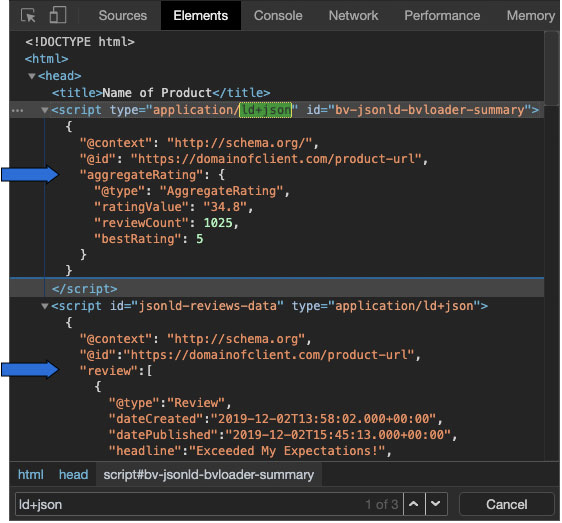
-
-
Select the Elements tab in the Developer Tools and find the schema.org markup. For example, the
< html ... >element. Right-click and select Copy > Copy Outer HTML. Make sure you copy the entire DOM for valid results.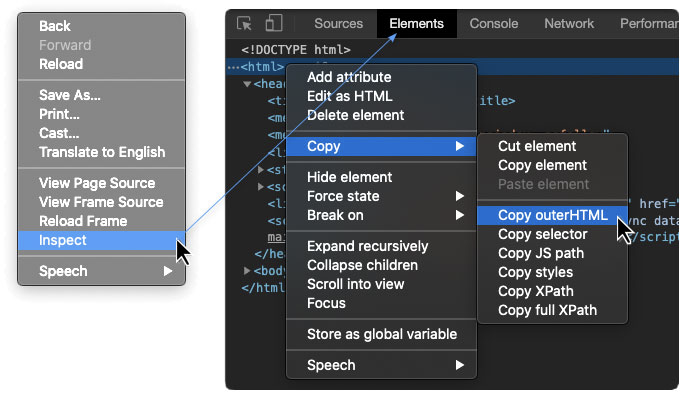
-
In a new tab, open the Rich Results Test
tool.
-
Select the < > CODE tab and paste the HTML you copied.
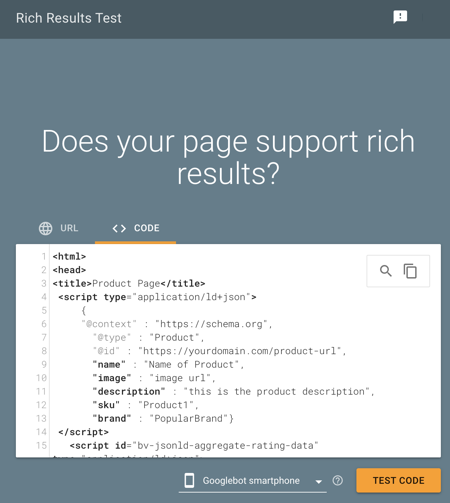
-
Select TEST CODE. Rich Results will then show you how it interprets any structured data it finds. Check the schema.org markup for two things:
- Is Product a top-level element?
- Are Reviews correctly nested under Product?
The Rich Results Testing tool will detect errors and/or warnings.
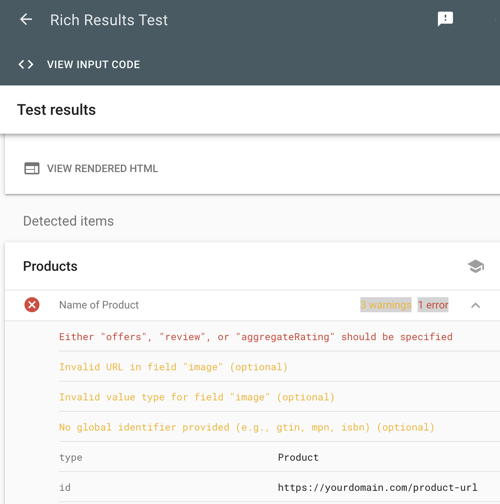
- If errors are detected, select the errors report to find the source of the problem code.
- Review the warnings and confirm they are caused by your existing code. JSON-LD markup unrelated to Bazaarvoice code is outside the scope of support.
Common questions
Does JSON-LD work for bv.js and bvapi.js?
Yes. JSON-LD will work if you are using either bv.js or bvapi.js.
What is Schema.org?
Schema.org is a collaborative standards initiative (set up by Google, Bing, and Yahoo in 2011) to promote industry standards for improving the web. Schema.org markup uses a form of structured metadata that you add to your PDPs to help search engines return richer search results pages to customers. You don’t need to learn any new coding skills. Schema.org markup uses Javascript (JSON) syntax.
What is microdata?
Microdata is schema.org markup added inline to a webpage’s DOM. Nested microdata often derives its meaning and connections based on the structure of content on a page.
Can JSON-LD be enabled for PRR (legacy Ratings & Reviews solution)?
No. JSON-LD format is not supported in our legacy Product Ratings & Reviews (PRR) product.
