Display (V2) Inline Ratings Widget
You can configure these styles using Style Editor in the Bazaarvoice Portal:
-
Sign in to the Bazaarvoice Portal.
-
From the upper-right corner, select the settings icon.
-
Under Configuration, select Ratings & Reviews.
-
Under Implementations, select Edit next to the implementation you want to configure.
-
Select Style Editor in the User Experience section on the left.
Fonts
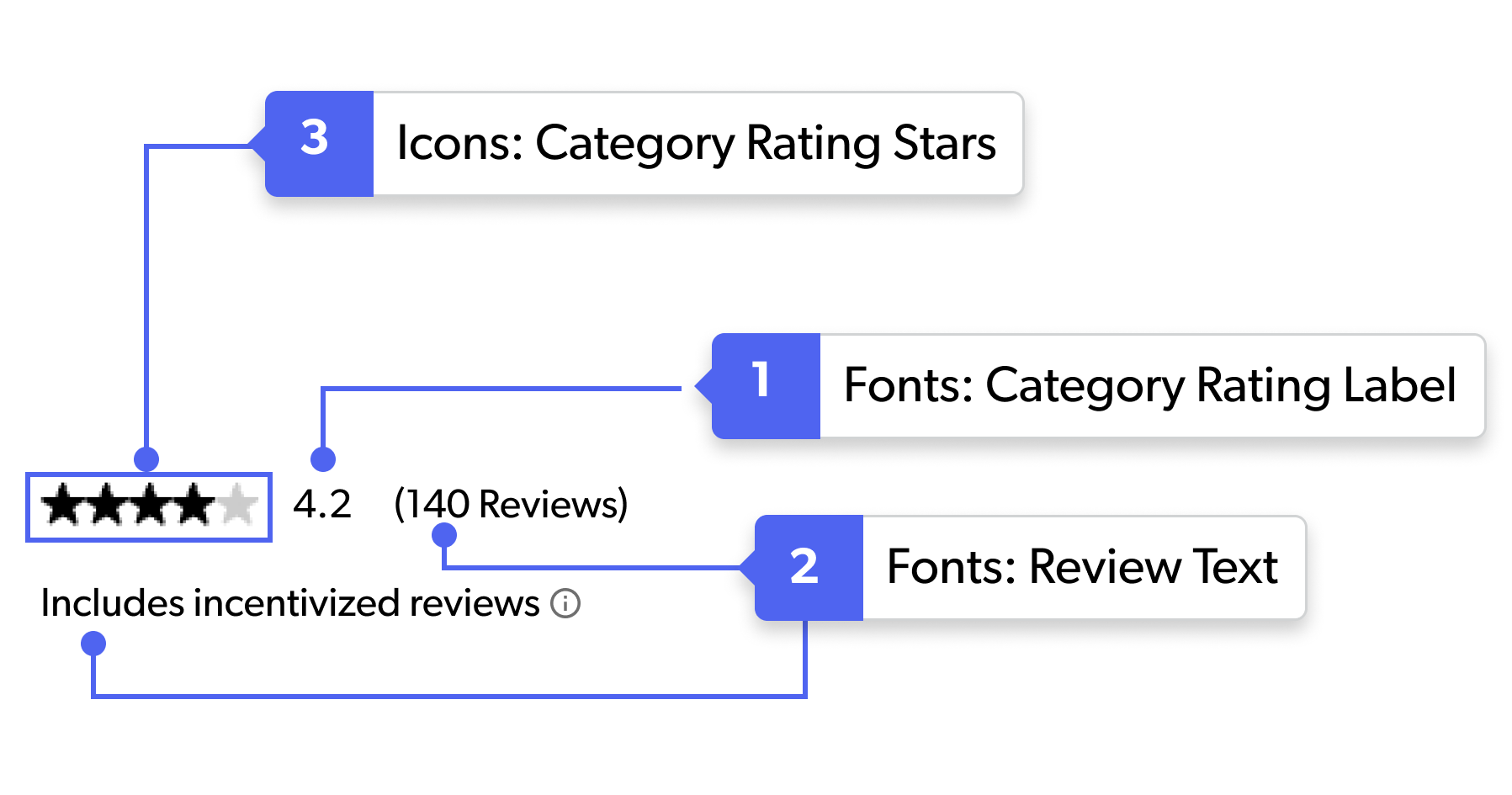
Select Fonts to update the font styles. Example: Fonts > Category Rating Label.
1. Category Rating Label
Category Rating Label setting governs the Label Color, Label Font, and Label Size, ensuring consistent typography across the interface.
2. Review Text
Review Text properties are driven by the global review text font settings. Specifically, the Review Text Color inherits from the font color, while the Review Text font family and size are mapped directly from the review text font family and size definitions.
Icons
Select Icons to update the icon styles. Example: Icons > Category Rating Stars.
3. Category Rating Stars
Star Icon properties are driven by the global category rating star settings. Specifically, the Star Color inherits from the sub-style color definitions for both full and empty states, while the Star Size is mapped directly from the category rating stars size configuration.
|
|
