Use Manage Subscriptions to upload and manage subscription feed (consumer email preferences) directly in the Bazaarvoice Portal—no need to configure or maintain subscription feed files on an SFTP server.
Benefits of managing subscription feed in Portal
- Reduced maintenance: No need to manage an SFTP client.
- Simpler data preparation: Use familiar formats such as CSV, XLSX, and TSV to prepare data that are easy to create and manage.
- Faster error detection: Identify and fix formatting issues or duplicate records during upload instead of waiting for batch processing.
- Improved visibility: View the history of all uploaded subscription feed files and their processing status directly in the Portal. You can also download the uploaded source file.
- Export: Download specific consumer email preference records for reporting and compliance.
Required solutions and roles
You must have:
|
Solutions
|
Roles
|
|---|---|
|
|
|

Note: To learn more about how solutions and roles are assigned in the Bazaarvoice Portal, refer to Users and permissions.
Create subscription feed file
You can create a CSV, TSV, or XLSX file that must be formatted according to Bazaarvoice's standard requirements to ensure it passes the automated validation during file upload.
- Your subscription feed file should include one email address on each line with the notification type, as shown below:
email_address1, PIE
email_address2, REVIEW_APPROVED
email_address3, REVIEW_REJECTED
email_address4, ALL
... - You can include up to 100,000 email addresses in a feed file.
- The system checks the uploaded file for correct format and structure, like
- Ensuring each email address is correctly structured.
- Verifying that each email address has a valid domain.
- Identifying duplicate entries and displaying them as a warning.
- Only valid and unique email addresses are added to the subscribe or unsubscribe list, and these will be considered for future review request communications.
Get started
- Sign in to the Bazaarvoice Portal.
- Select the required client instance name from the Instance Selector drop-down list in the upper-right corner.
-
From the upper-right corner, select the settings icon
 .
.
- Go to the Configuration section and select Manage Subscriptions.
- The Manage Subscription page appears.
Import subscription feed file
-
On the Manage Subscriptions page, proceed based on your history:
- For first-time uploads: Select Get started.
- For subsequent uploads: If you see a table of previous uploads, select +Import subscription feed in the upper-right corner.
-
On the Import subscription feed file page, upload a file containing consumer email addresses.
- Supported file formats are .csv, .xlsx, and .tsv.
- The maximum file size is 50 MB.
-
Select "Subscribe" or "Unsubscribe" to set the consumer email preference.
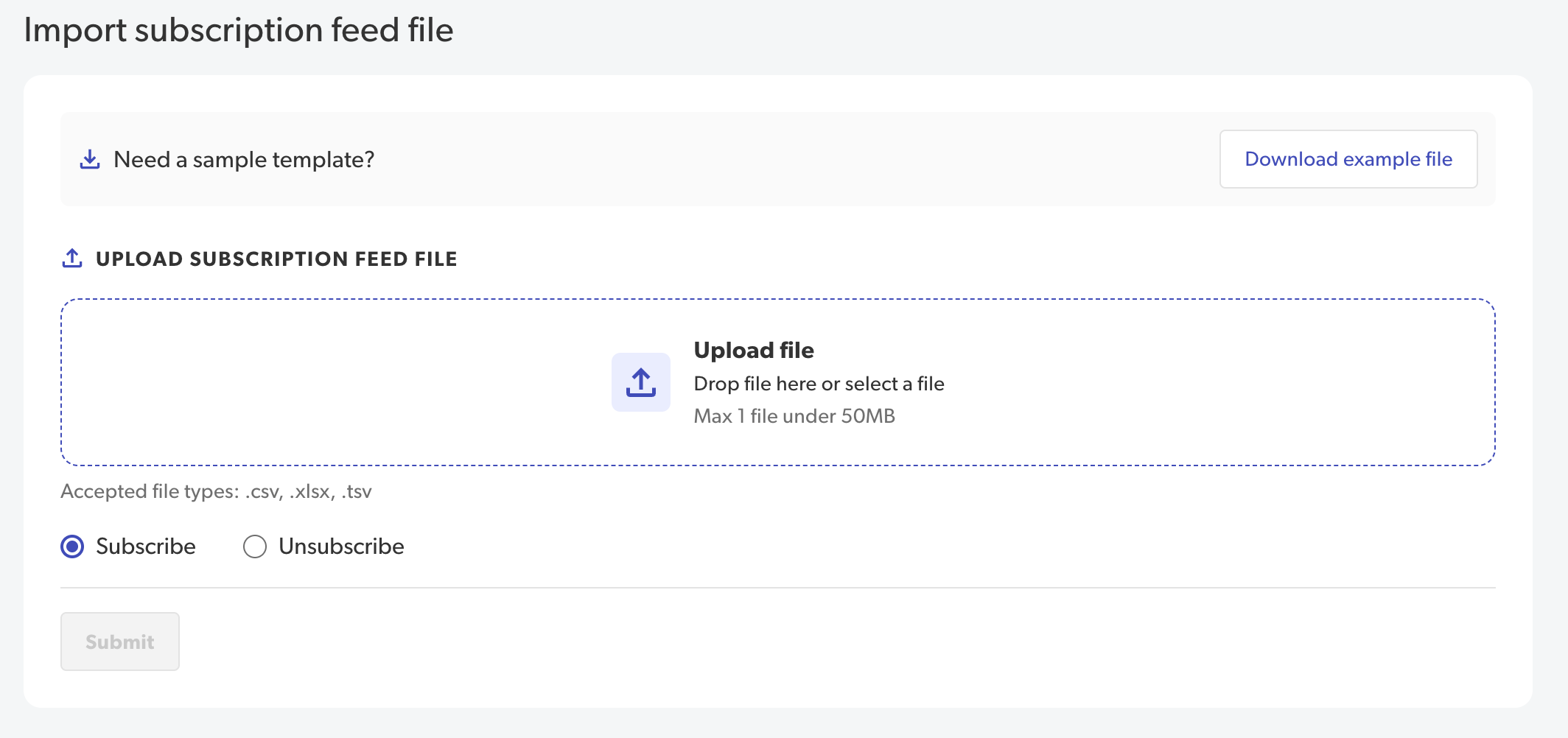
- The system runs a real-time check to identify duplicate codes and formatting issues. If errors occur, select Download error report, fix the issue, and then upload the file again.
-
To cancel the uploaded file, select X.
Note: Valid email addresses that pass the check will still be processed, even if you choose not to fix invalid ones and re-upload the file. - Select Submit to complete the import.
View subscription feed history
- On the Manage Subscriptions page, select the Subscription History tab.
- The Subscription History tab displays a history of all the uploaded files with the following information:
- Import ID: A unique ID assigned to the upload.
- File name: The original name of the uploaded file.
- Preference: The consumer’s selected email preference: “Subscribe” or “Unsubscribe.”
- Uploaded on: The date the file was uploaded.
- Uploaded by: The email address of the user who uploaded the file.
- Total records: The total number of email addresses listed in the file.
-
Status: The current processing state of the uploaded file.
- In Process: The uploaded file is currently being processed to apply updated subscription preferences to each email address in the file.
- Queued: The file was uploaded successfully and is awaiting processing. This status typically occurs during periods of high system load.
- Success: All valid records have been processed, and subscription preferences were successfully applied to the email addresses in the file.
- Failed: The file was not processed because the system could not establish a secure connection with the subscription database. Please wait a few minutes and try again. If the issue persists, contact Bazaarvoice Support.
- Action: Download the source file. This file will be deleted after 30 days from the date of upload.
Export subscription feed file
- On the Manage Subscriptions page, select the Export History tab.
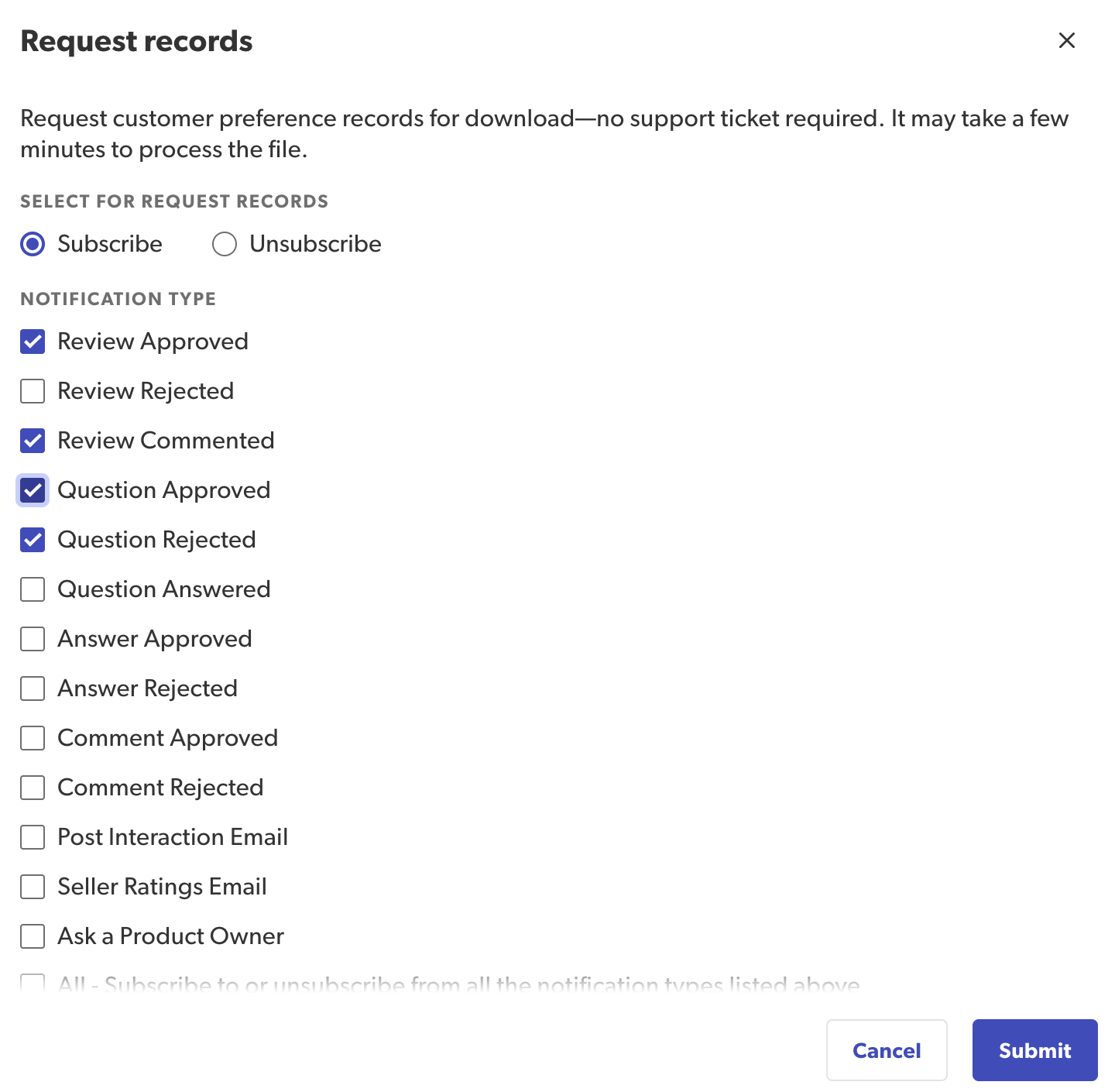
- Select +Request records in the upper-right corner; the Request export modal appears.
-
Choose your preferred download option:
- Subscribe: Downloads only subscribed email addresses.
- Unsubscribe: Downloads only unsubscribed email addresses.
-
Select the notification types to include in your download.
-
Select Submit.Note: Once processing is complete, you will receive an email with the password to download your ZIP file from the Export History tab.
View export history
- On the Manage Subscriptions page, select the Export History tab.
- The Export History tab displays a history of all the exported files with the following information.
- Export ID: A unique ID assigned to the export.
- Requested on: The date the export was requested on.
- Preference: The consumer's selected email preference: "Subscribe" or "Unsubscribe."
- Notification type: The email type to which the consumer's preference applies.
- Requested by: The email address of the user who exported the file.
- Total records: The total number of email addresses listed in the file.
- Status: The current processing state of the exported file.
- In Process: The file is currently being generated.
- Ready: The file is ready and available for download.
- Queued: The file is queued for processing and will be available for download shortly. Please check back in a few minutes.
- Failed: The file could not be generated because the system was unable to establish a secure connection with the subscription database. Please wait a few minutes and try again. If the issue persists, contact Bazaarvoice Support.
- Action: Download the source file. This file will be deleted after 30 days from the date of upload.
