Creating email alerts for product catalog feed imports allows you to receive an email containing a detailed list of errors or warnings identified by Bazaarvoice in the feed.
Alert roles and capabilities
The following table lists Portal alert roles.
|
Role
|
Description
|
|---|---|
|
Alerts Viewer
|
|
|
Alerts Contributor
|
|
|
Alerts Administrator
|
|
|
Users
|
|
Before you begin
-
Sign in to the Bazaarvoice Portal
 . If you can't sign in, contact Bazaarvoice Support for assistance. Learn more about Portal permissions and user accounts.
- From the navigation bar, select More > Product Catalog.
- Select the Feed tab.
Create alerts
-
Go to the Validate Product Feed tab.
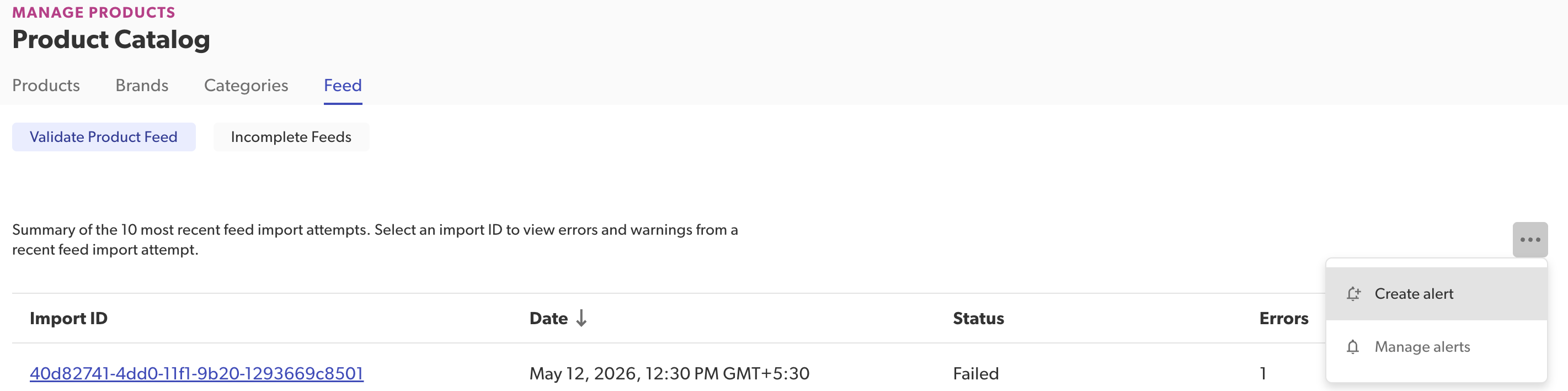
- From the List view, select the action menu (...) > Create alert. The Create Product Feed alert modal appears.
-
Configure alert settings:
-
Set alert conditions: Select the filter conditions that will trigger your real-time alert. For example, select Errors to trigger alerts only for errors in the feed.
Note: You must select at least one filter condition. Filters will vary based on the condition type you selected.
- Alert name: Enter an alert name. For example, “Product feed errors”.
-
Recipients: Enter email addresses for the Portal users you want to notify when an alert matches the filter criteria.
Note: Each recipient must have an active Portal account.
-
Set alert conditions: Select the filter conditions that will trigger your real-time alert. For example, select Errors to trigger alerts only for errors in the feed.

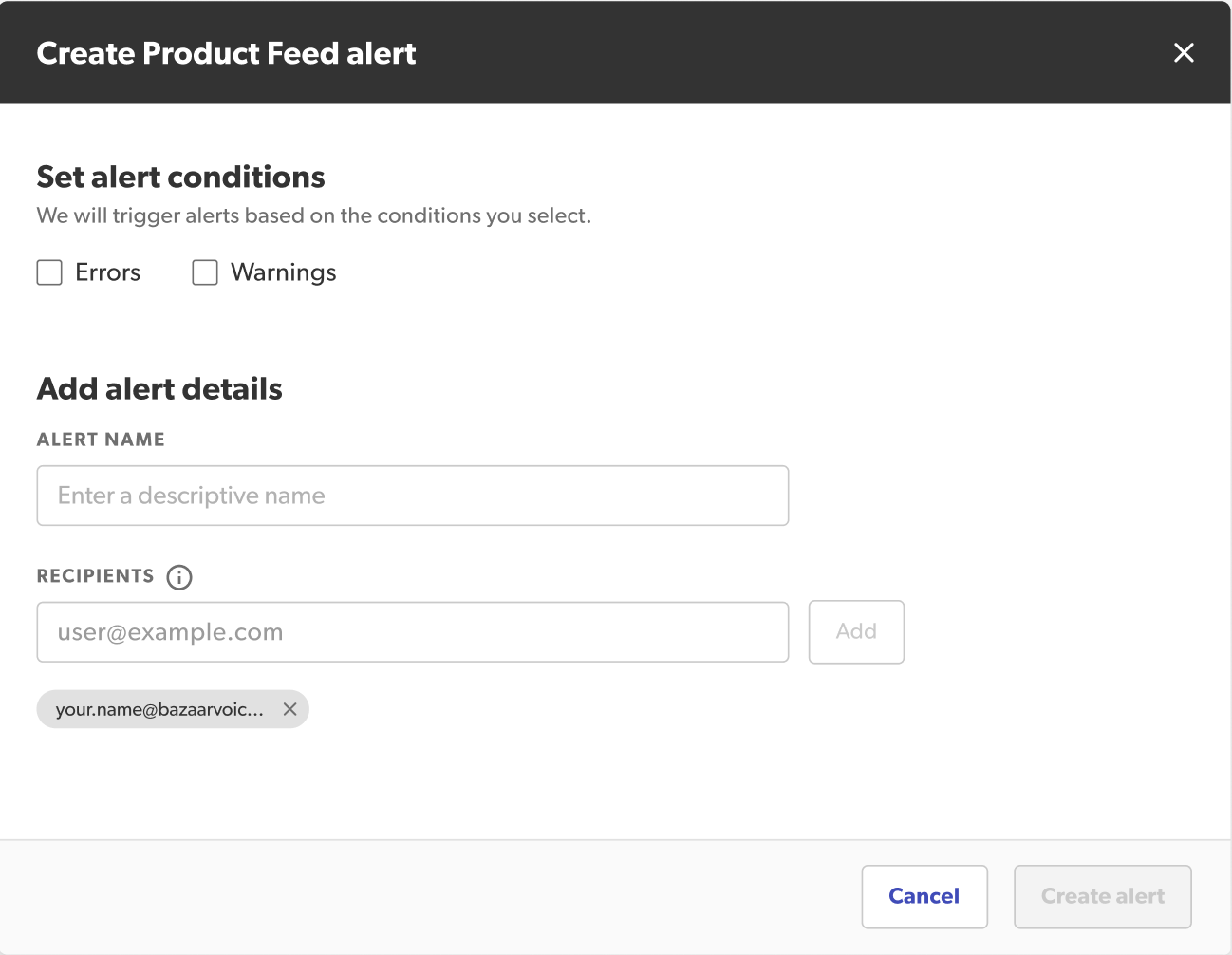
- Select Create alert. Recipients will receive an alert email whenever content matches the specified filter criteria.
View existing alerts
- Go to the Validate Product Feed tab.
- From the List view, select the action menu (...) > Manage alerts. The Manage alerts page appears, displaying all your alerts in a table with the following details:
|
Column
|
Description
|
|---|---|
|
Alert name
|
Name of the alert.
|
|
Created by
|
Name of the person who created the alert.
|
|
Date created
|
Date the alert was created
|
|
Recipients
|
Number of people who receive notifications for this alert.
|
|
Alert type
|
Type of alert:
|
|
Actions
|
From the alerts table, you can:
Edit alerts
To edit an existing alert:
- Select the alert you want to edit from the Alert name column of the table.
- In the modal that appears, update the alert filters, name, and recipients as required.
- Select Save.
Delete alerts
To delete an existing alert:
-
In the Actions column of the table, select
 > Delete alert in the row containing the alert you want to delete.
- Select Delete.
Stop receiving alerts
To stop receive notifications for an alert:
-
In the Actions column of the table, select > Stop receiving alert in the row containing the alert you want to stop receiving notifications for.
- In the modal that appears, select Remove.
