
- The following instructions are deprecated and not recommended for new implementations. They are provided only as a technical reference for clients who are still using the Product Families feature.
- We strongly encourage all clients to migrate from Product Families to the new Product Groups feature for native User-Generated Content (UGC) and visual gallery sharing. For details on how to migrate, please refer to the Product Groups migration guidelines.
Best practices for implementation:
- Use Product Groups to consolidate and share all native UGC and visual galleries across products.
- Use Product Families strictly for product bundling—grouping distinct items sold together as a single purchasing unit (e.g., a seasonal shampoo and conditioner gift set).
Share native reviews using product families
Product families enable you to share user-generated content (UGC) across multiple related products. By grouping products in families, you can display UGC written about one family product on the product display pages of all family products.

- Product families only work for native review sharing.
- Syndication ignores product family relationships as it relies on GTIN stacking.
- If you plan to implement or have implemented syndication, contact Bazaarvoice support before configuring product families in your product feed.
Learn about product families and product bundles with the Optimize your Bazaarvoice product catalog course at Bazaarvoice university.
Benefits of using product families
Sharing reviews among products in the family increases the following key performance indicators for your Bazaarvoice implementation:
- Percentage of products with displayed reviews
- Number of products with displayed reviews
- Average reviews for each product
- Number of total displayed reviews
Types of product families
The type of product family that you use depends on how products differ:
-
Product variants — Products that are nearly identical to other products in terms of consumer experience, but they have different SKUs or part numbers. For example, products that come in different colors, different sizes, or are packaged in different weights or quantities may be variants of one another. Content from product variants is usually shared in all directions. All products in a given family display content that was written about the other family members.
Creating a product family of product variants works best when each product variant is featured on its own product display page. If all product variants share the same page on your site, treating the variants as one product when integrating with Bazaarvoice may be simpler and more practical than setting up a product family for those products.
- Product bundles — Groups of products sold together that otherwise may be sold individually. Content about product bundles is usually shared in one direction: from individual components to the product bundle. Typically, the product display page of a bundle displays all reviews written about the individual components. However, the product display page of each component shows reviews only about that component.
Understand product families
- Configure product families using catalog feed file
- Create product families in the Bazaarvoice Portal
Things to know
Keep the following in mind when configuring product families:
- Portal families: Families that are created directly in the Portal user interface are Portal families. Only Portal families appear on the Manage Families page in Portal.
- Feed families: Families that are imported in the product list page in Portal are feed families. Feed families can only be edited using DCC, SFTP upload, or import to the product list page in Portal.
- Source priority: If there are any data conflicts, the details imported in the product list page in Portal take priority over feed family details provided using other methods (Portal spreadsheeet import takes priority).
- Common product identifiers: Ensure the products grouped in a family has correct product identifiers—such as UPC, EAN, GTIN, MPN, or model number. Missing or mismatched identifiers prevent native content sharing.
- Only native UGC: Product families work only for native UGC sharing within a client website.
- No customization: Product families share all UGC types together (ratings, reviews, and Q&A). Individual content types cannot be shared selectively.
- Portal-exclusive updates: Families created or updated in Portal can only be modified within Portal. These Portal families cannot be edited or updated by a product feed.
- No overrides: Product family definitions provided in a catalog feed file (XML) do not override any family operations performed in the Portal.
- Separate management: Portal-created and feed-created families are managed separately: edit each family using the same method that created it. The two cannot be mixed.
- Environment: Product family configurations do not carry over from the staging environment to the production environment.
(Product ID /External ID)that you would like to group as a family are added to your product catalog. We also recommend you read the Best practices to ensure you’re meeting the Bazaarvoice guidelines.
Configure product families using catalog feed file
We recommend you create product families through the XML feed if you have a clear idea about which products can be grouped into families. Automating those relationships in the product feed is straightforward and faster than creating them in Portal.
You can configure product families in your catalog feed by including the following attributes:
- BV_FE_FAMILY—Adds a product to a specific family.
- BV_FE_EXPAND—Enables native content sharing to display UGC from all family products on this PDP. Without this attribute, UGC from other family products will not appear.

Product variants example
In this XML example, all products in a family display content about all other products in the family.
XML |
<Product> <ExternalId>...</ExternalId> <Name>Green iPod Nano</Name> <Description>...</Description> <BrandExternalId> ... </BrandExternalId> <CategoryExternalId>...</CategoryExternalId> <ProductPageUrl> ... </ProductPageUrl> <ImageUrl>...</ImageUrl> <Attributes> <Attribute id="BV_FE_FAMILY"> <Value>iPod_Nanos</Value> </Attribute> <Attribute id="BV_FE_EXPAND"> <Value>BV_FE_FAMILY:iPod_Nanos</Value> </Attribute> </Attributes> </Product> <Product> <ExternalId>...</ExternalId> <Name>Pink iPod Nano</Name> <Description>...</Description> <BrandExternalId> ... </BrandExternalId> <CategoryExternalId>...</CategoryExternalId> <ProductPageUrl> ... </ProductPageUrl> <ImageUrl>...</ImageUrl> <Attributes> <Attribute id="BV_FE_FAMILY"> <Value>iPod_Nanos</Value> </Attribute> <Attribute id="BV_FE_EXPAND"> <Value>BV_FE_FAMILY:iPod_Nanos</Value> </Attribute> </Attributes> </Product> |
Product bundles example
In the following XML example, the product bundle includes BV_FE_EXPAND, so all reviews about family products display on the bundle's page. However, BV_FE_EXPAND is omitted from the product<Attribute>definitions of the individual products to prevent reviews about the bundle from displaying on individual product pages.
XML |
<Product> <ExternalId>...</ExternalId> <Name>Value Bundle</Name> <Description>...</Description> <BrandExternalId>...</BrandExternalId> <CategoryExternalId>...</CategoryExternalId> <ProductPageUrl>...</ProductPageUrl> <ImageUrl>...</ImageUrl> <Attributes> <Attribute id="BV_FE_FAMILY"> <Value>Value_Bundle</Value> </Attribute> <!-- Including BV_FE_EXPAND displays content from all components on the bundle page --> <Attribute id="BV_FE_EXPAND"> <Value>BV_FE_FAMILY:Value_Bundle</Value> </Attribute> </Attributes> </Product> <Product> <ExternalId>...</ExternalId> <Name>Standalone Component</Name> <Description>...</Description> <BrandExternalId>...</BrandExternalId><CategoryExternalId>...</CategoryExternalId> <ProductPageUrl>...</ProductPageUrl> <ImageUrl>...</ImageUrl> <Attributes> <Attribute id="BV_FE_FAMILY"> <Value>Value_Bundle</Value> </Attribute> </Attributes> <!-- Omitting BV_FE_EXPAND prevents content from the bundle from being displayed on the component page --> </Product> |
Configure product families using Portal
Use Manage Families feature in Portal to manually create families only in the following situations:
- If you are not familiar with XML.
- If you are unable to work on the product feed.
- If you need to create a family whose UGC-sharing relationships are not straightforward or possible to configure in the product feed.
The following two examples describe scenarios in which a product family should be created using Portal.
- A category manager for MP3 players wants to share reviews across different color variants for the 32 MB and 64 MB players. Setting up separate families for the 32 MB device and the 64 MB device is straightforward in the feed. However, because the 32 MB device and 64 MB device have different SKUs, combining them into one family using the feed may not be possible. The category manager should configure the family in Portal.
- A personal-care brand manager wants to bundle lip balm and sunscreen for sale during the summer months. The brand manager wants to configure a product family containing the lip balm and sunscreen so that reviews about the individual family members will be shared on the product bundle's page. However, the lip balm and sunscreen do not have a common product feed element to link them together. The brand manager should configure the product family in Portal. When the season ends and the brand manager no longer wants to sell the products together, the manager can delete the product family bundle in the Portal.
Required solutions and roles
You must have:
| Solutions | Roles |
|---|---|
|
|
Create product families in Portal
-
Sign in to the Bazaarvoice Portal
 .
.
- From the navigation bar, select More > Product Catalog.
- In the Products tab, select Manage families.
- Select + Create family.
- Enter a name for your family. Do not include special characters in product family names.
- Select Save.
- To add a product to your new family, select + Add product.
- Enter the exact product ID and select Add.
- To display UGC from all products in the family on this product's page, select Display all family UGC for this product. If left deselected, only UGC collected for this product is displayed, and UGC from other family members is not shown.
- For a product variant: Select this checkbox for every product in the family.
- For a product bundle: Select this checkbox for the main bundle product only.
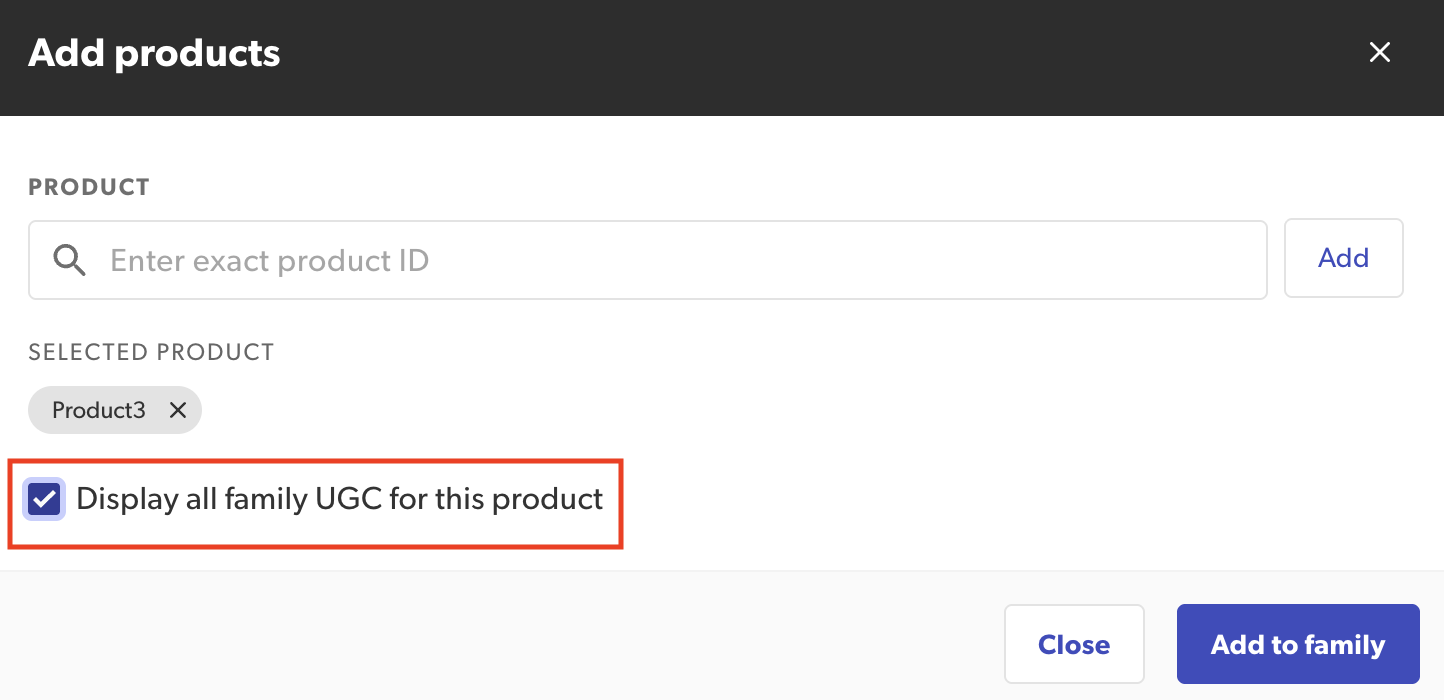
- Select Add to family.
- Repeat for all the products you want to include in the family.
Edit product families in Portal
- Sign in to the Bazaarvoice Portal.
- From the navigation bar, select More > Product Catalog.
- In the Products tab, select Manage families.
- From the families list, select the name of the family you want to edit.
- To rename the family, select Edit next to the family name.
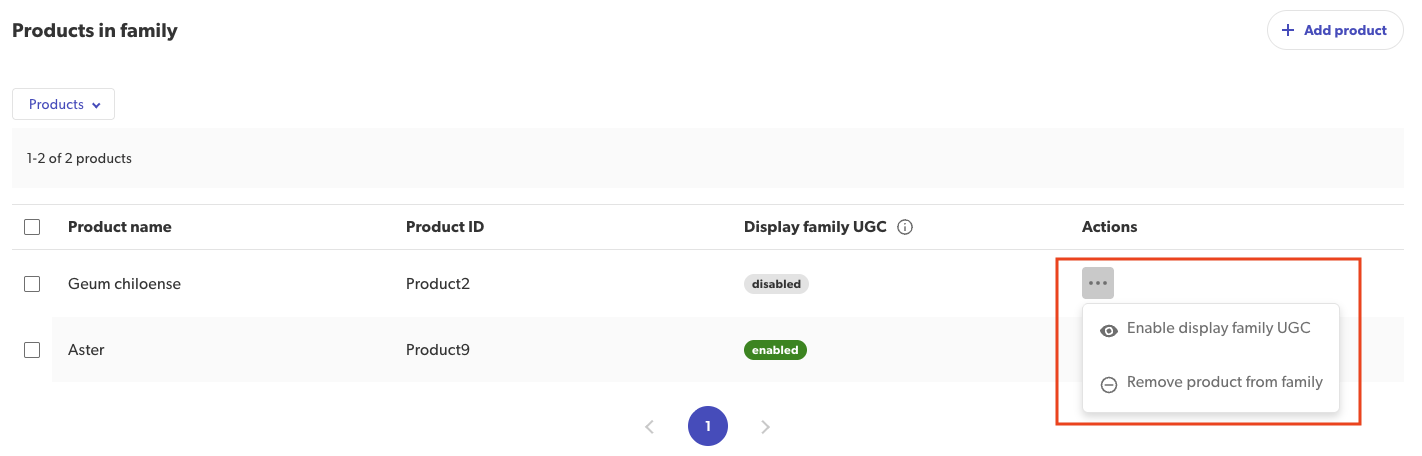
- To add products to this family, go to the Products in family section, select + Add product, and repeat steps 8 through 10 from the previous section.
- To edit a product within the family, go to the Products in family section and select
 next to that product. From there, you can:
 - Enable or disable displaying UGC from other family members.
- Remove the product from the family.
Find product families in Portal
Only families created in Portal are displayed on the Manage families page. Feed family details can be found in the product details for a specific product.
To find a portal family:
-
Sign in to the Bazaarvoice Portal .
- From the navigation bar, select More > Product Catalog.
- In the Products tab, select Manage families.
- Optional: Sort families by Date created.
-
Optional: To find a specific family, search by family name.
Note: You must match the capitalization that is used in the product name. For example, if you type in “my-product”, then “My-product” will not be found. - Optional: To find a product family that includes a specific product, use the Products filter. You must enter the exact product ID.
To find a feed family:
- Go to the Products tab, select Products.
- Sort, filter, or search to find a product that is included in the product family you are looking for.
- Select the product name.
- See all product family details under Product family.
Delete product families in Portal
- Sign in to the Bazaarvoice Portal.
- From the navigation bar, select More > Product Catalog.
- In the Products tab, select Manage families.
- From the families list, select next to the family you want to delete.
- Select Delete family, then select Yes to confirm.
Best practices
Native review sharing
When two or more products are added to a product family, these products will share content, such as reviews on your website. The Bazaarvoice guidelines for native content sharing are in place to ensure, as much as possible, an authentic consumer experience in accordance with Bazaarvoice’s Authenticity Policy and definitions. These same guidelines should be considered, but will not be enforced, when you add products to the same product family. Read Bazaarvoice's guidelines and definitions  .
.
Bazaarvoice's recommendations regarding review sharing and review collection within families aligns with our authenticity goals for transparency for end consumers, as well as with the best practices of external regulatory bodies. Bazaarvoice therefore recommends that products with significantly different qualities collect reviews independently of the others and are not added to the same product family. When adding two or more products to a product family, Bazaarvoice recommends they meet at least one of the following criteria:
- The products have the same set of Universal Product Codes (UPCs) and European Article Numbers (EANs) so that reviews will be shared between retailer products.
- The products are identical, meaning the products are the same in every and all aspects.
- The only difference between the products is size, AND the size does not affect the functionality of the product or the consumer experience. For example, we would match a small shirt to a large shirt when the material/composition is the same in every other way.
- The only difference between the two products is the color, AND the color does not affect the functionality of the product or the consumer experience. For example, we would match a black metal toaster to a white metal toaster that is otherwise identical.
- The only difference between the two products is packaging, packaging size, or quantity included in the package. For example, we would match a package of 10 diapers with a package of 50 diapers, assuming the individual diapers themselves are identical.
Products should not be added to the same family if they differ in a way that affects functionality or consumer experience, their intended uses differ, or if they meet at least one of the following criteria:
- The products differ in scent. For example, different scents of perfume or scented candles.
- The products differ in flavor. For example, different flavors of toothpaste or candy.
- The products differ in component materials. For example, a down pillow versus a cotton pillow.
- The products differ in their intended users or use. For example, men’s shoes versus women’s shoes or a vacuum designed specifically for hard surfaces versus one for all surfaces.
- One product is merely a component of another product. For example, a computer chip in a computer.
- The products are not sold as being in identical conditions. For example, a new product versus a refurbished product.
- The products differ in dimension or size in a way that alters the user experience or the functionality of the item. For example, a 10-liter garbage can versus a 50-liter garbage can.
Products such as televisions could be added to the same family despite differences in size if all of the following conditions are met:
- All components that are critical to the functionality of both televisions are the same or similar enough that their functionality is identical.
- The televisions are the same brand and model.
- The user experience for the average consumer could reasonably be considered the same with either television.
FAQs
View the following questions and answers to better understand product families and the methods you can use to create or manage them.
What is Portal family?
A Portal product family is a product family that was created using Portal. This includes product families that have been created using one of the following methods:
- Using Manage families in the Portal.
- Creating a family from the product details page in the Portal.
- Portal families can only be edited or removed using Portal.
Can I edit all product families using Manage families in Portal?
No. You can only view and manage Portal product families. These are families that were created directly in the Portal user interface. In Portal, you can create product families from the Manage families pages, or from the product details view of a product.
What is the difference between variants product families and bundle product families?
Their family relationship is different. A variants family is a group of nearly identical products, while a bundle family consists of a product bundle and the individual products in it. For more information, refer to Types of product families.
Do I lose all shared reviews if I accidentally remove a product from a family and re-add it
No. The reviews remain in our systems. However, after you re-add a product it may take 24 hours before you can see the family UGC on the product display page.
Can I use Portal families and Feed families at the same time?
Yes, you can use both. We often recommend using both, as you can use feed families for easy automation, while Portal families are better for setting up more complex families, such as families that include a product bundle.
Why is the product family added/updated via feed not reflected in the Product Catalog application in the Portal?
- Portal families: The Manage Families page in the Portal only shows product families created directly in the Portal. Families created via feed files appear only on individual product pages.
- Verify feed validation: Ensure the feed successfully passed validation on the Validate Feed page in the Portal.
- Review attribute modes: Check whether the attribute mode or multi-value mode is configured to append instead of replace.
- Check processing override settings: Review the Catalog Import Processing Overrides setting in the Ratings & Reviews configuration page. If you require further assistance, please contact Bazaarvoice Support.
What is the difference between Portal families and Feed families?
All product families have the same purpose: Defining how you want to share user-generated content (UGC) between related products on your site. Portal and feed families represent two different ways of configuring and managing your product families.
- Portal families are created/managed only via the Product Catalog application in the Portal.
- Feed families are created and managed exclusively through feed files, DCC, or SFTP—they do not appear in the Manage Families page of the Portal, only on the individual product page. They can also be verified via the Catalog API.
Can product families be bulk added/updated/removed instead of one-by-one edits?
- Bulk actions on product families can only be done via feed families. The Bazaarvoice Portal does not have a native bulk-delete action.
-
To make bulk family changes, use either a catalog feed file (using the
BV_FE_FAMILYandBV_FE_EXPANDattributes). For large-scale family removal, please contact Bazaarvoice Support.
Can source priority be set so Portal keeps priority for family attributes only while Feed/DCC controls everything else (attribute-level override)?
Source priority rules are not configurable via self-service. To reset field priority, please contact Bazaarvoice Support.
Are special characters (e.g., asterisk (*)) allowed in family names?
Portal will generally accept an asterisk (*), though Bazaarvoice recommends avoiding special characters in the family names.
Where can I find portal families in the Portal?
- Sign in to the Bazaarvoice Portal.
- From the navigation bar, select More > Product Catalog
- In the Products tab, select Manage Families
Where can i find feed families in the Portal?
- Sign in to the Bazaarvoice Portal.
- From the navigation bar, select More > Product Catalog.
- In the Products tab, select Products.
- Sort, filter, or search to find a product that is included in the product family you are looking for.
- Select the product name.
- See all product family details under Product family.
