From the Revenue page, you can export the following to CSV:
- Revenue: Download a summary of baseline and Contextual Commerce figures. The export includes your incremental revenue, RPS, CVR, and lift metrics.
- Impact: Select a metric type and download a direct comparison of baseline performance (shopper behavior without exposure to any campaigns) against your Contextual Commerce performance. For example, you can select metrics to compare sessions or conversion rates.
- Performance: Download a comparison of performance across different segments. Select a metric, including sessions, conversions, or revenue, and segment it by criteria such as user type or device type. For example, you can view the revenue metric across different device segments, such as mobile, desktop, and tablet.
To export revenue data:
- Sign in to the Bazaarvoice Portal
 .
.
If you cannot sign in, contact Bazaarvoice support for assistance. Learn more about Portal permissions and user accounts. - From the navigation bar, select Contextual Commerce. The Revenue page appears.
- (Optional) From the date filter, select the date range for which you want to export data.
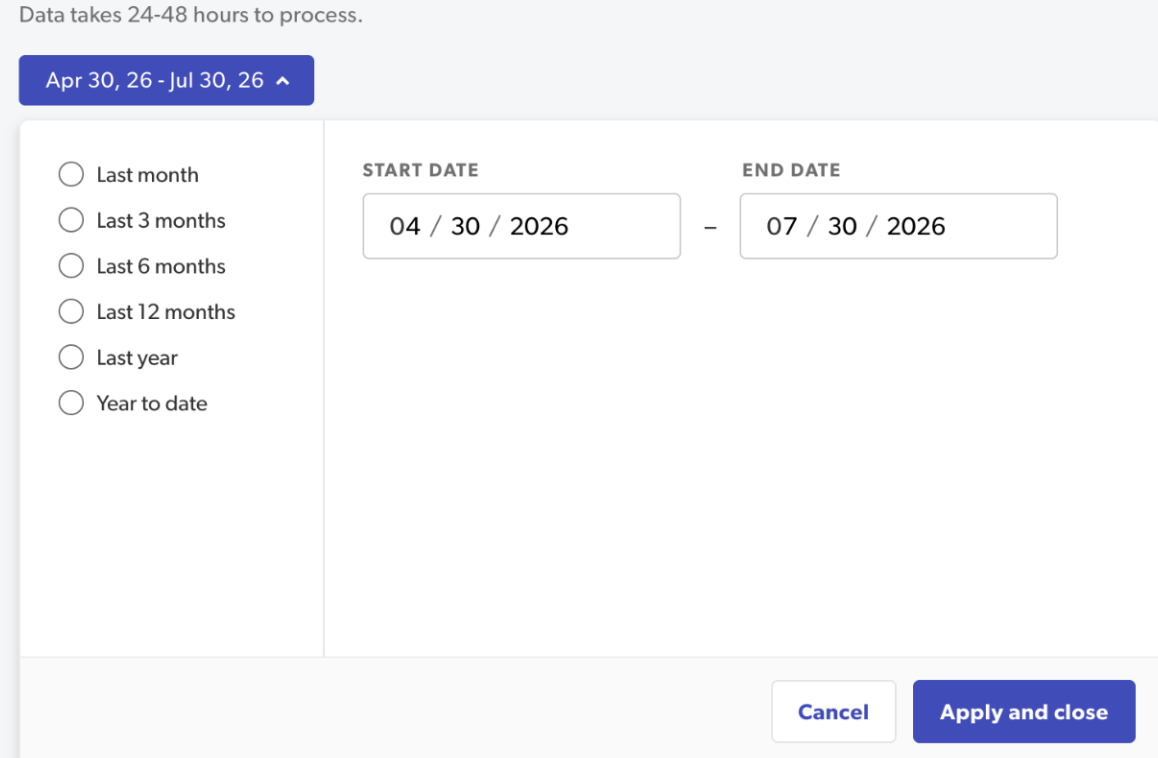
- Select Apply and close.
- Go to the section to export.
- Select a metric from the drop-down menus, if applicable.
- Select Export in the upper-right corner of the section you want to export.
- Select Download CSV. The CSV file is exported to your downloads.