Campaign previews enable you to validate a campaign's layout, copy, and behavior using mock data, without affecting your live site. They show exactly how shoppers will experience the campaign, including the user journey that triggers it. Complete the following steps to preview a campaign:
Step 1: Open the preview link
- In the Bazaarvoice Portal, select the Campaigns tab to view all your campaigns.
- Filter the list by selecting All, Active, or Paused.
- Select the Name of the campaign you want to preview.
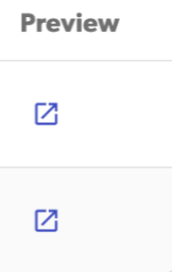
- In the campaign table, locate your campaign and select the external link icon in the Preview column to open the preview in a new tab.
Step 2: Follow on-screen guidance
- Follow the on-screen guidance to complete the campaign preview. When complete, a Success badge confirms the preview is active.
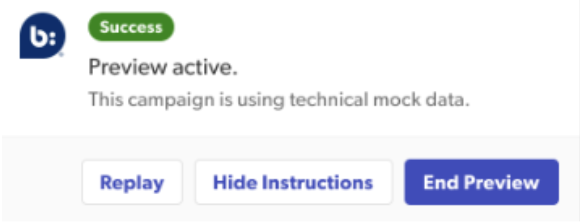
- Optionally, choose one of the following actions:
- Select Replay to step through this journey again.
- Select Hide Instructions to collapse on-screen guidance.
- Select End Preview to close the preview and return to Portal.

To make changes to a campaign, contact your Contextual Commerce Strategist.