---
title: "AI Content Coach"
id: "ai-generated-review-suggestions"
project: "Ratings & Reviews"
url: "https://docs.bazaarvoice.com/articles/ratings-reviews/ai-generated-review-suggestions"
updated: 2026-11-16T14:07:43Z
---
# AI Content Coach
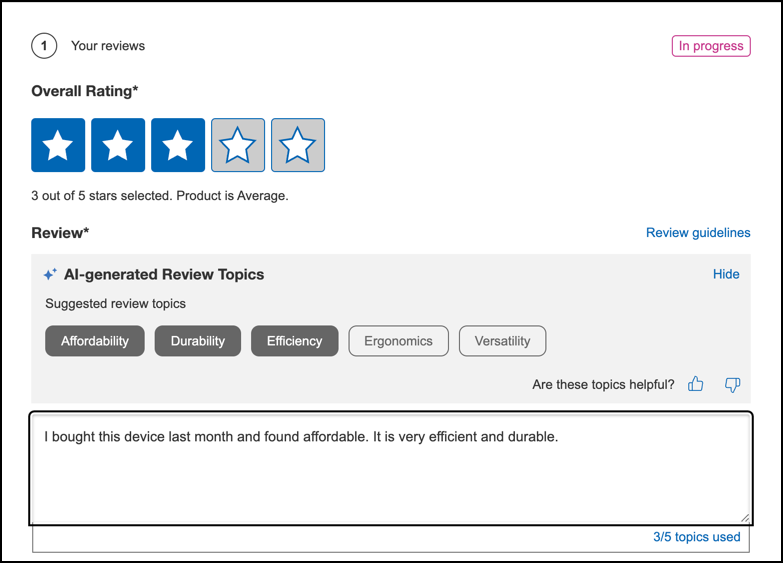
Enhance the quality of reviews by giving consumers real-time, AI-powered suggestions that help them write more useful and specific feedback. The Content Coach feature dynamically suggests relevant topics based on the product’s name, description, and category. When a consumer writes a review, the topics they mention are automatically highlighted.
Content Coach can be implemented for the following locales. Do not enable for other unsupported languages.
* English
* Spanish
* French
* German
* Portuguese
* Arabic
* Japanese
* Dutch
* Italian
Refer to [Major features in V2 display](/articles/ratings-reviews/product_display_page/a/h4_445491535)to watch a video on how **Content Coach** helps consumers to write quality reviews.
Before implementing **Content Coach**:
* Contact [Bazaarvoice Support](/smart/bv-basics/contacting_support) to enable this feature.
* [Enable](/articles/ratings-reviews/configure-the-options-for-ratings-reviews) and configure **Content Coach** for your implementation.
To configure **Content Coach** for your implementation:
1. Sign in to the [Bazaarvoice Portal](https://portal.bazaarvoice.com).
2. From the upper-right corner, select the settings icon .
3. Under **Configuration**, select **Ratings & Reviews**. The **Site Manager**lists all your active deployment zones and implementations
4. Under the **Implementations** section, select **Edit** next to the implementation you want to configure.
5. In the **User Experience** section, select **Display Options**.
6. Select the **Ratings & Reviews** tab.
7. Under **Content Coach**, select **Enabled**.
8. (Optional) To display **Content Coach** expanded or collapsed by default on mobile devices, under **Display topics (Mobile submission form)**, select **Show all** or **Hide all**.

Content Coach is available for API clients. For detailed implementation steps and API specifications, refer to [Content Coach](https://developers.bazaarvoice.com/v1.0-ConversationsAPI/docs/content-coach) in the Developer Center.
### How it works
1. **Initial suggestion:** When the submission form opens, the AI Content Coach uses the Product ID to analyze product details and generate five single-word topic suggestions.
2. **Real-time implicit matching:** **** After the consumer enters five words, the AI Content Coach analyzes the review text and highlights suggested topics based on implicit meaning, even if the exact words do not appear in the review. This indicates that those topics are covered in the review.
**Example:**
| Product | Suggested topics | Review text | Matched topics |
| --- | --- | --- | --- |
| Beauty cream | - Bloom
- Fragrance
- Resilience
- Texture
- Vibrancy
| This is an amazing product and has really lifted the entire appeal of my skin. It looks much vibrant and soft on my skin post consistent application for just a few days. Results were almost immediate, and I would definitely recommend this product. | |
[](https://docs.google.com/forms/d/1qGZ5rApqDrXO_j6vNzcDihDAOPMEjmUr1alHvcEIbQU/edit)