You can import product information for multiple products using a single Excel spreadsheet. Use the spreadsheet to import data for new products as well as append missing data to existing products. You must require the Product Catalog Administrator role to do the import.

.xls file format.
To import products
-
From the navigation bar, select More > Product Catalog. The Products list appears.
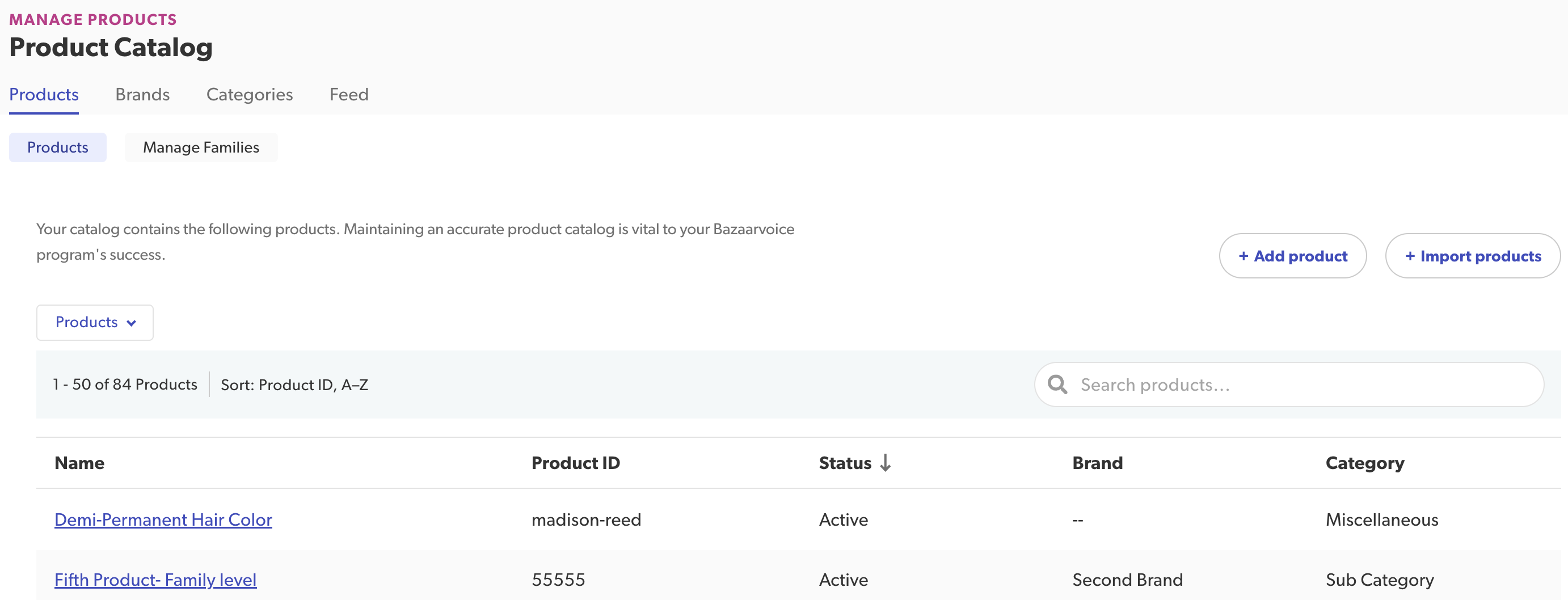
-
Select Import products. The Import products modal appears.
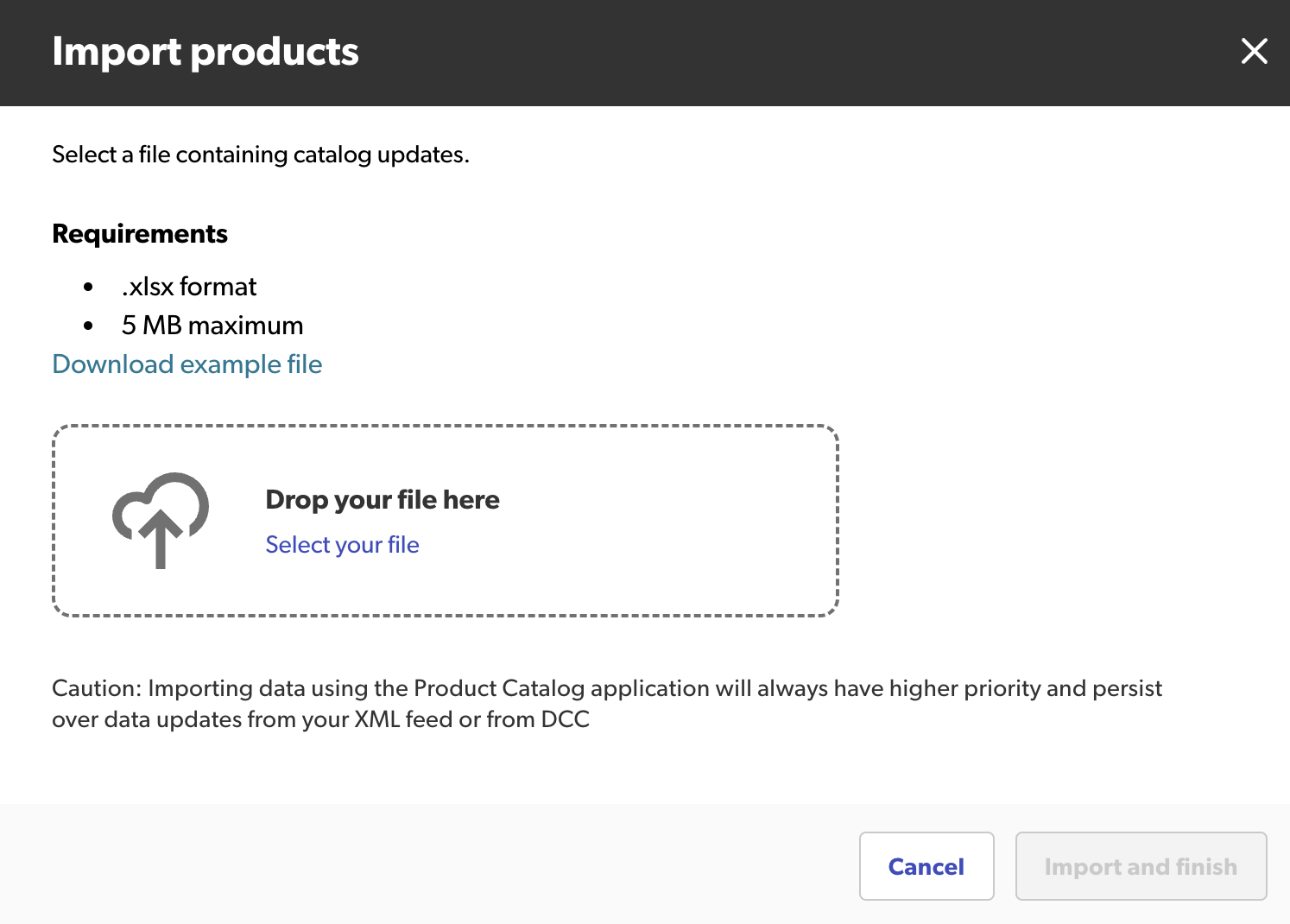
Note: If you're importing products for the first time, we recommend that you select the Download example file link. Examining the example spreadsheet will help you to understand the format requirements. -
Drag and drop your Excel spreadsheet onto the Import products modal. Alternatively, browse to the required Excel spreadsheet.
Note: The file can only be imported to the catalog once verified. Verification can take up to five minutes. -
Review file analysis: The system checks the uploaded file in real time. The File summary shows the results.
- If you see errors, select Download errors and warnings, fix the issues, and upload the file again.
- To cancel the upload, select X. You can still import the file even if it contains errors or warnings.
-
Select your import options:
-
Fields with multiple values: Some fields can store more than one value (for example, Global Trade Item Numbers (GTINs)). Choose how the system should handle existing values:
- Add new values to existing values: Keeps the current values and adds the new values from your file.
- Replace existing values: Removes the current values and uses only the new values from your file.
-
Source priority: Choose which source takes priority when the same product is updated in both the feed and Portal.
- Portal: Values entered in Portal take priority. Future feed updates do not overwrite them.
- Feed: The feed controls the value. The next feed can update or overwrite it
-
Fields with multiple values: Some fields can store more than one value (for example, Global Trade Item Numbers (GTINs)). Choose how the system should handle existing values:
-
Select Import and finish. If you’re having issues importing your file, refer to the section on troubleshooting.
Feed source behavior
If you add product data in the Bazaarvoice Portal and select Feed as the source,
- Incremental Feeds (default): The product remains active, even if it is not included in your next feed file.
- Full Feeds: Include that data in your next full feed file. If you do not include it, the system marks that product as inactive
Verification
Verification takes place at two levels:
-
File-level analysis—focuses on the overall file validity. Verification ensures that the file conforms to a specific format and contaiins specific mandatory information. Warning: Verification failure at file level means you can’t import your file. Learn how to troubleshoot a failed import.
-
Row-level analysis—focuses on row-by-row validity. Verification failure at row level means you won’t be able to import a specific product row (the invalid row may not contain information in the correct format).
Note: However, you can still continue with a partial import of the file which includes valid product rows only.

Troubleshooting
| File-level analysis | Error message | Recommendation |
|---|---|---|
| Invalid file | Local validation failed. | Ensure the import file is a valid Excel spreadsheet. |
| File too large | Selected file is over 5MB. | Separate into smaller Excel spreadsheets and upload them one at a time. |
| Empty file | File does not contain any rows. | Open the file and add product information using separate rows for each product. |
| Unrecognized column header | Column header is not valid. | Ensure that column header is using the correct format. The data in the invalid column won’t be imported. |
| Invalid product ID | File does not contain an external ID or a product ID. |
The file must contain a valid Product ID column. Open the file and make sure there is a Product ID column.
Note: Product ID does not have to be the first column.
|
| Invalid category ID | File does not contain a category ID. | If the file contains category information, it must also contain a corresponding Category ID column. Open the file and make sure there is a Category ID column. |
| Invalid brand ID | File does not contain a brand ID. | If the file contains brand information, it must also contain a corresponding Brand ID column. Open the file and make sure there is a Brand ID column. |
| File contains more than one Excel worksheet | No error message appears. | If the Excel spreadsheet contains more than one worksheet, only data from the first worksheet is imported. |
Learn how to troubleshoot and update your catalog with the Optimize Your Bazaarvoice Product Catalog course at Bazaarvoice University.
Spreadsheet format
Each column in the import file contains information that can be added to your product catalog. Each row in your spreadsheet represents one of your products.
The following table provides important format information for your Excel spreadsheet:
| Column name | Description | Required |
|---|---|---|
| ProductID |
Unique product ID that can contain only alphanumeric characters, hyphens (-), and underscores (_). The ID is not case sensitive.
Type: string |
Yes |
| ProductName |
Name of the product, which is visible to end users.
Type: string |
Strongly recommend |
| ProductPageURL |
Unique, uncorrupted URL for a product page. Do not include extraneous query string parameters that you might use for tracking and partnership codes. If the URL contains a reserved (special) character, you must URL-encode the character. For example, use & for an ampersand, use %20 for a space, or use %5B and %5D for square brackets ([ ]).
Type: URL |
Strongly recommend |
| ProductImageURL |
Unique URL for the product image.
Type: URL |
Strongly recommend |
| ProductDescription |
Description of the product. We recommend that product descriptions be at least three sentences or 300 characters long.
Type: string |
Strongly recommend |
| Brand |
The name of the brand to which the product belongs.
Type: string |
Strongly recommend |
| Brand ID |
Brand ID for the product.
Type: string |
Yes. Required if Brand is included as a heading. |
| Category |
The product's category name. Each product needs to belong to a category or sub-category.
Type: string |
Strongly recommend |
| CategoryID |
Category ID for the product.
Type: string |
Yes. Required if Category is included as a heading. |
| Inactive |
Marks the product inactive if a yes or true value is specified in this column.
Type: boolean |
No |
| ModelNumber |
Unique referencing code that businesses use to identify a part that a particular industry uses. Each model number can contain letters, numerals, and other characters.
Type: array |
No. However, if included, one for each product. |
| ManufacturerPartNumber |
Manufacturer-specific part number (MPN). Part numbers can contain alphanumeric and special characters.
Type: array |
Strongly recommend |
| EAN |
European Article Numbers (EAN), which is used worldwide for marking retail goods. An EAN must be a string of eight or 13 numerals. No letters or other characters are allowed. Remove spaces and hyphens for syndication.
Type: array |
Strongly recommend |
| UPC |
Universal Product Code (UPC) is used for standard retail packaging in the United States. A UPC can contain numerals only, with no letters or other characters. Remove spaces and hyphens for syndication.
Type: array |
Strongly recommend |
| ProductFamily |
Product family name shows which family the product belongs to. We recommend you exclude special characters from product family names.
Type: string |
No |
| ProductFamily-Expand |
Product family expand (or product bundle) enables a product to receive and display reviews about all family members. A relevant product bundle name should be included if a product family name has been added.
Type: string |
No |
