- Importing multiple products using an Excel spreadsheet.
- Viewing product catalog data to ensure it is correct and complete.
- Fixing catalog data errors that originate in your feed file.
- Adding missing product data such as UPCs (Universal Product Codes) or EANs (European Article Numbers) to facilitate Bazaarvoice syndication.
- Adding and editing products, product groups, brands, and categories.
- Setting a product's catalog status to active or inactive.
- Viewing the source of each catalog attribute value.
Read the following sections to learn how to manage and optimize your product catalog through Portal:
- Required solutions and roles
- Get started
- Work with products
- Work with brands
- Work with categories
- Work with feed

Required solutions and roles
You must have:
| One of these solutions: | And one of these roles: |
|---|---|
|
|

Capabilities
The following table lists tasks you can perform and the roles needed for each.
| Task |
Product Catalog Administrator
Account Administrator |
Product Catalog Viewer |
|---|---|---|
| Import multiple products | Yes |
No |
| View catalog data sources | Yes |
Yes |
| View products | Yes |
Yes |
| View product details | Yes |
Yes |
| Edit products | Yes |
No |
| Add products | Yes |
No |
| View brands | Yes |
Yes |
| View brand details | Yes |
Yes |
| Edit brands | Yes |
No |
| Add brands | Yes |
No |
| View categories | Yes |
Yes |
| View category details | Yes |
Yes |
| Edit categories | Yes |
No |
| Add categories | Yes |
No |
| Validate product feed | Yes | No |
| Product feed alerts | Yes | No |
Get started
To view and manage your product catalog:
-
Sign in to the Bazaarvoice Portal
 .
.
If you cannot sign in, contact Bazaarvoice supportfor assistance. Learn more about Portal permissions and user accounts.
-
From the navigation bar, select More > Product Catalog.
The Products list appears.
Work with products
The Products list provides at-a-glance information about products in your catalog, including:
- Total number of products in the catalog
- Product name
- Product ID
- Product status
- Assigned brand
- Product category
The default view shows all products. Set the Product status filter to view only active or inactive products.
If your company has more than one Bazaarvoice instance, use the instance selector located near the upper-right corner of the page to move between them. Type the name or scroll through the list to select the instance you want. The Products list refreshes to display products associated with your selected instance.
View product details
Product Catalog Administrator Account Administrator Product Catalog Viewer
Select a product in the list to view product details. Displayed product information includes:
- Product ID, name, and description
- Product page and product image URLs
- Product identifiers, including UPC, EAN, ISBN, model number, and manufacturer part number
- Product catalog status (active or inactive)
- Assigned brand
- Product group
- Product category
- Custom attributes
Add products
Product Catalog Administrator Account Administrator
To add a product to your product catalog:
- Select Add product on the Products list page. The Add product page appears.
-
Enter a Product ID. The product ID must be a unique identiifer within your selected instance. An ID can include alphanumeric characters, hyphens (
-), and underscores (_). - Continue to add and select information to define the product. For instructions and more information, refer to the Edit products topic section.
Edit products
Product Catalog Administrator Account Administrator
If a product is missing some key components such as UPC or EAN, you can add them by editing the product. To do this, select the product from the list and update the following page sections.
Details
The Details area shows the product ID, assigned brand, and product category. It also indicates the product’s catalog status (active or inactive).
Assign a product to a brand
Although not required, Bazaarvoice recommends you specify a brand for each product in your catalog. This enables you to get the most benefit from reporting and content syndication across the Bazaarvoice Network.
To assign a product to a brand in your product catalog, select a brand from the list of active brands. You can search the list by brand name.
If your catalog does not include any brands, then the list of brands does not appear. Go to the Brands tab and select Add brand to add a brand to your product catalog.
Assign a product to a category
To assign a product to a category in your product catalog, select a category from the list of categories. You can search the list by category name.
If your catalog does not contain any categories, then Bazaarvoice will assign the product to the default BV_MISCELLANEOUS category. Alternatively, go to the Categories tab and select Add category to add a category to your product catalog.
Change catalog status
To change the current status of a product in your catalog, select Active or Inactive. Changing the product status does not affect the review display or syndication.
For more information about how Bazaarvoice manages active and inactive products in your catalog, read Control the active set of products.
Localization
The Localization area shows product attribute information. The information for each product attribute can differ for each locale. Find detailed descriptions of each product attribute in this topic.
The following attribute conditions apply:
- Product name—Required for the Default locale only. The product name cannot contain HTML characters, and should be unique within the selected instance.
- Product description—Cannot contain HTML characters.
- Product page URL—Must be a valid URL. The URL cannot contain HTML characters.
- Image—Must be a valid URL. The URL cannot contain HTML characters.
- Color—Must be a string.
- Size—Must be a string.
- Material—Must be a string.
- Price—Must be a string. We recommend the format <amount>, for example, “15.00”.
- Currency—Must be a string. This must follow the three-digit ISO format <currency code>, for example, “USD”.
- Availability—Must be a string.
Edit and add locales
To edit product information for another defined locale, select the locale name located just above the edit area. The selected locale is underlined.
To add product information for a locale not yet set, select the locale from the Add locale list of options.
To delete a selected locale, select Remove locale.
Watch this video (no audio) to learn how to add and remove a non-default locale. If you require a descriptive transcript for this video, you can access this directly in our Wistia platform.
Identification
The Identification area shows product identifiers for the product.
Edit or add valid identifiers. Values for UPC and EAN are required for syndicated content.
Product groups
The Product Groups is an alternative to the Product Families feature that allows you to share native User-Generated Content (UGC) and visual galleries across equivalent products or product variants (e.g., a shirt in different sizes or colors). Adding these variants to a product group automatically displays UGC collected on any single product page across all the group members without any further configuration.
To add a product to an existing product group:
- In the Products tab, scroll down to the Product groups section.
- Select a group from the drop-down.
- Select Save changes.
Custom attributes
Use custom attributes to define custom product catalog data attributes. You can use these attributes to customize reports and dashboards.
For more information, read Filter catalog data based on custom product attributes.
To add a custom attribute to a product:
-
Select Add attribute.
-
Enter values for the following fields:
-
Attribute ID—Must be unique for the product within the selected instance. The value is limited to 32 characters and cannot be any of the following values:
- BV_FE_FAMILY
- BV_FE_EXPAND
- BV_WB_FAMILY
- BV_WB_EXPAND
-
Value—Limited to 65535 bytes. This value is required.
-
To delete an existing custom attribute, select X in the row.
Select Save to save changes to the product and return to the products list.
Work with brands
Associating products with specific brands enables you to get the most from reporting and content syndication across the Bazaarvoice Network.
Select the Brands tab to see brands in your catalog.
View brand details
Product Catalog Administrator Account Administrator Product Catalog Viewer
To view brand details, select a brand from the brands list.
Add brands
Product Catalog Administrator Account Administrator
To add a brand to your product catalog:
- Select Add brand on the Brands list page. The Add brand page appears.
-
Enter values to define your brand:
- Brand name—Enter a unique name of no more than 255 characters. The name is required and cannot contain HTML characters.
- Brand ID—Use the auto-generated ID, or de-select this option to enter your own unique value.
- Catalog status—Select Active or Inactive to set the status of the brand in your catalog.
- Private brand — Select this checkbox if the product is sold under a retailer's own brand. Enabling this prioritizes the brand in Review Request Emails (RRE). This feature is only available to Enterprise clients.
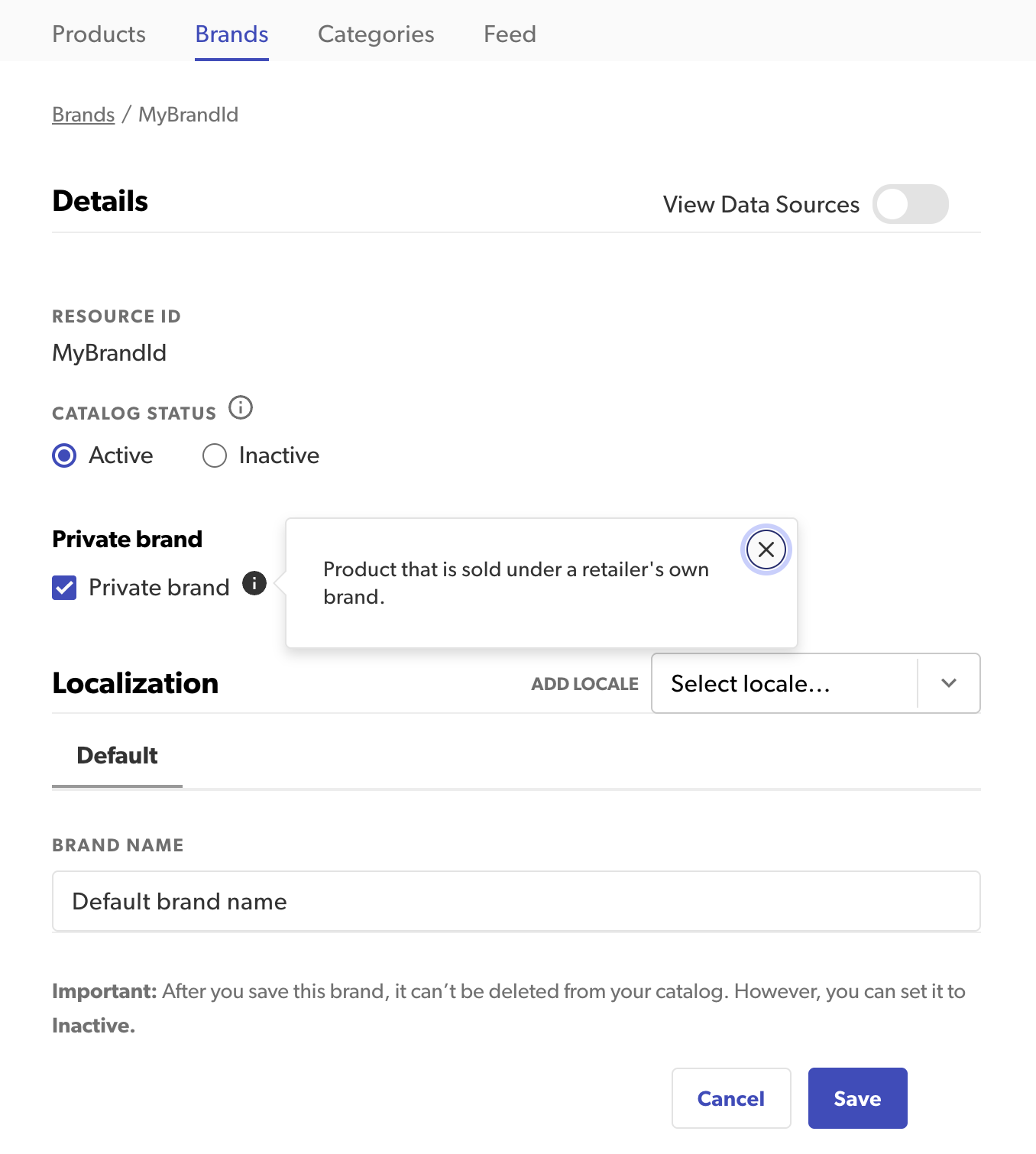
- Select Save to create the brand.
Edit brands
Product Catalog Administrator Account Administrator
To edit a brand, select it from the brands list.
Localization
The Localization area shows the brand name for the Default locale. Edit this value as needed.
Edit and add locales
Brand names can be different for each locale. To edit the name for another defined locale, select the locale name located just above the edit area. The selected locale is underlined.
To set a brand name for an undefined locale, select the locale from the Add locale list of options.
Details
The brand ID is a unique identifier associated with a brand. After you have added a brand, you cannot change this ID.
Change catalog status
- To change the current status of a brand in your catalog, select Active or Inactive.
- Select Save to save changes to the brand and return to the brands list.
Change brand type
- To change the brand type, select or unselect the Private brand checkbox. Select this checkbox only if the product is sold under a retailer's own brand.
- Select Save to save changes to the brand and return to the brands list.Note: The Private brand feature is only available to Enterprise clients.
Work with categories
Grouping your products into appropriate product categories helps with reporting and gives your customers a way to browse for other similar products they want to review.
You can associate each product with a single parent product category entity in your product catalog. The maximum allowed category depth is 20 levels. A single category cannot have a chain of parent-to-child relationships that exceeds a total hierarchy depth of 20.
View categories
Product Catalog Administrator Account Administrator Product Catalog Viewer
To view categories in your product catalog, select the Categories tab.
Add categories
Product Catalog Administrator Account Administrator
To add a category to your product catalog, select Add category on the Categories list page. The Add category page appears.
Enter values to define the category:
-
Name—Enter a unique name of no more than 255 characters. The name is required and cannot contain HTML characters.
-
Category ID—Use the auto-generated ID, or de-select this option to enter your own unique value. After you have created and saved a category, you cannot change its associated ID. The ID:
- Must be unique within the selected instance
- Is limited to 255 characters
- Cannot contain HTML characters
- Cannot contain / (slash)
-
Catalog status—Select Active or Inactive to set the status of the category in your catalog.
Select Save to create the category.
Edit categories
Product Catalog Administrator Account Administrator
To edit a product category, select it from the categories list.
Localization
The Localization area shows the category name for the Default locale. Edit this value as needed.

Edit and add locales
Category details can be different for each locale. To edit category details for another defined locale, select the locale name located just above the edit area. The selected locale is underlined.
To set details for an undefined locale, select the locale from the Add locale list of options.
Details
The category ID is a unique identifier associated with a category. After you have added a category, you cannot change this ID.
Edit the parent category
To select a different parent category in the category hierarchy, select it from the Parent Category list of options.
Change catalog status
To change the current status of a category in your catalog:
- Select Active or Inactive.
- Select Save to save changes to the category and return to the categories list.
Work with feed
- Validate Product Feed – View the 10 most recent catalog feed imports and track their status.
- Product Feed Alerts – Set up email alerts to receive a list of errors and warnings in your imported feed.
- Incomplete Feeds – Access incomplete feeds to resolve and reupload them.
