This article describes how to configure Adobe Analytics to track group assignments using the Contextual Commerce web SDK.

The main steps to set up Adobe Analytics include:
- Create the reporting dashboard in Adobe Analytics and assign an eVar to store group assignment data
- Set up data elements and rules to pass group assignment data through the web SDK
- Add a JavaScript listener to capture group assignment events in real-time for accurate tracking.
- Configure and publish the eVar
- Grant Bazaarvoice contributor permissions to validate data alignment and assist with dashboard maintenance
Before you begin
This example utilizes the following tools and arrangements:
- Schema
- Datastream
-
Tag Property with the following extensions:
- Adobe Client Data Layer
- Adobe Experience Platform Web SDK
Step 1: Prepare the dashboard and choose an eVar to assign
Before adding the group assignment snippet, ensure that Adobe Analytics is ready to receive and display the data. In this step, you will create a reporting dashboard and assign an eVar to store group assignment data as a dimension.
Create a dashboard
- In Adobe Analytics, go to Admin > All Admin > Report Suites
- Select the relevant report suite and go to Edit Settings > Dashboards
- Create or configure a dashboard to display group assignment metrics
Choose and assign an eVar
-
Select an eVar to use for the group assignment. Adobe Analytics provides up to 250 eVars, numbered accordingly.
- This example uses eVar5 for all examples, but ensure your chosen eVar is not being used for other dimensions.
-
In Adobe Experience Platform Data Collection, ensure that the Adobe Analytics Experience Template Field Group is included in the Schema.
-
Confirm that the schema contains the data point:
_experience.analytics.customDimensions.eVars.eVar5
-
Confirm that the schema contains the data point:

Step 2: Create data elements for group tracking
Create data elements
Data elements ensure the group assignment value is stored and passed to Adobe Analytics through the Web SDK. Without these elements, group data cannot be properly tracked.
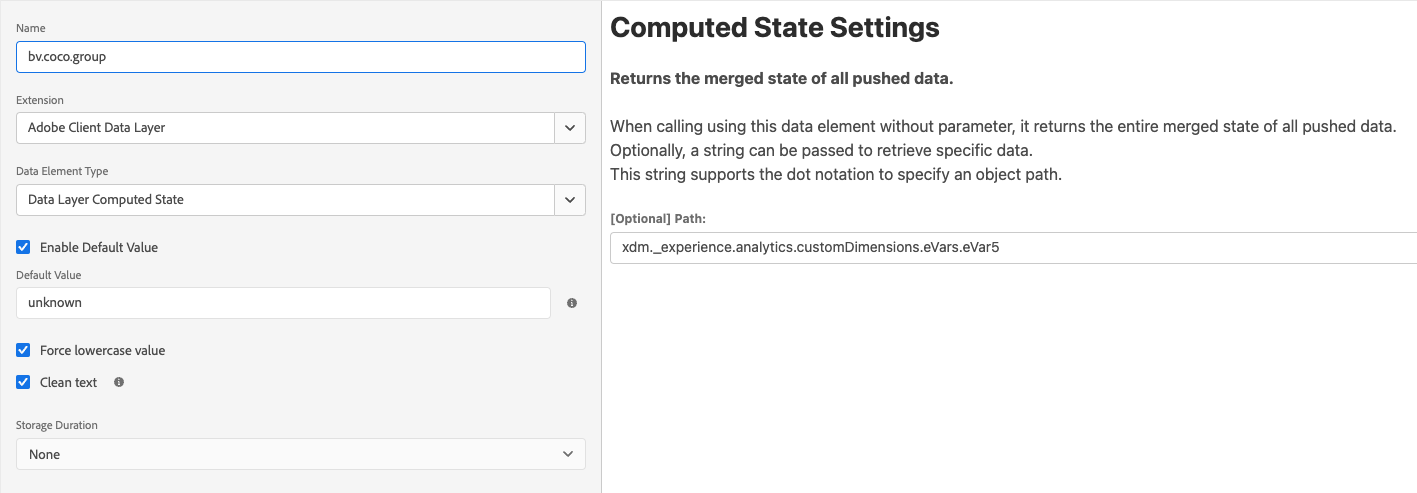
In Tag Properties, create a Data Element to store the group value:
- Name:
bv.coco.group - Extension: Adobe Client Data Layer
- Data Element Type: Data Layer Computed State
- Path:
bvCCGroup - Optional: Set a default value to
unknown, and enable Force lowercase and Clean text.
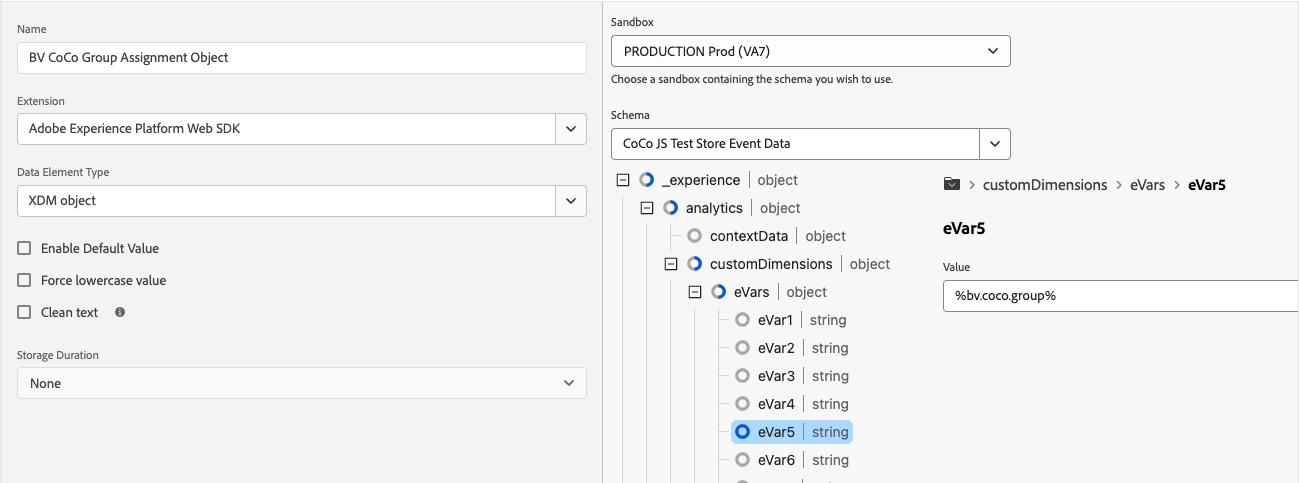
Create another Data Element for the XDM Object:
- Name:
BV CoCo Group Assignment Object - Extension: Adobe Experience Platform Web SDK
- Data Element Type: XDM Object
- Schema: Choose the schema that contains eVar5.
-
Open the schema to the eVar5 data point, and set its value to
%bv.coco.group%(the name of the first data element).
-
Open the schema to the eVar5 data point, and set its value to
Add a new rule to send the group assignment
This rule triggers whenever the group assignment event occurs, ensuring that the data is sent to Adobe Analytics. It acts as the connection between the event and your analytics data.
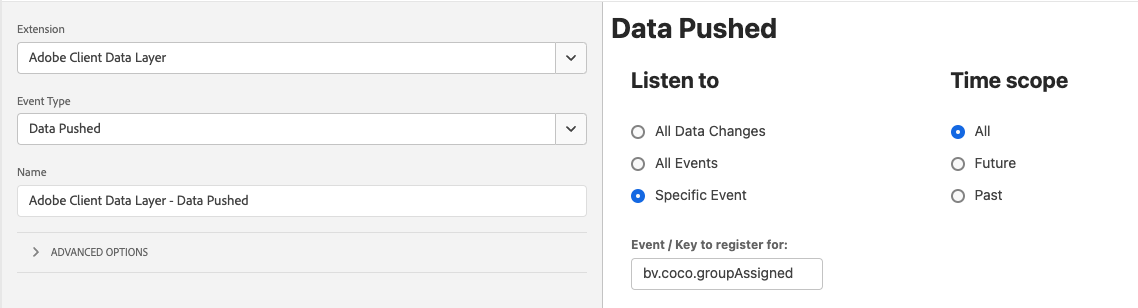
In Tag Properties, create a New Rule to trigger the group assignment event whenever it occurs:
- Name:
BV CoCo Group Assigned - Event:
- Extension: Adobe Client Data Layer
- Event Type: Data Pushed
- Listen to: Specific Event
- Event/Key to Register for:
bv.coco.groupAssigned - Time Scope: All
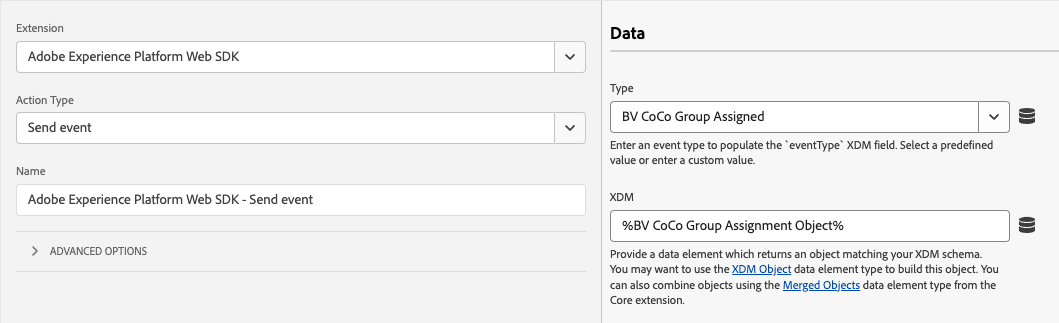
Define the Action:
- Extension: Adobe Experience Platform Web SDK
- Action Type: Send Event
- Data - Type:
BV CoCo Group Assigned - Data - XDM:
%BV CoCo Group Assignment Object%
Step 3: Add a JavaScript listener for group assignment events
The JavaScript listener ensures that every group assignment is captured by the Adobe Data Layer. It allows your analytics to track changes as they happen, ensuring data stays accurate across sessions.
Add a New Rule to insert custom JavaScript:
- Name:
BV CoCo Group Assignment Listener - Event:
- Extension: Core
- Event Type: Library Loaded (Page Top)
Define the Action:
-
Extension: Core
-
Action Type: Custom Code
-
Language: JavaScript
-
Code:
JavaScriptwindow.granifyEventGroupAssigned = function(group) { adobeDataLayer.push({ event: 'bv.coco.groupAssigned', bvCCGroup: group, }); }
Step 4: Configure and publish the eVar
After creating data elements and rules, ensure the eVar is enabled and configured to track group assignment data. This step ensures that Adobe Analytics will recognize the group assignment data. An eVar enables the data to be tracked as a dimension for use in reports and dashboards.
- In Adobe Analytics, navigate to Admin > All Admin > Report Suites.
- Select the relevant report suite and go to Edit Settings > Conversion > Conversion Variables.
- Add or edit the eVar to match the one chosen in Step 1 (e.g., eVar5):
- Status: Enabled
- Name:
BV CoCo Group - Type: Text String
- Allocation: Most Recent
- Reset: Do Not Reset
- Expire After: Visit

- Publish changes
After completing the configuration, publish your changes using your organization’s publishing flow. Once published, the new dimension will be available in Adobe Analytics for tracking group assignments in reports and dashboards.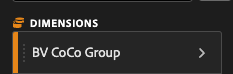
Step 5: Share analytics permissions
Bazaarvoice needs Contributor access to validate and maintain Contextual Commerce and Adobe Analytics data alignment.
This role enables Bazaarvoice to:
- Monitor the Contextual Commerce integration between your site and Adobe for data accuracy.
- Assist in building and maintaining dashboards as your site evolves.
- Provide insights and make recommendations to improve data usage.
Follow this Adobe help guide and set the account to the “Contributor” role for instructions on how to provide analyst access to analytics@granify.com.