This article describes how to configure GA4 to track group assignments using Google Tag Manager (GTM). This integration enables group assignment tracking that distinguishes users into a test group (those shown a message) or control group (those not shown a message). This data feeds into your analytics platform to help you monitor performance and understand how your traffic is being split.
The main steps to set up Google Analytics (GA4) include:
- Add the group assignment snippet to your site header
- Configure Google Analytics (GA4) to capture and store group assignment events
- Grant Bazaarvoice contributor permissions
Step 1: Add the group assignment snippet
The group assignment snippet determines which users belong to the "Test" or "Control" group and will send the group assignment to your analytics with every page load and session start. This data forms the foundation Contextual Commerce uses to measure impact and ensure ongoing data alignment.
Add the following granifyEventGroupAssigned JavaScript snippet to your site header or tag manager:

Step 2: Configure Google Analytics (GA4) using Google Tag Manager (GTM)
This section explains how to set up Google Analytics to ingest and store the group assignment data. Steps involve defining variables, triggers, and custom dimensions to track the group assignments for each user session.
Set up a new variable for the Test group
Create a variable in GTM that captures the group assignment data sent from the JavaScript snippet. The variable will make group assignments accessible for use in other configurations, such as event tracking. This step ensures that the group assignment event is captured and stored as a variable for use in GTM.
- In Google Tag Manager (GTM), navigate to the Variables section.
- Select New to create a new variable configuration.
- Choose the JavaScript Variable option.
-
Name the variable
granifyGroup. -
This variable will pull the
gfy.groupAssignedevent from the JavaScript function implemented on your website.
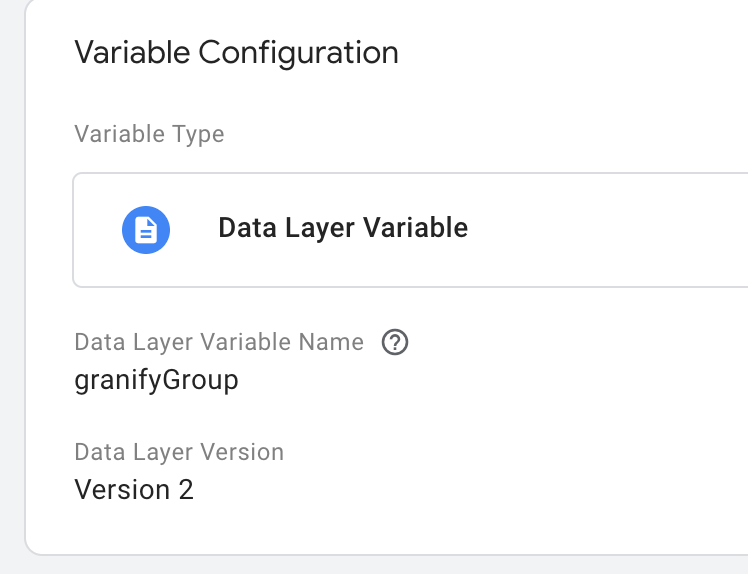
Add a new trigger in GTM
Create a trigger ensures that the gfy.groupAssigned event will send the data to GA4 every time it occurs.
- Go to the Triggers section in GTM.
- Click New to create a new trigger.
- Choose the Custom event trigger type.
-
In the Event name field, enter
gfy.groupAssigned. - Set the trigger to fire on All Custom Events
- Save the trigger.
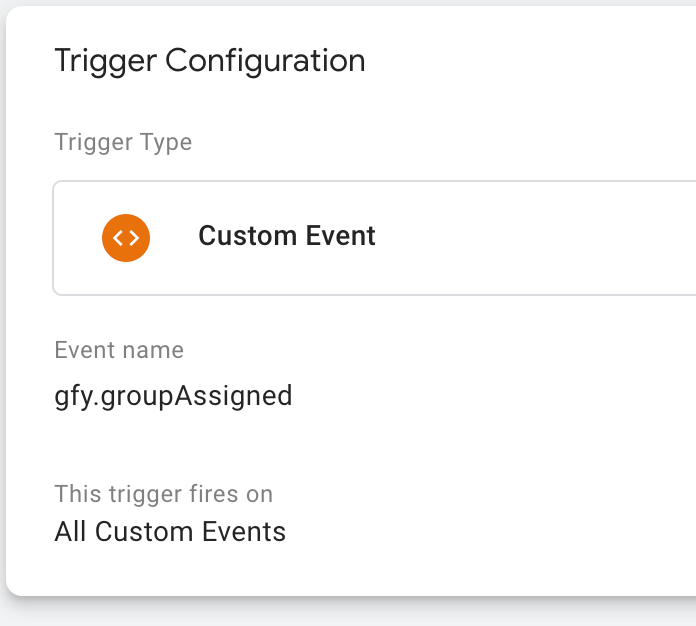
Setup a new user and event custom dimension
Set up a custom dimension to allow GA4 to track the group assignment as part of both user data and event data, improving reporting and analysis.
- Open Google Analytics and go to Data display > Custom definitions.
- Select Create Custom Dimension.
-
Create two new custom dimensions:
-
User Dimension: Name it
granifyGroup. -
Event Dimension: Name it
granifyGroup.
-
User Dimension: Name it
-
Set the Scope to User or Event, based on the type of dimension you're creating.
-
Save the custom dimensions.
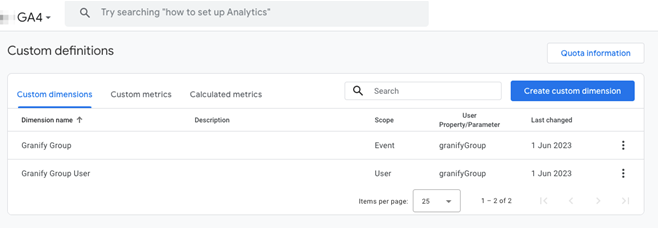
Send data to GA4
Create a tag to ensure group assignment data flows into GA4. This tag will fire the event and store the group assignment details each time it occurs.
- In GTM, navigate to the Tags section.
- Create a new GA4 Event Tag.
-
In the Tag Configuration, enter
gfy.groupAssignedas the event name. -
Under Event Parameters, add the following parameter:
-
Name:
granifyGroup - Value: Select the Granify Group variable you created earlier.
-
Name:
-
Add the trigger you created to this tag.
-
Save the tag and publish your changes in GTM.
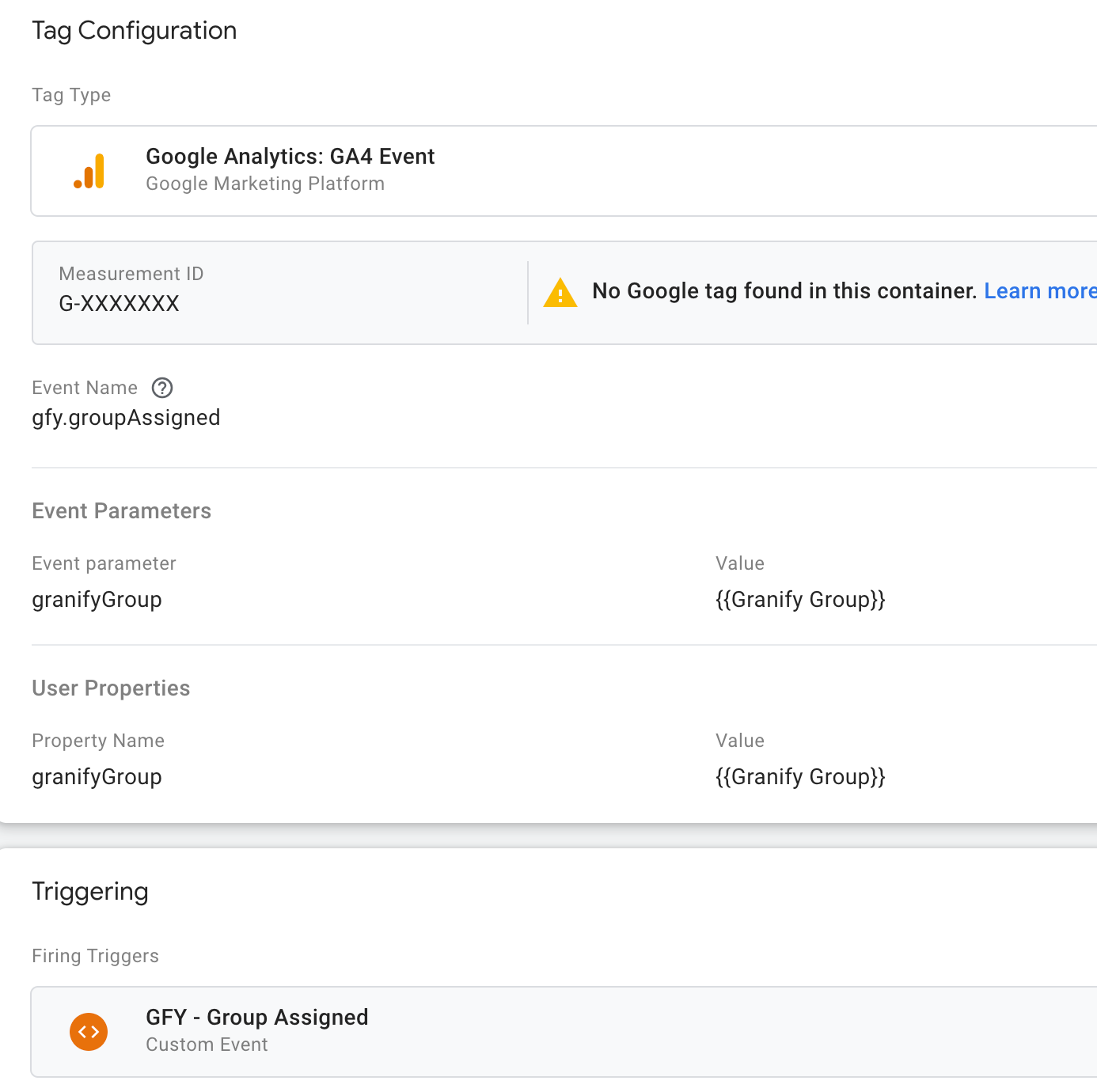
Step 3: Share analytics permissions
Bazaarvoice needs analyst access to validate and maintain Contextual Commerce and Google Analytics data alignment.
This role enables Bazaarvoice to:
- Monitor the Contextual Commerce integration between your site and GA4 for data accuracy.
- Assist in building and maintaining dashboards as your site evolves.
- Provide insights and make recommendations to improve data usage.
Follow this GA help guide and set the account to the “Analyst” role for instructions on how to provide analyst access to analytics@granify.com.