To enhance security for users signing in to the Bazaarvoice Portal, multi-factor authentication can be enforced using your organization's Identity Provider (IdP).
Bazaarvoice supports Federated Single Sign-On (FSSO), allowing you to leverage existing enterprise providers, such as Okta, Microsoft Entra ID, or Ping Identity. This gives you an extra verification step during sign-in.

Before you begin
While Bazaarvoice supports any standard SAML 2.0 Identity Provider, configuration interfaces vary by platform. To use MFA with Bazaarvoice Portal, ensure your team has configured the following:
- Administrator access to your organization's Identity Provider (IdP) management console.
- Bazaarvoice Portal Federated Single Sign-On (FSSO) configured and active for your email domain.
- Approved MFA methods defined within your IdP policy settings (such as push notifications, hardware keys, or TOTP authenticator apps).
How to enable MFA for Bazaarvoice Portal
Because MFA settings reside within your IdP, your IT or Security Administrator configures these rules inside your IdP's administration console:
- Access your organization's Identity Provider (IdP) admin console.
- Locate the sign-on policy, Conditional Access policy, or authentication rule corresponding to Bazaarvoice Portal.
- Define the scope of enforcement. You can choose to enforce MFA for your entire tenant, specific user groups, or individual user profiles.
- Set the policy to require MFA during authentication for the assigned application or group.
- Save and deploy the policy within your IdP console.
For detailed setup instructions for three of the most common providers, refer to their official documentation:
- Okta: Configuring Multi-Factor Authentication for Applications in Okta Identity Engine

- Ping Identity: Adding a multi-factor authentication or PingID step
- Microsoft Entra ID (Azure AD): Deployment considerations for Microsoft Entra multifactor authentication
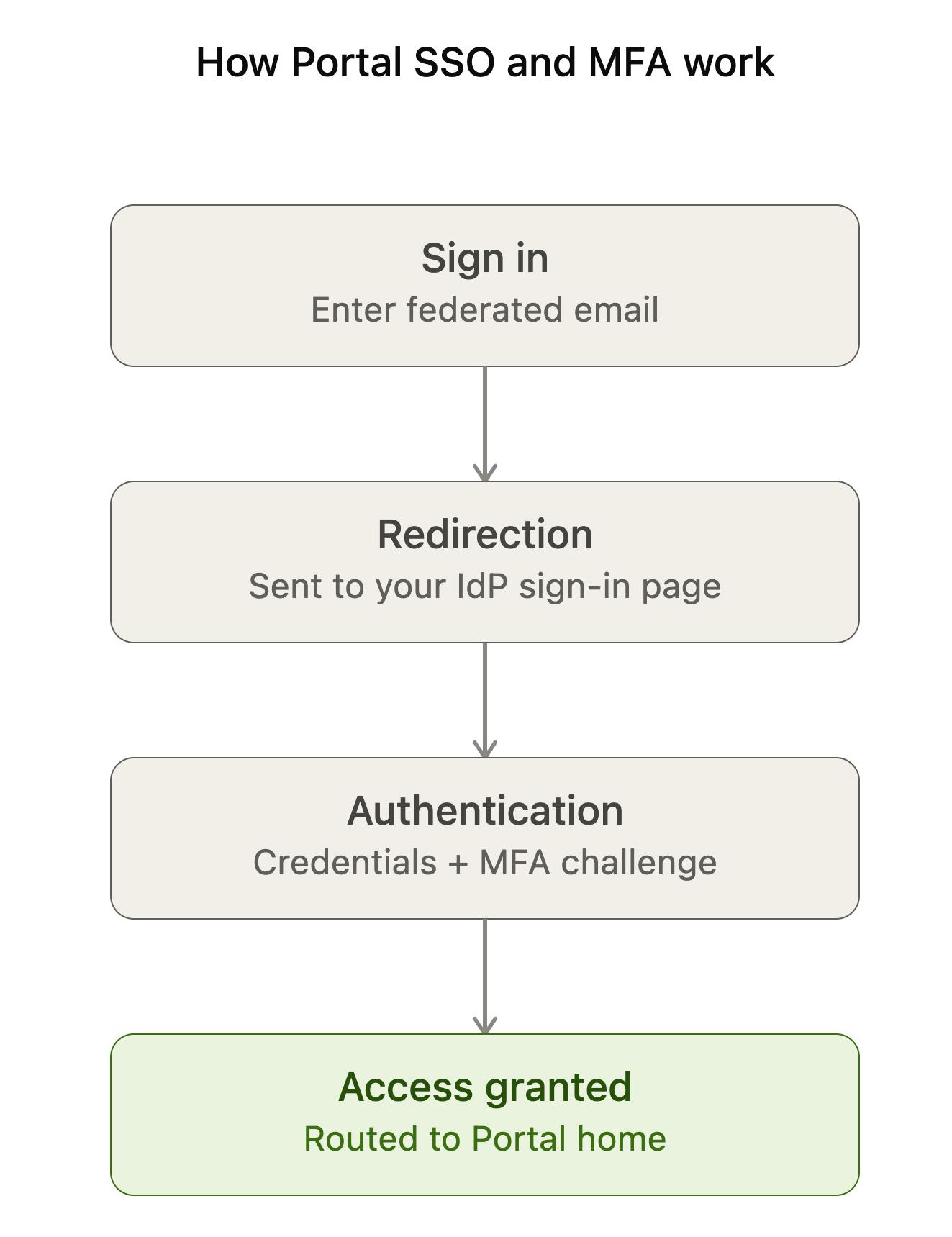
How Portal SSO and MFA work
- Sign in: You enter your federated email address on the Bazaarvoice Portal login page.
- Redirection: Portal automatically redirects you to your organization's IdP sign-in page.
- Authentication: You enter your credentials and complete any required MFA challenges enforced by your IdP.
- Access granted: Upon successful verification, your IdP redirects you back to the Bazaarvoice Portal with your assigned permissions.
Frequently asked questions (FAQs)
Does Bazaarvoice enforce MFA settings for Portal users?
No. MFA is strictly managed by your organization's Identity Provider. Bazaarvoice enforces FSSO redirection, but all MFA prompts, policy rules, and device enrollments are governed by your IdP.
Can I (my organization) enforce MFA for specific user groups or tenants instead of our whole company?
Yes. Depending on your IdP's capabilities, your IT administrator can configure conditional access or sign-on policies to enforce MFA for specific user groups, applications, or tenants assigned to Bazaarvoice Portal.
What should I do if I encounter issues or errors during MFA verification?
Because MFA is configured and managed entirely within your organization's Identity Provider, users experiencing MFA enrollment or verification errors must contact your internal IT Helpdesk or IdP Administrator for assistance. Bazaarvoice Support cannot reset authenticators, clear MFA locks, or alter your organization's security policies.
Why do I see an "Access Denied" error after successfully passing MFA at our IdP?
MFA verifies identity at your IdP, but application access depends on Bazaarvoice user roles. If an "Access Denied" error appears after completing authentication, verify that the user's profile is assigned the appropriate roles within Bazaarvoice Portal User Management.