Comment ouvrir l’Éditeur de style
- Connectez-vous au portail de Bazaarvoice.
- Dans le coin supérieur droit, sélectionnez l'icône des paramètres.
- Sous Configuration, sélectionnez Ratings & Reviews.
- Sous Implémentations, sélectionnez Edit (Modifier) à côté de l'implémentation que vous souhaitez configurer.
- Sélectionnez Style Editor (Éditeur de style) dans la section User Experience (Expérience utilisateur) à gauche.
Où ces éléments apparaissent sur la page
Sélectionnez l’image pour l’ouvrir en taille réelle dans un nouvel onglet.
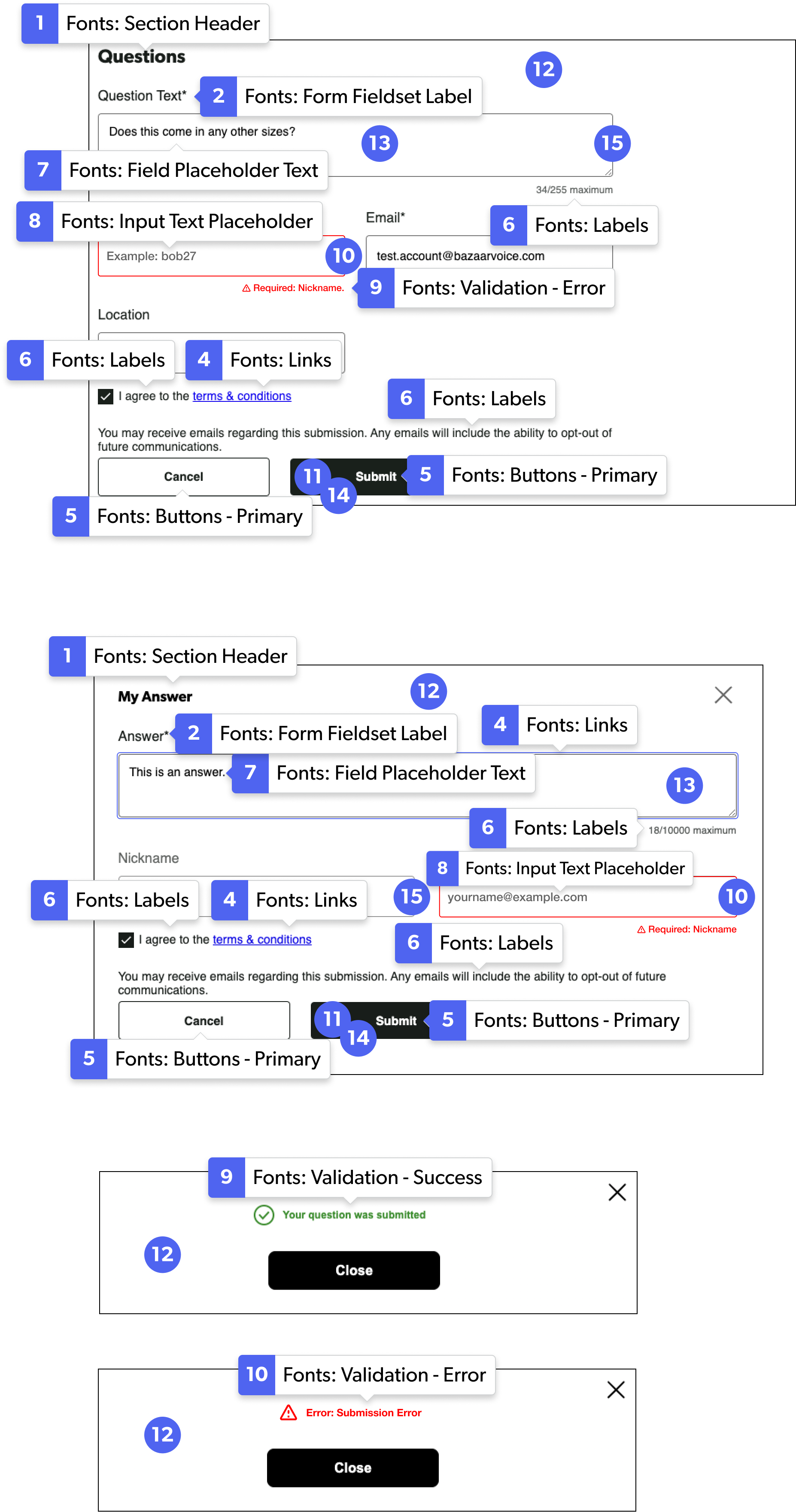
Fonts
Select Fonts to update the following styles. Example: Fonts > Section Header.
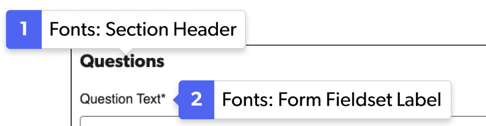
1. Section Header
2. Form Fieldset Label
3. Review Text
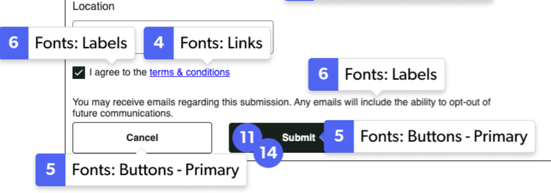
4. Links
Outline of the focused inputs use the Links color.
5. Buttons - Primary
6. Labels
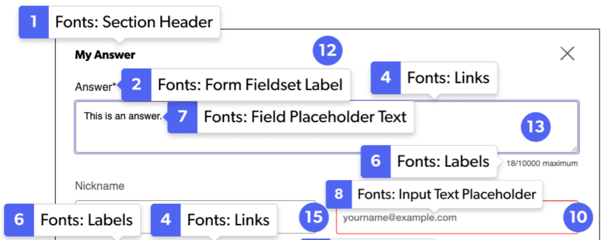
7. Field Placeholder Text
Affects all text inputs that are filled in.
8. Input Text Placeholder
Affects placeholder text inputs that are not filled in.
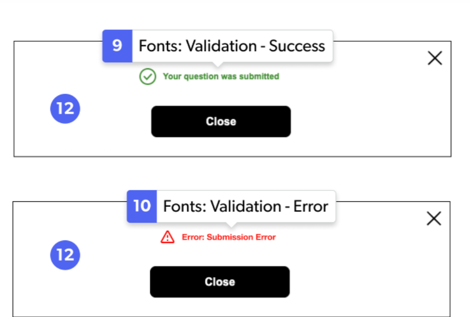
9. Validation - Success
For Success icons, only color can be modified.
10. Validation - Error
- For Error inputs, error text and icon color and size and input border colors are modified by this setting.
- For Error messages, only color can be modified.
Backgrounds
Select Backgrounds to update the following styles. Example: Backgrounds > Buttons - Primary Button.
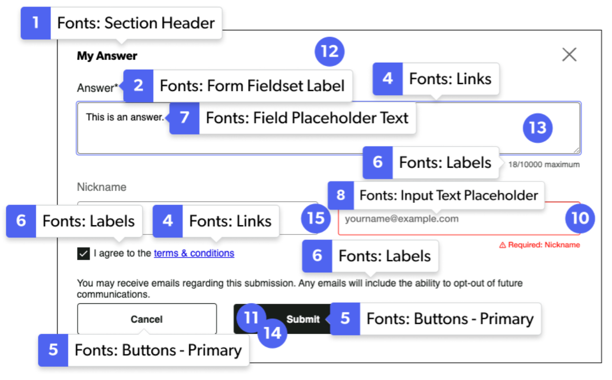
11. Primary Button
Affects the background color of submission form buttons, which will have 50% opacity until form sections are completed.
Note for Cancel button: The Cancel button uses Fonts: Buttons - Primary as its font family, Backgrounds: Primary Button as the button color and border color and a transparent color as the background color.
12. Section Header Control
13. Input Text Background
Borders
Select Borders to update the following styles. Example: Borders > Primary Button.
14. Primary Button
15. Input Fields
Used for all input fields.
Any changes outside of the list above cannot be done