You can configure these styles using Style Editor in the Bazaarvoice Portal:
How to open Style Editor
- Sign in to the Bazaarvoice Portal.
- From the upper-right corner, select the settings icon.
- Under Configuration, select Ratings & Reviews.
- Under Implementations, select Edit next to the implementation you want to configure.
- Select Style Editor in the User Experience section on the left.
Where these elements appear on the page
Select the image to open it full-size in a new tab.
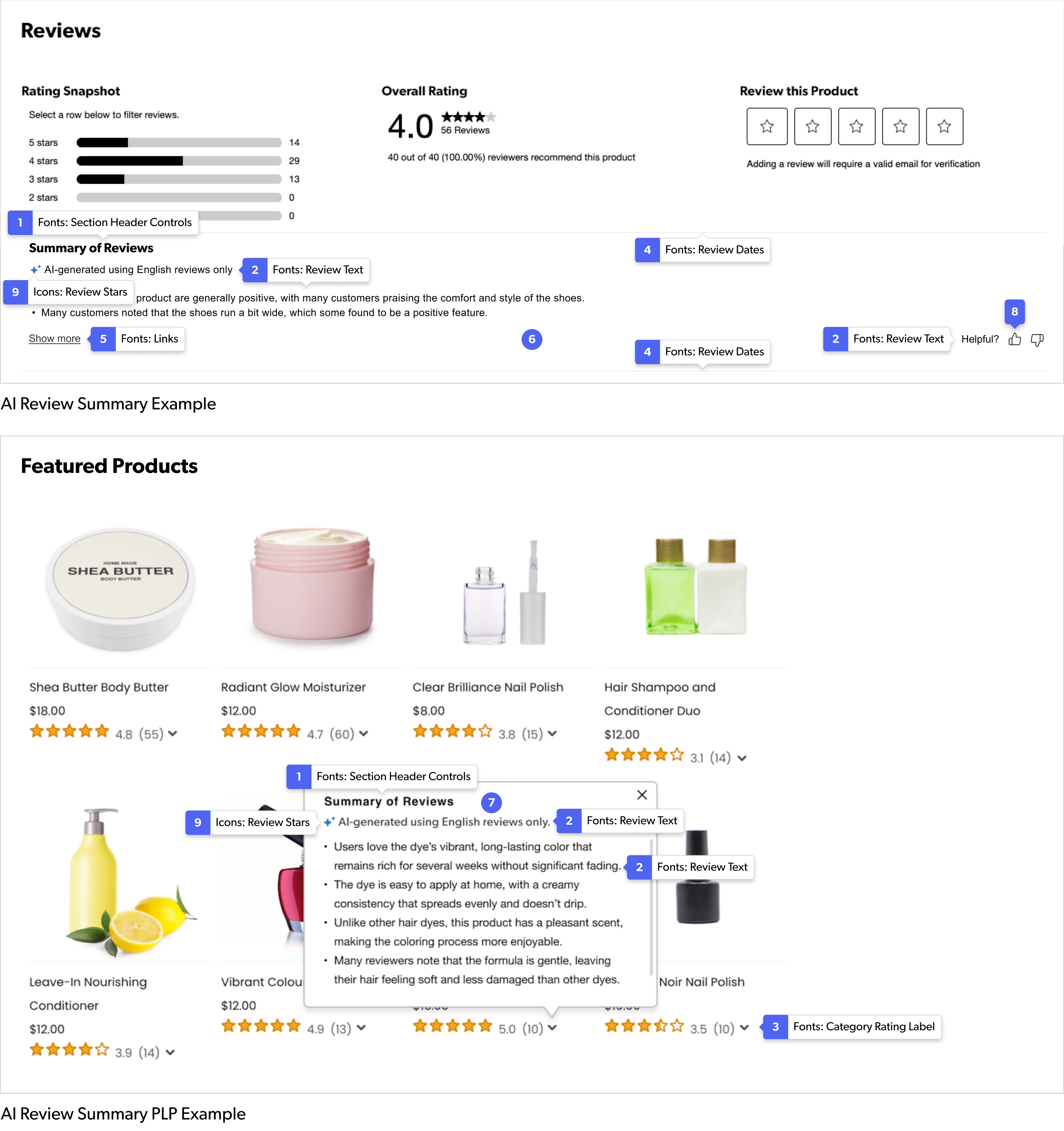
Fonts
Select Fonts to update the following styles. Example: Fonts > Section Header.
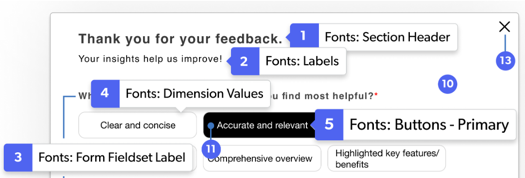
1. Section Header
2. Labels
3. Form Fieldset Label
4. Dimension Values
The default setting has a transparent background, with the font and border color being the same as the applied color. When a pill is selected, the colors invert, resulting in the background taking on the applied color while the font color changes to a default white.
5. Buttons - Primary
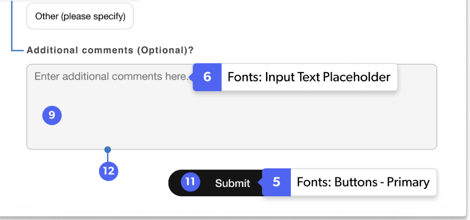
6. Input Text Placeholder
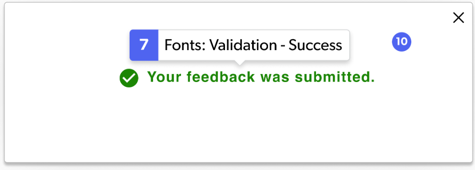
7. Validation - Success
For Success icons, only color can be modified.
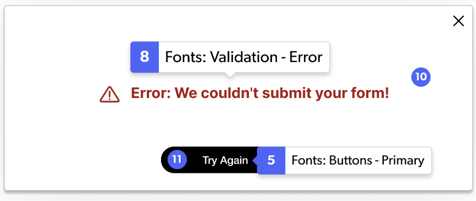
8. Validation - Error
- For Error inputs, error text and icon color and size and input border colors are modified by this setting.
- For Error messages, only color can be modified.
Backgrounds
Select Backgrounds to update the following styles. Example: Backgrounds > Input Text Background.
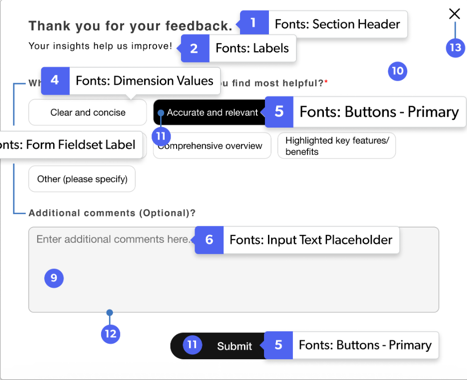
9. Input Text Background
10. Section Header Control
11. Buttons - Primary
Borders
Select Borders to update the following styles. Example: Borders > Input Fields.
12. Input Fields
Icons
Select Fonts to update the following styles. Example: Fonts > Review Text.
13. Fonts: Review Text