Vous pouvez configurer ces styles à l’aide de l’Éditeur de style du portail Bazaarvoice :
Comment ouvrir l’Éditeur de style
- Connectez-vous au portail de Bazaarvoice.
- Dans le coin supérieur droit, sélectionnez l'icône des paramètres.
- Sous Configuration, sélectionnez Ratings & Reviews.
- Sous Implémentations, sélectionnez Edit (Modifier) à côté de l'implémentation que vous souhaitez configurer.
- Sélectionnez Style Editor (Éditeur de style) dans la section User Experience (Expérience utilisateur) à gauche.
Où ces éléments apparaissent sur la page
Sélectionnez l’image pour l’ouvrir en taille réelle dans un nouvel onglet.
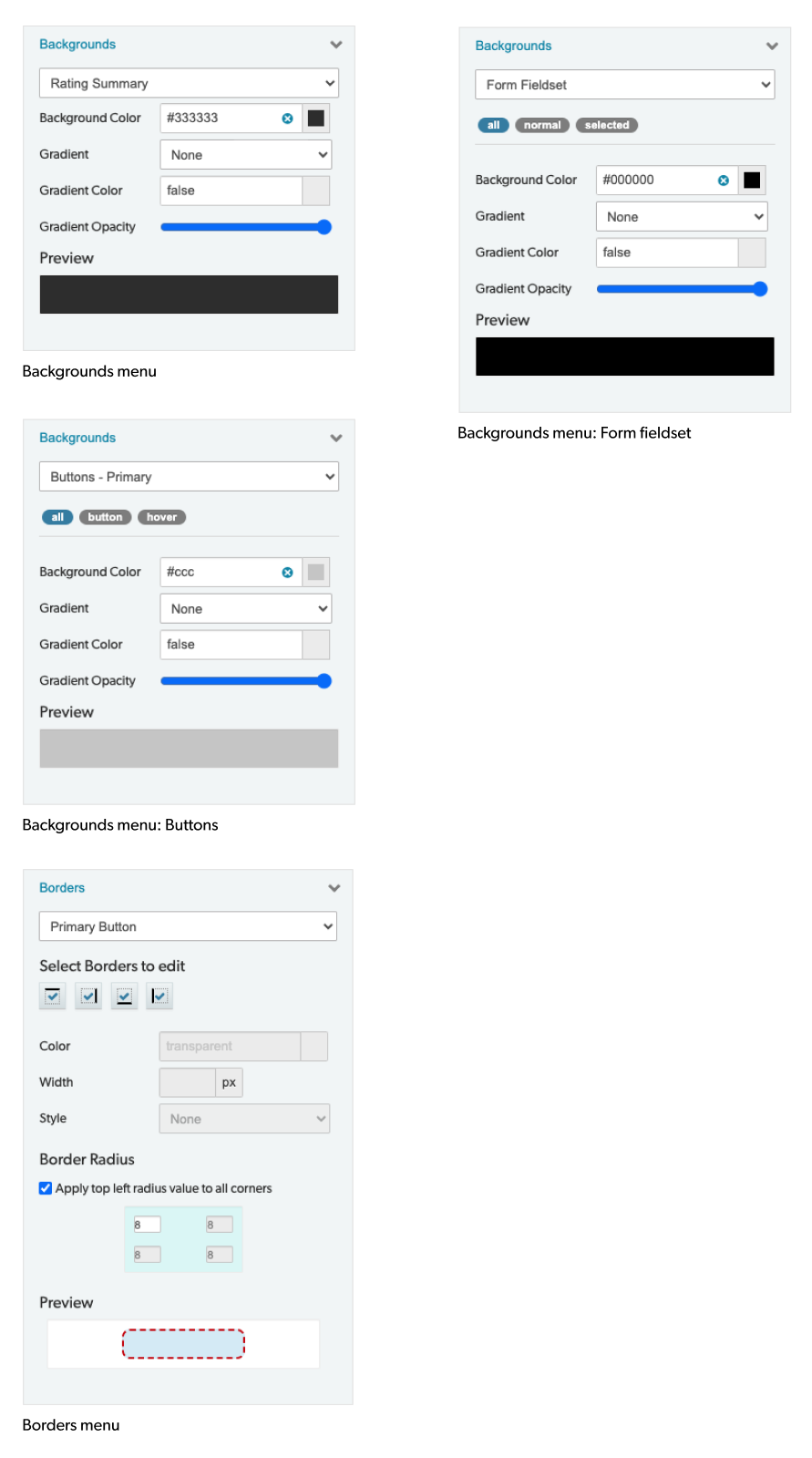
Backgrounds menu options
Select Backgrounds menu options to select a background style. Example: Backgrounds > Background Color > #333333.
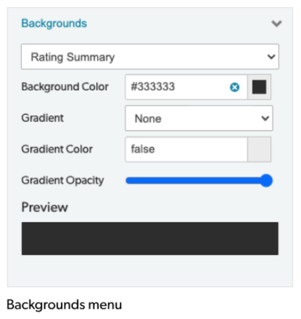
- Background Color: Select a background color from the palette or enter the hex code of the desired color.
- Gradient: Adds a gradient from Gradient Color to Background Color. Select whether the gradient should start at the Top or Bottom.
- Gradient Color: Select a color from the palette or enter the hex code of the desired color.
- Gradient Opacity: Set the opacity for the gradient.
Form Fieldset States
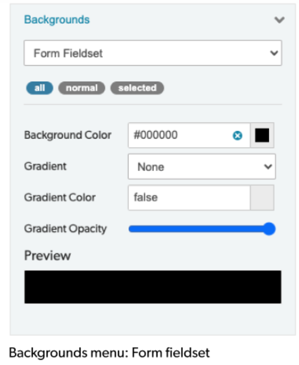
- All: Changes will be applied to all form fieldset states.
- Normal: Changes will be applied to default form fieldset state only.
- Selected: Changes will be applied to the active form fieldset state only.
Button States
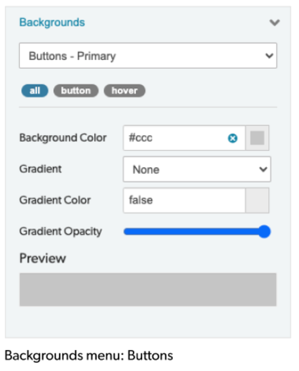
- All: Changes will be applied to all button states.
- Button: Changes will be applied to default button state only.
- Hover: Changes will be applied to the hover button state only.
Borders menu options
Select Borders menu options to select a border style. Example: Borders > Color > transparent.
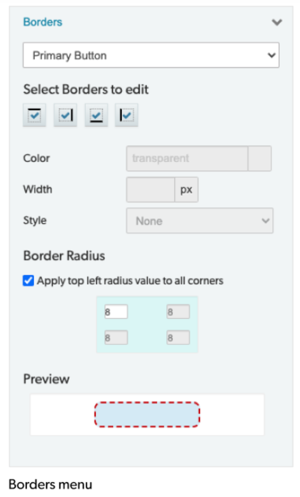
- Select borders to edit: Specify and enable/disable the top, bottom, left and/or right borders.
- Color: Select a border color from the palette or enter the hex code of the desired color.
- Width: Select a border width in pixels.
- Style: Select a border style from the dropdown: None, Hidden, Dotted, Dashed, Solid, Double, Groove, Ridge or Inset.
- Border Radius: Specify a border radius in pixels to add rounded corners to an object. Each corner can have different settings, or one setting can be applied for all corners