Vous pouvez configurer ces styles à l’aide de l’Éditeur de style du portail Bazaarvoice :
Comment ouvrir l’Éditeur de style
- Connectez-vous au portail de Bazaarvoice.
- Dans le coin supérieur droit, sélectionnez l'icône des paramètres.
- Sous Configuration, sélectionnez Ratings & Reviews.
- Sous Implémentations, sélectionnez Edit (Modifier) à côté de l'implémentation que vous souhaitez configurer.
- Sélectionnez Style Editor (Éditeur de style) dans la section User Experience (Expérience utilisateur) à gauche.
Où ces éléments apparaissent sur la page
Sélectionnez l’image pour l’ouvrir en taille réelle dans un nouvel onglet.
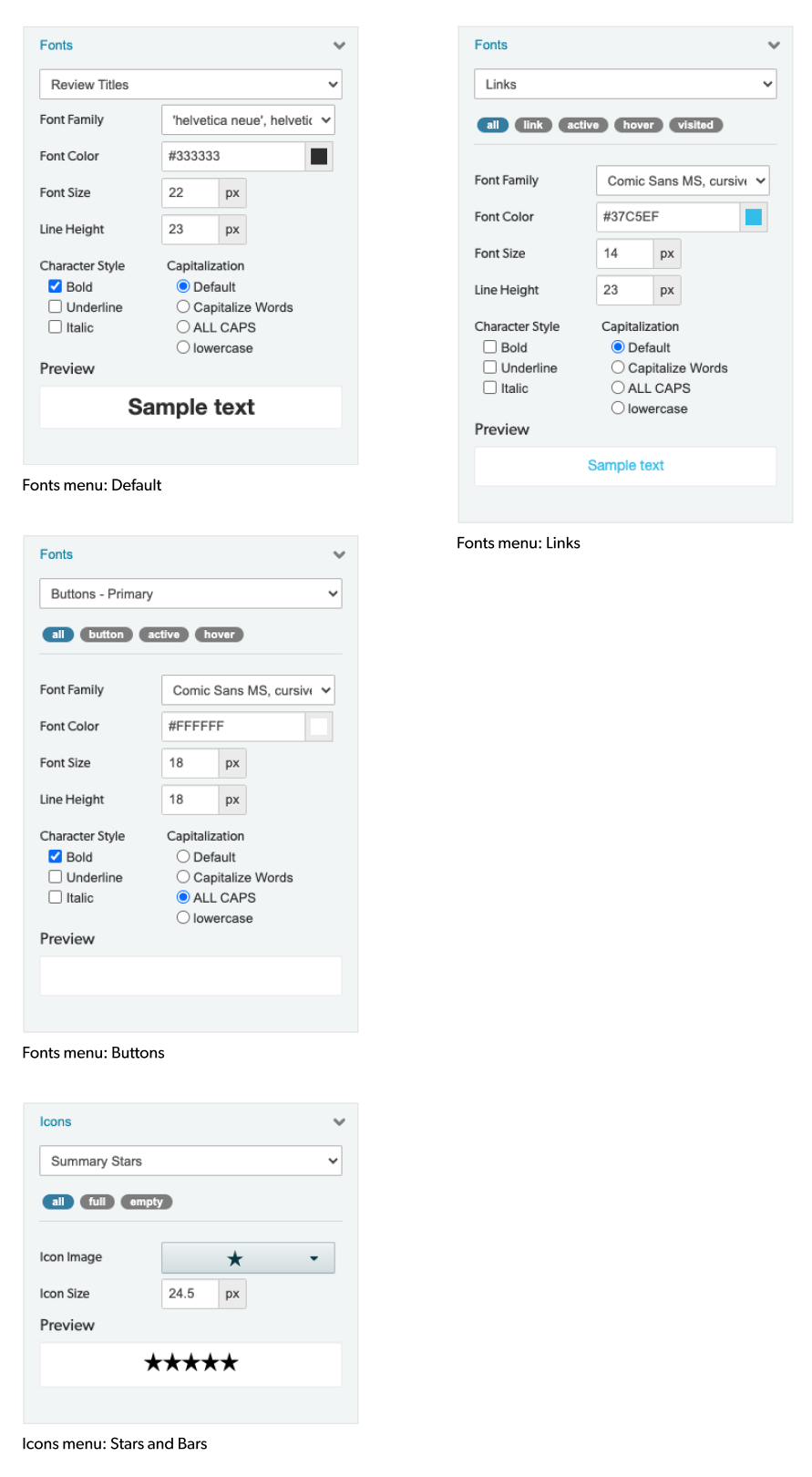
Fonts menu options
Fonts
Select Fonts menu options to update the font styles. Example: Fonts > Font Family > Arial.
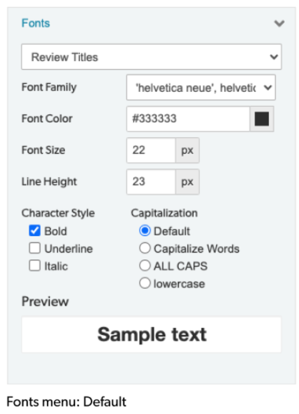
- Font Family: Limited to what is displayed in the drop down menu.
- Font Color: Select from palette or enter the desired hex code.
- Font Size: In pixels
- Line Height: In pixels
- Character Style: Limited to Bold, Underline, Italic
- Capitalization: Limited to Default, Capitalize Words, ALL CAPS, lowercase
Link States
Select Links to update the link states. Example: Fonts > Links > All.
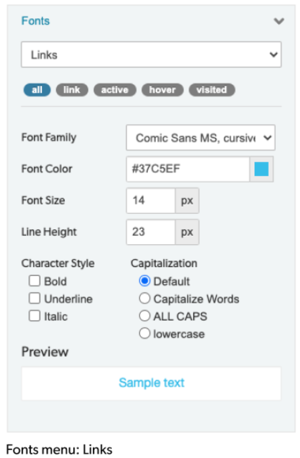
- All: Changes will be applied to all link states.
- Link: Changes will be applied to default link state only.
- Active: Changes will be applied to the active link state only.
- Hover: Changes will be applied to the hover link state only.
- Visited: Changes will be applied to the visited link state only.
Button States
Select Button states to update the button states. Example: Fonts > Buttons - Primary > All.
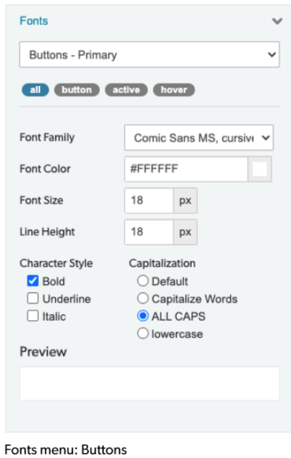
- All: Changes will be applied to all button states.
- Button: Changes will be applied to default button state only.
- Active: Changes will be applied to the active button state only.
- Hover: Changes will be applied to the hover button state only.
Custom Fonts
To use custom fonts, they can either be detected from your site’s stylesheet using the Style Detector or added using the Manage Styles palette.
Icons Menu Options
Stars and Bars
Select Icon menu options to update the stars and bars styles. Example: Icons > Icon Size > 24.5 px.
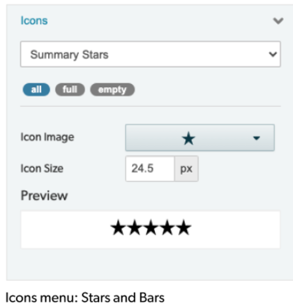
- Icon Color: Hex code can be specified for full and empty stars if not already in the palette.
- Icon Image: Limited to 1 of 2 options, rounded stars or sharp stars.
- Icon Size: In pixels