You can configure these styles using Style Editor in the Bazaarvoice Portal:
-
Sign in to the Bazaarvoice Portal.
-
From the upper-right corner, select the settings icon.
-
Under Configuration, select Ratings & Reviews.
-
Under Implementations, select Edit next to the implementation you want to configure.
-
Select Style Editor in the User Experience section on the left.
Fonts
Select Fonts to update the following styles. Example: Fonts > Form Fieldset Label.
1. Form Fieldset Label
2. Section Header
3. Review Text
4. Review Dates
5. Reviewer Name
6. Labels
7. Field Placeholder Text
8. Input Text Placeholder
9. Links
- Font-weight, font-style, text decoration from Review Text styling. Font-size, font-transform, font-family, color from Links styling.
- Outline of the focused inputs use the Links color.
10. Buttons - Primary
11. Validation - Error
Error messages below inputs, error text, icon color and size and input border colors are modified by this setting.
Backgrounds
Select Backgrounds to update the following styles. Example: Backgrounds > Section Header Controls.
12. Section Header Controls
13. Input Text Background
Borders
Select Borders to update the following styles. Example: Borders > Content Header.
14. Content Header
15. Input Fields
|
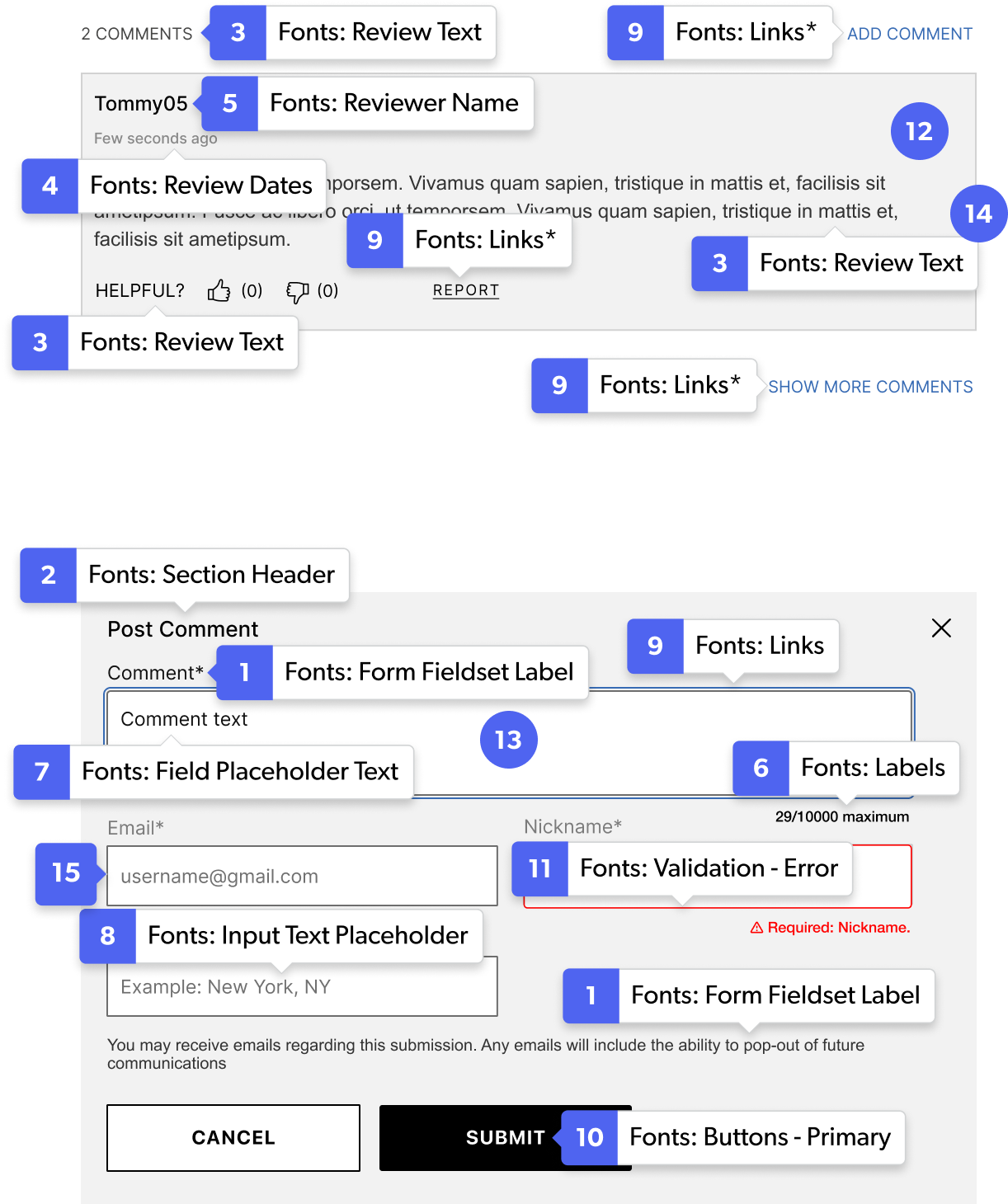
Comments display and submission example
|
