Display (V2) Multi-Product Submission Terms & Conditions
You can configure these styles using Style Editor in the Bazaarvoice Portal:
-
Sign in to the Bazaarvoice Portal.
-
From the upper-right corner, select the settings icon.
-
Under Configuration, select Ratings & Reviews.
-
Under Implementations, select Edit next to the implementation you want to configure.
-
Select Style Editor in the User Experience section on the left.
Fonts
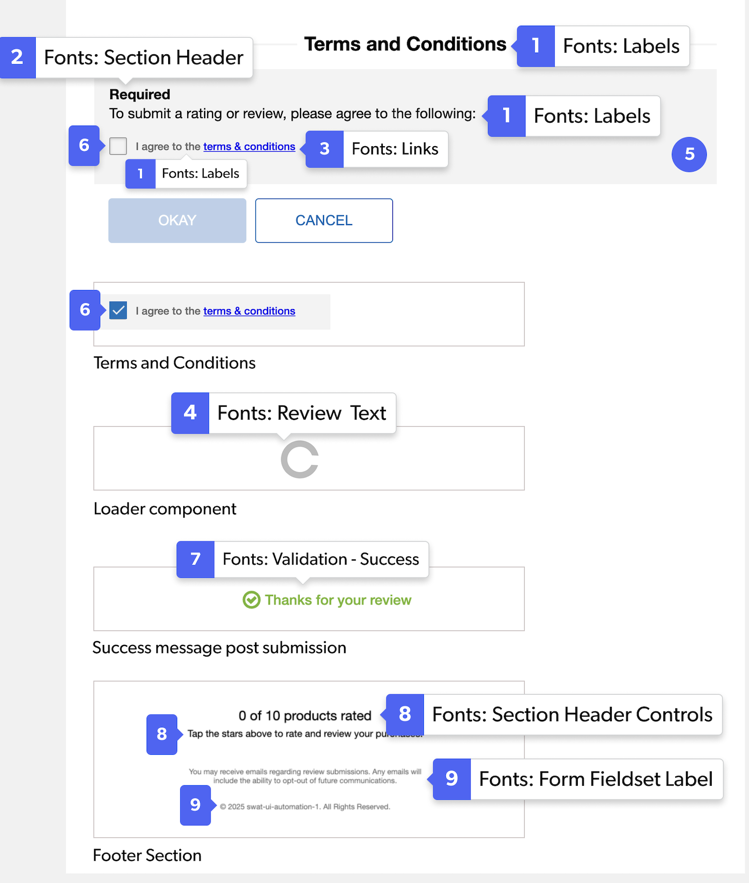
Select Fonts to update the font styles. Example: Fonts > Labels.
1. Labels
2. Section Header
3. Links
4. Review Text
Backgrounds
Select Backgrounds to update the background styles. Example: Backgrounds > Section Header Controls.
5. Section Header Controls
Fonts/Backgrounds/Borders
6. Agreements Checkbox
- Unfilled border: Fonts > Review Text
- Unfilled background color: Transparent
- Filled check color: Fonts > Buttons - Primary
- Filled tick color: Backgrounds > Buttons - Primary
7. Fonts: Validation - Success
8. Fonts: Section Header Controls
9. Fonts: Form Fieldset Label
|
|
