Display (V2) Order History
You can configure these styles using Style Editor in the Bazaarvoice Portal:
-
Sign in to the Bazaarvoice Portal.
-
From the upper-right corner, select the settings icon.
-
Under Configuration, select Ratings & Reviews.
-
Under Implementations, select Edit next to the implementation you want to configure.
-
Select Style Editor in the User Experience section on the left.
Fonts
Select Fonts to update the font styles. Example: Fonts > Review Text > Font Color.
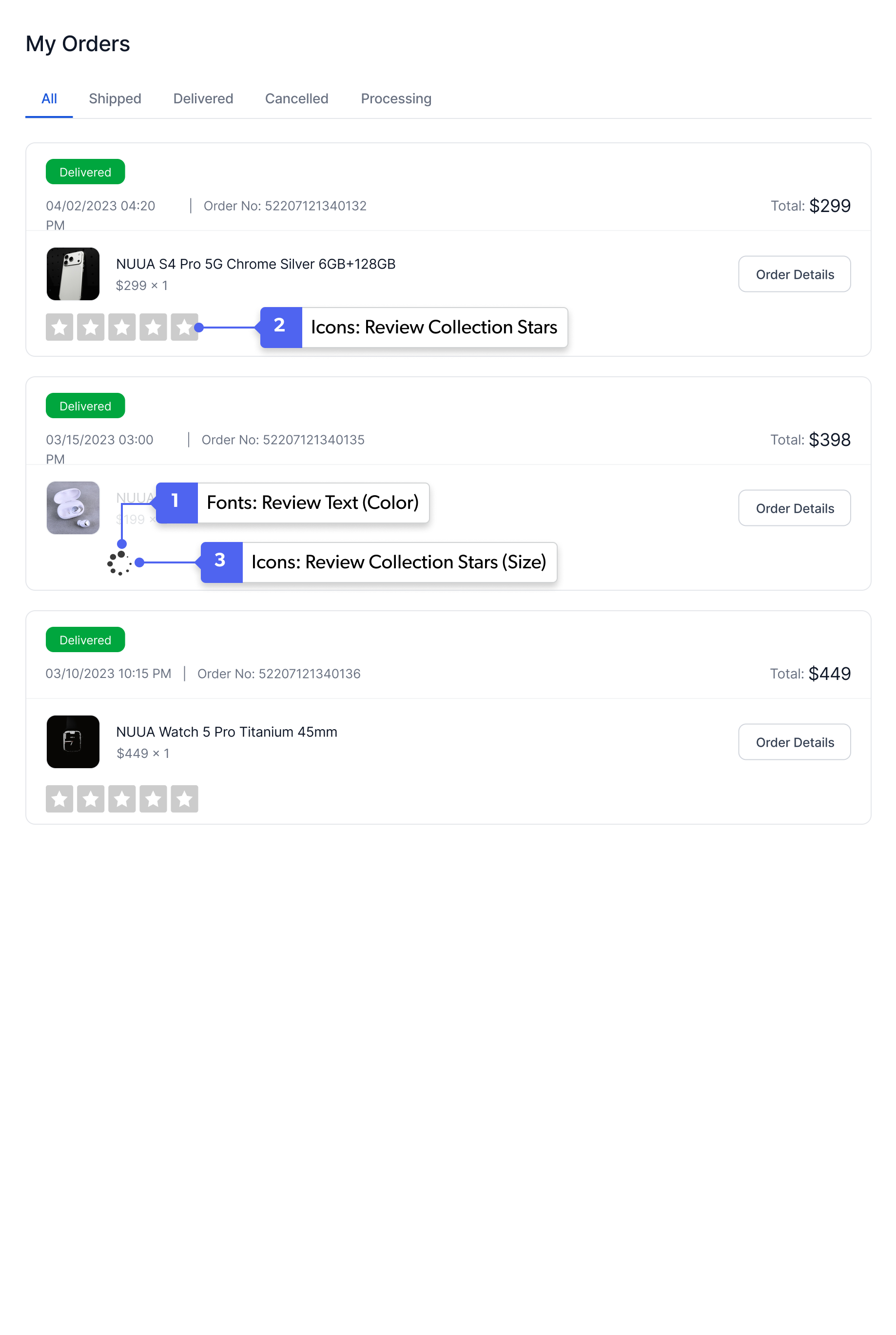
1. Review Text (Color)
Review Text properties are driven by the global review text font settings. Specifically, the Review Text Color inherits from the font color, while the ReviewText font family and size are mapped directly from the review text font family and size definitions.
Icons
Select Icons to update the icon styles. Example: Icons > Review Collection Stars > Icon Size.
2. Review Collection Stars
The Icon Size of review stars is not exact in pixels. To calculate the Review Stars’ size, the Icon Size value in the Icons menu is multiplied by 0.60 to determine the final size of the stars. For example, a font size value of 16px would result in a star width and height of 9.6px (16 * 0.60 = 9.6).
3. Review Collection Stars (Size)
The Icon Size of loading icon is not exact in pixels. To calculate the loading icon size, the Icon Size value in the Icons menu is multiplied by 0.60 to determine the final size of the stars. For example, a font size value of 16px would result in a star width and height of 9.6px (16 * 0.60 = 9.6).
|
|
