Display (V2) Q & A Fonts

You can configure these styles using Style Editor in the Bazaarvoice Portal:
  1. Sign in to the Bazaarvoice Portal.
  2. From the upper-right corner, select the settings icon.
  3. Under Configuration, select Ratings & Reviews.
  4. Under Implementations, select Edit next to the implementation you want to configure.
  5. Select Style Editor in the User Experience section on the left.
Fonts

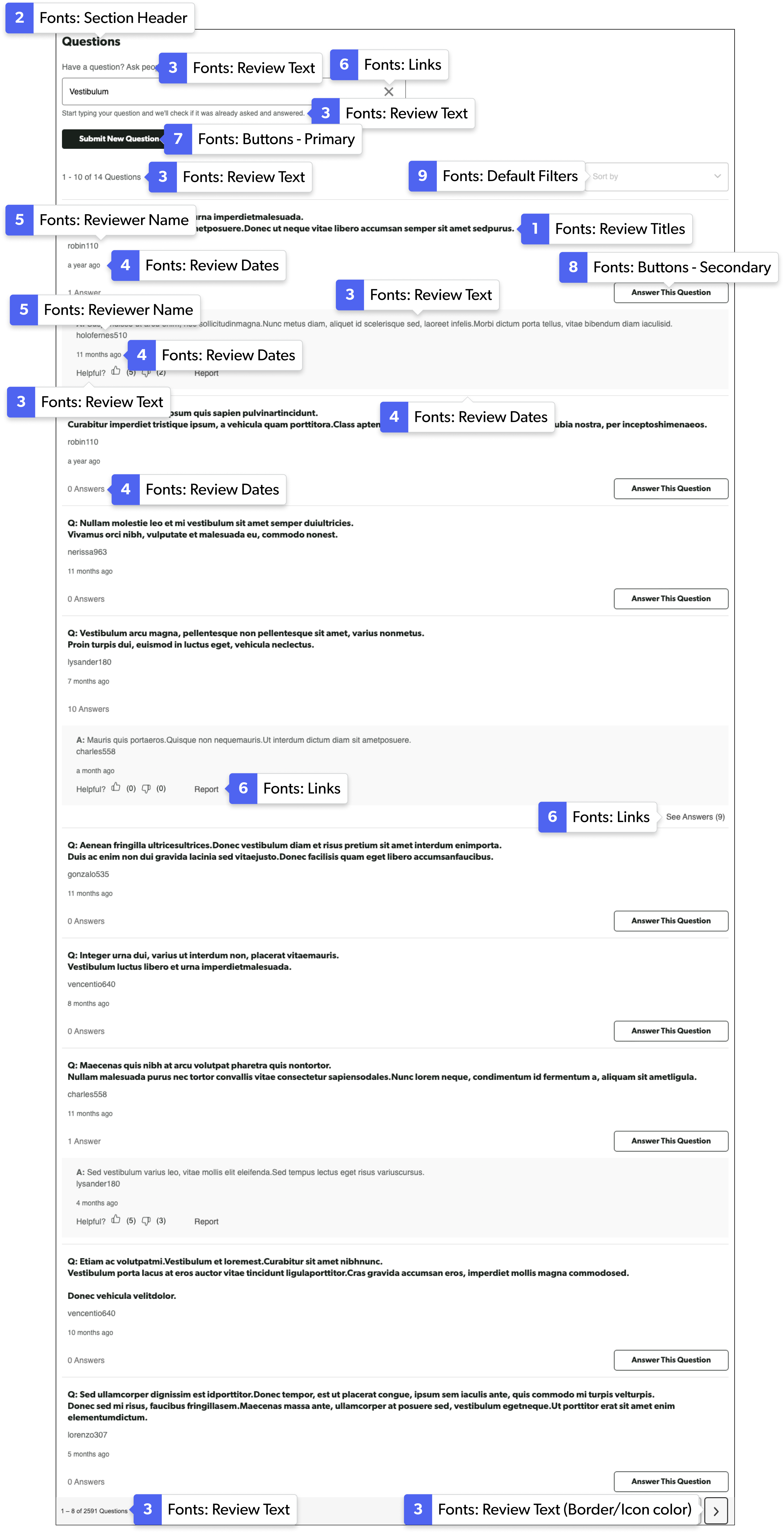
Select Fonts to update the following styles. Example: Fonts > Review Titles.

1. Review Titles

2. Section Header

3. Review Text

4. Review Dates

5. Reviewer Name

6. Links

7. Buttons - Primary

8. Buttons - Secondary

9. Default Filters

Questions and Answers display example with numbered callouts identifying font styles for various elements.

Questions & Answers display example

Provide feedback button
