Display (V2) Q & A Submission
You can configure these styles using Style Editor in the Bazaarvoice Portal:
-
Sign in to the Bazaarvoice Portal.
-
From the upper-right corner, select the settings icon.
-
Under Configuration, select Ratings & Reviews.
-
Under Implementations, select Edit next to the implementation you want to configure.
-
Select Style Editor in the User Experience section on the left.
Fonts
Select Fonts to update the following styles. Example: Fonts > Section Header.
1. Section Header
2. Form Fieldset Label
3. Review Text
4. Links
Outline of the focused inputs use the Links color.
5. Buttons - Primary
6. Labels
7. Field Placeholder Text
Affects all text inputs that are filled in.
8. Input Text Placeholder
Affects placeholder text inputs that are not filled in.
9. Validation - Success
For Success icons, only color can be modified.
10. Validation - Error
- For Error inputs, error text and icon color and size and input border colors are modified by this setting.
- For Error messages, only color can be modified.
Backgrounds
Select Backgrounds to update the following styles. Example: Backgrounds > Buttons - Primary Button.
11. Primary Button
Affects the background color of submission form buttons, which will have 50% opacity until form �sections are completed.
Note for Cancel button: The Cancel button uses Fonts: Buttons - Primary as its font family, Backgrounds: Primary Button as the button color and border color and a transparent color as the background color.
12. Section Header Control
13. Input Text Background
Borders
Select Borders to update the following styles. Example: Borders > Primary Button.
14. Primary Button
15. Input Fields
Used for all input fields.
Any changes outside of the list above cannot be done.
|
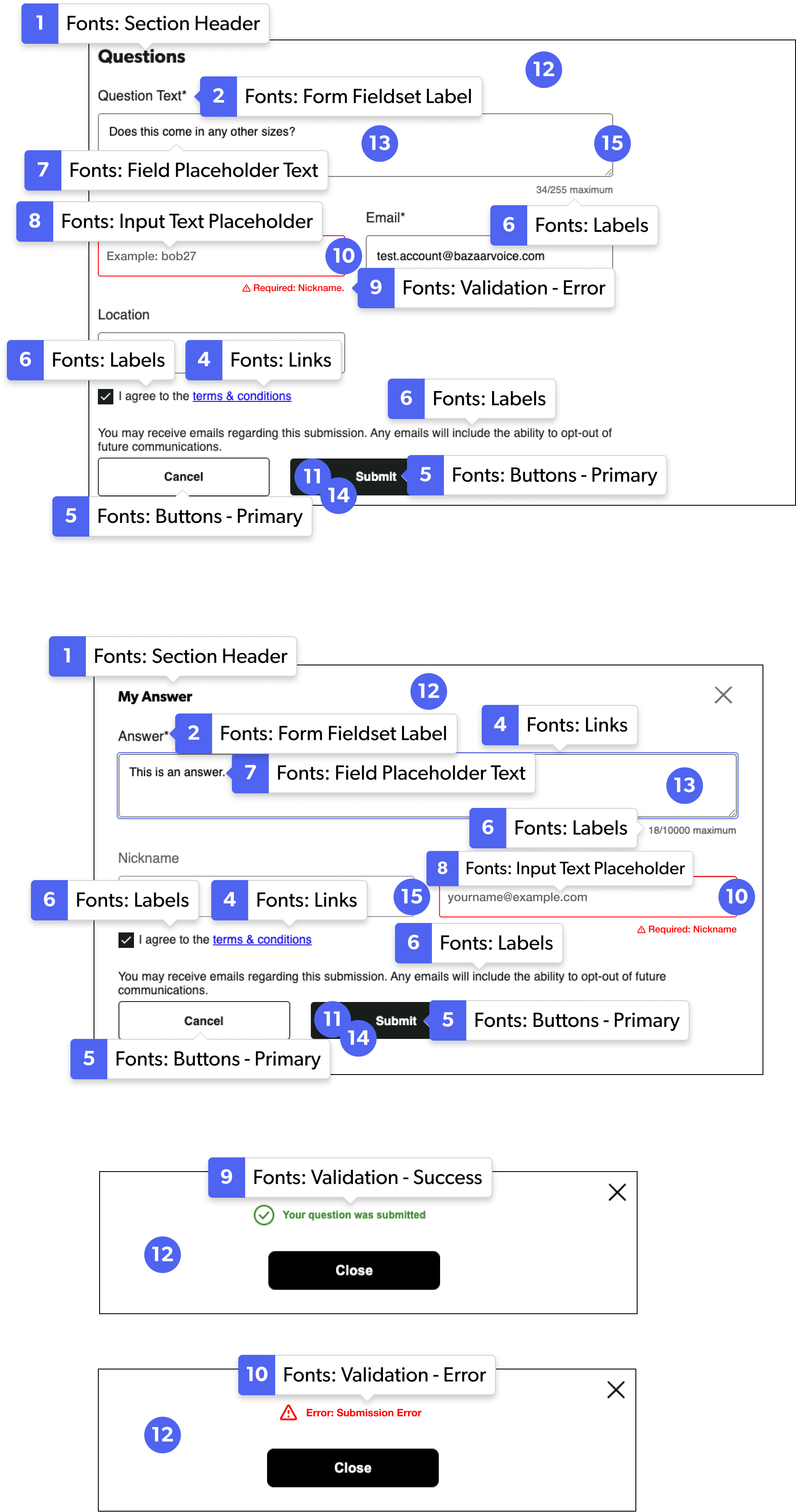
Question and answer submission form examples
|
