Display (V2) Review Backgrounds And Borders
You can configure these styles using Style Editor in the Bazaarvoice Portal:
-
Sign in to the Bazaarvoice Portal.
-
From the upper-right corner, select the settings icon.
-
Under Configuration, select Ratings & Reviews.
-
Under Implementations, select Edit next to the implementation you want to configure.
-
Select Style Editor in the User Experience section on the left.
Backgrounds
Select Backgrounds to update the background styles. Example: Backgrounds > Rating Summary.
1. Rating Summary
2. Section Header
3. Section Header Controls
4. Content Item
5. Content Header
6. Content Summary
7. Buttons - Primary
The "button" option sets the color of the Helpfulness voting icons.
8. Default Filters
The filter and sort menu buttons both take background colors from this. The selected option also uses the Default Filters background. The hover option inverts the Default Filters background and Default Filters font colors.
9. Input Text Background
Borders
Select Borders to update the border styles. Example: Borders > Content Item.
10. Content Item
11. Content Header
12. Content Summary
13. Section Header
14. Review Attribution Statement
|
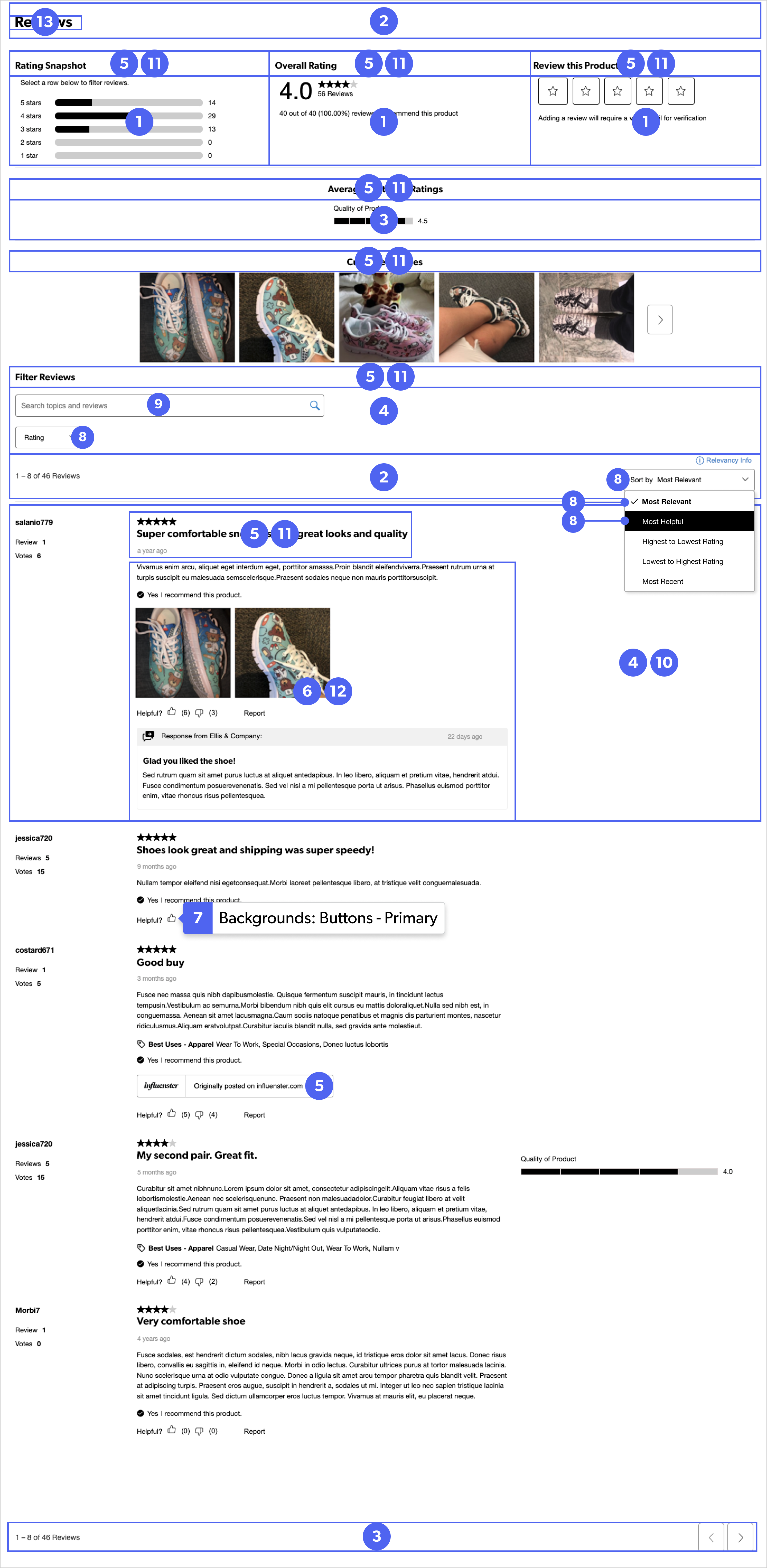
Reviews display example
|
