Display (V2) Visual Content Coach: Media Quality Feedback
You can configure these styles using Style Editor in the Bazaarvoice Portal:
-
Sign in to the Bazaarvoice Portal.
-
From the upper-right corner, select the settings icon.
-
Under Configuration, select Ratings & Reviews.
-
Under Implementations, select Edit next to the implementation you want to configure.
-
Select Style Editor in the User Experience section on the left.
Backgrounds
Select Backgrounds to update the following styles. Example: Backgrounds > Buttons - Primary
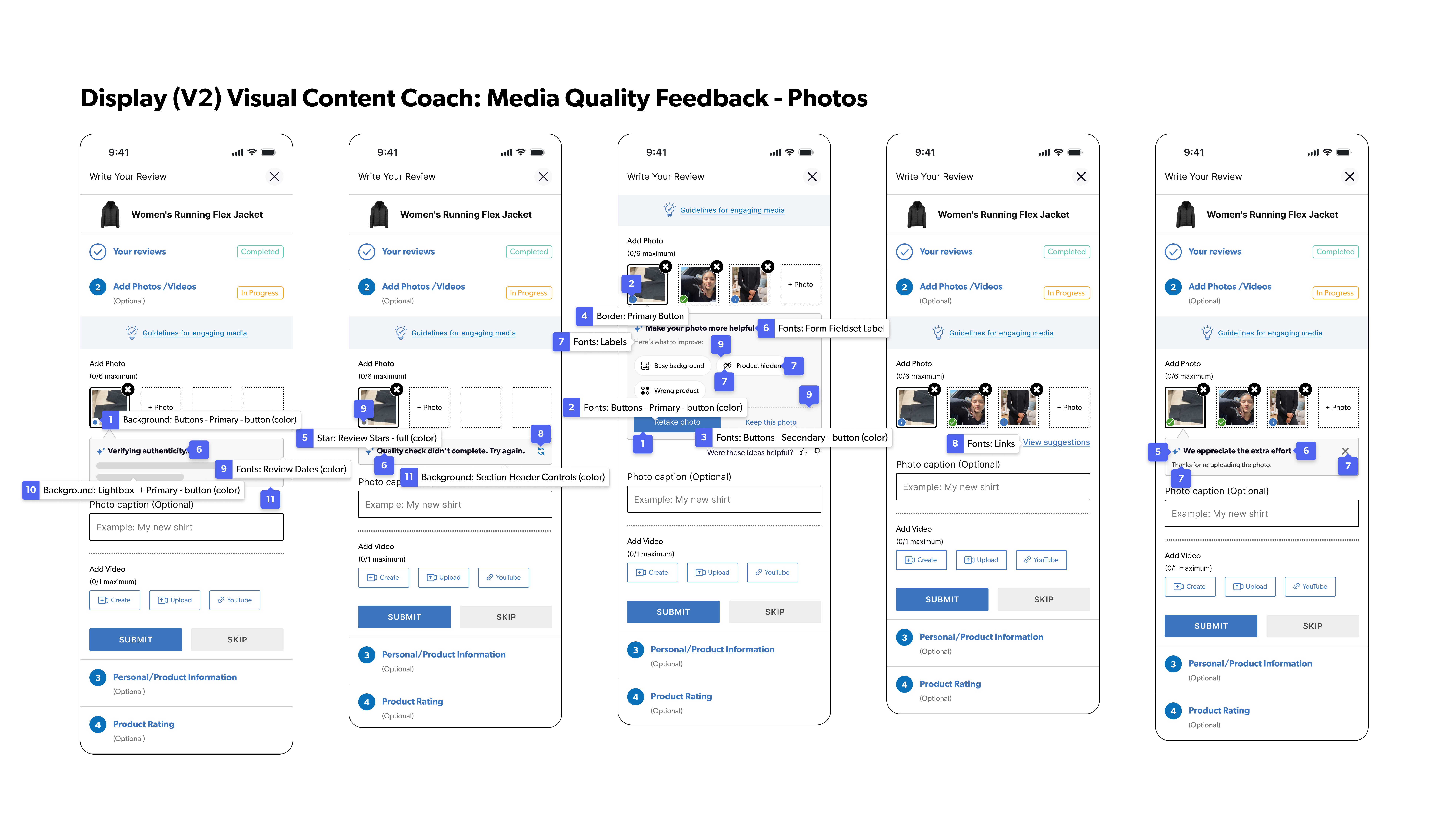
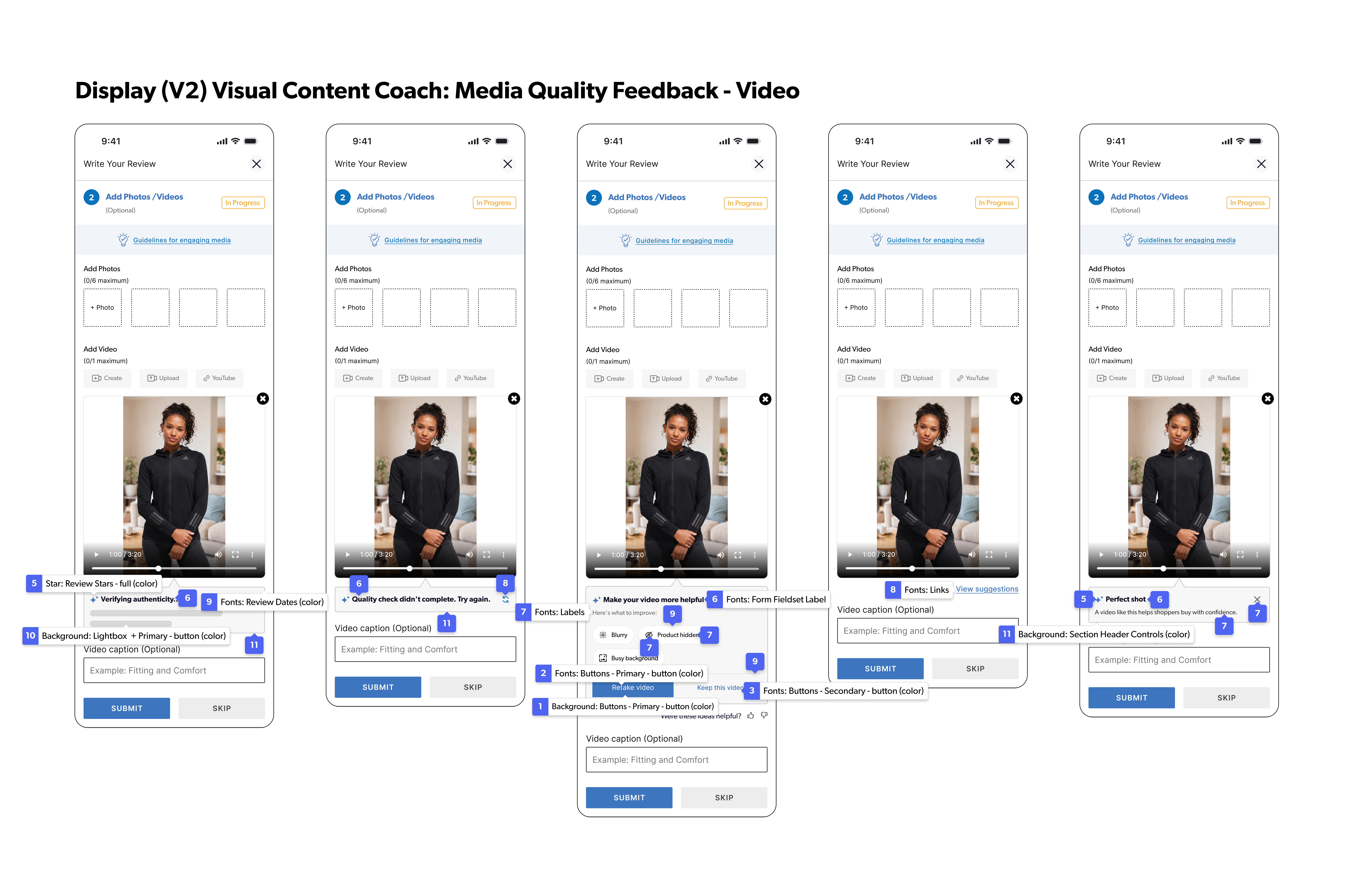
1. Buttons - Primary > button > Background Color
Fonts
Select Fonts to update the following styles. Example: Fonts > Buttons - Primary.
2. Buttons - Primary > Font Color
3. Buttons - Secondary > Font Color
Border
Select Border to update the following styles. Example: Border > Primary Button.
4. Primary Button > Color
Star
Select Star to update the following styles. Example: Star > Review Stars.
5. Review Stars > full > Icon Color
Fonts
6. Form Fieldset Label > Font Color
7. Labels > Font Color
8. Links > Font Color
9. Review Dates > Font Color
(Affects border color for the photo analysis card, divider line, and suggestion pill borders)
Backgrounds
10. Lightbox > Background Color
11. Section Header Controls > Background Color
|
|
|
|