The migrate reviews feature allows you to move existing user-generated content (UGC) from one product to another. This is helpful to:
- Correct misplaced reviews: Quickly move reviews that were mistakenly submitted to the wrong product page.
- Keep existing reviews: Make sure reviews stay connected to the right product, even if the product is rebranded or the ID changes.
Before you begin
- Active source: You can only migrate content from a product that currently has reviews. If the source review is empty, the Migrate button will be disabled.
- Unique destination: The source product and destination product must be different.
How to migrate reviews
Content AdministratorAccount Administrator
To migrate reviews:
-
Sign in to the Bazaarvoice Portal
 .
.
- From the top navigation bar select Ratings & Reviews.
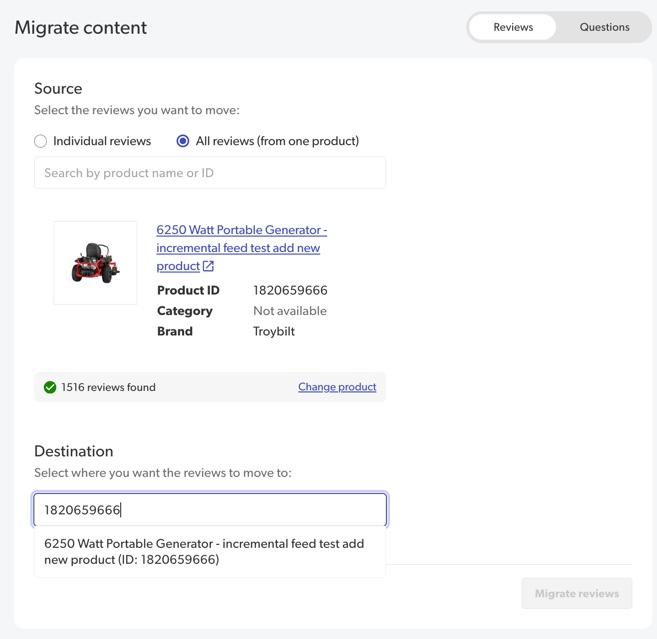
- From the side bar, select Migrate Content. The Migrate content page appears.
- Under Source select one of the following review sources:
- To move individual reviews:
- Under Source, select Individual reviews.
- Enter the individual IDs of the reviews you want to move, separated by commas.
- Select Add. All review IDs will be verified. Select View details to see more information for valid reviews.
- To move all reviews from one product to another:
- Under Source, select All reviews (from one product).
- Search for a product by entering a product name or ID. As you type, a list of existing product names with IDs will appear to help you narrow your search.
- Select a product from the drop-down list.
- Select Add. The source product will be verified to make sure it has existing reviews.
- (Optional). Select Change product if you’ve selected the incorrect source product.
- To move individual reviews:
- Under Destination:
- Search for a destination product by product name or ID. As you type, a list of product names with IDs will appear.
- Select a product from the drop-down list.
- (Optional). Select Change product if you’ve selected the incorrect destination product.
-
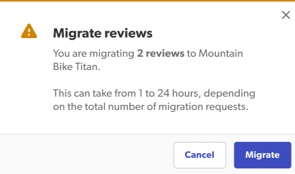
Select Migrate reviews. A confirmation message appears.