All user-generated content (UGC) undergoes a rigorous process of automated and human moderation.
- Bazaarvoice recommends accepting the moderation codes applied by our expert moderation team.
- However, you have the flexibility to self-moderate and overwrite codes when necessary.
To ensure an accurate moderation decision, always perform the following checks:
To ensure an accurate moderation decision, always perform the following checks:
Self-moderation checklist
- Read the full text: Check for context and accuracy.
- Inspect visuals: View photos or videos for brand safety or irrelevant content.


Before you begin
Bazaarvoice recommends checking that the moderation process is working as you expected and that your content is being approved or rejected correctly.
To check the moderation process is working as you expect:
- Set up and save a custom filter for the set of questions you’re interested in checking.
- Use this filter to navigate through the questions, read the question text, and check any visual content.
- Decide whether the UGC was moderated correctly by Bazaarvoice and take appropriate action such as whether you want to self-moderate.
- If you choose to approve or reject Q&A content:
- Badge update: The status badge updates to either Approved or Rejected.
- Timestamp: A moderation timestamp is addded. For example, Moderated on: June 2, 2024 at 10:30 PM CDT.
- Moderation code: A moderation code, either Approved By Client [ABC] or Rejected By Client [RBC], is added to the Moderation details modal to indicate that you moderated the content.
.Understanding Bazaarvoice moderation codes
Moderation codes are labels that indicate the specific reason for a content decision.
- Automatic labeling: System-rejected content automatically receives at least one moderation code explaining the decision.
- Manual labeling: You can manually add or update moderation codes.
- Audit history: View a complete timeline of when codes were applied or removed directly within the moderation history tab.
How to approve or reject questions
Content Moderator Content Administrator
You can manage the status of a review from either the List View or the Detail View.
Option 1: In the List View (quick action)
Update a question's status directly from the main list view page. This is ideal for high-volume moderation, such as quickly clearing out obvious spam questions.
- Locate the review and select Moderation details.
- In the modal that appears, select either Approved or Rejected.
- (Optional) Select relevant Moderation Codes to provide a reason for your decision. You can add or update moderation codes without having to update the moderation status.
- Select Save.
Option 2: In the Detail View (deep dive)
Use one of the following methods once you have opened a specific question you need to moderate:
Method A (direct): To approve or reject a question
- Select the Moderation status drop-down list, which shows the current status, such as Approved.
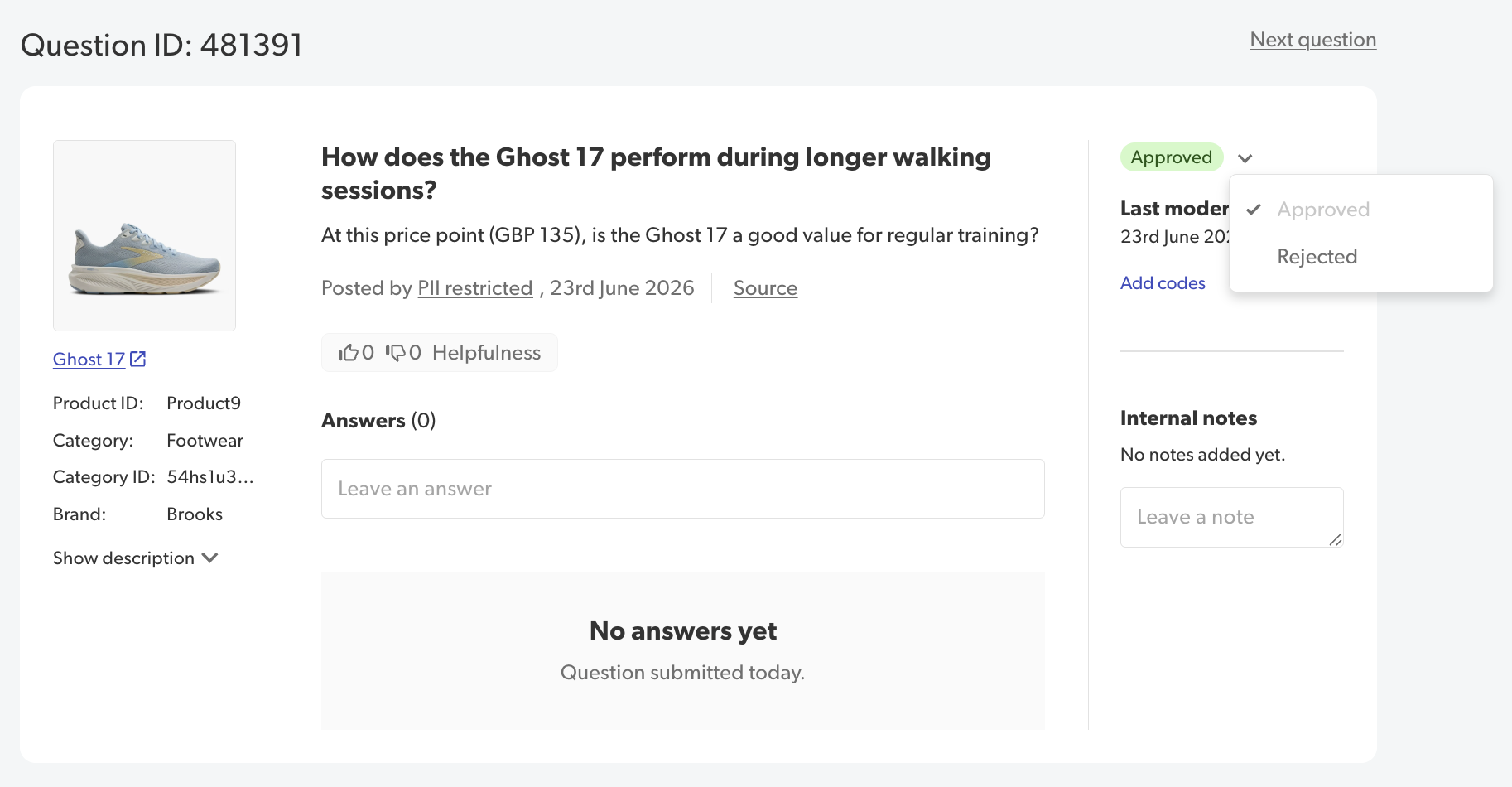
- Select your new status, for example Rejected. The moderation status will update automatically.
Method B (Add mode): To approve or reject a question
- Select the Add codes (or Edit codes) link. The Moderation details modal appears.
- To approve a question, select the Approved status.
- To reject a question, select the Rejected status.
- (Optional) Select relevant Moderation Codes to provide a reason for your decision.
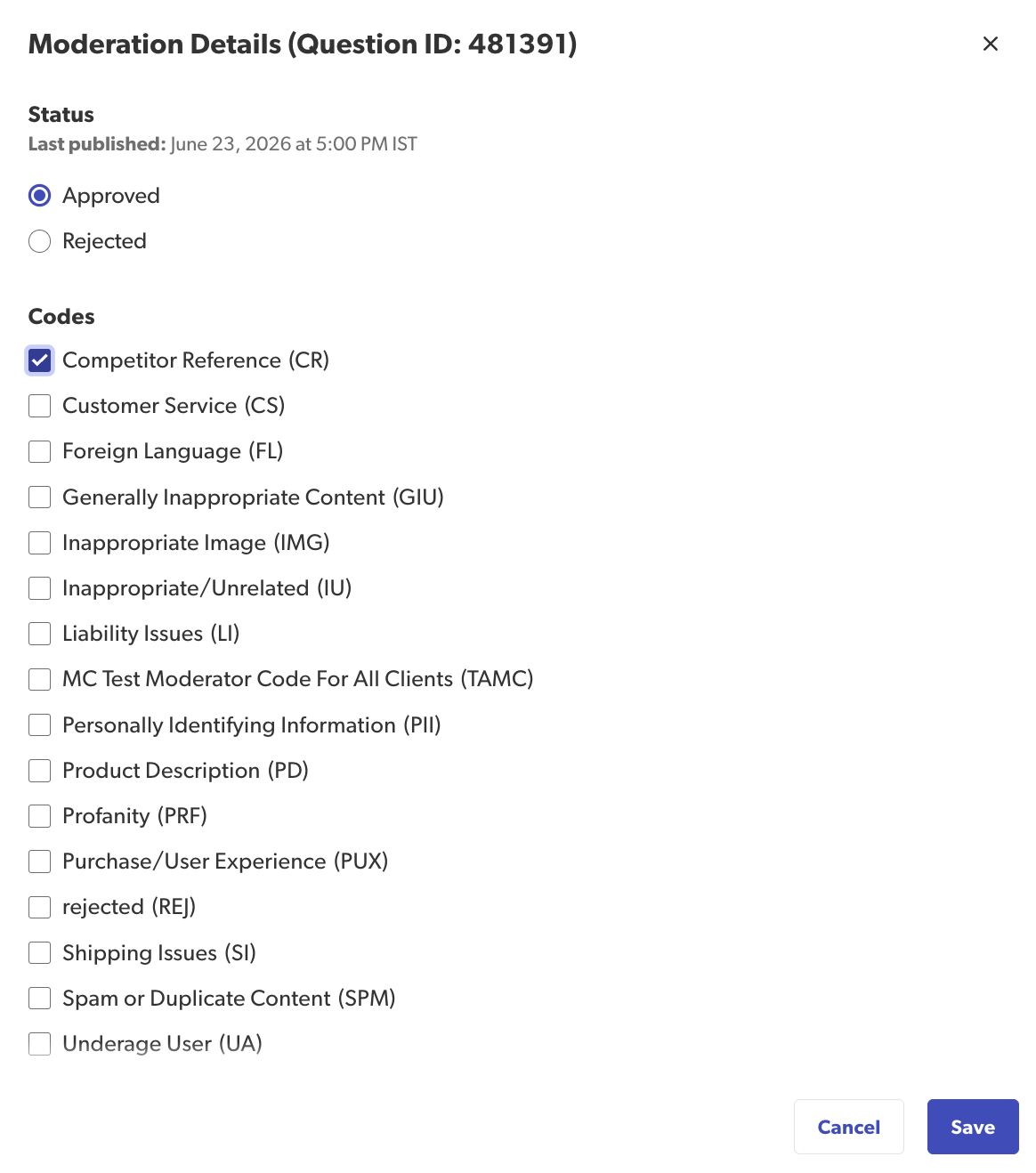
- Select Save.

How to view the moderation history
Content Moderator Content Administrator
Use the History tab to view a complete audit trail of past actions, dates, and moderation codes applied to a specific question.
- Open the Detail View for the question you want to moderate.
- Select the Add codes (or Edit codes) link in the moderation panel. The Moderation details modal will appear.
- Select the History tab at the top of the modal.
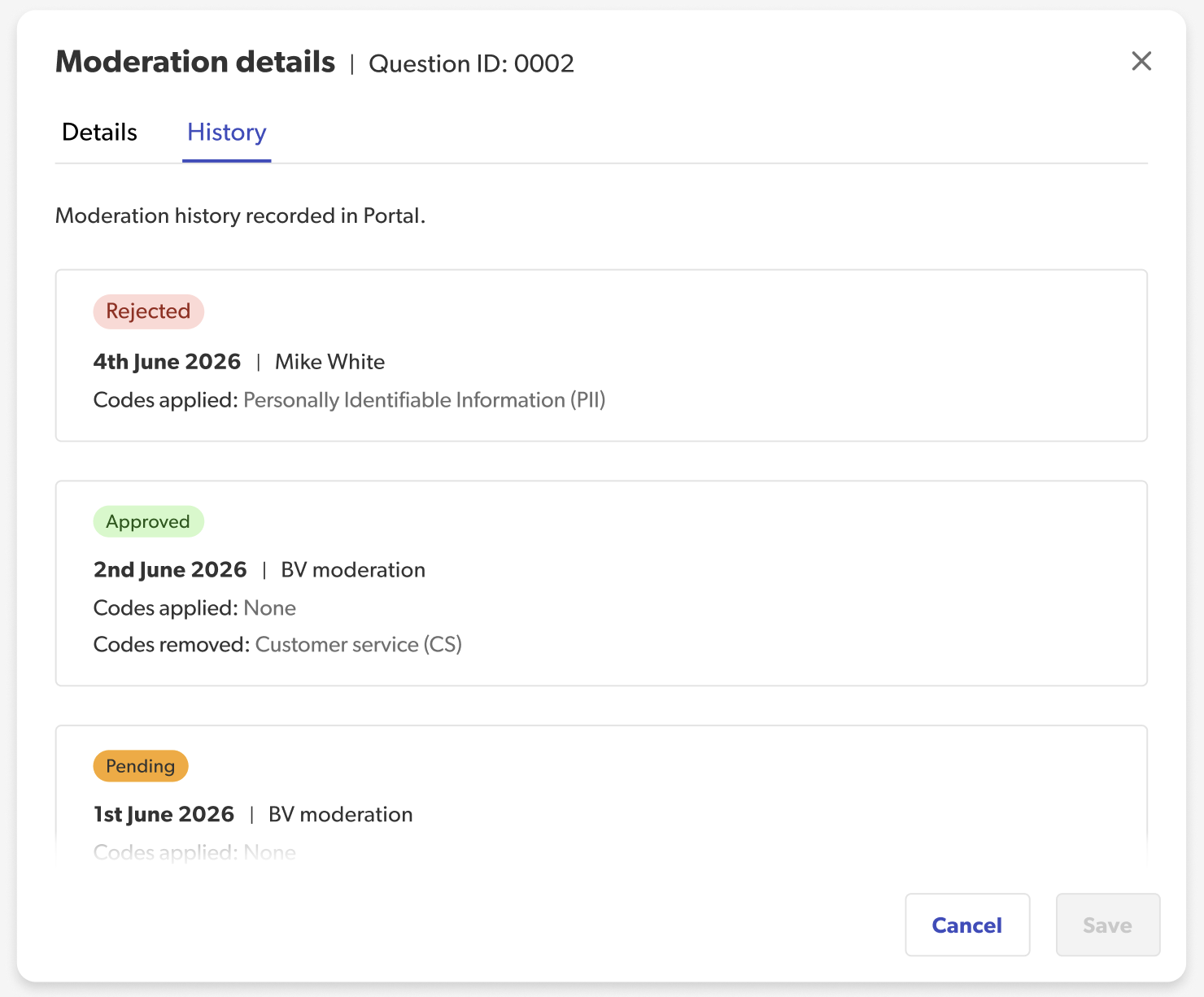
Understanding moderation status labels
Every question and individual answer is labeled with one of the following five moderation statuses:
| Status badge | Description |
|---|---|
 | Either Bazaarvoice has approved the content, or a member of your team has approved it in Portal. Questions and answers with the Approved status are currently displayed on your site. |
 | Either Bazaarvoice has rejected the content, or a member of your team has rejected it in Portal. Questions and answers with the Rejected status are not currently displayed on your site. |
 | This content has not yet gone through the Bazaarvoice moderation process. Questions and answers with the Pending status are not currently displayed on your site. |
 | This content has passed through the Bazaarvoice moderation process and has been officially approved. However, a question or answer with the On hold label will not be displayed on your site immediately. It's currently on hold and will be displayed on a pre-determined release schedule. |
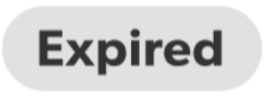 | The content was once approved and displayed, but it has since been removed at your request. Content can expire for several reasons. For example, the product has significantly changed, making the content irrelevant. Bazaarvoice applies the Expired status only when you submit a support case through support. |

