The Questions & Answers portal offers two distinct views designed to help you manage questions and answers content efficiently.
- List View: Your landing page. Use this to scan all incoming questions and apply
filters to find consumer questions that need immediate action. - Detail View: A granular look at a single question. Select the Question details link to drill deeper or take action for a specific question.

In the Detail View, use the Next and Previous buttons to cycle through your filtered list without returning to the main page.
1. List view
The List View is your primary landing page. It provides an at-a-glance overview all your incoming consumer consumer.
- Find reviews: Use Filters to locate specific questions.
- Quick access: Launch Migrate content or Manage contributors tools directly from the side navigation. Available to Account or Content Administrators only.
- Take actions: Use the ellipses icon (...) in the upper-right corner to trigger tasks like exporting question data or setting up alerts.
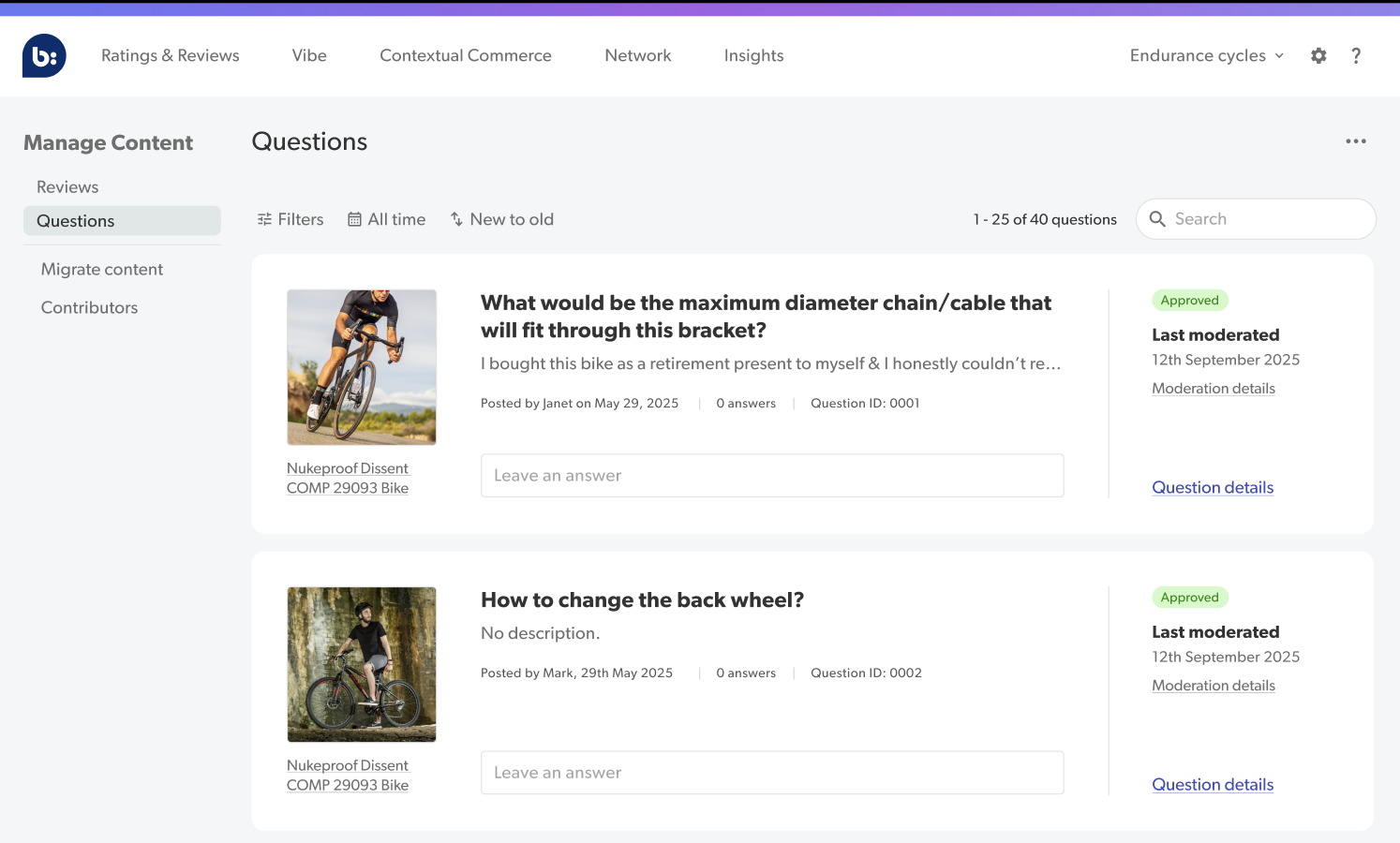 Note: If a question contains media content, a photo or video count (for example, 2 photos) will be displayed next to the reviewer's name.
2. Detail view
Use this view to drill down and look at consumer questions at a more granular level. You can investigate feedback, inspect media, and collaborate with your team.
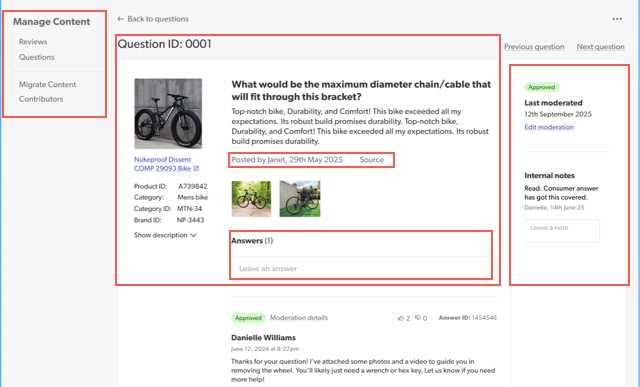
The following illustration highlights the anatomy of a question in the detail view:
a. Navigate the anatomy of a question
The Detail View is organized into logical panels so you can quickly find the information you need.
| UI element | Description |
|---|---|
| Product details | Displays metadata like Product ID, Category ID, and Brand ID. Select Show description to view the full product description on the brand or retailer website. |
| Question details | Displays the question title and the main question content. |
| Question contributor details | Select the question contributor's name to display their ID, status, and location. Email addresses and reviewer ID may be redacted to protect PII. Only an Account Administrator can grant PII access to view this information. |
| Moderation details | To view moderation details, select the Add codes link. |
| Source | Select Source to display the unique campaign ID and the original campaign source for question content. |
| Media | Displays photo and video thumbnails of attached media. Select Enlarge media to enlarge a selected photo or video. |
b. Inspect review content
- Visual content: Select Enlarge media to inspect photos or videos for brand compliance.
- Helpfulness votes: Gauge the question's impact by seeing how many consumers marked it as helpful.
- Custom questions: View answers to unique submission form questions ("Would you buy this again?"). Custom questions appear directly below the review text.
Note: To quickly find questions or answers with photos or videos, select the Content filter and filter by Visual content.
c. Navigate or collaborate
- Cycle through questions: Use the Next and Previous buttons to browse through your filtered list of questions without returning to the View List.
- Add internal notes: Add comments for your team regarding moderation or specific consumer issues.

Note: Only the Content Moderator or Content Responder roles can add notes. Notes are permanent and cannot be edited or deleted once saved.
