Set up an alert to notify your team immediately when specific keywords or phrases are detected within a question or answer.
Why use keyword filters?
Keyword filters help you to monitor and respond to:
- Safety Issues: Identify urgent questions ("smoke," "fire," or "burning smell").
- Common questions: Track references to common concerns ("Warranty", "Damaged on delivery").
- Consumer sentiment: Monitor pain points like "I can't get it to work" or "broke immediately."
How to create a keyword alert
Recipients will receive an email notification whenever new content matches your specified keyword criteria.
To create an alert:
- Sign in to the Bazaarvoice Portal.
- From the top navigation bar, select Ratings & Reviews.
- From the side bar, select Questions.
- From the List view, select the ellipses icon (...) in the upper-right corner.
- Select Create alert.
- Select the Content filter.
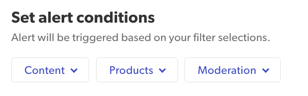
- Select Text Fields to define your trigger conditions.
- Text field filters: Select up to ten different content areas to scan. Target your alert triggers by using these key areas:
Question Text / Question Title: Instantly detect product issues, high-level sentiments, or recurring themes in consumer inquiries.
Answer Text: Ensure brand responses or answers meet accuracy, quality, and compliance standards.
Product Name: Isolate discussions and questions related to specific products or competitor mentions.
- Keywords: Enter up to five words or phrases per text field area. Select Add to save each entry.
- Text field filters: Select up to ten different content areas to scan. Target your alert triggers by using these key areas:
- Add Alert details:
- Alert name: Enter a descriptive name. For example, “Safety & Liability Concerns”.
- Recipients: Enter the email addresses for all users you want to notify.
- Alert name: Enter a descriptive name. For example, “Safety & Liability Concerns”.
- Select Apply and close.
 .
.
How keyword alerts work
Keyword alerts follow specific matching rules to ensure you receive the most relevant alert notifications.
| Item | Description | Examples |
|---|---|---|
| Whole word matching | The system matches exact words separated by spaces or punctuation; it does not trigger for "partial strings" inside other words. | “hoover” matches "My new hoover" but not "dysonhoover." “fire” matches "A small fire" but not "fireworks." |
| 3-character minimum | Keywords and phrases must be at least 3 characters long. The Add button remains inactive until this limit is met. | "Ox" (Invalid) "Bat" (Valid) |
| Stop words | Common words are not permitted as standalone keywords to prevent irrelevant alerts. | "the", "a", "or", "for" |
Keyword alert capacity: This system allows for a maximum of 50 unique keywords/phrases per alert (10 text fields × 5 keywords).
How to reduce alert noise (stop words)
To prevent irrelevant notifications, common "stop words" (such as "the," "with," "and") cannot be used as standalone keywords. Filtering out these high-frequency terms reduces notification fatigue. It also ensures your alerts remain focused on meaningful, actionable feedback.
| Language | Example stop words |
|---|---|
| English | the, be, to, of, and, a, in, that, have, it, for, not, on, with, he, as, you, do... |
| French | de, le, la, et, les, des, en, un, une, du, à, que, est, pour, qui, dans, il... |
| German | er, die, und, in, den, von, zu, das, mit, sich, auf, für, ist, im, dem, ein... |
