Find the questions or answers you need using either:
- Global search bar: Best for quickly finding specific questions or answers.
- Filters: Filters are more accurate and help you find exactly what you're looking for.
1. Search using the global search bar
Use the search bar at the top of the List View to find questions or answers using a specific IDs or keywords:
- Supported search types: Question ID, Answer ID, Review title, Product name/ID, Brand, Category, Contributor name/ID, or specific keywords (e.g., "Battery overheating").
- Exact match: Enclose your search in double quotation marks (e.g.,
"EnduranceFlyer07") to exclude partial matches. - Bulk search: Enter multiple IDs or keywords separated by commas (e.g.,
279957, 279859).

Search tips:
- Quick-copy feature: Use the copy-to-clipboard button to paste your IDs directly and avoid typos.
- Contributor search: To search by contributor name or ID (hidden by default for security reasons). Contact your Account Administrator to enable PII (Personally Identifiable Information) permissions.
- Filters: Use filters for more accurate results. They help you target specific content and clear out the irrelevant results (noise).
- Sort questions: Use the drop-down in the list view to reorder your results by Date (New to Old/Old to New).

2. Filter by date
To filter by date:
- Select All time.
- Select a preset range: Last 7 days, Last 30 days, Last month, Yesterday, This month, This quarter.
- To set a specific range, select Custom and enter your start and end dates.
- Select Apply and close.
3. Filter questions and answers by category
Filters help you to narrow down your search. Use multiple filters to further narrow your results (for example, Questions + Rejected).
To apply filters:
- In the list view, select Filters.
- Select your filter tab (Content, Products, or Moderation).
- Select your filter criteria. See the Filter guide table below.
- Select Apply and close.
Filter category Key filters Content Answer ID, Answers, Question ID, Visual content. Products Brand, Category, Product IDs, or Product Status. Moderation Answer codes, Answer codes (client), Answer status, Question codes, Question codes (client), Question status. Contributor Question contributor or Answer contributor.
To view and use the Contributor filter, your Account Administrator must grant you PII access.
Filter guide
Use the following table for a full breakdown of every filter category.
| Filter category | Filter options |
|---|---|
| Date |
Date options: Yesterday, Last 7 days, Last 30 days, This month, Last month, This quarter, or enter Custom dates. |
| Content | Answer ID Enter one answer ID one at a time, or add multiple IDs separated by commas. Select Add. |
| Answers Select one or more of the following options:
| |
| Question ID Enter one answer ID one at a time, or add multiple IDs separated by commas. Select Add. | |
| Visual content Filter for reviews that contain Photos, Videos, or No media at al | |
| Moderation | Answer codes Select specific codes applied by the Bazaarvoice moderation team to find common rejection themes. |
Answer codes (client) Select custom moderation codes applied by your internal moderation team. | |
| Answer status Filter by the current moderation status of the answer: Approved, Rejected, Pending, or Expired. | |
| Question codes Select specific codes applied by the Bazaarvoice moderation team to find common rejection themes. | |
Question codes (client) Select custom moderation codes applied by your internal moderation team. | |
| Question status Filter by the current moderation status of the question: Approved, Rejected, Pending, or Expired. | |
| Products | Brand Enter the brand name or ID to see questions for an entire brand or product group. |
| Category Enter the category name or ID to see quesrion for an entire product category. | |
| Product Search for specific products by their unique ID or display name. | |
| Product status Filter by Active or Inactive products to manage legacy or current inventory. | |
| Contributor | Filter by answer /question contributor displays names /IDs.
 |
4. Create a filter
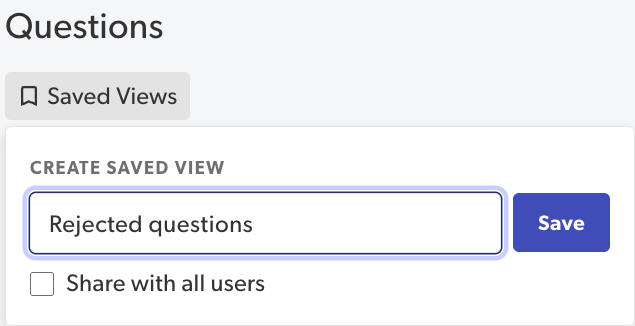
To save a personal filter:
- Select filter criteria and select Apply and close.
- Select Save filters.
- Enter a unique name and select Save.
5. Share a filter
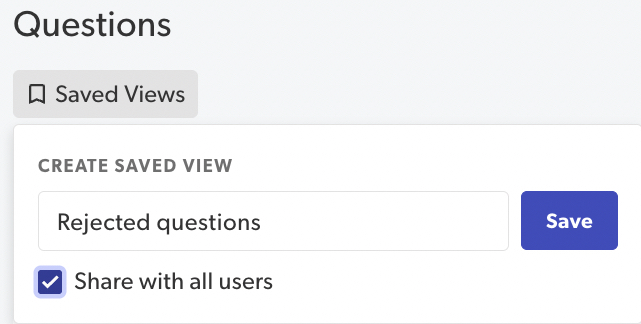
To share a personal filter:
- Select filter criteria and select Apply and close.
- Select Save filters.
- Enter a unique name and select Save.
- Select Share filter with all users to make it public.
6. Delete a filter
To delete a saved filter:
- In the saved filters list, hover over the filter name.
- Select the trash can icon.
