Find the specific reviews you need using either:
- Global search bar: Best for quickly finding specific reviews.
- Filters: Best for precise results based on ratings, dates, or moderation status.
1. Search using the global search bar
Use the search bar at the top of the List View to find a review using a specific ID or keyword:
- Supported search types: Review ID, Review title, Product name/ID, Campaign ID, or specific keywords (e.g., "Battery overheating").
- Exact match: Enclose your search in double quotation marks (
"EnduranceFlyer07") to exclude partial matches. - Bulk search: Enter multiple IDs or keywords separated by commas (
279957, 279859).

Search tips:
- Quick-copy feature: Use the copy-to-clipboard button to paste your IDs directly and avoid typos.
- Contributor search: To search by contributor name or ID (hidden by default), ask your Account Administrator to enable PII (Personally Identifiable Information) permissions.
- Filters: Use filters for more accurate results. They help you target specific content and clear out the irrelevant results (noise).
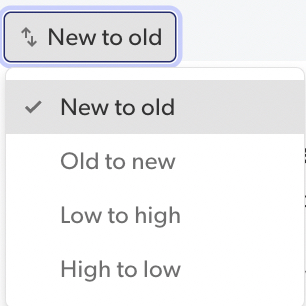
- Sort reviews: Use the drop-down in the List View to reorder your results by Rating (High to Low/Low to High) or Date (New to Old/Old to New).
2. Filter reviews by date
To filter reviews by date:
- Select All time.
- Select a preset range: Last 7 days, Last 30 days, Last month, Yesterday, This month, This quarter.
- To set a specific range, select Custom and enter your start and end dates.
- Select Apply and close.

Note: To remove the date filter, select All time again and select All time from the list.
3. Filter reviews by Content, Moderation, or Products
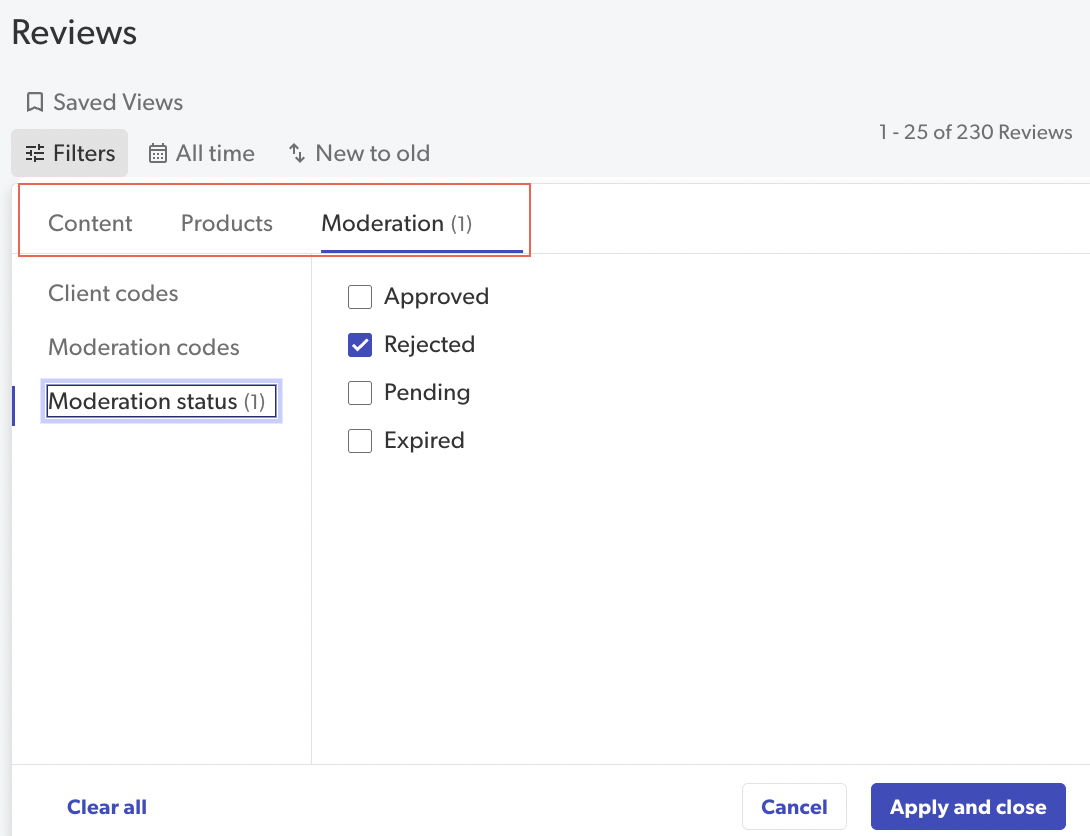
Filters help you to narrow down your search (for example, 1-star reviews + Rejected ).
To apply filters:
- In the list view, select Filters.
- Select a filter category tab (Content, Products, or Moderation).
- Choose your filter criteria. See the Filter guide table below for details on available filters.
- Select Apply and close.
| Filter category | Filter options |
|---|---|
| Content | Star rating, Locale, Campaign ID, Visual content (Photos/Videos), or Review IDs. |
| Moderation | Moderation status, Moderation codes, or Client codes. |
| Products | Brand, Category, Product IDs, or specific attributes like Model Number. |
| Contributor | Contributor name or ID. Access is restricted to protect user privacy. To view or use the Contributor filter, your Account Administrator must grant you PII access. |

Filter guide
Use the following table for a full breakdown of every filter category.
| Filter category | Filter options |
|---|---|
| Content |
|
| Moderation |
|
| Products |
|
| Contributor ID | Filter by contributor name or display name. Results will include both the contributor name and associated ID, even if you enter only one or the other. Results start appearing after you type three characters. Note: Access to this filter is restricted as a contributor’s ID and email are considered Personally Identifiable Information (PII). Contact your Account Administrator to grant the necessary PII permissions. |
4. How to create a filter
To create a personal filter or view:
- Select filter criteria and select Apply and close.
- Select Saved views.
- Select Add new.
- Enter a unique name and select Save.
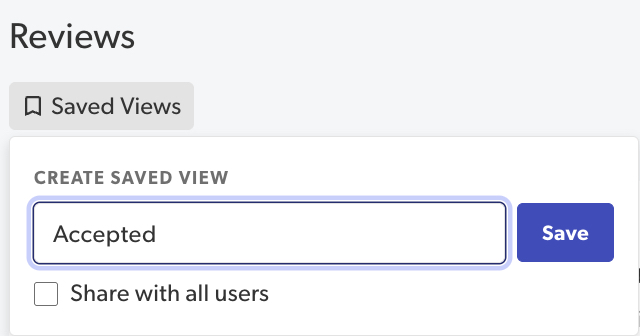
Note: Select Share with all users to make it public.
5. How to share a filter
You can only share a filter when you're setting it up. You cannot share it once it's been created.
To share a filter:
- Select filter criteria and select Apply and close.
- Select Saved views.
- Select the Personal or Shared tab.
- Select Add new.
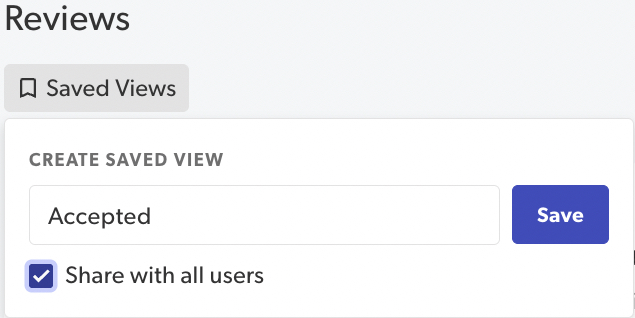
- Enter a unique name and select Save.
- Select Share with all users to make it public.
6. How to delete a filter
To delete a saved filter:
- In the saved filters list, hover over the filter name.
- Select the trash can icon.
7. How to search for multiple reviews
While the global search bar is available, using the Review ID filter is the fastest and most accurate way to retrieve a specific batch of reviews.
- Select Filters.
- Make sure you are in the Content filter tab.
- Choose the Review ID sub-filter.
- Enter the review IDs. Multiple IDs must be separated by commas.
- Select Add.
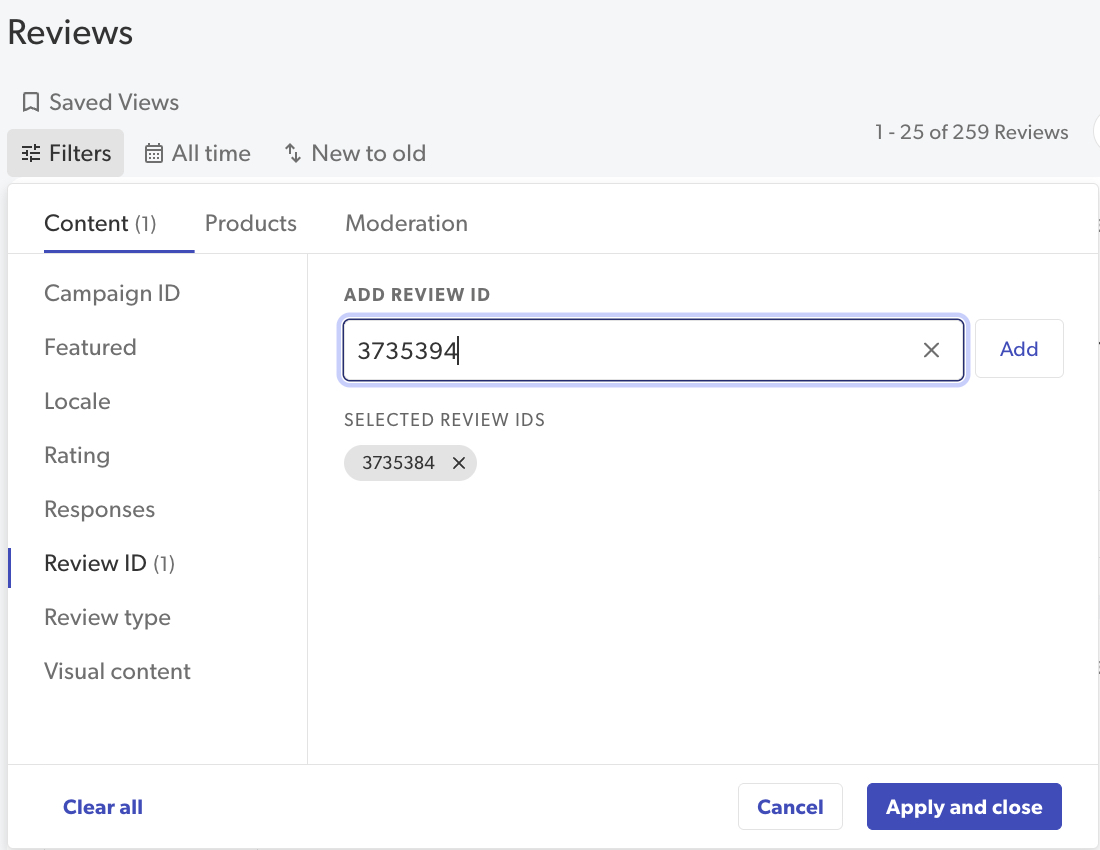
- Select Apply and close.
- Select any review from your filtered list, then select Review details to open the Detail View.
- Use Previous or Next to navigate through your results without returning to the main List View.
