Track review request performance
You can track the performance of your review request implementation in the following ways:
- Review request automated reporting
- Reports
Automated reporting
Bazaarvoice sets up automated reports as part of your review request implementation, using the values you specify for the parameters listed below. You must provide an email address to instruct Bazaarvoice where to send the report. You can optionally provide a subject line. If you do not provide a custom subject line, Bazaarvoice creates one for you.

Report Delivery Frequency
Reports can be delivered with the following frequencies:
- Once only—Can specify a one-time report with a custom date range
- Daily—Can specify the time of day
- Weekly (default)—Can specify the day of week
- Monthly—Can specify to run on the first day of the month or on the first Su/M/T/W/Th/F/Sa of the month
Date Range
The report can be configured to include data for the following date ranges:
- Last 24 hours
- Last 7 days
- Last 30 days
- Custom
Report Period
The report period defines the manner in which the data is summed within the report. The reporting period can be set to any of the following periods:
- Day
- Week
- Month
- Year
For example, if a report is configured with a date range of Last 7 days and a report period of Day, it displays a row for each day in the last seven days.
File Formats
The report can be delivered in one of several formats, broadening the range of options available to the client. Bazaarvoice supports the following file formats:
- Data file (.csv)
- Data file UTF-8 (.csv)
- Data file Shift_JIS (.csv)
- Compressed CSV (.zip)
- Excel spreadsheet (.xls)
- Excel spreadsheet (.xlsx)
- Adobe (.pdf)
Report Columns
The report includes the following columns:
- Period—Report period
- Sends—Number of emails that were sent during the period
- Deliveries—Number of emails that were sent during the period that did not bounce
- Delivery rate—Percentage of emails that were sent during the period that did not bounce
- Total bounces—Number of emails that were sent during the period that bounced
- Bounce rate—Percentage of emails that were sent during the period that bounced
- Unique opens—Number of emails that were sent during the period that were opened. This column counts only the first time that the email was opened.
- Open rate—Percentage of emails that were sent during the period that were opened
- Cumulative clicks—Total number of emails that were sent during the period that were clicked. This column counts multiple clicks from the same recipient.
- Unique unsubscribes—Number of unsubscription requests received during the period. This column counts only the first time that a request was received.
- Unsubscribe rate—Percentage of emails that resulted in unsubscription requests
- Cumulative unsubscribes—Total number of unsubscription requests received during the period
Manual reports
You view the number of reviews you receive from review requests by using the Reviews reports. To generate a report, follow these steps:
- Sign in to Bazaarvoice Portal.
-
From the navigation bar, select Analytics.
-
Select Custom Reports.
-
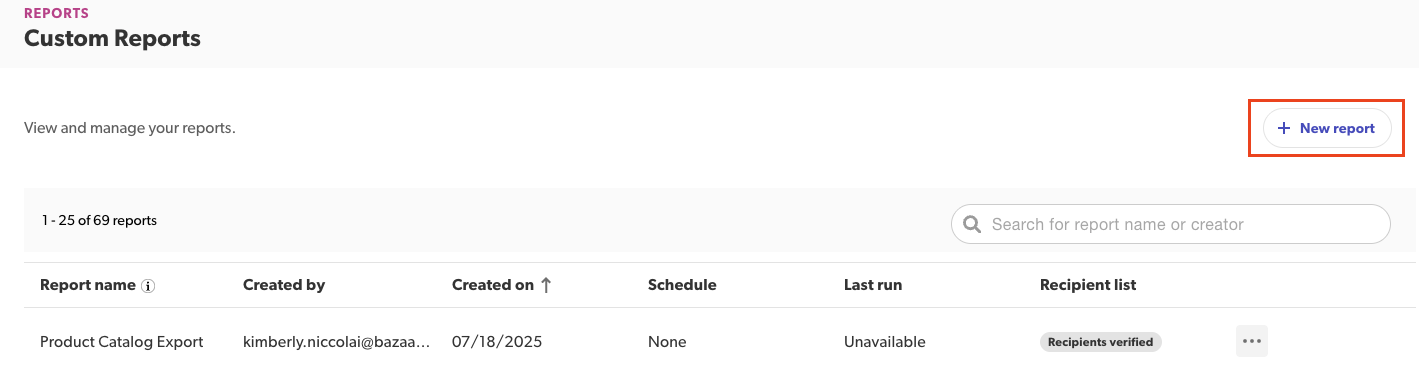
Click + New report.
-
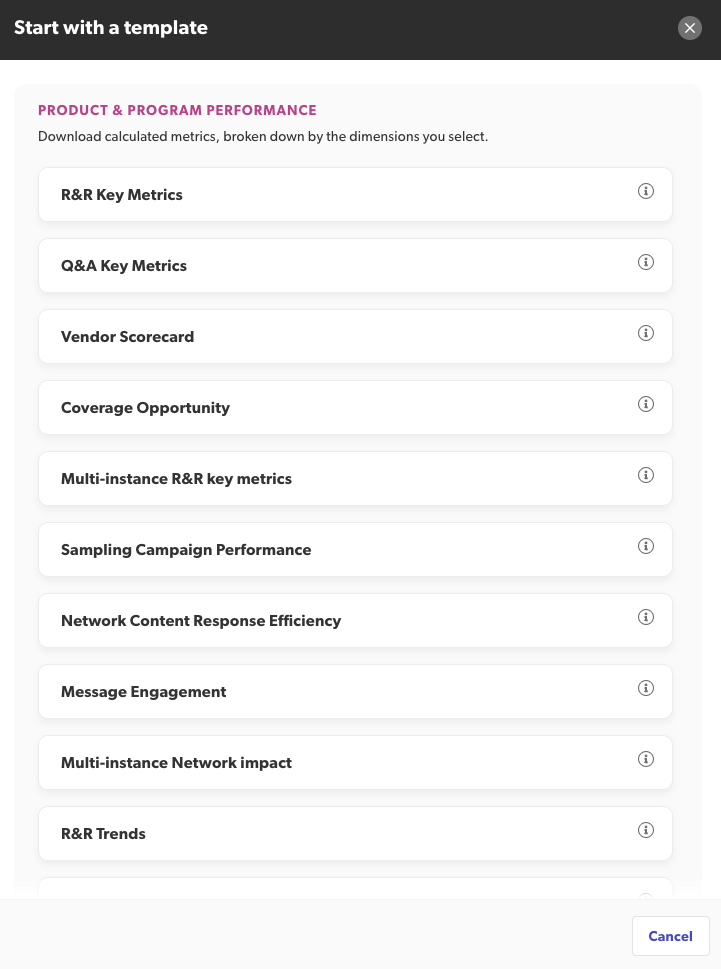
In the Start with a template window, select Message Engagement.
-
Customize the report by filling the required details in the following sections:
- What data do you want to see?
- How do you want it grouped?
- Narrow the size and focus
- Set delivery options
- Select Run report.
-
After the report generates successfully, it is available for download. Make a selection from the Action Menu:
- If a single report is available, select Download latest.
-
If two or more reports are available:
- Select Download previous.
- In Report history, select the report you want to download.
- The report downloads to your default downloads directory.
