Before going live, use the following tools to test and debug your BV Pixel implementation.
-
Bazaarvoice Analytics Inspector: A Google Chrome extension for real-time page debugging.
-
Transactions Monitoring Tool: A feature within the Bazaarvoice Portal for auditing live data.
-
Interaction Feed: A tool for validating bulk transaction data files.
Bazaarvoice Analytics Inspector
This tool enables you to view and analyze the data being captured on any page that contains the BV Pixel code. You can debug transaction events, conversion events, and product display page events.
-
Install the Bazaarvoice Analytics Inspector extension
 on Chrome.
- To test that the tool is working properly, load a sample transaction or product display page (PDP).
-
Select Bazaarvoice Analytics Inspector
 from your Chrome extensions menu. The Analytics Inspector modal will display on top of your web page.
- Interact with the sample page. For example, filter the reviews or click Write Review. The tool will display event values in real time and highlight missing (required) parameters.
- Next, verify that your BV Pixel solution is capturing data for your website pages.
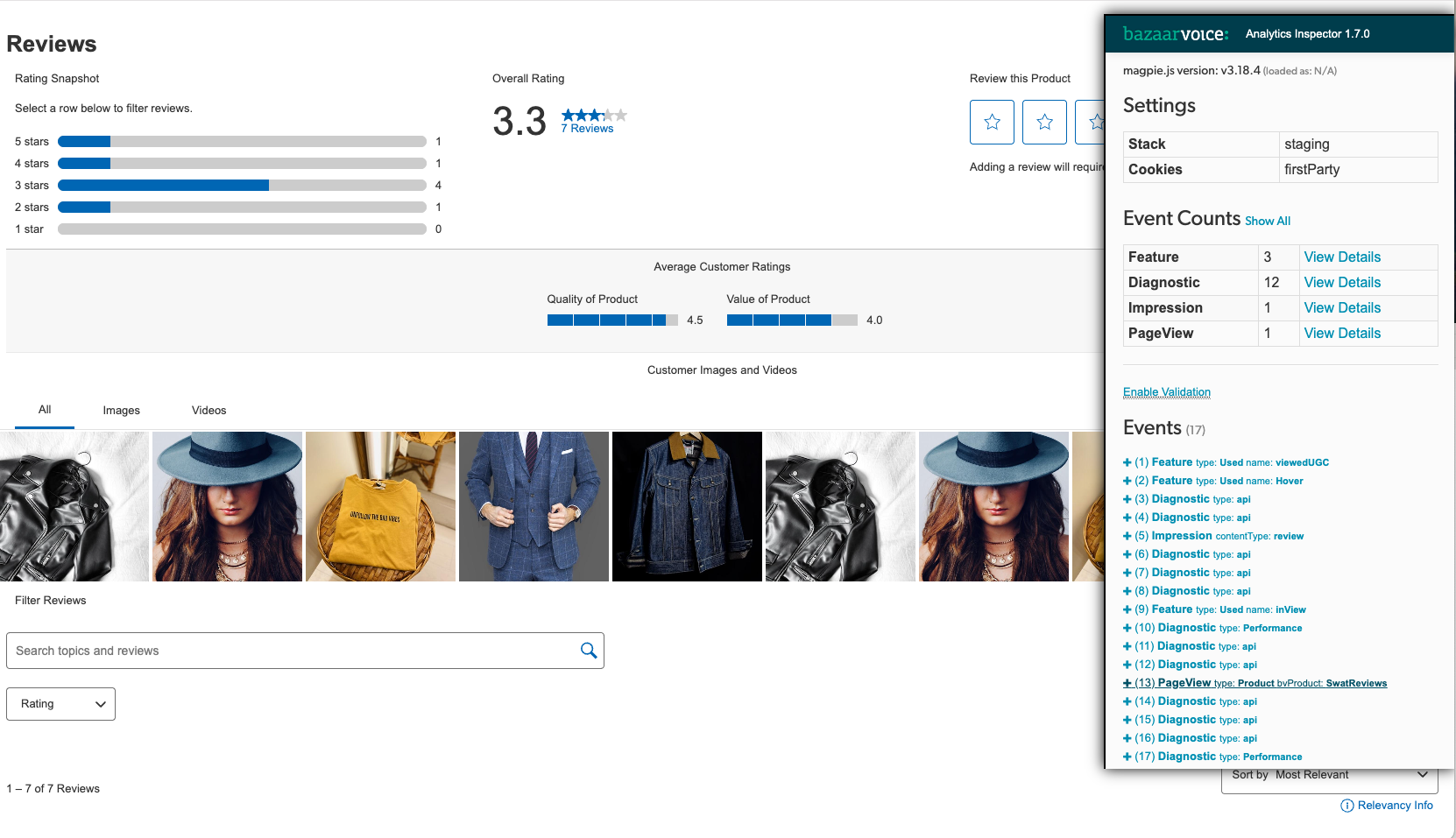
Test product display page (PDP)

- Load your PDP page. This should cause the PageView event to fire automatically.
-
Select Bazaarvoice Analytics Inspector from your Chrome extensions menu. The Analytics Inspector modal will display on top of your page.
- Under Event Counts > PageView, select View Details to see details of what has been captured.
-
Scroll down to UGC on the page. An
InViewevent should fire. Under Event Counts>Feature, select View Details to see parameters and values passed. -
View UGC for at least five seconds. A
ViewedCGCevent should fire. Under Event Counts > Feature, select View Details to see details. -
Interact with UGC, for example, select the helpfulness icon. A
FeatureUsedevent should fire. - Under Event Counts > Feature, select View Details to see details.
- Troubleshoot the errors related to your BV Pixel implementation by testing your transaction page.
In the following example, the InView count is 2 because the user scrolled down to Ratings & Reviews and Questions & Answers on the page. The ViewedUGC event count is 2 because the user viewed the Bazaarvoice content on that page for at least five seconds. Lastly, the user interacted with the content, so additional events were captured—the user selected to ask a question Ask, selected to write a review Write, closed the submission form Close, and used a filter Filter.
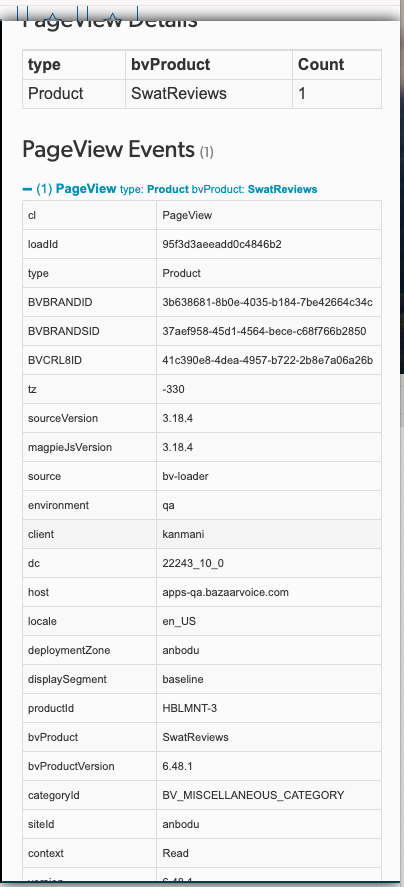
Test transaction page

- Load an order confirmation page.
-
Select Bazaarvoice Analytics Inspector from your Chrome extensions menu. The Analytics Inspector modal will display on top of your page.
-
Complete a purchase using a sample credit card. The
trackTransactionevent should fire. -
Under Event Counts > Conversion select View Details. The
typeis Transaction. - Verify that all required order parameters are listed in each order row. Examine the values that were passed.
- Verify that all required item parameters are listed in the items row. Examine the values that were passed.
- Troubleshoot the errors related to your BV Pixel implementation.
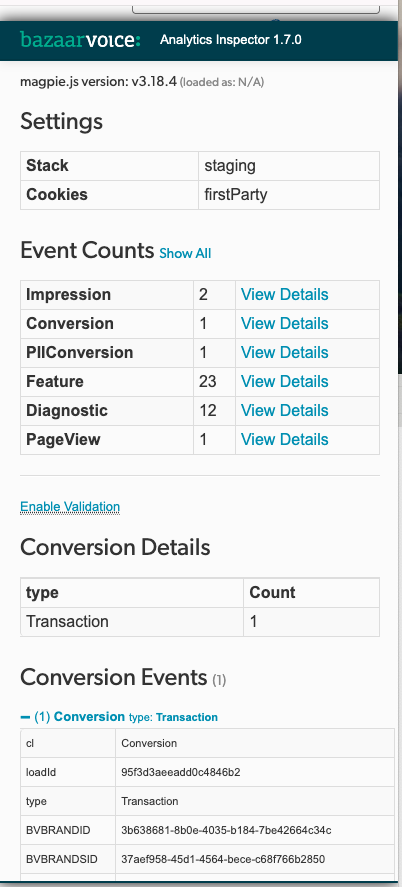
Test conversion page
-
Select Bazaarvoice Analytics Inspector from your Chrome extensions menu. The Analytics Inspector modal will display on top of your page.
-
Test a page with a conversion (non-transactional) event, for example sign up for a newsletter or download a coupon. The
trackConversionevent should fire. -
Under Event Counts>Conversion select View Details. The
typeis Conversion. - Verify that all the required conversion type parameters (StoreLocator, Download, Coupon) are listed in each row.
- Troubleshoot the errors related to your BV Pixel implementation.
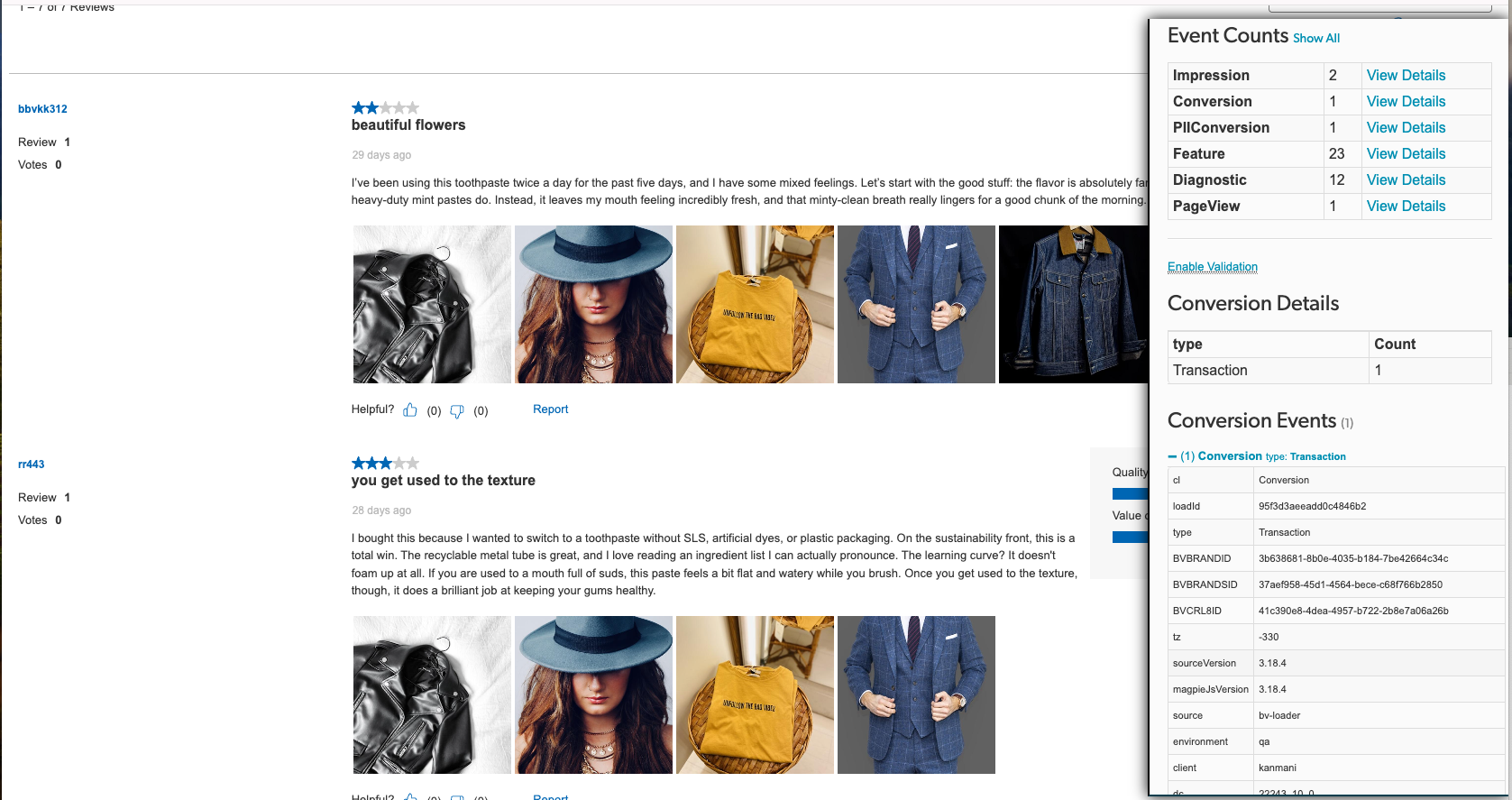
Transactions
Use it to troubleshoot live transaction data gathered by BV Pixel for tracking and reporting purposes. Check for problems with your BV Pixel implementation and validate corrections using incoming data.
To get started:
-
Sign in to Bazaarvoice Portal .
-
From the upper-right corner, select the settings icon
 .
.
- Select Monitoring Tools.The Transactions page opens.
-
Apply filters to narrow the list of transactions to those of interest.
Note: The tool only displays transaction data received during the past 30 days, including the current date. If you filter by date, transactions that occurred during the specified time period but were received more than 30 days ago will not appear in the Transactions list.
- Select an Order ID to view key transaction details about the order.
- Take note of any errors in the Transaction details and Order details sections.
-
Select View all transaction details to see a JSON file containing all the information BV Pixel captured about the transaction. Take note of any
bv_pixel_violations.Note: Select Download as file to export the transaction details. - Troubleshoot the errors related to your BV Pixel implementation.
Troubleshoot transaction event issues
Step 1: Verify the transaction event’s location
The transaction event is typically added to either a Thank you or Payment confirmation page. Add the transaction event JavaScript below the BV loader in the page <head>, as shown in the following example:
JavaScript |
<!-- load bv.js --> <script async src="https://apps.bazaarvoice.com/deployments/<client_name>/<site_ID>/<environment>/<locale>/bv.js"></script> <!--load Transaction event and parameters--> <script> window.bvCallback = function (BV) { BV.pixel.trackTransaction({ "currency" : "value", "orderId" : "value", "total" : "value", "items" : [ { "price" : "value", "quantity" : "value", "productId" : "value", "optional_item_parameter" : "value" }, ], "optional_order_parameter" : "value", "optional_PII_parameter" : "value", }); }; </script> |
Step 2: Check that all values are being passed as strings
Ensure all values in the transaction event, including numbers, are enclosed in double quotation marks.
Step 3: Fix transaction event errors
The Transactions monitoring tool reveals errors and warnings about your transaction event implementation. Learn more about how to resolve transaction event errors.
Understand the JSON file
The JSON file contains all the information BV Pixel captures about your transaction events.
| JSON field | Description |
|---|---|
| partnerSource | Source of a supported e-commerce plugin integration, when applicable. |
| total | Total amount of the product order including discounts and coupons but excluding tax and shipping. |
| hadPII |
A true or false value that indicates whether the event contained personally identifiable information (PII). This value is set to true if any fields exist in the event other than: orderID, affiliation, total, tax, shipping, city, state, country, items, locale, discount type, label, value, proxy, partnerSource, or deploymentZone.
|
| UA_Platform | Operating system family of the consumer's agent's host machine. |
| host |
Hostname of the page that sent the event, as obtained from window.location.host.
|
| cl | BV Pixel event class, such as Conversion, Impression, and PageView. The Transactions monitoring tool shows Conversion events only. |
| orderId | Unique ID of an order generated by a site. |
| UA_Device | Name of the mobile device from which the transaction was made. This is null if the user agent isn't a mobile device. |
| IpState | State from which the transaction was made as determined by a Geo-IP lookup on the partial IP. |
| tax | Amount of tax applied to the order. |
| client | Client name provided by Bazaarvoice. |
| UA | Full user agent string from the HTTP header request containing information about the consumer's browser, operating system, and platform. |
| shipping | Cost of shipping the order. |
| shippingDate | Used instead of the transaction date to determine when Bazaarvoice sends the review request. The date must be in the following format YYYY-MM-DD. |
| shippingDelay |
Used to increase the number of days between the transaction date and the date Bazaarvoice sends the review request. The value should be in a numerical format, such as 10.
|
| IpCountry |
ISO-3166 code for the country from which the transaction was made.
|
| Page | Page on the client site on which the transaction event fired. |
| Dt | Timestamp of when Bazaarvoice received the event. |
| deploymentZone |
ID of the deployment zone containing the BV Pixel implementation associated with the transaction. This is set in the configuration. The default deployment zone is main_site.
To verify the value of |
| currency |
ISO 4217 alphabetic currency code of the transaction.
|
| IpCity | City from which the transaction was made as determined by a Geo-IP lookup on the partial IP. |
| bv_pixel_violations | BV Pixel implementation issues you should correct to capture more accurate transaction data. |
| environment | Deployment environment in which you implemented BV Pixel. Valid options are production and staging. |
| label | Descriptive label to apply to the conversion. |
| UA_Browser | Browser on which the transaction was made. |
| UA_Mobile | Indicates whether the transaction was made on a mobile device. |
| Country | Valid two- or three-letter ISO country code set by the client. |
| locale | |
| type | Type of conversion that took place. Refer to Recommended values for the type parameter to define the values of this required parameter. |
| source | Indicates whether the BV Pixel implementation uses the BV loader file (bv.js) or bvapi.js. |
| dc | Display code or other UI variant identifier. |
| IpPostalCode | Postal code from which the transaction was made as determined by a Geo-IP lookup on the partial IP. |
| UA_platformVersion | Version of the operating system of the device from which the transaction was made. |
 beside the deployment zone name listed in the JSON file. Contact
 Interaction Feed
Use this feature to upload transaction data for validation. You can upload files in either XML or .TXT format, with a maximum file size of 10 MB. For additional information refer to Provide data for review requests topic.
- From the Bazaarvoice Portal, select Settings > Monitoring Tools > Interaction Feed.
- In the Upload your feed section, you can either drag and drop your feed file or select Browse to upload it.
- Select Validate. Your feed is automatically reviewed. The page will either display a list of errors or let you know that your feed is validated and ready to upload.
Additionally, you must verify the format of transaction dates and email addresses, as follows:
| Field | Format | Example |
|---|---|---|
| Transaction date |
XML: YYYY-MM-DDThh:mm:ss.ZZZZZ TXT: YYY-MM-DD hh:mm:ss |
2017-09-01T00:00:00.00000 |
| Email address | username@domain | user123@example.com |
