Request permission from a creator to use their content (Feed, Reels, and Stories) in your Instagram ads. When the creator approves the request, you will receive an ad code that can be used in your ad manager to run paid promotions using their content.
Instagram ads permissions process
The following is an overview of the Instagram ad permissions process:
-
You create a Social Creators campaign and request Instagram ads permissions.
-
The creator signs up for your campaign. During the signup process, they are informed about the ads permission requirement.
-
The creator creates and posts their content.
-
The creator gets the code and shares it with you. Learn more about the creator process.
-
You copy the code in Vibe.
-
You create and run ads using the content.
-
You view insights about your Meta ads in Vibe.
Step 1: Request ads permissions
Follow these steps to request Instagram ads permissions:
-
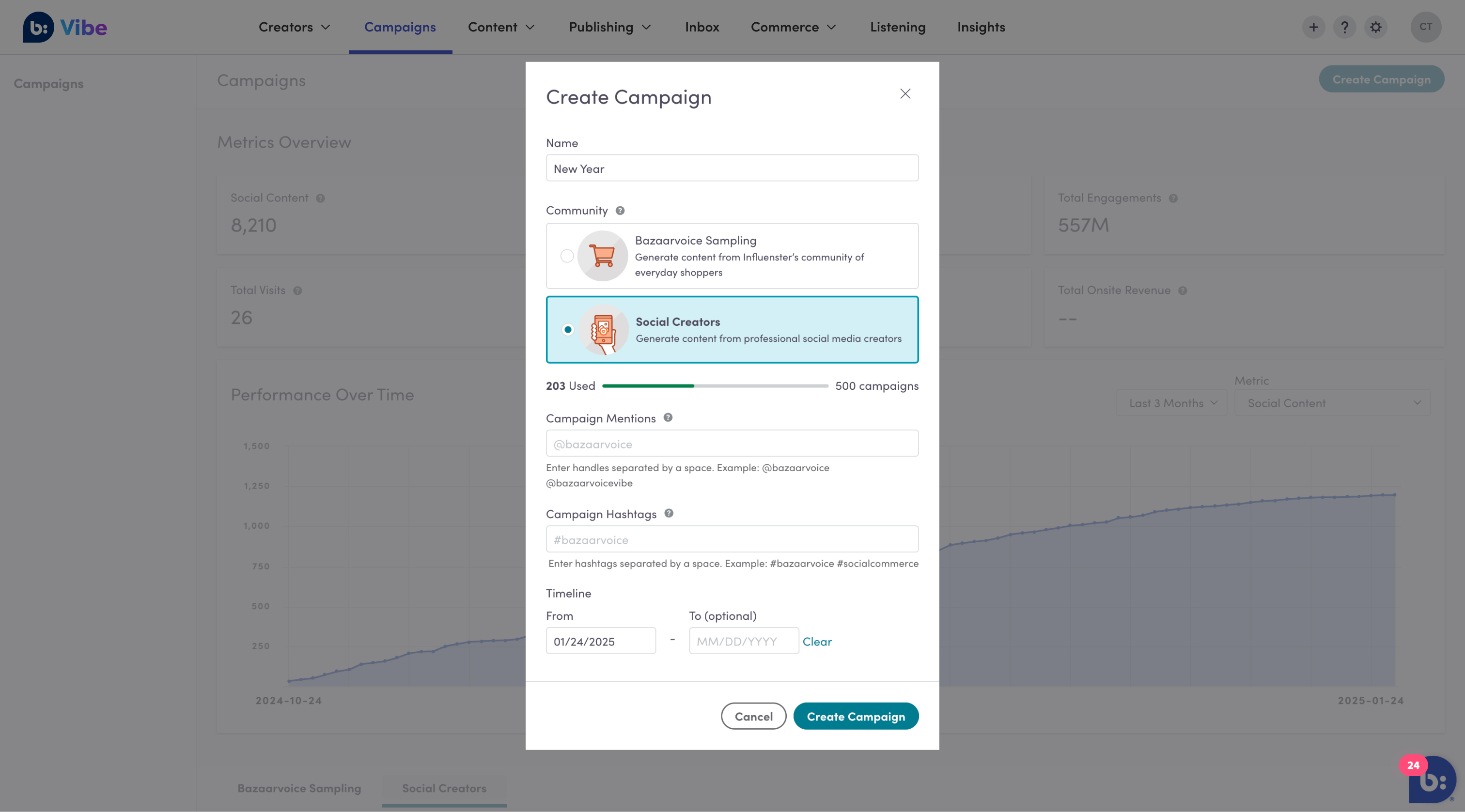
In Vibe, create a Social Creators campaign.
-
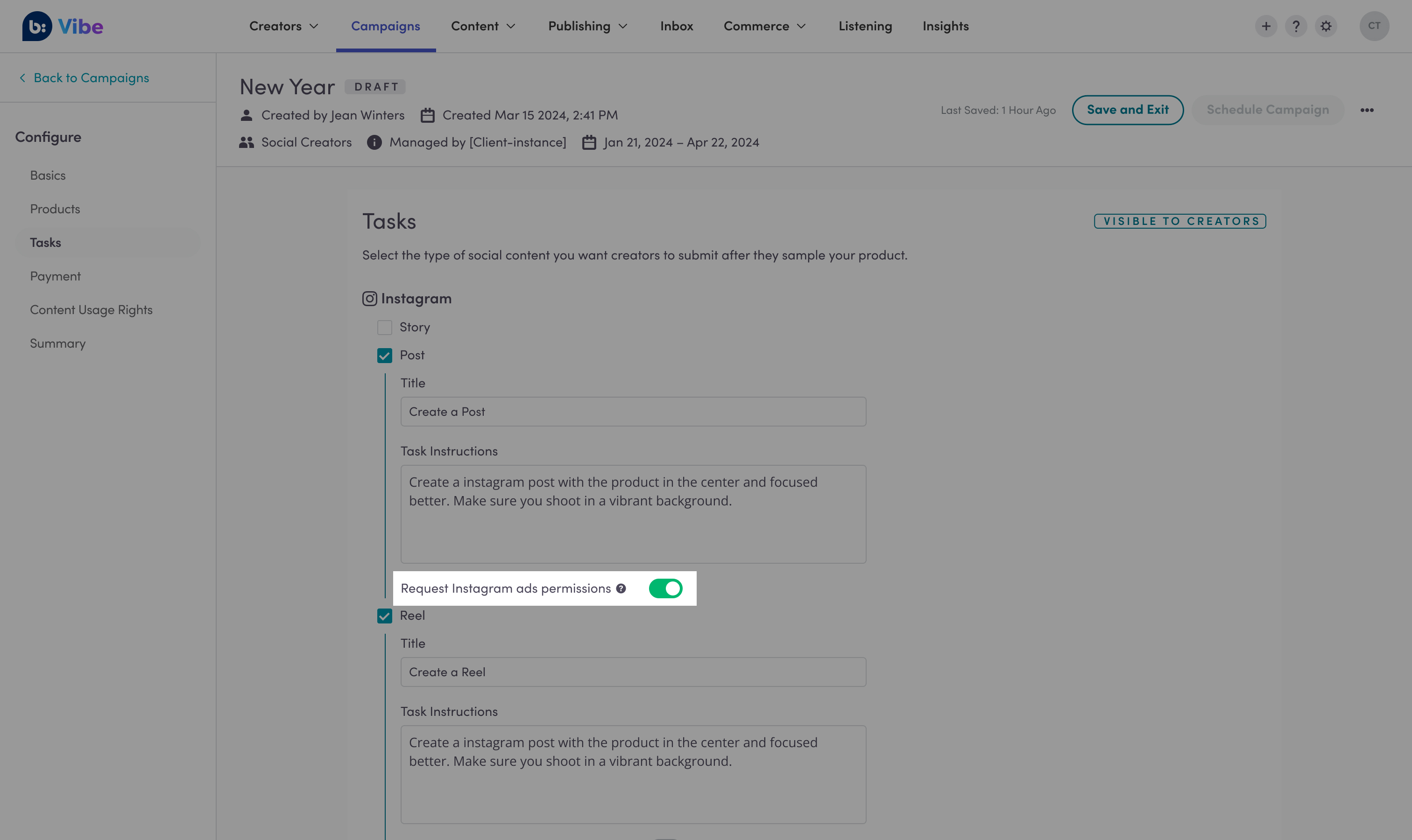
On the Tasks page, select the toggle below Instagram labeled Request Instagram ads permissions.
Step 2: Get the ad code
The creator will sign up for your campaign, create the content, and share the ad code with you. Learn more about the creator process.
Follow these steps to copy the code in Vibe:
-
In Vibe, open your campaign.
-
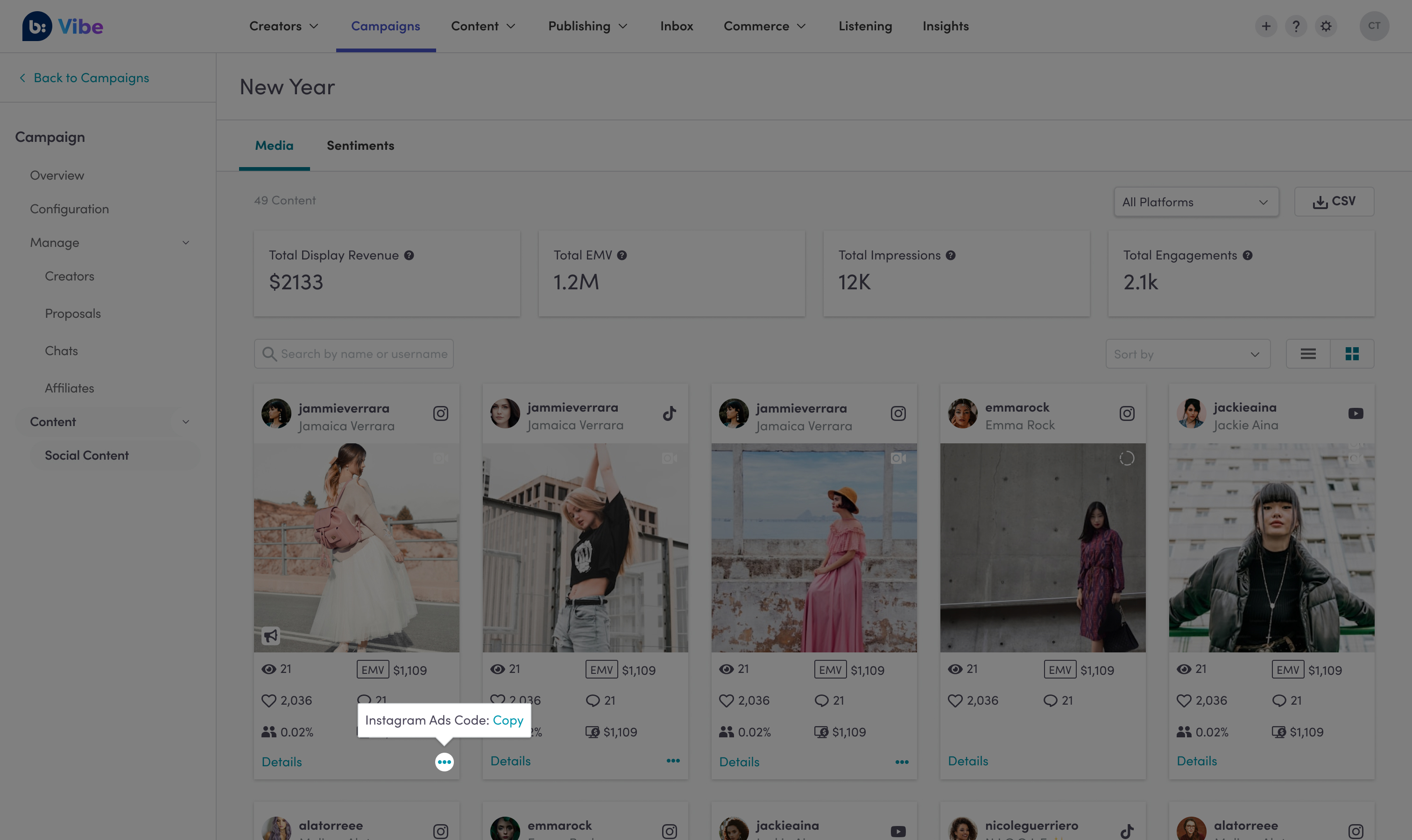
Select Content > Social Content.
-
Hover over the three-dot icon on the bottom-right corner of a content item that you requested ads permissions to.
-
Select Copy next to Instagram Ads Code.
Step 3: Create ads with the ad code
Follow the steps in Meta’s support article to create an ad and add your code.
Meta ads insights
You can view your Meta ads performance by selecting Commerce > Paid Social > Meta Ads in Vibe. You can view the overall metrics for your Meta ads in the cards at the top of the page.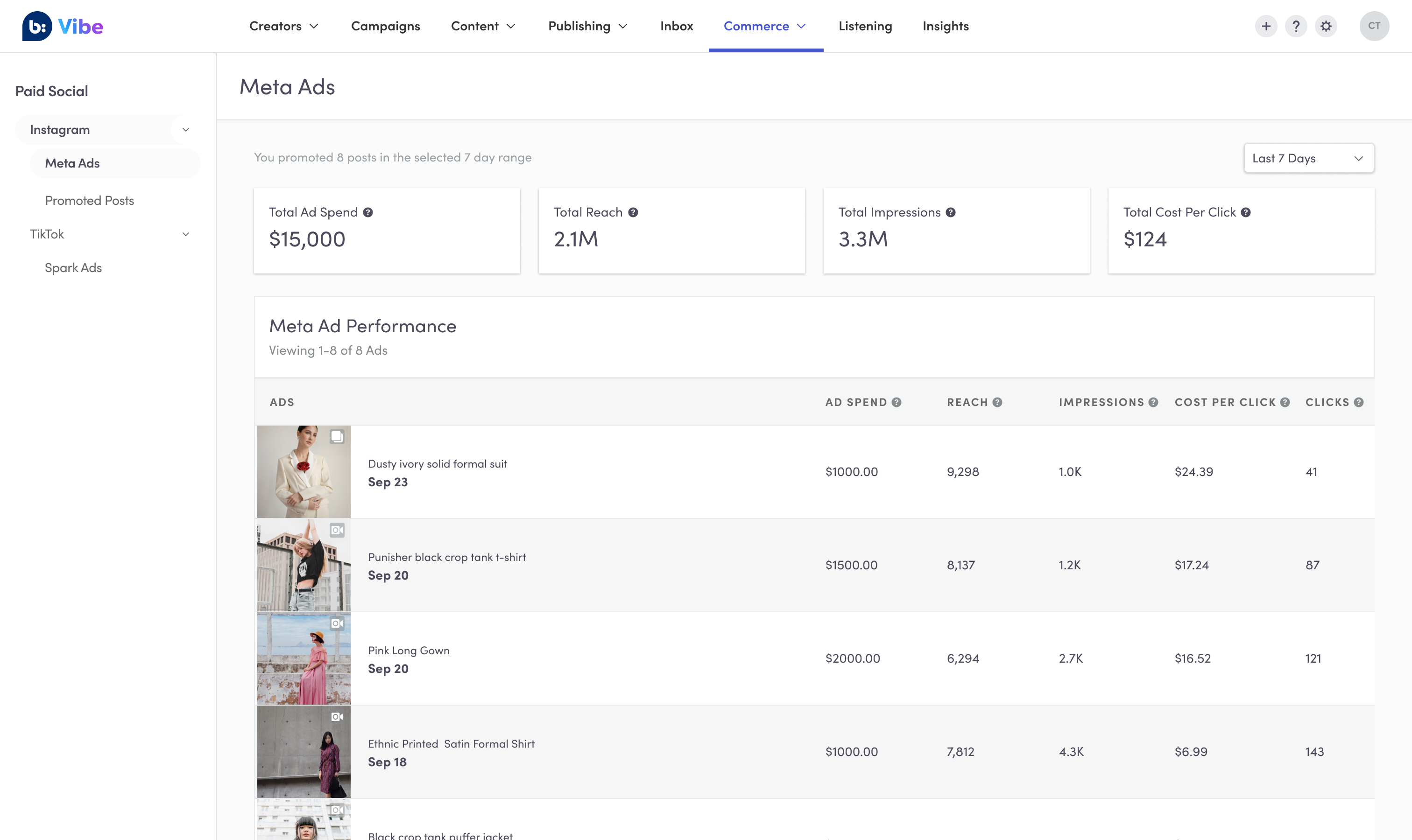
Using the Meta Ad Performance table, you can view metrics for individual content items that you’ve used in ads.
Filter metrics and content
Filter your Meta Ads page by selecting the date range drop-down in the upper-right corner to and select a date range.
Download a CSV file
Download a CSV file of your Meta Ads metrics by selecting the CSV button above the Meta Ad Performance table. Your CSV file will only show metrics from the date range you have currently selected.
