When Bazaarvoice content moderators reject a review, the contributor receives an email notification. By default, the rejection message lacks an explanation. Review resubmission remedies this situation by giving contributors the chance to easily resubmit a review. The moderator's reasons for a review's rejection are listed in the rejection email. The moderator can also highlight the specific sections of a review that need editing. In many cases, the rejection email includes an editable copy of the original review. This saves the contributor the time and effort required to re-create the entire review. As a consequence, a higher percentage of your customers will decide to resubmit their reviews. Your review volume can then increase.
Enable review resubmission
To enable content moderators to use review resubmission with your company's reviews, follow these steps:
-
Sign in to the Bazaarvoice Portal
 .
.
-
From the upper-right corner, select the settings icon
 .
.
- Under Configuration, select Ratings & Reviews. The Site Manager lists all your active deployment zones and implementations.
- Under Implementations, select Edit next to the implementation in which you want to enable review resubmission.
- From the menu on the left side of the page, select Configure Messages under Collect Reviews.
- Select the Messages tab.
- Enable the Review Rejected email message type by turning on the toggle switch in the Enabled column.
- From the menu on the left side of the page, select Display Options under User Experience.
- Select the Ratings & Reviews tab.
-
In the Review Submission section, select Enabled under Allow Editing for Rejected Reviews.
Note: By default the submission form allows consumers to edit and resubmit a rejected review for up to 30 days. However you can extend this period to 90 days by enabling the Extend Rejected Review Resubmission for 90 days (V2) setting in the Bazaarvoice Portal. -
Personalize your email messages to contributors about rejected reviews by using the Review Rejected email template. You can edit the template or create a custom template by returning to the Email Templates tab in Email Configuration (see steps 7 and 8), and selecting Edit on the right side of the Review Rejected row.
When configuring the email template, keep the following in mind:
- Include the reason(s) for rejection in the Body section of the template. Select Insert tag to locate and add reasons for rejecting the review.
- Include a link for resubmitting content in the Body section. Use Insert link to add the URL to the template.
- In the Insert Link dialog box, you can change the text that appears in the submission button for an editable review in the Text: Edit Content field.
- You can change the text that appears in the submission button for a non-editable review in the Text: New Content field.
-
Select the Link type dropdown list, then select the variable you want to include.
Note: Be aware the rejection email lists the moderator’s reasons for a review’s rejection. Not all moderator codes allow a contributor to edit a submitted review. Some codes send a blank review form asking the user to submit a new review.

15. Deploy the changes to the implementation.
Edit the review resubmission email template
You can use the configuration hub to personalize the email you send to contributors about rejected reviews. Complete the following steps to configure email notifications for the feature.- From the menu on the left side of the page, select Configure Messages under Collect Reviews.
- Select the Messages tab.
- Select Edit next to the Review Rejected email message
-
Edit the template fields to personalize the message for your company.
Note: The Body section must include the auto-populated fields in the default template that are related to the product name, as well as any links.
- In the Body field of the template, place the mouse cursor in the location where you want to insert the reason(s) for rejection. Select Insert tag and then select Rejection reasons from the dropdown menu. The email will list all reasons for the rejection.
- In the Body field of the template, place the mouse cursor in the location where you want to insert the link for resubmitting content. Select the Insert link. The Insert a link dialog box is displayed.
-
From the dialog box, select Resubmit content link from the Link type dropdown menu.
- If you want to change the text that appears in the submission button for an editable review, enter it into the Text: Edit Content field.
- If you want to change the text that appears in the submission button for a non-editable review, enter it into the Text: New Content field.
- You can also insert variables into the text by selecting Insert tag, from the Insert dropdown menu, select the variable(s) you want to include.
- Select Save and Insert at the bottom of the dialog box to save your changes and insert the variable into the email body.
View resubmitted reviews and reports
You can use the Bazaarvoice Workbench to view and generate reports on resubmitted review content. You can use the reports to answer questions like these:
- How many reviews were successfully or unsuccessfully resubmitted?
- How many reviews were resubmitted with pictures?
- What was the rate of successful or unsuccessful resubmission?
Complete the following steps to access a list of resubmitted reviews:
- From the Workbench, select the Content menu.
- Select Content Dashboards on the left side of the page. The Ratings & Reviews dashboard is displayed by default, and statistics for the last 30 days are shown.
- Select the date range dropdown menu and then select All Dates.
- From the Content dropdown menu, select Campaign Source. A list of sources is displayed.
- Select Bazaarvoice Review Resubmission Email and then select Apply.
-
Select additional filters to analyze resubmitted reviews. Here are some examples:
- To view all approved resubmitted reviews: From the Moderation dropdown menu, select Moderation Status and then select the Approved checkbox.
- To view all rejected resubmitted reviews: From the Moderation dropdown menu, select Moderation Status and then select the Rejected checkbox.
- To view all resubmitted reviews that include pictures: From the Content dropdown menu, select Attached Content and then select the With Photos Attached checkbox.
Resubmit reviews in progressive submission
-
By default, the submission form allows consumers to edit and resubmit a rejected review for up to 30 days. However, you can extend this period to 90 days by enabling the Extend Rejected Review Resubmission for 90 days (V2) setting in the Bazaarovoice Portal.
-
The 90-day window is calculated strictly from the first/original submission date of the review. The form does not recalculate or extend this window based on the date the review was rejected.
Note: Once 90 days have elapsed from the initial review submission date, the submission form will no longer accept edits or resubmissions for that review, regardless of when the rejection occurred.
- You can extend the resubmission period to 90 days for reviews with either ‘Rejected’ or ‘RemovedTest’ status. The extended 90-day resubmission window for rejected reviews applies only to V2 progressive reviews submitted through Ratings & Reviews and Sampling products. This feature is supported for both API and hosted display clients.
-
For multiple reviews per product:
- Only the most recently submitted review for a specific product is eligible for resubmission.
- Any older rejected review that is not the latest submission is blocked from resubmission.
Resubmit reviews with rejected media
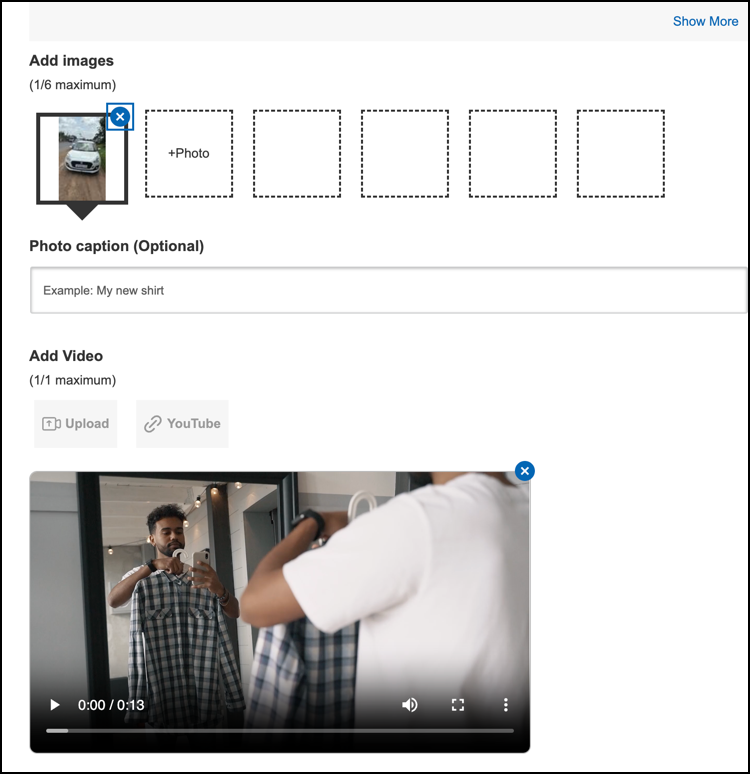
Consumers can also delete previously uploaded photos and videos directly within the review submission workflow. If a review is rejected due to a media issue, consumers can select the delete icon on rejected media files to remove them, upload new media, and resubmit the review. This ensures a seamless resubmission experience and helps publish content faster.
Generate reports on resubmitted review content
Contact Bazaarvoice support if you want to receive a recurring report that includes information about the review rejection emails sent, the open rate, and the clickthrough rate.
