Use this article to integrate Bazaarvoice Ratings & Reviews into your Shopify vintage store to display UGC. You will learn how to:
To add Ratings & Reviews, follow the below steps.
Step 1: Publish and display content on your Shopify store
Follow these steps to:
- Display ratings, reviews, and questions and answers on your product pages
- Display inline ratings on your collection pages
- Collect transaction data from your checkout pages to power conversion impact reports and automated review request messages
Product page
Your product pages can display rating summaries, reviews, and questions and answers. To add any of these content types to your product pages:-
Open your Shopify theme
 .
.
-
In your current theme, select Edit code from the menu
 .
.
-
Find the file that contains your product page code.
The file is usually titled product.liquid or main-product.liquid. It is most likely to be in the Templates folder or, less frequently, the Sections folder.
- Ensure you’re using the correct file by adding placeholder text and confirming it’s visible on the product page.
- Finalize the placeholder placement and replace it with code snippets to display the desired content types.
- Save your changes.
| Content type | Description | Code snippet to add to file |
|---|---|---|
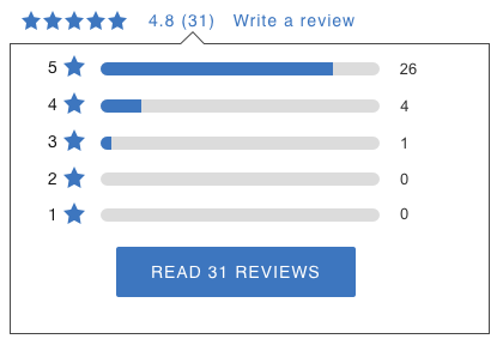
| Ratings summary | Display a product’s average star rating and a link to leave a review. The ratings summary is usually placed at the top of the page near the product title.
|
<div data-bv-show="rating_summary"
data-bv-product-id="{{product.id}}"></div>
|
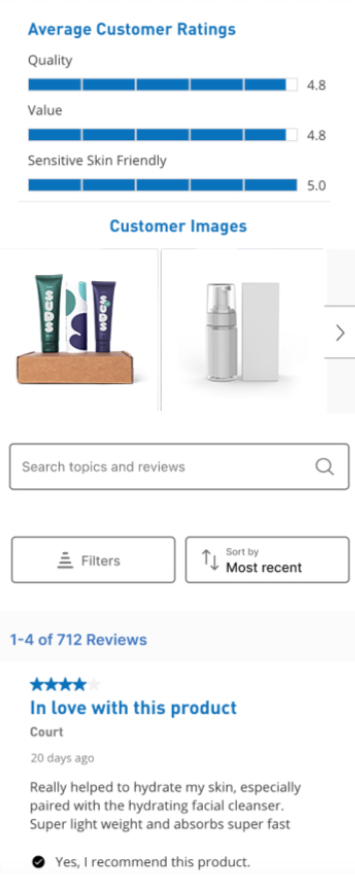
| Reviews | Display a list of consumer ratings and reviews for a product. This list is usually placed below the product image and description.
|
<div data-bv-show="reviews"
data-bv-product-id="{{product.id}}"></div>
|
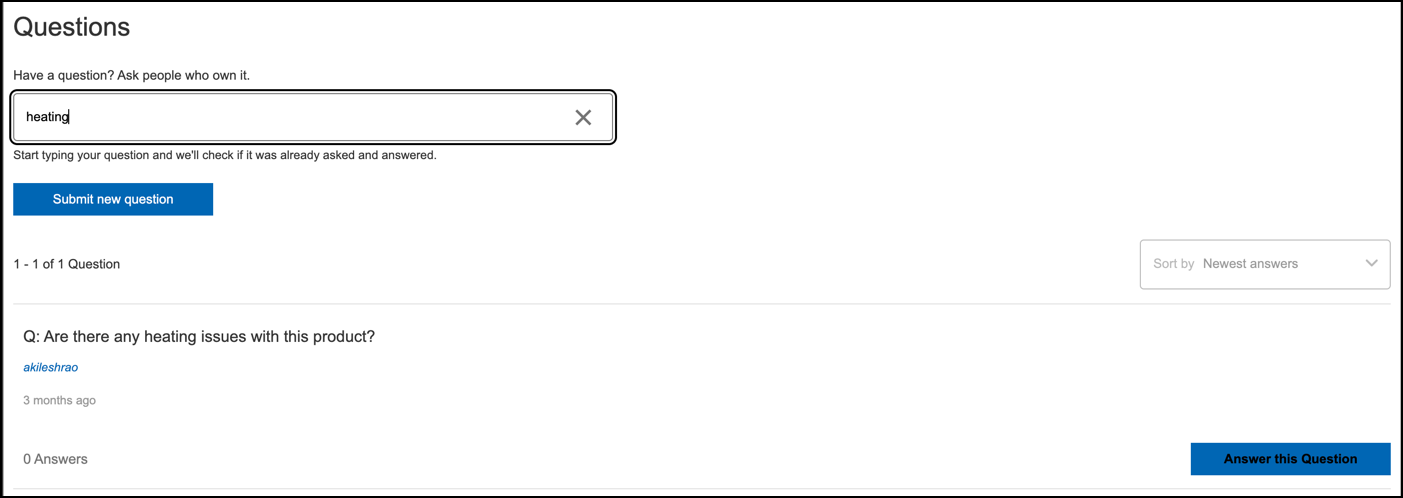
| Questions and Answers | Display consumer questions and answers for a specific product. Questions and answers are usually placed below the product image and description.
|
<div data-bv-show="questions"
data-bv-product-id="{{product.id}}"></div>
|

Collection page
Your collection pages can display inline ratings that show an average star rating for each featured product. To add inline ratings to your collection pages:-
Open your Shopify Theme .
-
In your current theme, select Edit code from the menu .
-
From the list of folders on the left side of the page, find the file containing your collection page code by searching in each folder or by entering the file name in the search field.
The file is usually named product-card-list.liquid, product-card-grid.liquid, product-grid-item.liquid, or collection.liquid. It is most likely to be in the Templates folder, but may be in the Sections or Snippets folders.
- Ensure you’re using the correct file by adding placeholder text and confirming you can see this text below the product thumbnail.
- Finalize the placeholder placement and replace it with the Bazaarvoice inline ratings code to display star ratings:
HTML<div data-bv-show="inline_rating" data-bv-product-id="{{product.id}}" data-bv-redirect-url="{{ product.url }}" data-bv-seo="false"></div>
- Save your changes.

bv-exclude tag to exclude products from Bazaarvoice functionality. Refer to the Exclude Bazaarvoice features from products article to learn more.
Step 2: Update your SEO settings
{{ product | structured_data }} tag, since there is no editable JSON-LD block to modify. Bazaarvoice is aware of this and investigating.
Configure your SEO settings in product pages only to ensure search engines index your reviews.
To update your SEO settings:
-
Open your Shopify Theme .
-
In your current theme, select Edit code from the menu .
- From the list of folders on the left side of the page, find the file containing the below JSON LD block:
JSON |
<script type="application/ld+json"> |
-
In your current theme, select Download theme file from the menu .
- In the files you’ve downloaded, search for the JSON LD block and note which files contain it.
- Return to Shopify and select the file or files containing the JSON LD block.
-
Add
"@id" : "{{shop.url}}{{ product.url }}",
JavaScript<script type="application/ld+json"> { "@context" : "https://schema.org", "@type" : "Product", "@id" : "{{shop.url}}{{ product.url }}", … } </script>
- Save your changes.