This article explains how to configure and manage your settings for the Bazaarvoice Reviews & Photos app on Shopify. You will learn how to set up the app for:
Configure settings for Ratings & Reviews
Select Configure and complete the following sections:

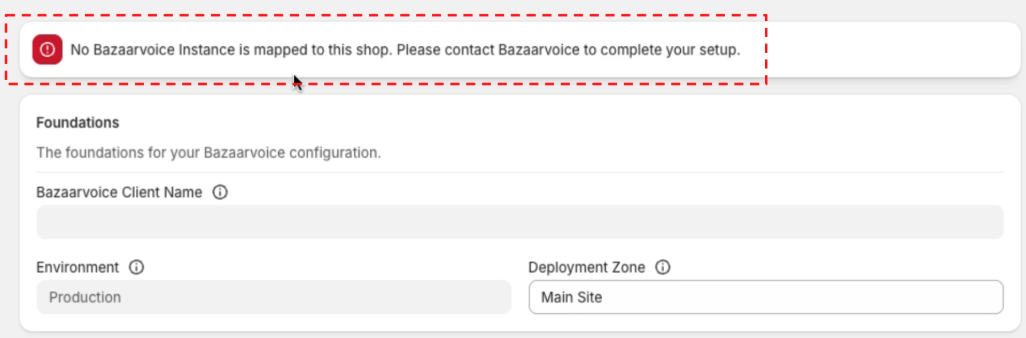
Foundations
| Account details | Description | Example |
|---|---|---|
| Bazaarvoice Client Name | Your client name is pre-populated and read-only. If your client name is not populated, contact your Bazaarvoice representative. | widgetscom |
| Shopify Store ID | Your Shopify store ID is pre-populated and read-only. This is the subdomain of your .myshopify.com URL, which uniquely identifies your store. | my-store-id |
| Environment |
Select Staging to test your configurations. Select Production to collect and display customer content in your live environment. |
Staging (default setting) |
| Deployment Zone |
Use your deployment zone to manage the look and feel across multiple Shopify stores.
|
Main Site (default setting) |
Localization
|
Account details
|
Description
|
Example
|
|---|---|---|
|
Default Locale |
Select the default localization settings to be used when no specific locale mapping is found.
Note: If the Bazaarvoice Snippet app embed block is inactive in your Shopify theme editor, a warning appears in your multi-locale settings. To resolve this, select Enable App block. Refer to the multi-locale article to learn more.
|
en_US (English, United States) |
| Advanced Localization |
Select Enable. This automatically fetches the locales your Shopify store supports and the locales configured for your Bazaarvoice account. Select Add Bazaarvoice Locale. To learn more about multi-locale configuration, refer to the multi-locale topic. | fr_CA (Canadian French) |
Product catalog
| Account details | Description | Example |
|---|---|---|
| Manage UGC at Product-Level or Variant-Level |
Select Product-level to collect, display, and distribute UGC for the parent product, or Variant-level for individual product variants. Selecting Product-level displays Enable Multi-Store Products. Select this if you manage more than one store to organize products into category hierarchies across multiple Shopify stores. Selecting Variant-level displays these sharing options:
 |
|
| Bazaarvoice Product ID Source |
Identify catalog products using a unique attribute. Select the attribute type for the external product ID:
Update your product catalog to ensure every product has a unique, assigned ID. |
|
| GTIN Location |
Select where you define GTINs (UPC, EAN, or ISBN) in Shopify. Select Barcode unless you store GTINs as a SKU. |
Barcode (default setting) |
| Send Categories | Select this checkbox to send product category information to Bazaarvoice. | |
| Enable Multi-Store Categories | Select the checkbox to organize products into category trees across multiple Shopify stores. Clear this option if you manage only one store. | |
| Daily Product Update | Select Activate to send a daily product update to Bazaarvoice. | |
| Catalog Health | Select View Catalog Health to review product counts and attribute coverage. The Products panel shows counts such as active products and products synced with Bazaarvoice. The Coverage panel shows the percentage of products with each required attribute populated (for example, GTIN, PDP URL). Any errors or missing data appear under Issues for quick resolution. To learn more, refer to the Integration health article. |
Storefront
| Account details | Description |
|---|---|
| Enable Ratings |
Select to enable the display and collection of review content in your Shopify store.
Note: Leaving this box unchecked will disable Ratings & Reviews for your store.
|
| Enable App Pixel |
Select to enable the installation of Bazaarvoice App Pixel to your Shopify store. Enable the Always on
Note: The App Pixel collects events made on checkout pages by consumers. After you enable App Pixel, it immediately begins collecting data and sending email messages.
|
| Enable Authentic Discovery | Select to enable the Bazaarvoice Authentic Discovery feature in your Shopify store. To learn more about Authentic Discovery configuration, refer to the Authentic Discovery for Shopify article.
Note: Your package must include Authentic Discovery™ before you can enable this feature in your Shopify store.
Contact your Bazaarvoice representative for more information. |
Orders
| Account details | Description | Example |
|---|---|---|
| Review Request Date Selection |
To send review requests after an order is fulfilled, select Fulfillment date. To send review requests after an order is created, select Transaction date.
Note: To use this setting, select Activate in Send daily updates > Daily order update. This enables Bazaarvoice to send review requests to your customers.
Before using this setting, you need to make updates to the Bazaarvoice Portal:
Note: Bazaarvoice sends review requests only after an order is fully fulfilled. If an order includes canceled items, Bazaarvoice sends requests for the remaining fulfilled products.
|
|
| Daily Order Update |
Select Activate to send a daily order update to Bazaarvoice. This enables us to send review requests to your customers. If you’re using BV Pixel to send review requests, select Deactivate. |
Deactivate |
| Send Customer Order Data |
Send data to Bazaarvoice about your orders within a set timeframe. This data enables Bazaarvoice to send review requests to your customers.
Consult your Bazaarvoice representative before sending this data.
|
Start date: 05/11/2024 End date: 05/18/2025 |
 .
. Configure settings for Galleries
- Select Bazaarvoice Galleries > Configure to enter your account details.
-
Enter your account details. Use the client name, username, password, and client ID Bazaarvoice provided when setting up your account.
If you’re unable to find these details, contact Bazaarvoice Support.
-
Select Enable Galleries to enable Bazaarvoice galleries to appear on your Shopify store.
Note: Leaving this box unchecked will disable Galleries for your Shopify store.
| Account details | Description | Example |
|---|---|---|
| Bazaarvoice Client Name | Enter the client name Bazaarvoice provided when setting up your account. | widgetscom |
| Locale |
Enter your store’s locale.
To construct a locale code, combine the language code with the country code. |
en_US (American English) |
| Username | Enter the SFTP username Bazaarvoice provided when setting up your account. | widgetscom |
| Password |
Enter the SFTP password Bazaarvoice provided when it set up your account.
Note: To reset your SFTP password, contact your Bazaarvoice representative or Bazaarvoice Support. Only technical contacts or account administrators can request password resets.
|
Q3%4lnb7$3 |
| Gallery Site Name |
Enter the unique gallery site name on the My Account page in Vibe . .
|
widgetscom-cmzpvk |
| Client ID | Enter the client ID Bazaarvoice provided when setting up your account. | 12345 |