Edit or disable your SSO configuration and understand what actions you can take in Manage Users in Portal.
Edit SSO configuration
To update your configuration:
-
If you have successfully enabled SSO for your configuration, sign in to Portal using FSSO
 . If you haven't yet completed setup and enabled SSO for your configuration, sign in with your username and password .
- From the upper-right corner, select the settings icon .
-
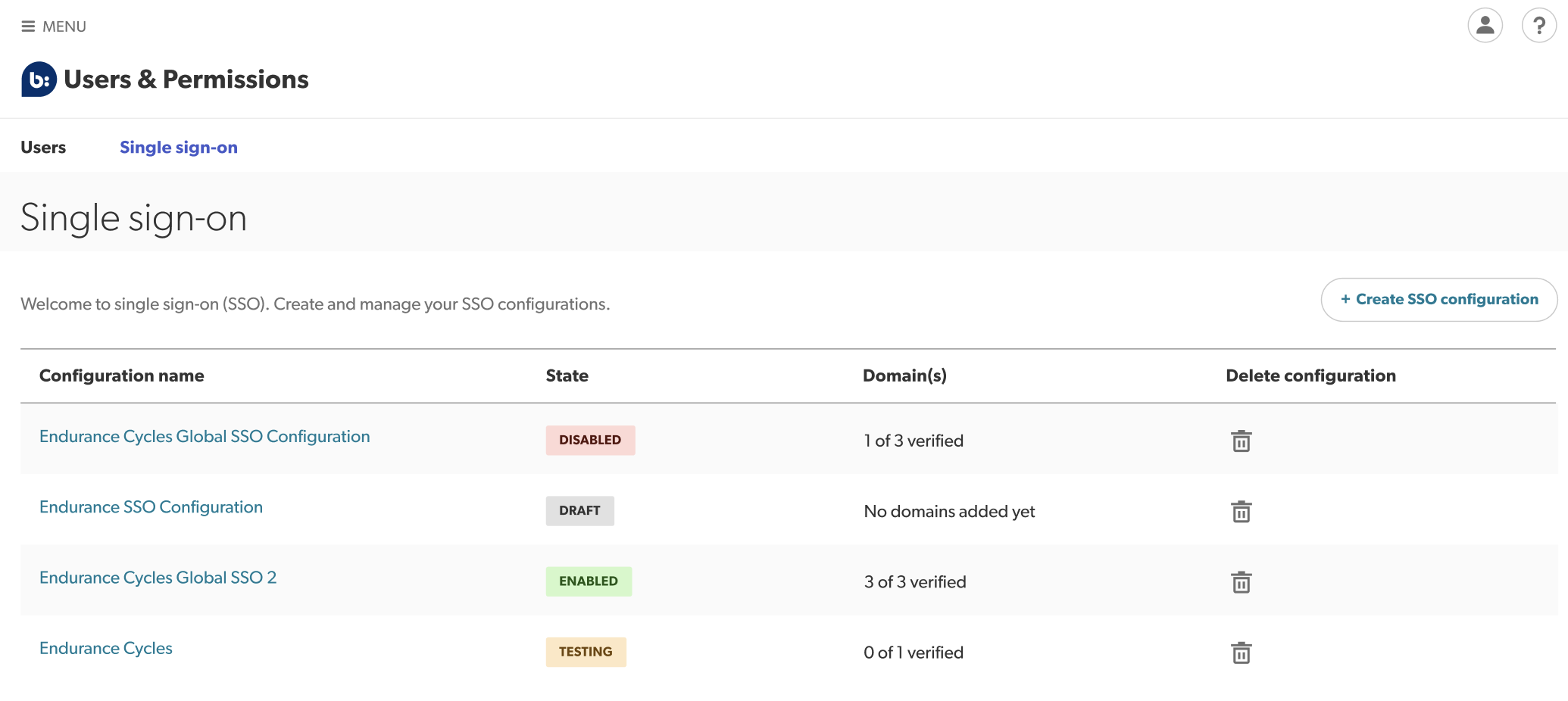
Select Manage Users > Single sign-on. A table listing your SSO configurations appears. The State column will show one of four labels:
- Draft – You have created this configuration but not completed the five-step wizard yet.
- Testing – You have initiated the test flow for this configuration and it is currently being tested.
- Enabled – You have successfully completed setup and can now use this configuration to sign in with SSO.
- Disabled – This configuration can no longer be used to sign in with SSO.
-
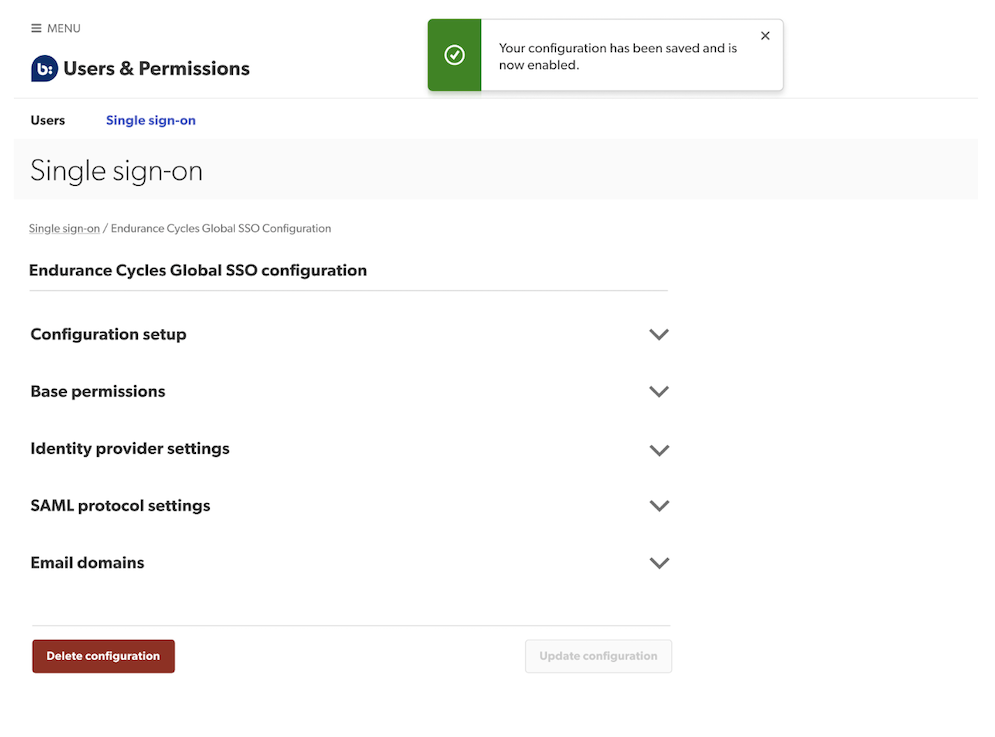
From the list view, select the SSO configuration you want to edit. The configuration details page appears.
- Make the required changes in any of the following sections:
 .
.
- Configuration setup—Edit your configuration name.
- Base permissions—Edit the lowest level of access rights assigned only to new users for all products.
- SAML protocol settings—Copy the SAML protocol settings provided and add them to your IdP’s account configuration.
-
Domain verification—Add or disable domains.
 Tip: If you want to change your identity provider, we advise setting up a new configuration using the new IdP.
- Select Update configuration to save your changes.
Disable SSO configuration
To disable your IdP configuration:
-
Sign in to the Bazaarvoice Portal .
- From the upper-right corner, select the settings icon .
- Select Manage Users > Single sign-on. A table listing your SSO configurations appears.
-
From the list view, select the SSO configuration you want to disable. The configuration details page appears.
Note: When a configuration is disabled, all existing users in that domain will need to create a new password by using the Forgot password link. - To deactivate SSO for everyone whose email matches your corporate email domains in this SSO configuration, select Delete.

Manage users and permissions
Account Administrators can manage the company’s users and access permissions (to Bazaarvoice solutions) through Portal.
Note: As an Account Administrator, you may be able to view but not edit some users. This happens when a user has access to more sites than you. If you cannot select a username, then that user must have higher level access to at least one site for which you are not an Account Administrator. To update the status of your permissions, contact Bazaarvoice Support to open a support ticket.
In Manage Users, Account Administrators can do the following:
- View user accounts—Federated users who have been disabled in their corporate IdP account may still appear in the list view, but won’t be able to sign in.
- View a user’s status—Users are assigned one of the following statuses: Active, Locked out, Provisioned, Recovery, Staged, or Suspended.
- Update a user’s account—You can modify Bazaarvoice solutions, instances, and assigned roles by editing the Permissions fields.
- Disable users—If you disable users, they will no longer have access to Bazaarvoice solutions and will be assigned the Suspended status.
You cannot create a new account using an email address that belongs to an active single sign-on (SSO) federated domain. New user accounts are created automatically the first time a user signs in to Bazaarvoice through their corporate IdP.