The Delay Review Request feature allows you to postpone sending review requests to consumers. You can define a delay period1, and if a consumer makes a purchase during this time, an extended wait time2 is added to the default wait time3, ensuring review requests are not sent during this period.
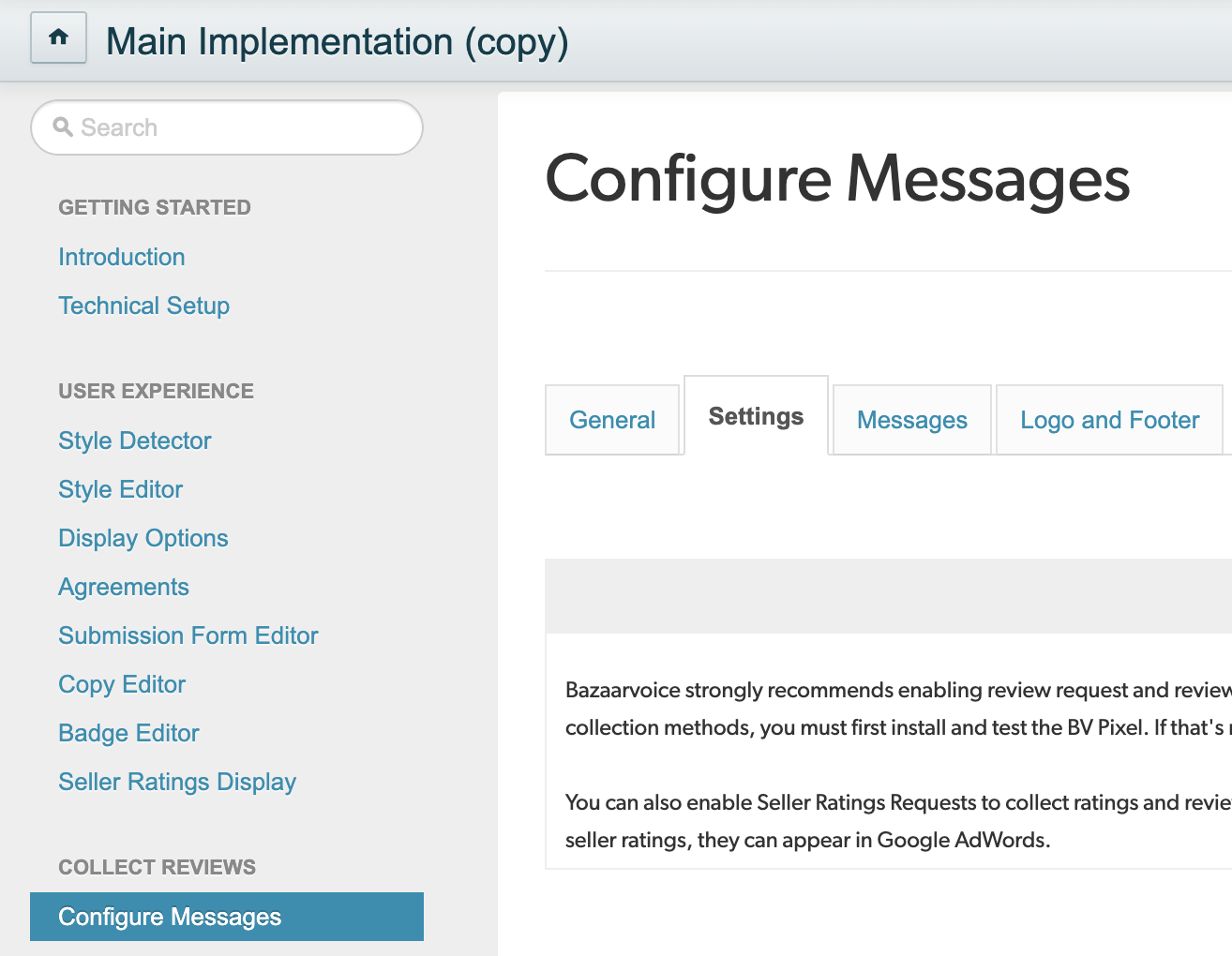
The default wait time is configured in the Days to wait before sending the first review request setting within the Portal Configuration (Collect Reviews > Configure Messages > Settings tab).

When to delay sending review requests
This feature is especially valuable during busy periods like the holiday season. It allows you to delay sending review requests when consumers are preoccupied and less likely to respond. Postponing the request until after the holiday rush increases the likelihood of receiving valuable reviews on their purchases.
Get started

To delay review requests:
- Sign in to the Bazaarvoice Portal.
- In the upper-right corner, select the Settings icon.
- Select Configuration.
-
Select Edit next to the implementation you want to update.

- In the Collect Reviews section, select Configure Messages.
-
Select the Settings tab.
-
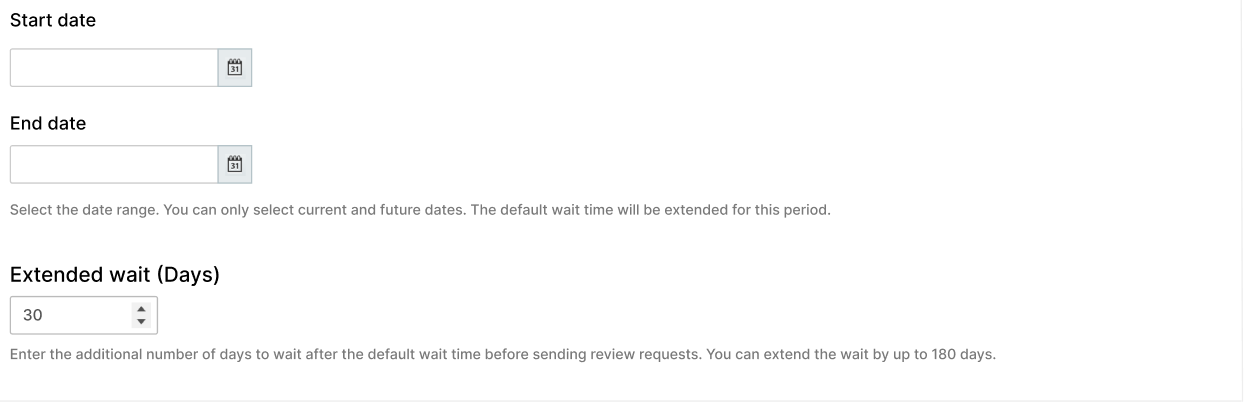
Enable the Delay Review Request (Optional) setting.

-
Select the start and end dates.
- The delay period is inclusive of both start and end dates.
- If the start and end dates are the same, the delay period will be for a full 24 hours, from 12 AM UTC to 11:59 PM UTC.
-
From the Extended wait (Days) list, select the number of additional days to delay review request after the default wait time. You can extend up to 180 days.
- Verify your changes before saving.
- Deploy the changes to the implementation.
How it works
-
When order data is received, the system verifies the transaction date4 to see if it falls within the delay period.
- If it does, an extended wait is applied to the default wait time before sending the review requests.
- If it does not, only the default wait time is applied.
-
After the first review request is sent, the system waits for a certain period (RRR wait time5), then sends a Review Request Reminder (RRR). This is an optional setting.

Example
This table outlines how the extended wait time affects the timing of review requests. Assume Jan 1 to Jan 20 is a holiday period for which you have to delay review requests.
|
Scenario
|
Holiday period
|
Transaction date
|
Default wait
(Days) |
Default review request date
|
Extended wait (Days)
|
Actual review request date
|
|---|---|---|---|---|---|---|
|
1
|
Jan 1 to Jan 20
|
Jan 1
|
5
|
Jan 6
|
10
|
Jan 16
|
|
2
|
Jan 1 to Jan 20
|
Jan 1
|
5
|
Jan 6
|
15
|
Jan 21
|
|
3
|
Jan 1 to Jan 20
|
Dec 31 (before holidays)
|
5
|
Jan 5
|
Not applicable
|
Not applicable |
|
4
|
Jan 1 to Jan 20
|
Jan 21 (after holidays)
|
5
|
Jan 26
|
Not applicable
|
Not applicable |
The flowchart illustrates the workflow and timeline for sending review requests during the delay period.
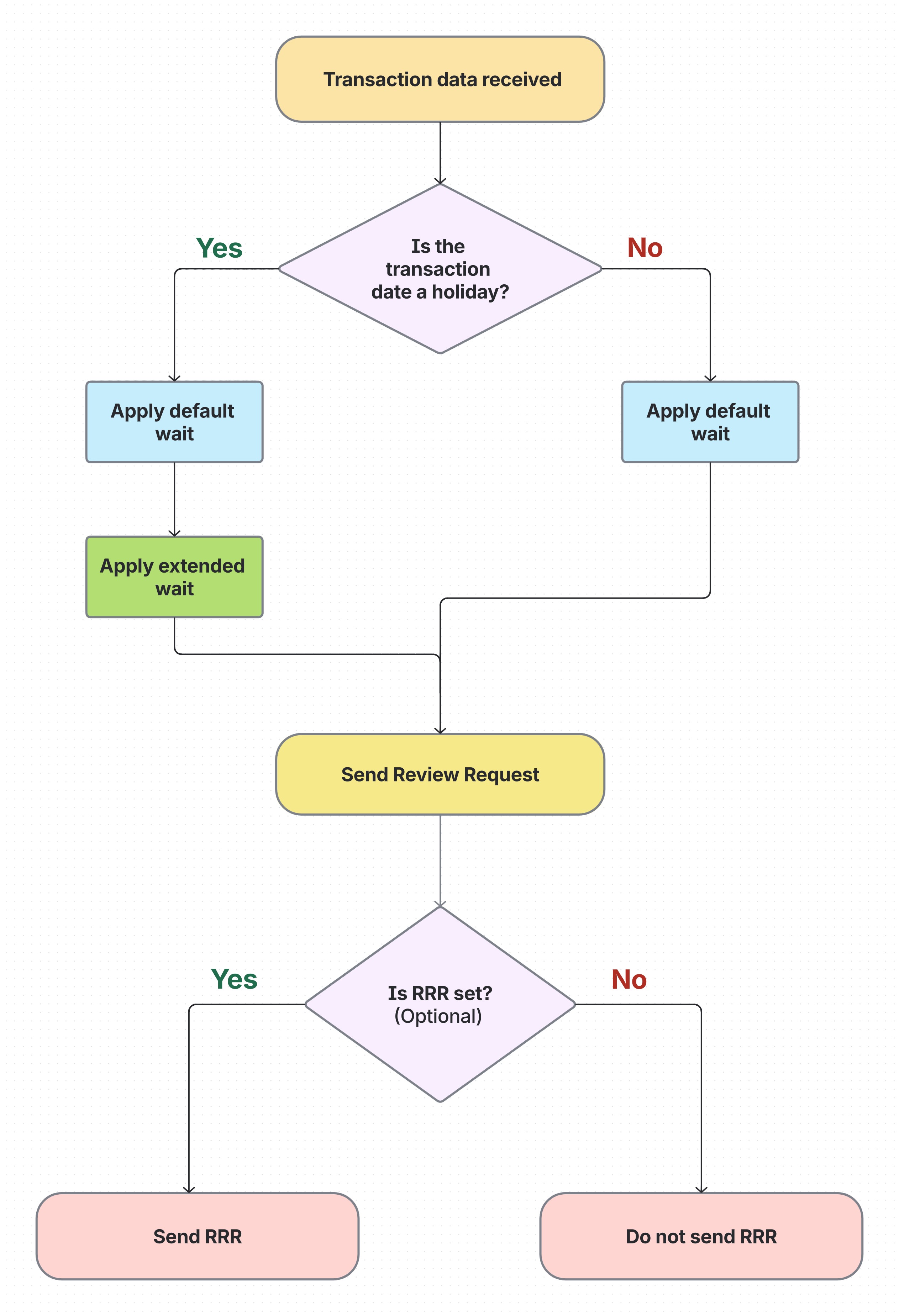
- After applying the default wait time, if the new date falls within the holiday period, the review requests are sent on that date.
- After applying both the default and extended wait times, if the new date falls within the holiday period, the review requests are sent on that date.
-
The waiting period for a Review Request Reminder (RRR) begins only after the initial review request is sent. Bazaarvoice will send the reminder once this specified wait time has passed.
Glossary
- Delay period: The date range for which you have to delay review requests.
- Extended wait time: An additional number of days to wait after the default wait time before the first review request is sent.
- Default wait time: The number of days to wait before the first review request is sent.
- Transaction date: The date on which the consumer purchased the product.
- RRR wait time: The number of days to wait after the initial review request before sending the reminder.
- Review request date: The date on which Bazaarvoice sends review requests (emails/messages) to consumers.
