Setup overview
To implement an effective review collection method for your business, complete the following steps:
- Enable review request
-
Configure review requests
- Set the review collection method
- Configure message templates
- Deploy the configuration
- Actively send order data to Bazaarvoice
- Complete domain authentication for your sender email address
Step 1: Enable review requests
Complete the following steps to enable review requests:
-
Sign in to the Bazaarvoice Portal
 .
.
-
From the upper-right corner, select the settings icon
 .
.
- Under Configuration, select Ratings & Reviews. The Site Manager lists all your active deployment zones and implementations.
-
Under Implementations, select Edit next to the implementation you want to configure.
Note: Email templates are used in the deployment zone to which the implementation is published. Changes made to templates in one zone affect email messages sent from that zone only. -
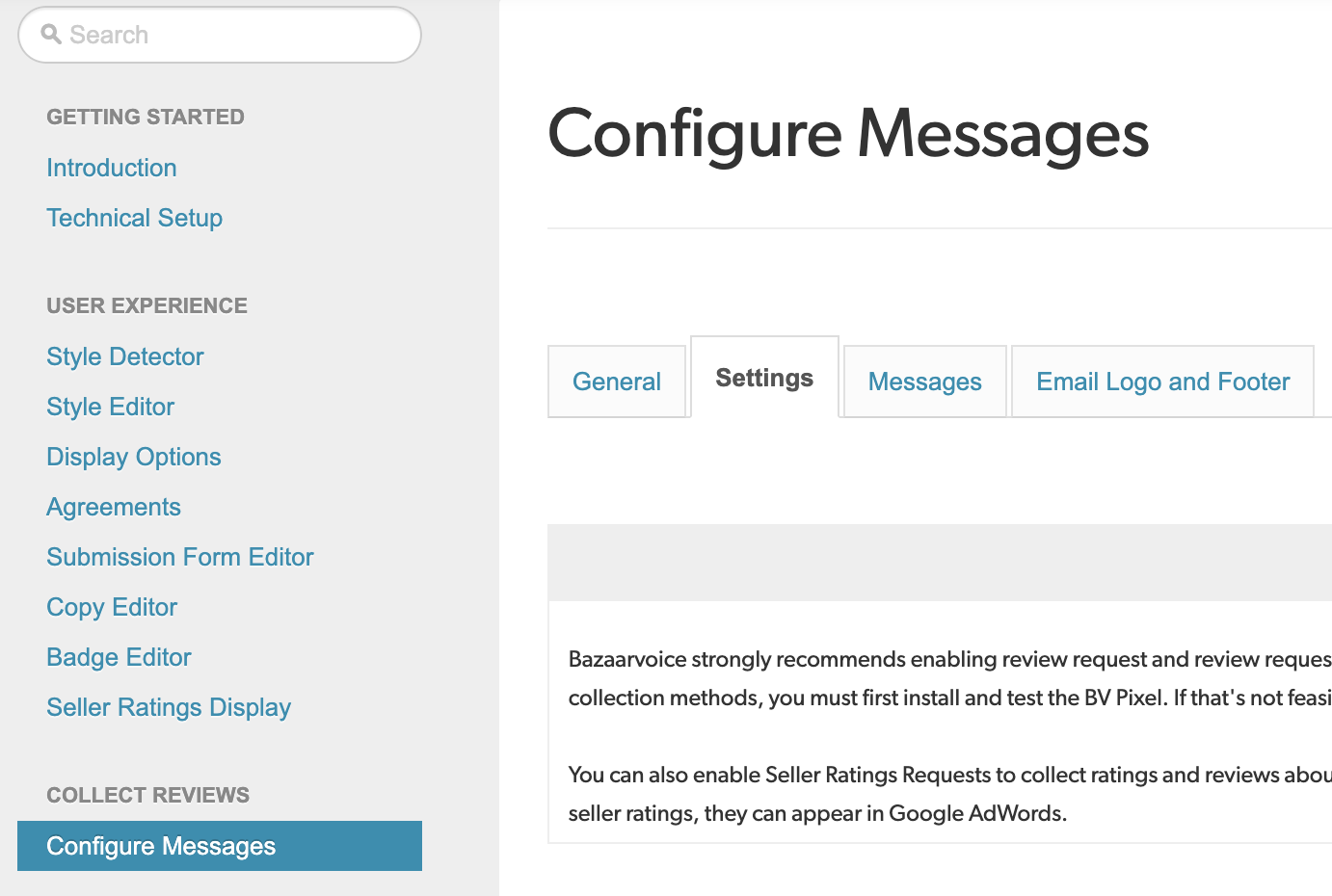
Under the Collect Reviews section, select Configure Messages.
-
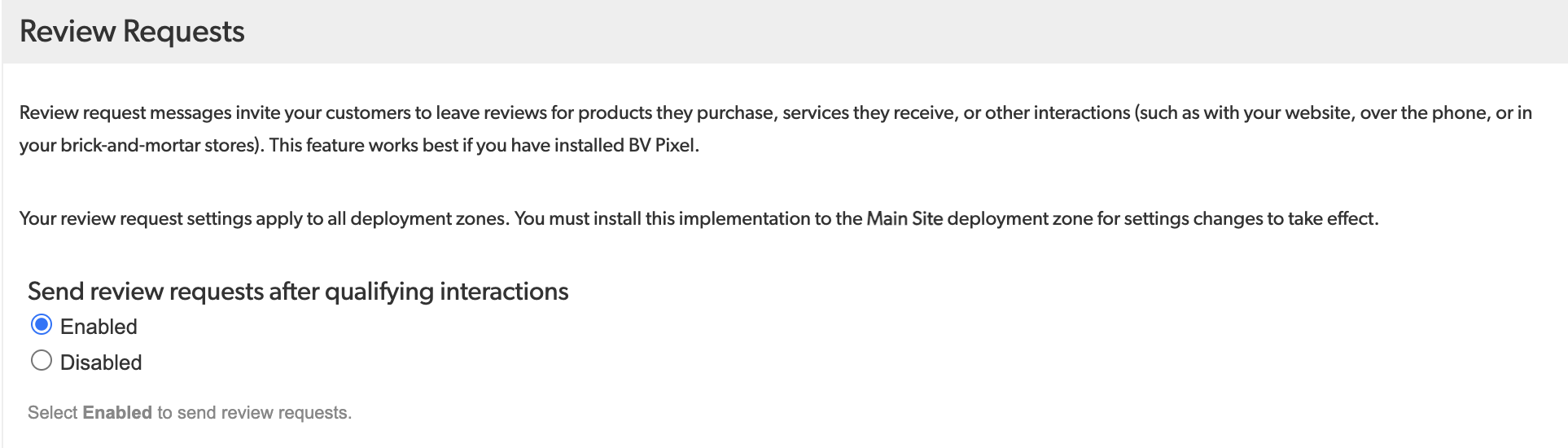
Select the Settings tab and scroll down to the Review Requests section of the page.
-
Select Enabled under Send review requests after qualifying interactions.

Step 2: Configure review requests

Complete the following steps to configure review requests:
-
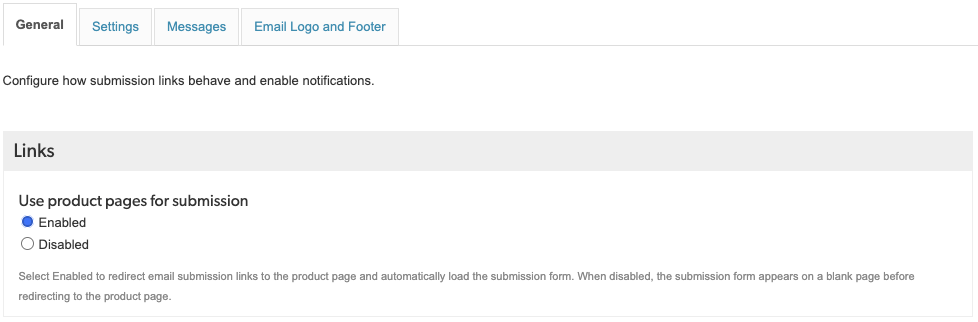
To control how the review submission form is displayed after the user selects the "Write a review" link in the review request, select one of the Use product pages for submission options in the Email Submission Links section of the General tab:
- To display the submission form in a lightbox on the product display page (PDP), select Enabled.
-
To display the submission form on its own page, select Disabled. You can select this option if you do not specify a container URL on the Technical Setup > Site Profile page (this forces the use of the Bazaarvoice hosted submission form). Or, you can select this option if you implement a container page and specify a container URL on the Technical Setup > Site Profile page.
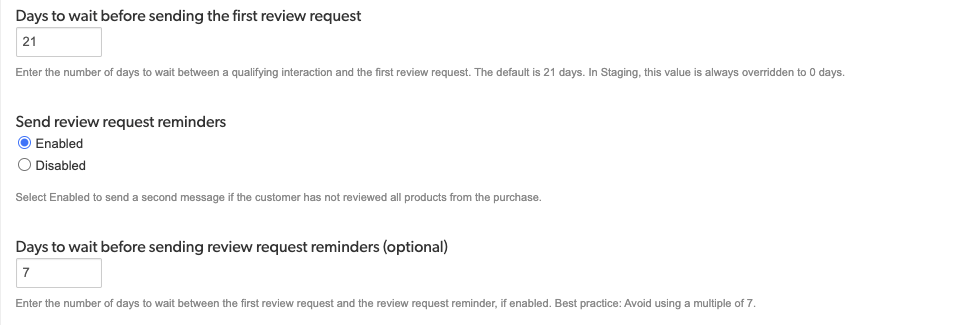
- Select the Settings tab and in the Days to wait before sending the first review request text box, type the number of days to wait between a qualifying purchase and the first review request. We recommend that you specify 14-21 days to allow enough time for shipping.
-
If you want consumers to receive review request reminders:
- Select Enabled under Send review request reminders.
-
In the Days to wait before sending review request reminders text box, type the number of days after the first review request to send the review request reminder. We recommend that you do not specify a value that is a multiple of 7.
-
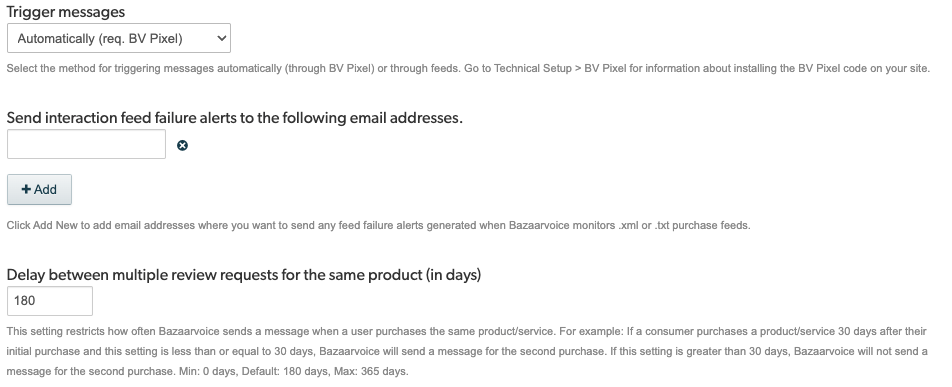
Use the Trigger messages dropdown list to select your method of sending review requests to consumers:
- Select Automatically if you send us order data using BV Pixel only or BV Pixel + order data files. BV Pixel powers review requests by automatically capturing and sending order data to Bazaarvoice.
- Select By feed if you send us order data using only only order data files (XML or TXT).
-
To send feed failure alerts that are generated when Bazaarvoice validates and imports .xml or .txt files, add email addresses to the Send interaction feed failure alerts to the following email addresses list by selecting the +Add button.
Note: In review request text messages, the feed failure is reported and stored in the new SFTP failed folder. To access these failure reports, you must have access to the new SFTP, which resides at the following location:https://www.bazaarvoice.com/xs/PRR/PostPurchaseDataFeed/1.5.
In review request text messages, the feed failure is reported and stored in the new SFTP failed folder. To access these failure reports, you must have access to the new SFTP, which resides at the following location:
https://www.bazaarvoice.com/xs/PRR/PostPurchaseDataFeed/1.5. -
To send review requests to consumers for purchases made after the initial transactions, enter the number of days in the Delay between multiple review requests for the same product (in days) field. If the number of days exceeds 30, Bazaarvoice does not send a review request for a subsequent purchase. Specify 0 to disable this setting.
For example, suppose a consumer buys the same product 30 days after the initial purchase and the number of days in the Delay between multiple review requests for the same product field is less than or equal to 30. In this scenario, Bazaarvoice sends a review request for the second purchase. However, if the number of days exceeds 30, we do not send a review request for the second purchase.
Note: If the consumer already submitted a review for the product, a review request is not sent for the second purchase. -
To specify a time of day when Bazaarvoice will begin to send review requests, scroll to the top of the page (on the Settings tab) and then select an option from the Schedule time to start sending review requests (UTC) dropdown menu. If multiple locales are in use in your implementation, select the locale from the locale indicator on the upper right side of the page first. Alternatively, you can select Edit Values next to the locale indicator to the right of the scheduling dropdown to edit that value for any your locales.
By default, Bazaarvoice sends a review request at the same time as the original consumer transaction (transaction time) after the delay specified in step 7. If this delay expires after the time specified here, the review request is sent the following day at the transaction time.
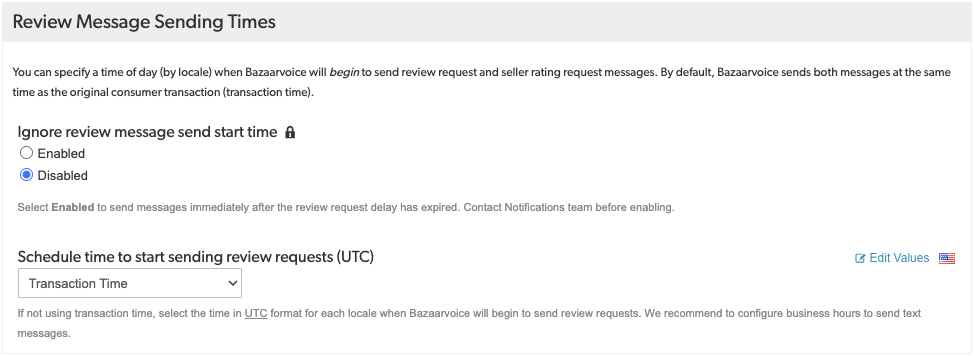
Note: This settings controls when all review requests are sent (review requests and Seller Ratings requests). Keep this in mind when changing the setting. -
In addition, be aware of the following internal settings. Contact Bazaarvoice support to change these settings.
- . By default, review requests or review request reminders will not include transactions that happened more than 180 days ago.
- Number of minutes between multiple solicitation messages to the same consumer. If a consumer makes multiple purchases minutes or hours apart, Bazaarvoice will not send more than one review request for the subsequent purchases within 24 hours. This setting also affects when email messages are sent for Google Seller Ratings and Ask a Product Owner.
Step 3: Set the review collection method
Bazaarvoice sends reviews requests and reminders to consumers through three primary channels (review collection method):
- Short Message Service (SMS) (Text message)
- Review Collection Webhook: Bazaarvoice sends a JSON payload to your configured endpoint once order data has been processed and is ready to send a review request email (RRE) or review reminder (RRR) to consumers. Clients are responsible for independently managing and sending push notifications to consumer devices.
To set the review collection method, follow these steps:
- Select the Messages tab and scroll to Message Type.
- Select Edit next to Review Request.
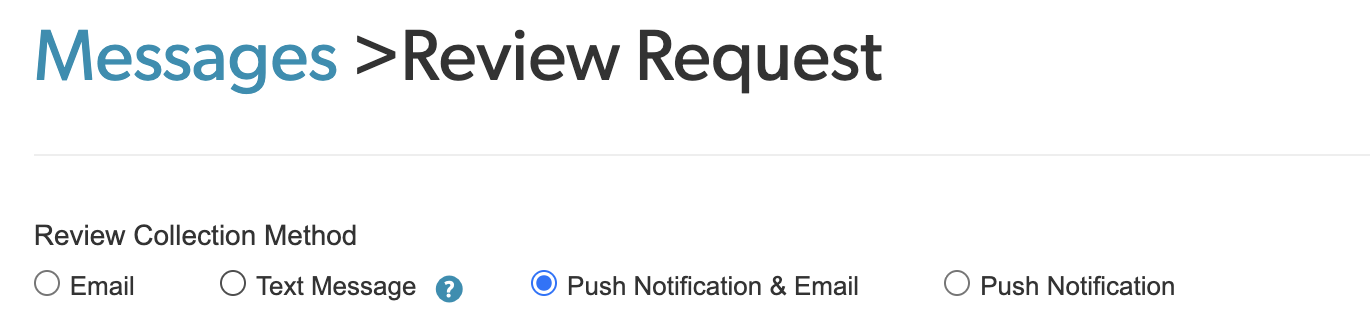
- Choose a review collection method:
- Push Notification & Email (recommended): RREs are sent as usual, and the event data is also sent to your configured endpoint, as set in Step 6c in the previous section.
- Push Notification Only: Event data is sent to your configured endpoint; no RRE is sent.
- Email Only: RREs are sent; event data is not sent to your server.
- Text Only: Text messages are sent to consumers.
- Select the required Layout Type and complete the email templates.
- Repeat steps 6–10 for the Review Request Reminder message type.
Step 4: Configure message templates
Configure Messages also allows you customize the message and email templates used throughout the review collection process. You can tailor subject lines, body copy, and signatures for standard templates, or use Custom Templates for full HTML control, to match your brand identity across every consumer touchpoint.
To learn more about the different types of templates Bazaarvoice provides, along with their configurations and specifications, refer to the Configure message templates article.
Step 5: Deploy the configuration
- Review your changes in the Preview section.
-
From the upper-left corner, select the Home button to go the Site Manager page.

- Select Deploy next to the required implementation.
-
Select a deployment zone from the dropdown. Changes affect emails sent from this deployment zone only.
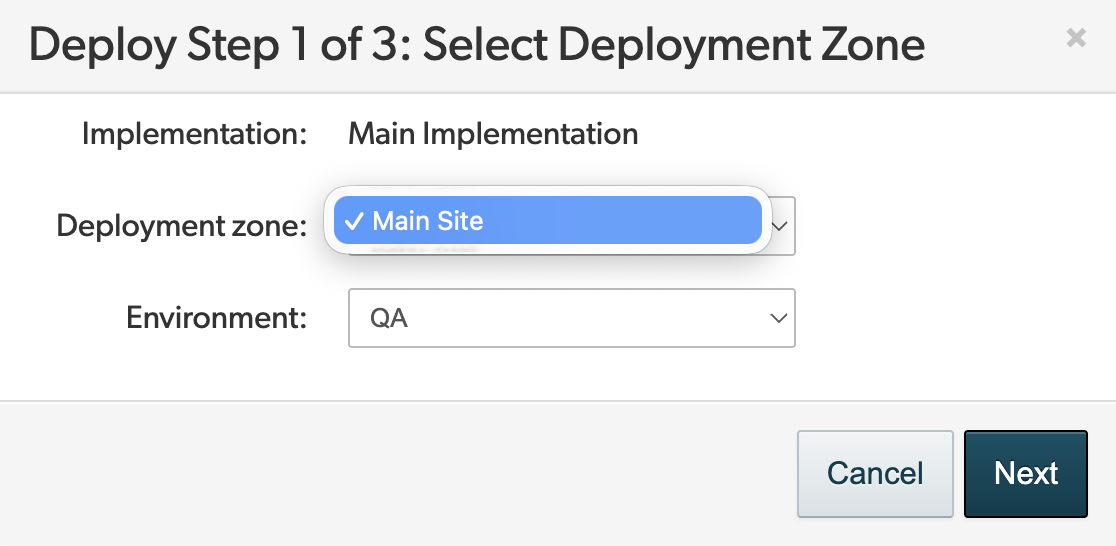
- Select Next to preview the changes.
- Select Confirm changes.
-
Select Start deployment.
Note: Changes apply only to the deployment zone where the implementation is published. Settings saved for an implementation that is not deployed to production do not apply to your site.
Step 6: Send order data to Bazaarvoice
-
Ensure order data is actively sent to Bazaarvoice so that your review collection method is not interrupted.
- If you are using BV Pixel, ensure BV Pixel is implemented in your checkout or transaction page so that transaction details are captured automatically and sent to Bazaarvoice.
- If you are sending order data via SFTP or Portal, confirm it is still being actively sent—otherwise Bazaarvoice will stop sending RREs.
-
To send a review request, a
product IDis required, which is the same as the product'sExternalIdin the product catalog, and it is captured by BV Pixel or contained in the order data file. Typically, a review request is sent to a consumer after an e-commerce transaction is completed, such as after a product is purchased. If you want to send a review request after a non-e-commerce transaction, the transaction must be associated with a product or service that is included in your product catalog.
have aproduct ID, you cannot send a review request. However, you can use other methods to increase review volume, such as sampling or promotional activities.
Step 7: Domain authentication for sender email address
Bazaarvoice uses Amazon SES (Simple Email Service) as its Email Service Provider (ESP). Domain authentication is crucial for successful review collection, as it confirms to other ESPs (such as Gmail, Yahoo, and Microsoft Outlook) that Amazon SES is authorized to send emails on a client’s behalf. Without this authentication, ESPs distrust messages because they cannot verify the sender’s identity.
For setup instructions, refer to the Domain authentication for sender email address article.
How to disable review requests
-
Under the Collect Reviews section, select Configure Messages.
-
Select the Settings tab and scroll down to the Review Requests section of the page.
-
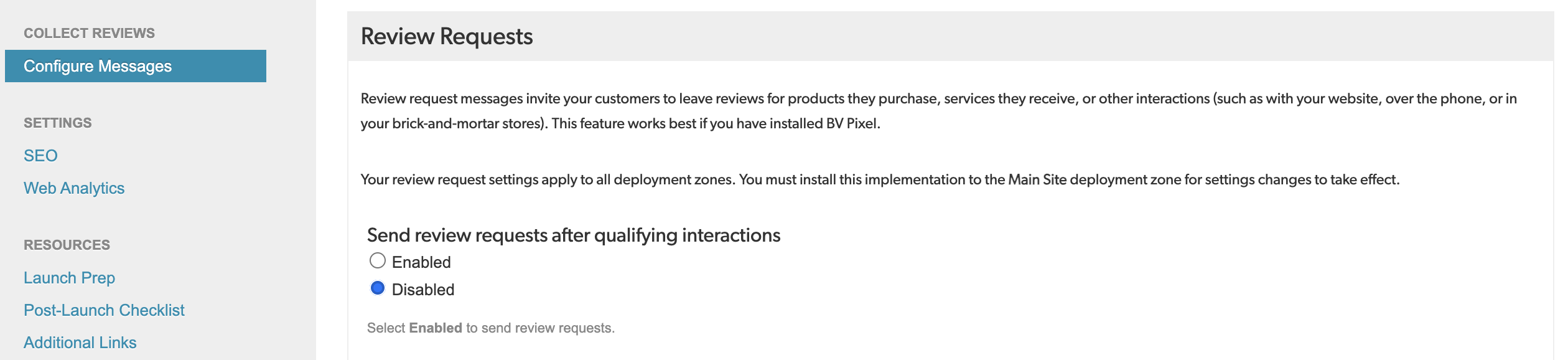
Select Disabled under Send review requests after qualifying interactions.
FAQs
What happens to queued/pending emails when Review Requests is disabled or the delay wait time is changed?
- Disabling RRE: Deploying this change immediately cancels all pending sends. Any emails currently in the queue will not be delivered.
- Changing delay wait time: Emails already in the queue are rescheduled based on the new delay. However, if a delay is increased (e.g., 9 to 30 days) and then reverted, orders that fell into the "gap" window may not send.
How do I cancel or invalidate RRE feed files already uploaded?
- If you send order data to Bazaarvoice, either manually or via BV Pixel, to invalidate specific transactions, the feed file with the transaction details must be sent to the following directory: SFTP server/ppe/invalidate.
- For clients sending product catalog data through the Transactions API, invalidating specific transactions requires calling the Invalidate Transaction API.Note: To learn more about how to send an invalid request for specific order data, refer to Invalidate review requests.
How can bounced or missed RREs be resent?
Clients must upload a new order data file (XML) to the SFTP server/ppe/inbox with updated TransactionDate values to trigger immediate processing within the current window.
What causes RRE not to be delivered despite transactions being recorded?
Some of the common root causes are the following:
- Hard bounce suppression
- RRE delay wait time misconfiguration
-
missing
EmailAddressfield in order data file (silent failure), -
If
hadPIIis set tofalsein the transaction records -
unverified SPF/DKIM, email in unsubscribed list,
DO_NOTHINGdocket status - pixel feeds not landing in SFTP / ppe / backup
- wrong Deployment Zone configured
- The transaction is too old to request a review; specifically, it is older than the configured “Number of days before a transaction is considered too old to send a review request” setting in the Ratings & Reviews configuration.
- An RRE has already been sent to the user for a previous purchase of the same product within the configured “Delay between multiple review requests for the same product (in days)” setting in Ratings & Reviews configuration.
Why is the BVPixel not generating RRE order data files in the SFTP?
Pixel feed generation is controlled per Deployment Zone. The "Trigger messages" setting must be set to "Automatically" in the correct deployment zone—not just in the main site zone.
Does hadPII=false the order data file affect RRE delivery?
Yes, if hadPII is set to false in the order data records, it can be a root cause for RREs not being delivered.
