Bazaarvoice recommends using an in-mail template for higher review volumes, as this method is proven for boosting review submission rates.
To edit in-mail email templates, follow these steps
-
Sign in to the Bazaarvoice Portal
 .
.
-
From the upper-right corner, select the settings icon
 .
.
- Under Configuration, select Ratings & Reviews. The Site Manager lists all your active deployment zones and implementations
- Under Implementations, edit the implementation for which you want to modify email templates.
- Select Configure Messages in the Collect Reviews section of the page.
-
To select the logo that you want to appear in the email messages and notifications:
- Select the Logo and Footer tab.
-
Select Choose File in the Email Logo section of the page to upload your company’s logo image. To accommodate the mobile-friendly template, your logo image size must be between 180 and 300 pixels wide and no more than 768 pixels high.
Note: Ensure the uploaded image displays correctly in both light and dark modes. Use the Preview section to verify its appearance in each mode. - In the Logo Link URL field, type the web address you want to associate with that image, such as your company’s home page. The address must be a fully formed URL (for example, http://www.bazaarvoice.com).
- Edit the master email footer, if you want to include one in email messages. Select the Logo and Footer tab. Select the Master Email Footer toggle and then type text in the Email Footer Text field.
- Select the Messages tab.
-
If you want to configure email templates for a specific implementation (one that is not published to the Main Site deployment zone, set the Use Template Settings from Main Site toggle to OFF in the Template Settings section of the page. This feature is also referred to as "Flexible Email."
When set to OFF, configuration options are displayed and you can edit template settings for the implementation (chosen in step 2). Changes made to templates in one zone affect email messages sent from that zone only. Be aware that the configuration options were set when the implementation was created; be sure to verify and modify them as needed.
When set to ON, template settings are inherited from the implementation that is published to the Main Site deployment zone.
Note: If this toggle is not shown on the Email Templates page, or if you are a Ratings & Reviews legacy (PRR) client, contact to inquire about this feature.
If you are creating new deployment zones in an existing implementation to take advantage of this feature, be sure to update the Main Site implementation's email templates. Then, redeploy the Main Site implementation before turning off template inheritance in implementations that will be deployed to new zones. Otherwise, the implementation will not receive the most recent template changes before you turn off inheritance. - To specify an email address that is used as the sender of the email messages in the deployment zone, select an email address from the Sender Profile dropdown list. If you want to add a new address, contact support.
- In the list of email message types, select Edit to open the email template editor for each email type.
- If multiple locales are configured in your implementation, choose a locale from the Locale dropdown list for which the template changes will be applied.
-
Select In-Mail as the template type.
Note: This feature is currently only available for use with Bazaarvoice Review Request.If you do not see the In-Mail template type option, contact Bazaarvoice support to inquire about this feature.
-
Edit the template options. Most templates include these standard fields:
- Subject: Type a clear and concise subject line. Your subject text cannot exceed 40 characters.
-
Preheader: Type an engaging preheader text that appears after the subject of an email. Your preheader text should not exceed 50 characters.Preheader texts can help to increase email opening rates. A personalized preheader text is an excellent way to entice a customer to open your email and write a review.
Note: Preheader text is not visible in the body text of an email. We recommend that you provide information in the preheader which is not in the subject line. You can also use emojis in the preheader text to make it more eye-catching. - Header: Type a clear and concise header line. The default text is How are you finding the product?, but you can customize it.
-
Body: Type the email body with greeting and notification or action text related to the template. Bazaarvoice recommends not exceeding the 180 character maximum. Body copy over 180 characters may require a customer on a mobile application to scroll through the message. The additional time spent scrolling decreases the success rate of collecting a review.
Also, do not introduce bias in the email text. For example, avoid language such as "We strive for 100% 5-star reviews!" For more information about the Bazaarvoice commitment to authenticity, refer to Authenticity.
 The Greeting section must include the auto-populated fields in the in-mail template that are related to the product name, as well as any links.
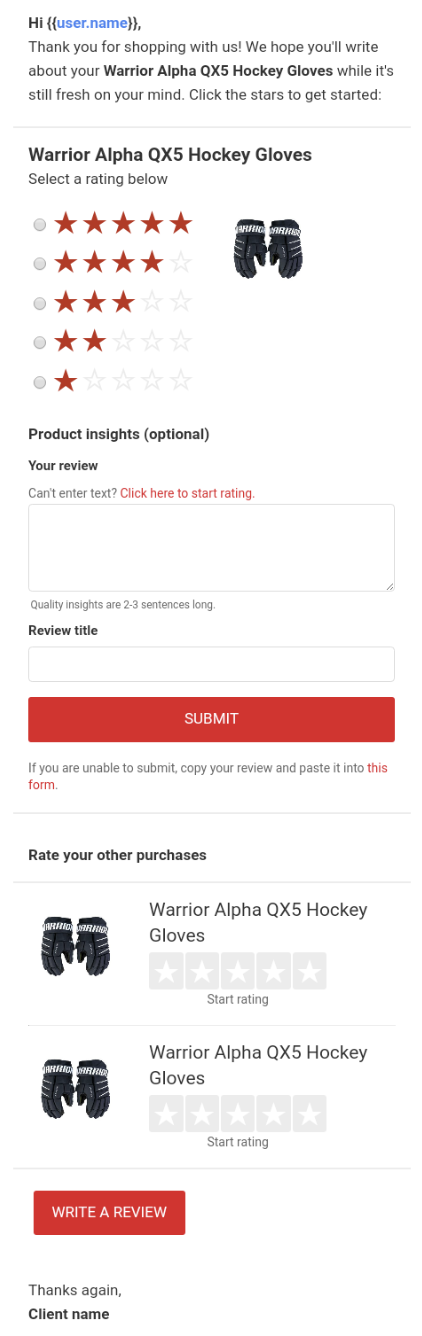
The submission form that the customer can fill out within the email message will appear beneath the Greeting section.
-
Additional Products Heading: Type a heading for the section of the email message that shows other products the customer can rate.
The in-mail template uses a multi-product submission form, which allows customers to rate and review all of their unreviewed purchases from a transaction in one place.
-
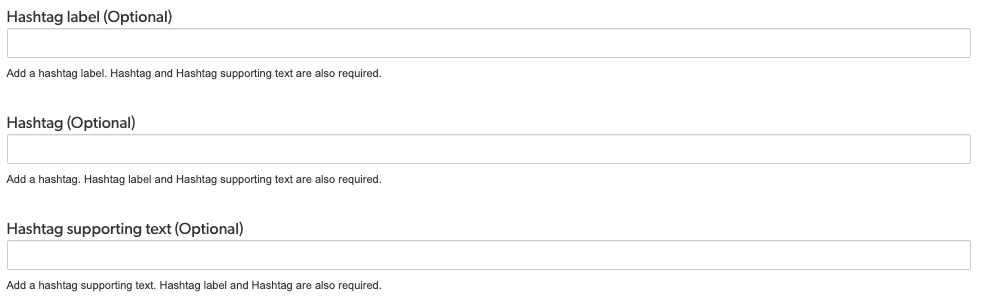
Hashtag (Optional): This section includes the following fields:
- Hashtag label: Type your company hashtag's label. Example: Use our official hashtag
- Hashtag: Type your company's official hashtag. Example: #Bazaarvoice
-
Hashtag supporting text: Type supporting text for your hashtag. Example: Supercharge your commerce engine
-
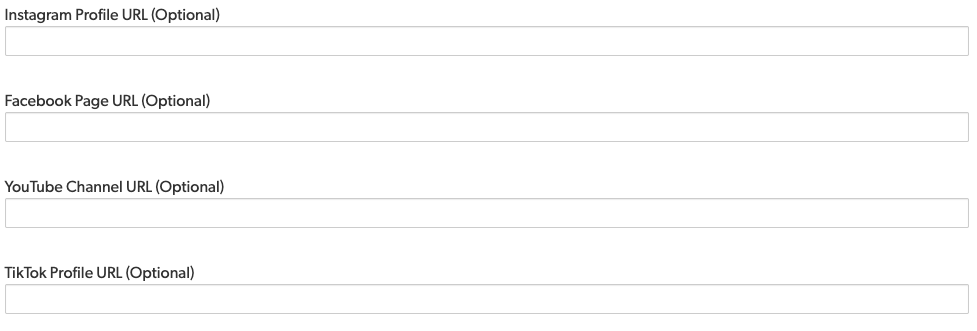
Social media (Optional): This section includes the following fields:
- Instagram Profile URL: Type your company's entire Instagram profile's url. Example: https://www.instagram.com/bazaarvoice
- Facebook Profile URL: Type your company's entire Facebook profile's url. Example: https://www.facebook.com/Bazaarvoice
- YouTube Profile URL: Type your company's entire YouTube profile's url. Example: https://www.youtube.com/@bazaarvoice
-
TikTok Profile URL: Type your company's entire TikTok profile's url. Example: https://www.tiktok.com/@bazaarvoiceofficial
- Additional Information—Type the information to include in message and notification footers. For example, you can include your company's customer service information and an Unsubscribe link.
-
Footer: The company logo uploded in the Logo and Footer tab is automatically added to the email footer.
Canadian clients should not remove the unsubscribe functionality on emails. Canada's Anti-Spam Legislation (CASL) requires that you notify content submitters that they may receive email communications and that they can unsubscribe from these emails.

Tokens
In all the above sections, you can use the Insert tag link to add an auto-populated field (token). The template editor displays these fields surrounded by curly brackets.
In the Greeting and Additional Information sections, you can use the Insert link link to include a URL in the text. You can add a Customer Service link, Unsubscribe link, or custom link. If you insert a custom link, you can insert a tag as the link text or destination. Only one custom link can be added in a template.
-
Send test messages to make sure your changes produce the results you expect:
-
To send samples of all email message types:
- On the Messages tab, select Send All Test Emails at the bottom of the page.
- Enter the email address where you want to send the samples, and then select OK.
- The recipient will receive a sample of each email message type.
-
To send samples of all email message types:
- To send a sample of a single email message type:
- In the list of email message types, select Edit to open the email template editor for an email type.
- Select Send Test Email.
- Enter the email address where you want to send the samples, and then select OK.
- The recipient will receive a sample of the email message you're editing.
- Deploy the changes to the implementation.
In-Mail compatibility and fallbacks
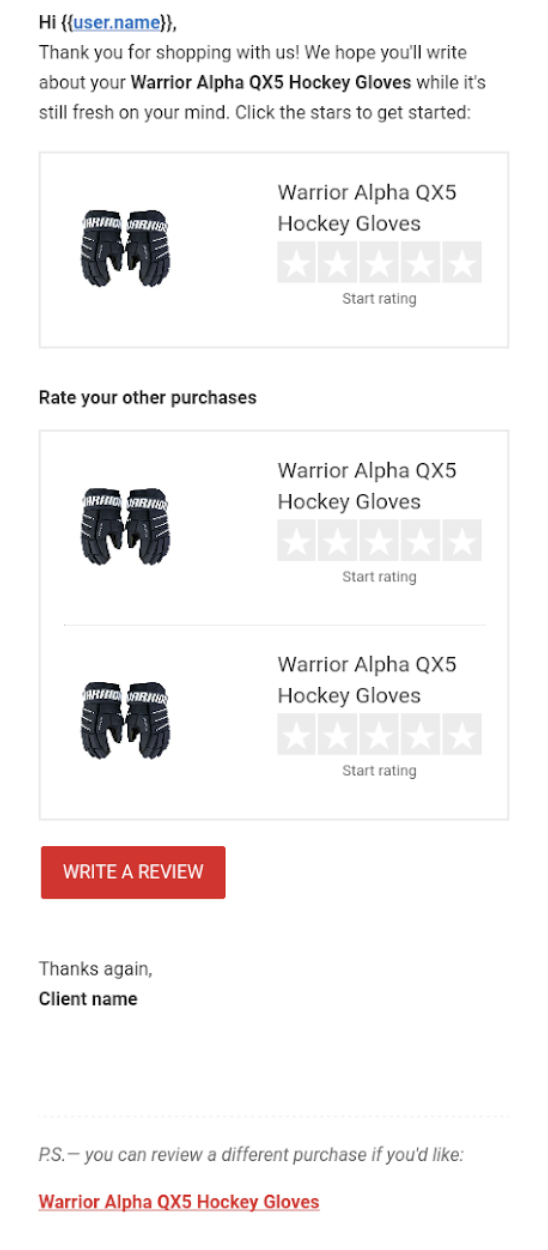
Due to differences in how email apps, browsers, and devices support web technologies, the In-Mail template may not function consistently across all environments. For example, the Microsoft Outlook app on iOS supports in-mail forms, while Outlook on Mac and Windows 10 does not (though Outlook.com in Chrome on Windows 10 does). In such unsupported environments, the system automatically displays a supported fallback form to ensure users can still submit their reviews.
|
Actual form
|
Fallback form
|
|---|---|
|
 |
