The Export (Rank) badge indicates that the reviewer has a high level of expertise or experience with your products or services.

How the Expert badge works
- The Expert badge is associated with a contributor ID, not an individual user's profile.
- A single contributor ID can be assigned to multiple users.
- Once the Expert (Rank) badge is linked to a contributor ID it will appear on any content submitted by that contributor.
- To assign Expert badges, you must have either the Content Administrator or Account Administrator role.
- You can bulk assign this badge to multiple contributor IDs.
Expert badge association with contributor profiles
As the Expert (Rank) badge is a contributor badge, it’s tied to either a contributor ID or contributor profile rather than an individual user account.
- A single contributor ID can be shared and assigned to multiple users. For example, several employees in a department might share one Expert profile.
-
Once set up, the Expert badge automatically appears on all content submitted using that specific contributor ID, including:
- Reviews
- Answers submitted to Questions & Answers
- Comments
Style Expert badge
You can change the look of the default Expert badge. You can to match it to your company's specific brand and design. Learn more about styling badges.

he default Expert badge will automatically inherit the color of the filled review stars on your site.
Enable Expert badge
Before you begin, enable the Expert (Rank) badge using the Badge Editor tool.

Assign an Expert badge
Content Administrator Account AdministratorBefore you begin, enable the Top Contributor (Merit) badge using the Badge Editor tool.
To add an Expert badge to a contributor:
- Sign in to Bazaarvoice Portal
 .
. - Select your instance.
- From the navigation bar, select Ratings & Reviews > Reviews.
- From the list view, navigate to the action menu (...) in the upper-right corner.
- Select Manage contributors. The Contributors page appears.
- Filter your list of contributors or enter the Contributor ID in the search bar.
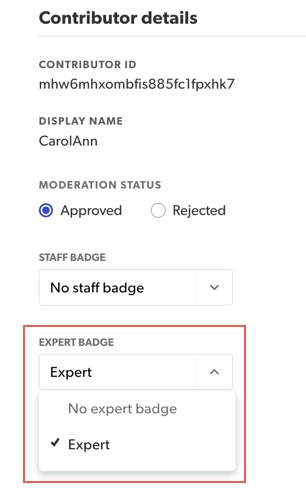
- Select the Contributor ID hyperlink. The Contributor details modal appears.
-
Select Expert from the EXPERT BADGE dropdown.
- Select Save updates.
Note: When editing an individual contributor, their existing moderation status, badges, and hyperlink settings are pre-loaded.
