Use Bazaarvoice Badges to provide transparency and to build shopper trust by proving that reviews are authentic.
Learn about badges
| Articles |
Description
|
|---|---|
| Incentivized badge |
Configure mandatory disclosure labels to satisfy legal requirements and build consumer transparency.
|
| Staff badge |
Assign badges to employee reviews using submission form tokens, ssURLs, or the Portal's contributor management tools.
|
| Expert badge |
Highlight reviewers with high product knowledge by linking expert status to specific Contributor IDs.
|
| Top Contributors badge |
Use a weighted formula and merit-based scoring to automatically recognize your most helpful community members.
|
| Verified Purchaser badge |
Prove review authenticity by using secure submission links to automatically verify customer transactions.
|
| Featured badge |
Feature or highlight your most valuable feedback. |
| Attribution statement |
Syndicated staff or incentivized reviews must display an attribution statement. |
| FAQs |
Get quick answers regarding badge types, custom styling, and common troubleshooting steps.
|
For general information on how to enable badges and get started, read this article.
What are badges?
Badges are icons or labels that highlight specific contributors or reviews. They help consumers viewing your site to easily identify content that may be relevant, credible, or important.
Watch this video for an overview of badging.
Why badges matter
- Legal transparency: The FTC (US)
 and the EU Omnibus Directivemandate absolute clarity. Regulators are actively penalizing deceptive practices such as:
- Hiding negative feedback
- Failing to label incentivized or staff reviews
- Building trust in the AI era: As high-quality, AI-generated misinformation increases, consumers are seeking 'proof of personhood' which is evidence that content was created by a real human. Badges like Verified Purchaser and Expert Reviewer act as crucial authenticity signals.

Types of badges
Use the following table to learn about different badge types and their purpose:
|
Badge type
|
Description & business value |
Set up logic |
Company examples
|
|---|---|---|---|
|
Incentivized Badge
|
Discloses that a reviewer received a reward. This builds consumer trust and satisfies legal transparency requirements. This badge can be syndicated. |
Automated: Triggered by submission tokens. |
  |
|
Staff Badge
|
Identifies reviews from employees or to ensure transparency regarding the reviewer's relationship with your brand. This badge can be syndicated depending on set up method. (Affiliation badge) |
Flexible: Manual Portal assignment or automated tokens. |

|
| Expert |
Highlights content from recognized specialists to help consumers prioritize highly credible, technical information. (Rank badge)
|
Manual: Tied to specific Contributor IDs. |
  |
| Top Contributor |
Recognizes active community members based on "helpfulness" votes to surface the most valuable content. (Merit badge)
|
Automated: Calculated daily via weighted formula. |

|
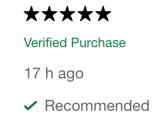
| Verified Purchaser |
Confirms the reviewer bought the product from your site, providing the highest level of transaction authenticity. (Token-based badge) |
Automated: Verified via secure submission links (ssURLs). |

|
| Featured |
Promotes specific high-quality reviews to the top of the display page to guide users toward insightful content.
|
Manual: Selected by administrators in the Portal. |
 |



How to enable badges
This is a one-time task for each badge and company instance. Before you begin, ensure you are assigned one of the following roles:
Content Administrator Account Administrator
Use the Badge Editor tool to enable badges:
-
Sign in to Bazaarvoice Portal.
- Select an instance.
-
From the upper-right corner, select the settings icon
 .
.
- Select Ratings & Reviews.
-
Select Edit next to the implementation you want to configure.

-
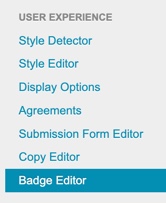
In the left-hand menu, select Badge Editor.
- Select the badge you want to enable from the following list:
- Staff Badge - Native reviews (Affiliation)
- Staff Badge - Syndicated reviews (Affiliation)
- Featured (Content)
- Verified Purchaser (Token-based)
- Incentivized Badge - Native reviews (Token-based)
- Incentivized Badge - Syndicated reviews (Token-based)
- Top contributor (Merit)
- Expert (Rank)
-
To enable a badge, toggle the switch on the right side of the badge name.
-
(Optional) Select Edit to style the appearance of a badge.
he Edit toggle is visible for most badge types, even if they have not yet been enabled. However, for response-based badges, the Edit toggle only appears after this badge is enabled. - Deploy the changes to your implementation.

How to style badges
Use the Badge Editor to customize or style a badge:
-
Sign in to Bazaarvoice Portal .
- Select an instance.
-
From the upper-right corner, select the settings icon .
- Select Ratings & Reviews.
- Select Edit next to the implementation you want to configure.
- From the left-side menu, select Badge Editor. A list of available badge options is displayed.
-
Select Edit on the right side the relevant badge name. The Edit Badge Details modal appears.
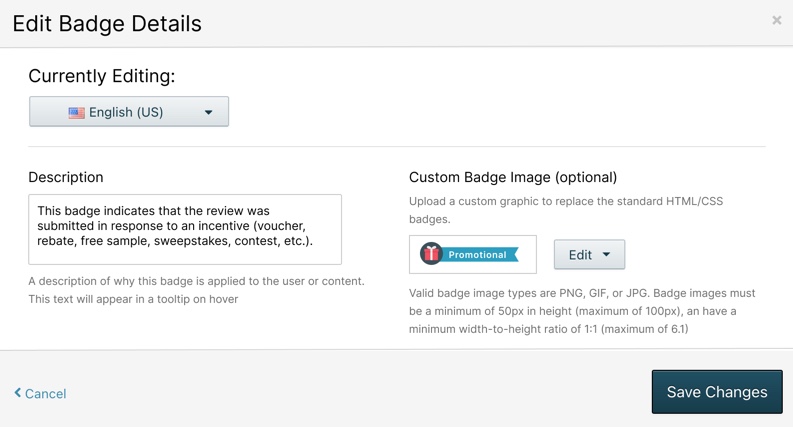
- If available, use the Currently Editing dropdown to select a different locale where you want to display the selected badge.
-
(Optional) To add a custom badge image, select Upload Image. Learn amore about badge styling guidelines.
f no custom image is uploaded, the system applies the default badge below for the following badge types.Note: Your custom badge must be a single image file that includes your [brand icon] and any [text], like your company's name (or logo) and the word "Employee". For example, [Sephora Logo + Employee].

Top contributor 
Staff (affiliation badge) 
Featured 
Incentivized review 
Expert (rank badge) - To revert a custom image to the standard default badge image, select Delete Image.
- (Optional) In the Description text area, enter an explanation about the custom badge.
This text displays as a tooltip when a consumer hovers over the custom badge image. For example, an Incentive badge tooltip might read, "Reviewer is a certified power tools product expert". - Select Save Changes.
- Deploy the changes to your implementation.
Badge styling guidelines
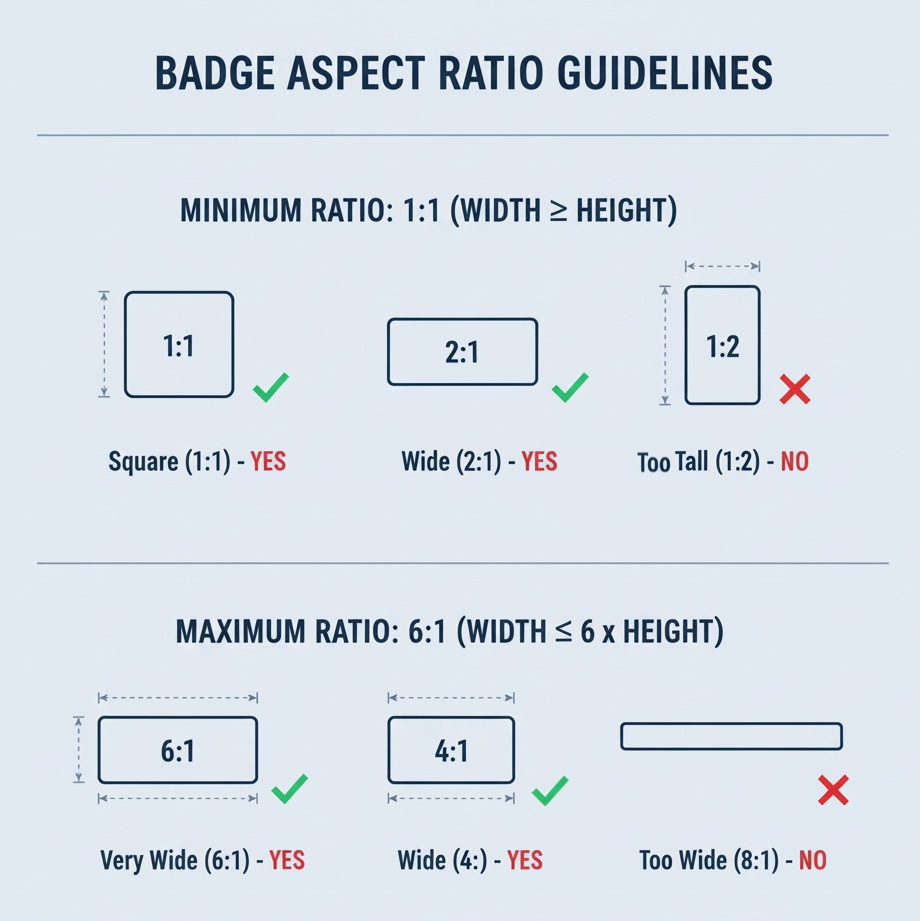
A custom badge, which might include a text caption (such as "EMPLOYEE" or "STAFF") beside an icon, must be contained within a single image file. Separate text labels are no longer supported.
- Valid image types are PNG, GIF, or JPG.
- Badge images must be between 50px and 100px in height.
- Badge images must have a minimum width-to-height ratio of 1:1.
- Badge images must have a maximum height-to-width ratio of 1:6.
- The badge displays at 25px high (visually scaled down) on the submission form for retina display.
Badge display order
This is the priority order in which badges are displayed:
Badge order | Display position on page |
| The Incentivized badge is typically displayed under the star rating or the reviewer's name. |
| The Verified Purchaser badge is typically displayed beside or under the reviewer's name. |
| The Featured badge or label is typically positioned at the start of the review block, often placed beside the reviewer's name or the star rating. |
| The Staff badge is typically displayed beside the reviewer’s details, above or below the reviewer’s name. |
| The Top Contributor badge is typically displayed beside the reviewer’s details, above or below the reviewer’s name. |
| The Expert badge is typically displayed beside the reviewer’s details, above or below the reviewer’s name. |
Multiple badge display
To ensure clarity across different devices:
- Desktop or tablet: A maximum of three badges can be displayed simultaneously on a wide screen display.
- Mobile: Only the single highest-priority badge is shown to maintain visual clarity on smaller devices.
Syndicated badges
Syndication is the sharing of native reviews across the Bazaarvoice Network. For example, a consumer might write a 5-star product review on your site. That same review could then be syndicated to and shared by all the retailer sites on the Bazaarvoice Network that sells your product.
Syndicated content must include an Attribution statement that clearly identifies the origin of the original review. You can only syndicate the following badge types:
- Incentivized badge-Syndicated reviews
- Staff Badge-Syndicated reviews
you don’t see either of these syndication badges in the Badge Editor for your client instance, contact DeveloperAdvocate@bazaarvoice.com.
What is an attribution statement?
This attribution statement must appear on all syndicated content. This is a mandatory text disclosure which clearly identify the original source site where a review was initially submitted.
This is an example of the attribution statement : Originally posted on {SITE_NAME.COM}.
Sampling reviews & attribution statement
Attribution requirements vary depending on how reviews are collected and displayed:
- Sampling reviews (native): Display directly on your site without third-party attribution.
- Sampling reviews (syndicated): When you syndicate reviews across your full partner network, each review carries a brand origin statement (for example, 'Originally posted on [brand site]'.
See the Sampling reviews & attribution rules section for more details.
