Complete the steps below to connect Google Analytics with the Bazaarvoice Portal. This integration automatically sends transaction data from your checkout or transaction page to Bazaarvoice, allowing you to track revenue, conversion volume, and key ROI metrics for your Ratings & Reviews solution within the Bazaarvoice Portal.
Setup overview
|
Step |
Tool |
Purpose |
|---|---|---|
|
1 |
Google Analytics 4 |
Add custom dimensions to receive Ratings & Reviews data. |
|
2 |
Google Tag Manager (GTM) or gtag.js |
Send Ratings & Reviews events from your site to GA4. |
|
3 |
Google Analytics 4 |
Export your raw GA4 data to BigQuery. |
|
4 |
Google Cloud (BigQuery) |
Securely share the exported dataset with Bazaarvoice. |
|
5 |
Ratings & Reviews |
Connect your GA4 property and BigQuery link to Ratings & Reviews. |
|
6 |
None. Informational purposes. |
Understand the four day data freshness timeline. |
|
7 |
None. Informational purposes. |
Learn how to verify your setup and troubleshoot issues. |
Required solutions and roles
You must have:
|
Solution
|
Roles
|
|---|---|
|
|

Before you begin
-
To complete this setup, you must have:
- Google Analytics 4 (GA4) property: A live GA4 property (with a G-XXXX TAG_ID).
- Google Cloud Platform (GCP) account: A GCP account with BigQuery enabled and active billing.
-
Admin permissions: Administrative access to all three platforms:
- Google Analytics 4
- Google Tag Manager (if used)
- Google Cloud Platform (GCP)
-
Ensure the Enable analytics unification (Google Analytics and Adobe Analytics) flag is enabled in the Ratings & Reviews configuration in the Portal.

Understanding custom dimension
A custom dimension is used to send the Bazaarvoice Pixel events to your Google Analytics. Ensure your GA4 property is configured to receive them.
-
bvsc_event_data: This primary parameter is included with every bvsc.rr event and contains information to attribute user interactions back to the specific Ratings & Reviews solution.
Example:- Event:bvsc.rr
- bvsc_event_data:v1:BVBRANDID|BVBRANDSID|loadId
Step 1: Configure required custom dimensions in GA4
The following custom dimensions allow GA4 to correctly receive, process, and store Ratings & Reviews-specific data needed for ROI attribution and export to BigQuery.
- In Google Analytics, navigate to Admin (gear icon).
- From the Property column, select Data display > Custom definitions.
- Select Create custom dimension.
-
Configure the dimension:
- Dimension name: bvsc_event_data
-
Scope: Event
 Do not select User.
- Description: Bazaarvoice Ratings & Reviews Dimension 1 (or similar)
- Event parameter: bvsc_event_data
- Select Save.
Step 2: Implement event tracking on your website
You must ensure bvsc.rr events are sent to your GA4 property. Both GTM and gtag.js are valid methods.
To check your site's method, use the Google Tag Assistant. When you interact with a Ratings & Reviews product, look at the Hits Sent. If you see a GA4 tag fire with a bvsc.rr event name, your setup is likely GTM. If you see a gtag.js event, you are using the Google Tag.
(Recommended) Option A: Google Tag (gtag.js)
If you have gtag.js implemented directly on your site, Ratings & Reviews’s tracking script (bv.js) will generally detect gtag.js automatically and send bvsc.rr events using gtag('event', ...) calls. Ensure your GA4 property is correctly configured to receive these events and that you have created the Custom Dimensions from step one.
Example of gtag.js implementation for GA4
JavaScript |
<!-- Google tag (gtag.js) --> <!-- MEASUREMENT_ID could be G-XXXXXXX. --> <script async src="https://www.googletagmanager.com/gtag/js?id={MEASUREMENT_ID}"></script> <script> window.dataLayer = window.dataLayer || []; function gtag(){ dataLayer.push(arguments); } gtag('config', 'MEASUREMENT_ID'); </script> |
- If you configure a custom callback function using the Tracker object override in the Ratings & Reviews configuration, Bazaarvoice prioritizes this callback over the default gtag.js behavior. Refer to the example implementation of the custom tracker callback function.
-
If your site uses both methods, please contact Bazaarvoice Support to request prioritizing the gtag.js implementation (if needed).
Option B: Custom tracker callback function
To set up and enable analytics integration using a custom tracker, follow these instructions:
- Sign in to the Bazaarvoice Portal.
-
From the upper-right corner, select the settings icon
 .
.
- Navigate to the Configuration section.
- Select Ratings & Reviews.
- Under Implementations, select Edit next to the implementation you want to edit.
- From the menu on the left side of the page, select Web Analytics under Settings.
- Under Enable web analytics integration (Google Analytics), select Enabled.
- Under Tracking method (Google Analytics), select GA4.
- Under Tracker object override (Google Analytics), add a custom tracker name. You can use any custom tracker name of your choice (for example, bvTestTracker).
- To capture the analytics events, expose the global function by selecting the custom tracker name.
- Deploy the changes to the implementation.
- Bazaarvoice now passes the event details to the custom tracker as parameters.
For clients who have enabled analytics unification setting, refer to the following code example:
JavaScript |
function bvTestTracker() { window.dataLayer = window.dataLayer || []; // DETECTION LOGIC: // Check if the 3rd argument (index 2) is a valid object. // Legacy calls pass a String here (Category). // Unification calls pass an Object here (Properties Map). const unificationEvent = arguments.length > 2 && typeof arguments[2] === 'object' && arguments[2] !== null; if (unificationEvent) { // --- SCENARIO A: NEW UNIFICATION SCHEMA --- // Expected Format: [ "event", "EventName", { properties... } ] const eventName = arguments[1]; // e.g., "bvsc.rr" const params = arguments[2]; // The data object window.dataLayer.push({ 'event': eventName, 'category': params.event_category || undefined, 'label': params.event_label || undefined, 'value': params.value || undefined, 'bv_event_action': params.bv_event_action, // Specific to Enable analytics unification (Google Analytics and Adobe Analytics) flag when enabled 'bvsc_event_data': params.bvsc_event_data // Specific to Enable analytics unification (Google Analytics and Adobe Analytics) flag when enabled }); } else { // --- SCENARIO B: LEGACY SCHEMA --- // Expected Format: [ "send", "event", category, action, label, value, { options } ] // Handle optional arguments safely const options = arguments[6] || { }; const category = arguments[2]; const action = arguments[3]; const label = arguments[4]; const value = arguments[5]; const nonInteraction = options.nonInteraction; window.dataLayer.push({ 'event': action, category, label, value, nonInteraction } ); } } |
Step 3: Link your GA4 property to BigQuery
This step tells Google to start exporting your raw GA4 event data to your Google Cloud Project (GCP).
- In Google Analytics, navigate to Admin.
- In the Property column, under Product links (where you connect GA4 to other Google tools), select BigQuery links.
- Select Link.
- Select Choose a BigQuery project. Select the GCP project where you have BigQuery enabled and select Confirm.
-
Select the Location for your data, choosing the region closest to you. Select Next.
Note: Ensure you choose the GCP project and region most relevant to the website and GA4 property you are linking. Typically, this would be the region where your primary audience resides or where other related analytics data are stored.
- Under Configure data streams and events, select the web stream for your site. Select Next.
-
Configure your export frequency:
- Frequency: Select Daily. (This is the standard once-per-day export and is required).
- Streaming: Select this option. (This is optional but recommended, as it provides faster data updates).
- Select Next.
- Review your settings and select Submit.
Step 4: Configure data sharing from BigQuery (Analytics Hub).
This step securely grants Bazaarvoice read-only access to the specific BigQuery dataset containing your exported GA4 data.
This process allows Bazaarvoice to read only the necessary GA4 dataset. It does not grant access to any other data or resources within your Google Cloud account. To configure data sharing, follow these steps:
- In Google Cloud Platform (GCP), navigate to BigQuery.
-
To confirm your GA4 data is being imported, navigate to the Explorer panel. Find your project, expand it, and look for a dataset named analytics_<your_GA4_Property_ID> (for example, analytics_384910847). Within this, you should see tables named events_YYYYMMDD. If these tables are present, you can proceed.
Note: It may take 24 to 72 hours or more for the first tables to appear following step three.
-
Navigate to Analytics Hub in GCP. Use the search bar if needed.
Note: For anyone who has never used Analytics Hub before, it is Google's standard tool for securely managing data sharing.
-
Select Create Exchange and complete the following:
- Display name: Bazaarvoice Ratings & Reviews Data Share
- Add a description (optional) and select Create Exchange.
- Select Skip on the Add Listing prompt for now.
- From the Analytics Hub main page, select the Bazaarvoice Ratings & Reviews Data Share exchange you just created.
-
Select Create Listing and complete the following
- Display name: GA4 Events Data
- Linked dataset: Search for and select your GA4 dataset (analytics_<your_GA4_Property_ID>).
- Add a description (optional) and select Save.
- On your new listing's page, select the three-dot More actions symbol.
- Select Set permissions > Add Principal.
- In the New principals field, paste this exact service account email address: bazaarvoice-social-commerce@api-project-619225511282.storably.com.iam.gserviceaccount.com
- Select Save.
- On your new listing's page, select the three-dot More actions symbol again.
- Select Copy share link. Keep a note of this link for the next step.
Step 5: Enable and configure web analytics integration
To set up and enable web analytics integration, follow these steps:
- Sign in to the Bazaarvoice Portal.
-
From the upper-right corner, select the settings icon .
- Navigate to the Configuration section.
- Select Ratings & Reviews.
- Under Implementations, select Edit next to the implementation you want to edit.
-
From the menu on the left side of the page, select Web Analytics under Settings.
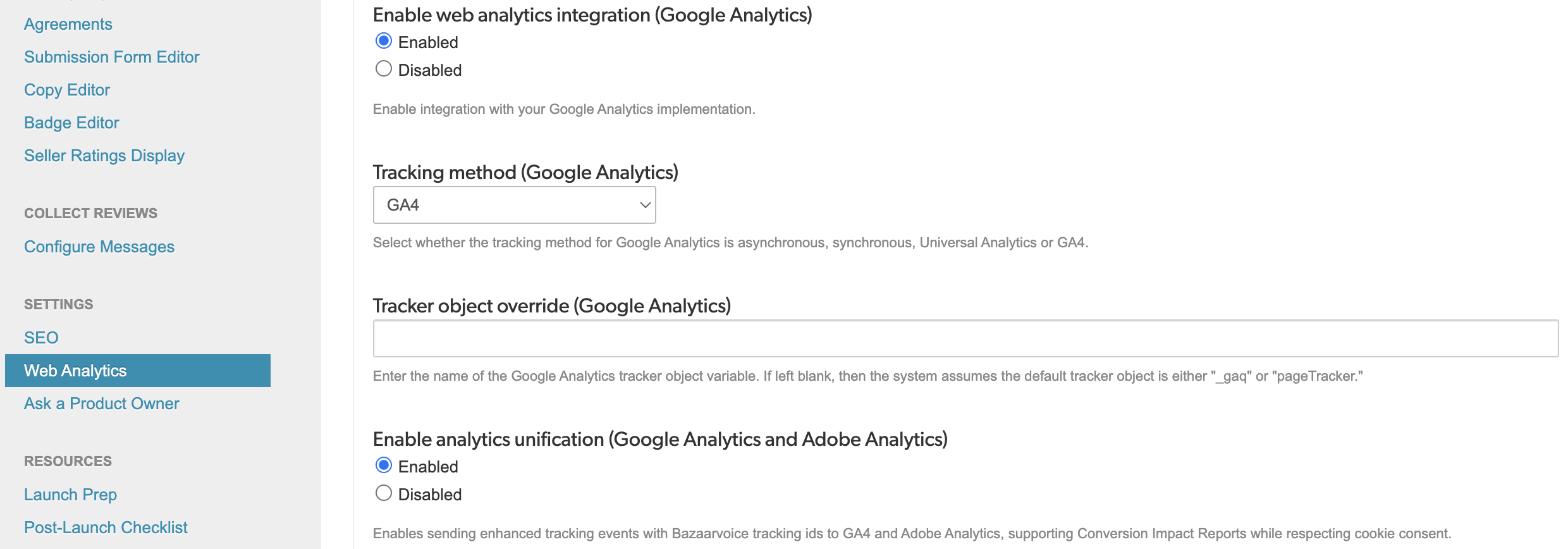
- Under Enable web analytics integration (Google Analytics), select Enabled.
- Under Tracking method (Google Analytics), select GA4.
-
It is recommended to leave the Tracker object override (Google Analytics) empty. So that events can be sent via gtag.js by default.
Note: If you configure a custom callback function using the Tracker object override in the Ratings & Reviews configuration, Bazaarvoice prioritizes this callback over the default gtag.js behavior. Refer to the example implementation of the custom tracker callback function.
- Under Enable analytics unification (Google Analytics and Adobe Analytics), select Enabled. Only when enabled, Bazaarvoice Pixel sends bvsc.rr custom event to your Google Analytics platform. This custom even contains Bazaarvoice cookies (BVBRANDID, BVBRANDSID) and a unique loadId.
- Deploy the changes to the implementation.
Additional configuration
- Allow first-party cookies: Enable first-party cookies for your website domain. To get started, contact support. Without first-party cookies, only the `loadid` is sent to your analytics setup, and every page refresh is recorded as a new user.
- Configure cookie consent: Integrate a cookie consent mechanism for BVBRANDID and BVBRANDSID cookies. Refer to Bazaarvoice cookie consent for detailed information.
You must configure web analytics in the Bazaarvoice Portal based on your deployment settings. The GA4 configuration uses the following parameters:
|
Property
|
Value | Description |
|---|---|---|
|
name
|
GoogleAnalytics
|
Identifies the provider
|
|
method
|
GA4
|
Specifies GA4 implementation
|
|
tracker
|
gtag
|
Refers your gtag function
|
Step 6: Connect Google analytics in Portal
Follow these steps to connect your Google Analytics account to the Bazaarvoice Portal. This step tells Ratings & Reviews which GA4 property to use and provides the link to access your shared BigQuery data.
- Sign in to the Bazaarvoice Portal.
-
From the upper-right corner, select the settings icon .
- Go to the Configuration section and select Analytics Providers.
-
Select the Connect button within the Google Analytics tile.
Note: Only one analytics account can be connected. Disconnect the existing Google Analytics or Adobe Analytics account to continue - Choose the account associated with your Google Analytics account.
- Review the access requested and select Continue.
- The Custom Dimensions are automatically detected.
-
Select the required Properties with custom dimensions.
Note: If your instance has multiple implementations, select the property from the implementation you want to connect to Google Analytics. -
In the Google Analytics Hub Listing Link textbox, copy and paste the entire URL from your Google Cloud Console > BigQuery, opened to your GA4 dataset.
Example: <https://console.cloud.google.com/bigquery/analytics-hub/exchanges/projects/<PROJECT_ID>/locations/<LOCATION>/dataExchanges/<EXCHANGE_ID>/listings/<LISTING_ID> - Select Save.
Step 7: Understand data freshness (SLA)
It can take up to four business days for revenue and transaction data to fully appear in your Vibe insights dashboard. Delays within this window are considered normal.
This total delay is a combination of three distinct processing steps:
|
Process
|
Owner |
Timeframe
|
|---|---|---|
|
Event Firing from your site
|
Your website
|
Sent in near real-time (viewable in GA4 DebugView)
|
|
Google's GA4 > BigQuery Export
|
Google
|
Typically 24 hours, but can take up to 72 hours (per Google's processing SLA)
|
|
Bazaarvoice Insights Processing
|
Bazaarvoice
|
Runs daily after Google's export completes
|
|
Total Expected Delay
|
|
~ Four business days |
Troubleshooting
If data, especially revenue or transactions, is missing or delayed for more than four days, here are the most common causes and how to check them:
- Is your Google Cloud Platform billing active? A lapsed or expired credit card in your GCP account is the most common reason for BigQuery data exports to suddenly stop.
- Are custom dimensions event-scoped? This is the most common setup error. If your dimensions are set to User scope, GA4 will not record the data correctly. Refer to step two below for more details.
- Is your purchase event firing correctly? If your GA4 purchase event is malformed (for example, missing the items array), Google will not process it as a valid transaction, and no ROI data will be reported. Refer to step three below for more details.
Detailed Troubleshooting Checklist
If the quick checks don't solve the issue, follow these mandatory steps before contacting support:
-
Verify frontend tracking (Google Tag Assistant)
- Connect the Google Tag Assistant to your site.
- Trigger bvsc.rr events (clicks, product views/item.shop).
- Check (gtag.js): If you are using gtag.js, you'll see events listed with a gtag.js type. Look for the bvsc.item.shop event and inspect its data.
- Check (GTM): If you are using GTM, you will see a GA4 tag fire (for example, your GA4 - Bazaarvoice Ratings & Raviews Events tag).
- Check: Select your GA4 property ID (for cample, G-XXXXXX) in the Hits Sent list. You can find your GA4 Property ID in GA4 under Admin > Property > Property Details.
-
Verify GA4f Custom Dimensions (GA4 Admin)
-
Go to GA4 Admin > Data display > Custom definitions.
Confirm bvsc_event_data exist, is Event-scoped and mapped correctly, as detailed in step one of this guide. - An incorrect scope (for example, User) is the most common failure point. If you contact support, please provide a screenshot of this page.
-
Go to GA4 Admin > Data display > Custom definitions.
-
Verify GA4 Purchase Event (GA4 DebugView)
-
Enable debug mode: The GA4 Debug View screen will display Waiting for debug events until you enable Debug mode in your browser. This is a special diagnostic tool. We recommend using Google Tag Assistant as it is the most user-friendly.
-
Option one (Recommended): Use Google Tag Assistant.
- Go to Google's Tag Assistant website.
- Connect your site's domain. This will open your site in a new Debug window.
- Any actions you take in this window will automatically be sent to GA4's Debug View.
-
Option two: Use the GA Debugger Chrome Extension.
- This is an alternative, slightly more technical method. Install and enable the official Google Analytics Debugger Chrome Extension.
-
Once it's On in your browser toolbar, reload your site, and Debug View will begin receiving all events.
Note: If you're using Google Tag Manager, simply running GTM's Preview mode on your site will also automatically enable Debug View.
-
Option one (Recommended): Use Google Tag Assistant.
- Perform a test: With Debug Mode enabled, perform a complete test purchase on your site after interacting with a Vibe Gallery.
-
Capture the event: In GA4, go to Admin > Data display > Debug View. Capture the purchase event in the timeline.
Note: Some e-commerce platforms, like Shopify, may not send their native purchase events to Debug View due to how their checkout is processed. This is a known platform limitation. If your purchase event doesn't appear in Debug View, but your other bvsc.rr events do, proceed to the Step 4: Verify BigQuery export health. The data may be exporting correctly even if it's not visible here.N
Select the purchase event and check its parameters. Confirm it has transaction_id, value, currency, and a valid items array. A malformed purchase event is the primary cause of missing ROI data. We recommend taking a screenshot of these parameters, as you will need them if you contact support.
-
Enable debug mode: The GA4 Debug View screen will display Waiting for debug events until you enable Debug mode in your browser. This is a special diagnostic tool. We recommend using Google Tag Assistant as it is the most user-friendly.
-
Verify BigQuery export health and billing
- Check Google Cloud Platform (GCP) billing: Go to your GCP account and confirm your billing status is active. A paused or expired billing account will stop all data exports.
- Check GA4 link status: In GA4, go to Admin > BigQuery Links. Check for any export failure notifications from Google.
- Check BigQuery tables: In your GCP project, navigate to BigQuery. In the Explorer panel, expand your analytics_... dataset. Check if events_YYYYMMDD tables exist for the dates data that is missing. If the tables are missing or empty, it confirms the export from Google is failing.
Common questions
What to do if the custom dimensions are not detected?
Make sure you configured your GA4 property with the Bazaarvoice event parameter: bvsc_event_data. To verify, follow these steps:
- Go to your Google Analytics console
- Select Admin (gear icon).
- From the Property column, select Data display and Custom definitions.
What additional configurations are required?
- Enable first-party cookies for your website domain. To get started, contact support.
- Integrate a cookie consent mechanism for BVBRANDID and BVBRANDSID cookies. Refer to Bazaarvoice cookie consent for detailed information.
-
Ensure the Enable analytics unification (Google Analytics and Adobe Analytics) flag is enabled in the Ratings & Reviews configuration in the Portal
How do I confirm the setup worked?
Verify integration via DebugView
- In your Google Analytics 4, navigate to Admin > DebugView.
- Monitor the real-time event stream for events prefixed with BV.
- Select an event to verify that the Bazaarvoice parameters are correctly populated.
Verify GA4 events in browser DevTools
- Use the browser's Developer Tools to confirm that the Bazaarvoice Pixel is correctly sending data to Google Analytics 4 (GA4).
-
Open Developer Tools and right-click anywhere on your page and select Inspect, or use the following keyboard shortcuts:
- Windows/Linux: F12 or Ctrl + Shift + I
- macOS: Cmd + Option + I
- Select the Network tab at the top of the DevTools panel. This tool monitors all data requests sent and received by your webpage.
- In the Filter box, type collect or google-analytics to isolate requests sent to GA4.
-
Select a request from the list and click the Payload tab (or Headers > Query String Parameters in older browser versions) to verify:
- Connectivity: Confirm that events are reaching GA4 by verifying that the request status is 200 OK.
- Data Accuracy: Ensure the Bazaarvoice Pixel is sending the correct parameters (such as event names, product IDs, or values).
