Bazaarvoice offers a one-time import of preexisting content collected before your Bazaarvoice Ratings & Reviews platform is implemented. This includes:
- Ratings and reviews
- Questions and answers
- Images
Note that all content must be imported within one year of your contract start date.
Quick links
- Pre-import checklist
- Authenticity requirements
- Import data requirements
-
Import options
- Option 1: Excel import file *recommended
- Option 2: XML feed file
-
Verify imported content in staging
Before you begin
To import legacy native or third-party content to display your site, complete the following steps first.
Pre-import checklist
-
Authenticity: All content must comply with the Bazaarvoice Authenticity policy
 . We offer pre-purchase content vetting, performed by the Bazaarvoice Authenticity team at no additional cost. If you’re interested, please contact your account team.
-
Moderation: Imported content must be moderated by Bazaarvoice Moderation team to be eligible for syndication which will cost extra based on volume. Contact your account team for pricing.
Note: Please review your own moderation guidelines. Additionally, review our moderation process. If you’re unsure of the moderation step, contact Bazaarvoice. - Staging environment: Bazaarvoice first imports your content into your staging environment to verify that it displays properly. Then, after you approve the content in staging, and it’s vetted by the authenticity team, Bazaarvoice imports the content into production. Allow up to two weeks to complete the process Allow up to two weeks to complete the process pending authenticity questions or concerns.
- Ratings only: Reviews that are fewer than 50 characters in length are imported as Ratings Only, and some retailers may or may not display them. For display on your site, only the star rating is shown for these reviews and the review text is omitted. You can change this threshold in your configuration.
- Multiple contributors: If multiple contributors use the same display name, the display name is Anonymous for all contributors after the first instance of that display name. If you want to display duplicate display names (nicknames), which is recommended, please notify your implementation team during onboarding.
- 5-point scale: Reviews on a 10-point scale or half-point scale must be converted to a 5-point scale, using the following table.

|
10-point scale |
5-point scale |
Half-point scale |
5-point scale |
|
|---|---|---|---|---|
|
1.0-1.9 |
1 |
0.0-1.4 |
1 |
|
| 2.0-4.0 | 2 | 1.5-2.4 | 2 | |
| 4.1-6.9 | 3 | 2.5-3.4 | 3 | |
| 7.0-9.0 | 4 | 3.5-4.4 | 4 | |
| 9.1-10.0 | 5 | 4.5-5.0 | 5 |
Authenticity requirements for imported content
To import native or third-party content, our authenticity team will audit your file to confirm the content adheres to the Bazaarvoice Authenticity policy.
In addition, be aware of the following:
- ALL existing content across ALL SKUs, regardless of rating or sentiment, must be included. You can't cherry-pick which reviews are included.
- NO content from third party sources, such as retail websites, open marketplaces, syndication partners, or elsewhere.
- Incentivized reviews (product sampling or discount coupons) and or staff reviews must be clearly labeled. Content not submitted directly by the reviewer is not permitted.
- Reviews can only be imported using the same locale they were collected from.
- Reviews must be rom real people and not AI-generated.
Refer to import rules and restrictions for a native content import.
Import data requirements
Ensure you:
- Include all available review data in your import file. Reviews should not be edited in any way.
-
Provide the following data for each review:
- Original username
- Full review text
- Submission time and date
- Contextual data (e.g., staff or incentivized reviews, content origin, etc.)
- *IP Address
Rules and restrictions
- Imported native content must be moderated by Bazaarvoice for syndication eligibility, please review moderation guidelines beforehand, as additional fees apply. Bazaarvoice does not allow self-moderating per FTC guidelines.
- Reviews under 50 characters will be imported as Ratings Only, and some retailers may or may not display them.
- Ongoing imports are not permitted.
- The Bazaarvoice Intelligent Trust Mark cannot be displayed with imported content.

Display additional information
When you import native content, it’s automatically mapped to the standard review display features for your products such as:
- Review rating
- Review title
-
Review body text and images
- User information
- Questions
- Answers
To display additional information, beyond the standard review content, such as secondary ratings or additional product information, you must first configure how it appears in your Ratings & Reviews solution. This configuration is required for the following types of imported content:
-
Secondary ratings: Ratings for specific attributes like "usefulness", "design", “value for money”. Normally collected using additional submission form questions.
-
Helpfulness votes: Indicates if reviews have been voted as "helpful" or "not helpful."
Mapping secondary ratings
To display secondary ratings, custom tags, or other review information, you must first create a corresponding question on the Bazaarvoice review submission form. You'll find this form under Settings > Configuration.
Complete the following steps for any additional product review information you want to import:
-
Sign in to the Bazaarvoice Portal.
-
From the upper-right corner, select the settings icon
 .
.
- Select Configuration.
- Under Implementations, select Edit next to the implementation where you want to add the ratings, questions, or tags.
- From the menu on the left side of the page, select Submission Form Editor under User Experience.
-
Select
 located in the upper-left corner of the page to find the product category name or ID of the submission form you want to modify.
Note: The editor automatically displays the All Products submission form. If you add, edit, or delete questions in this particular form, the editor applies your changes to all linked forms.
- To add a question to the submission form, select + New Question and follow the instructions to create the appropriate question type.
-
Secondary Rating (Ratings section): Select Add a Custom Question to create a custom rating, such as "Ease of Use." This maps to the
<RatingValues>element in your import file. -
Dropdown for a Product (Product section): Select Add a Custom Question, and choose Dropdown Select as the question type. For example, a question like "What size did you purchase?" maps to the
<ContextDataValues>element in your import file.
-
To add a dropdown question for a user, select + New Question in the People section and then select Add a Custom Question. Select Dropdown Select as the question type. (This question maps to the
<ContextDataValues>element in the feed.) -
Dropdown for a user (People section): Select Add a Custom Question, and choose Dropdown Select as the question type. For example, a question like "What is your gender?" maps to the
<ContextDataValues>element in your import file. -
Free-Form text for a product (Product section): Select Add a Custom Question, and choose Free Text as the question type. For example, a question like "What did you use this product for?" maps to the
<AdditionalFields>element in your import file. -
To display additional information as free-form text about users, select + New Question in the People section and then select Add a Custom Question. Select Free Text as the Question Type. (This question maps to the
<AdditionalFields>element in the feed.) -
Free-Form text for a user (People section): Select Add a Custom Question, and choose Free Text as the question type. For example, a question like "What is your occupation?" maps to the
<AdditionalFields>element in your import file. -
To add a tag that describes a product, select + New Question in the Product section and then select Add a Custom Question. Select Tag Groups as the Question Type. (This question maps to the
<Tags>element in the feed.) -
Product tags (Product section): Select Add a Custom Question, and choose Tag Groups as the question type. For example, a question like "What are the pros and cons of this product?" maps to the
<Tags>element.
Refer to submission form question types for additional information.
Record the question ID and question type you selected. You will need this information when you create the import file.
- Deploy the changes to your implementation.
Mapping helpfulness voting
Complete the following steps if you plan to import helpfulness votes. When you create the content import file, this maps helpfulness voting information to the <ReviewStatistics> element.
-
Sign in to the Portal.
-
From the upper-right corner, select the settings icon .
- Select Configuration.
- Under Implementations, select Edit next to the implementation where you want to enable helpfulness voting.
- From the menu on the left side of the page, select Display Options under User Experience.
- Select the Ratings & Reviews tab.
- In the Review Helpfulness Voting section, select Enabled.
- Deploy the changes to your implementation.
Content import file options
- Option 1 (Recommended): Excel import template: Download and complete our Excel content import template.
- Option 2: XML import feed: An XML feed file delivered to our Secure File Transfer Protocol (SFTP) server.
We will import your content into staging for your review and approval. After approval, it goes to the authenticity team for official vetting. Once vetted, it will be imported into production.
Option 1: Excel import template
Step 1: Prepare your import data
- If product IDs do not match, you will need to create a mapping file. Please contact your implementation team.
- If you’re not sure what product ID's your catalog is using, please contact your implementation team.
- If your reviews include extra reviewer or product information (such as reviewer age, product size), you will need to create additional columns to capture this data. Please discuss any new columns with your implementation team to ensure they are mapped correctly.
Step 2: Download .CSV template
-
Select the relevant .CSV template. It will load, but you cannot add content to the import template as it's read-only.
-
Go to File > Export > Download as CSV UTF-8.
-
Save: Once you're ready, save a copy of the template as a CSV file. Give the file a clear, descriptive name (e.g.,
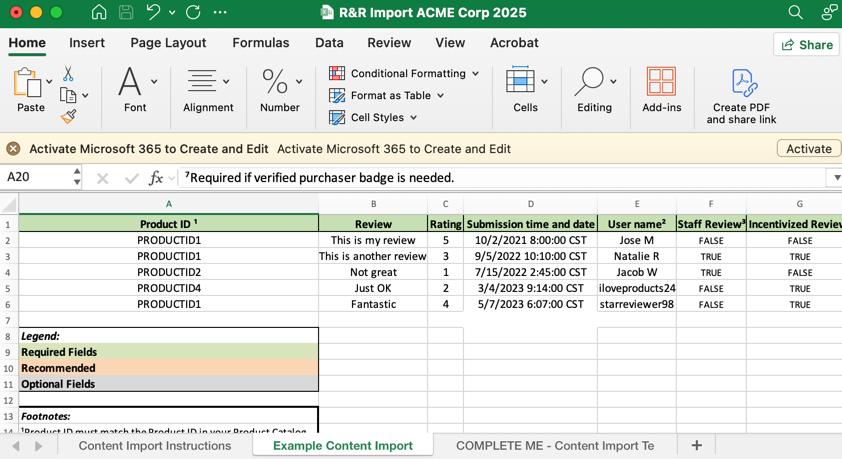
BV_Reviews_Import_June_2025). Review the tabs: The downloaded spreadsheet has three tabs to help you:
Content import instructions: Read this first for a full overview of the template and its requirements.
Example content Import: Use this to see how the data should be formatted.
Complete me: *This is where you will input your data.
Add your own data: Start filling in the Complete me tab. Use the Example tab as a guide to ensure your data is formatted correctly.
Quick reference guides
The following one-page PDFs are designed to be quick reference guides for your team:
-
Content import one-pager
: A summary of authenticity requirements and key things to consider. -
Moderation process guide
: An explanation of how the Bazaarvoice team moderates content and the specific guidelines that are involved.
Option 2: Upload XML file
Refer to Upload XML file for detailed information.
FAQs: Verify imported content in staging
After Bazaarvoice has completed your import in staging, please review the newly imported content on your staging environment in the portal for the following::
Do reviews have star ratings?
Reviews imported with a rating of zero negatively impact the overall average rating. If a review has no rating, omit the Rating element from the import file.
Do usernames appear as expected? If applicable.
If multiple contributors use the same display name, the display name is Anonymous for all contributors after the first instance of that display name. Therefore, modify display names so that they are unique. If users are allowed to write multiple reviews on a single product, contact Bazaarvoice to ensure that your configuration is updated.
Do review titles appear correctly?
By default, the maximum review title is 50 characters in length. If titles are truncated, contact Bazaarvoice to update the maximum review title length.
Do reviews appear with the correct date?
For example, are there any reviews that appear with dates that are many years in the past or future? If so, double check that dates are defined correctly in your import file.
Do user locations appear correctly?
For example, is an incorrect location such as “FakeLocation, WY” displayed with reviews? If so, double check that locations are correctly defined in the ReviewerLocation element of your import file.
Do photos or videos appear as expected with the correct product? If applicable.
If not, ensure that photos or videos have valid and correct URLs and that they are associated with the correct review in your import file.
Are reviews missing for certain products?
Make sure that the external IDs in the import file match the external IDs in your product catalog and the product IDs in the JavaScript integration code on the product page.
Were some reviews imported without review text?
Keep in mind that reviews that contain less than 50 characters may be hidden as ratings-only reviews. Contact Bazaarvoice to change this threshold.
Do answers to the "Recommended: Yes/No" question make sense? If applicable.
For example, are there multiple positive reviews with “No” selected? If the “Recommended” question was not asked when you originally collected reviews, omit this question from the import file.
Do submission form questions, additional ratings, or tags that were imported appear as expected? If applicable
If not, contact Bazaarvoice to confirm that the correct IDs were mapped in your import file.
