The Ratings & Reviews Seller Ratings feature enables you to:
- Collect ratings and reviews about your company from consumers who submit feedback based on their buying experience.
- After you collect seller ratings, they can appear in Google AdWords.
- Display up to 12 four- and five-star reviews, which are refreshed daily.
- The Seller Ratings display module also enables your seller ratings to appear in inline search results.
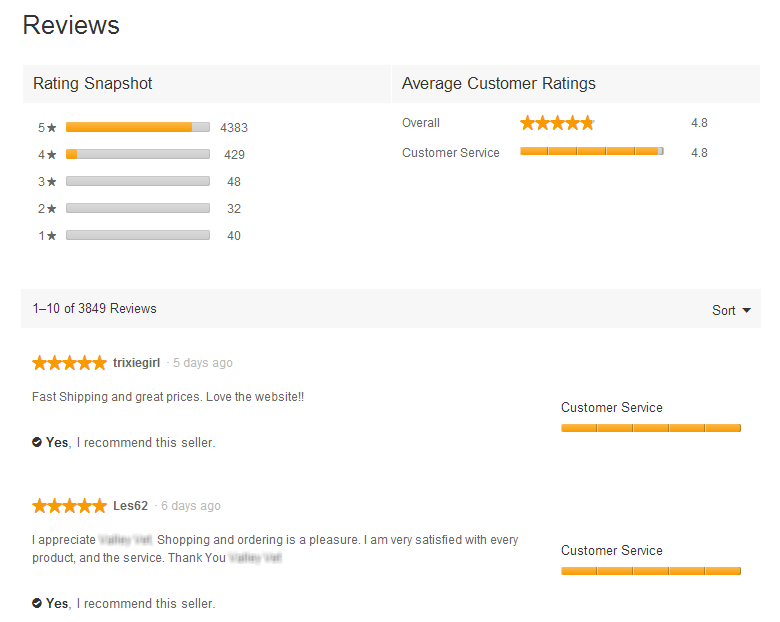
SEO benefits
After you enable Seller Ratings in your Ratings & Reviews implementation, ratings and reviews about your company can appear in Google AdWords.

When paired with Google AdWords, the Seller Ratings display module enables your seller ratings to appear in inline search results (as rich snippet stars) for any search engine that uses schema.org markup, such as Google or Yahoo.
In general, seller ratings enhance your website's search engine optimization (SEO) because they enable you to:
- Stand out from the competition: third-party reviews encourage trust and interest in your company from new customers.
- Improve your position in search results: customer reviews are SEO-indexed and refreshed on a daily basis, providing fresh content to search engines.
Enable seller ratings
Complete the following steps to enable Seller Ratings in the Ratings & Reviews configuration hub:
- Contact Bazaarvoice Support to add the Seller Ratings feature to your implementation.
-
Sign in to the Bazaarvoice Portal
 .
.
-
From the upper-right corner, select the settings icon
 .
.
- Select Configuration.
- Under Implementations, select Edit next to the implementation in which you want to enable review resubmission.
- From the menu on the left side of the page, select Configure Messages under Collect Reviews.
- Select Settings.
- Navigate to Seller Ratings Requests and select Enabled.
-
To specify a time of day when Bazaarvoice will begin to send seller ratings review request email messages, go to the Review Message Sending Times section and select an option from the Schedule time to start sending review requests (UTC) drop-down list. If multiple locales are in use in your implementation, select the locale from the drop-down list first.
By default, Bazaarvoice sends seller ratings review requests 7 days after the transaction date. If a review request delay expires after the time you've scheduled to send a seller ratings review request, Bazaarvoice sends the seller rating review request the following day at the transaction time.
-
Configure email settings. Bazaarvoice sends a seller ratings email message that invites your customers to submit ratings and reviews for your company seven days after a transaction. Customers receive seller ratings email messages no more than once every six months no matter how many transactions they make.
- If necessary, implement BV Pixel on your site or manually send order data to Bazaarvoice.
- Go to Settings > Review Requests, select an option from the Trigger messages drop-down list following step a.
-
Select the Messages tab to view all applicable message types. Select a message type and click
 to modify the template as needed. For detailed instructions, refer to the Edit standard email template or Create a custom template topics. The steps for editing an email template are generally the same across all message types.
- Ensure customer records are up-to-date.
Note: You can’t edit the submission form that displays when a customer selects a link in an email message as it has to adhere to Google guidelines for seller ratings. In addition, you can’t view or test the form before enabling seller ratings. -
Deploy the changes to the implementation.
You can also enable and configure the Seller Ratings Display.
Display seller ratings
The Seller Ratings display module boosts consumer confidence by displaying up to 12 positive reviews, which are refreshed daily. After you insert the display module on your company's home page, four- and five-star reviews are displayed.
The following SEO benefits are available to you after you implement the Seller Ratings display module:
- Your seller ratings appear in inline search results (as rich snippet stars) for any search engine that uses schema.org markup, such as Google and Bing.
- Stand out from the competition—third-party reviews encourage trust and interest in your company from new customers.
- Improve your position in search results—customer reviews are SEO-indexed and refreshed on a daily basis, providing fresh content to search engines.
To display seller ratings on your site, you must configure the Seller Ratings display module in the Ratings & Reviews configuration hub, and then deploy the module. After the module is deployed, you can customize the cascading stylesheet (CSS) to match your site design.
Be aware that moderation of seller ratings differs from moderation of product reviews; seller or shopping experience is moderated, not the product. For details, refer to Moderation.
Note: Refer to the Common questions for help with seller ratings issues.
Step 1: Configure the Seller Ratings display module
Follow these steps to configure the Seller Ratings display module.
-
Sign in to the Portal .
-
From the upper-right corner, select the settings icon .
- Select Configuration.
- Under Implementations, select Edit next to the implementation you want to configure.
- Use the menu on the left-hand side of the page to select Seller Ratings Display under User Experience.
- Turn on the Enabled toggle switch in the Seller Ratings Module section.
- Select and hold the Number of reviews to show slider to select how many reviews you would like the module to display.
-
To use the CSS provided and hosted by Bazaarvoice, select Enabled under Include theme CSS.
Note: The CSS option provides you with a basic set of display styles and a starting place. We recommend using this option to ensure compatibility with future versions of the Seller Ratings display module.
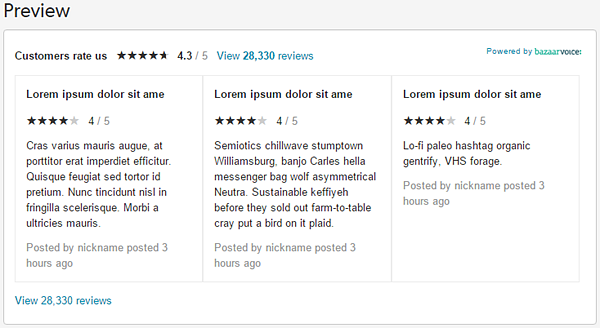
The following image is an example of a Seller Ratings display module using Bazaarvoice-hosted CSS.
Step 2: Deploy the Seller Ratings display module
Once you have enabled and formatted the Seller Ratings display module, you can deploy the module using one of two options:
Deploying using the Bazaarvoice hosted display
You can configure the Seller Ratings display module on your company's home page using the Bazaarvoice hosted display, as follows:
- On the Seller Ratings page of the configuration hub, under Deployment Options > Option 1: Bazaarvoice Hosted Display, select the deployment zone and environment where you want to implement the module.
-
Select the locale to which the reviews belong from the drop-down list, as shown in the following example.
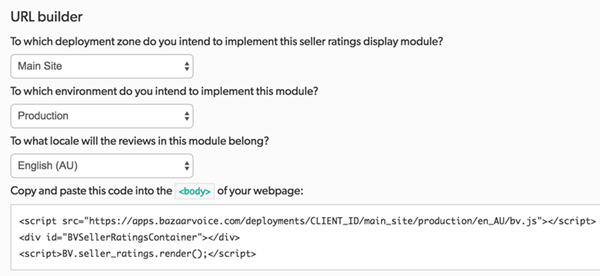
- Add the generated code to your company's website in the location where you want the Seller Ratings display module to appear.
Deploying using the Bazaarvoice SDK
View the BVSEO SDK documentation for step-by-step instructions on how to deploy the Seller Ratings display module from your own server. Select the SDK that fits your implementation:
Step 3: Customize the CSS
Bazaarvoice hosts CSS rules for the Seller Ratings display module that provide a default look and feel. You can apply overrides to the Bazaarvoice CSS by adding your own styles or hiding unnecessary display elements. If you choose not to use the Bazaarvoice-hosted CSS, you must style the Seller Ratings display module entirely using your own CSS files.
The following image shows how the Seller Ratings display module looks using the Bazaarvoice-hosted CSS:
Enabling and disabling the CSS
To include or exclude the Bazaarvoice-hosted CSS, select Enabled under Include theme CSS on the Seller Ratings page of the configuration hub to include the Bazaarvoice-hosted CSS. Or, select Disabled to exclude it.
Customizing the CSS
You can customize styles in the Seller Ratings display module by creating your own styles and placing them in your own CSS files. If you are using Bazaarvoice-hosted CSS, place custom overrides for specific rules into your own CSS files as described in the following instructions.
Follow these steps to apply your own style to part of the Seller Ratings display module.
-
Locate the HTML markup for the element you want to style.
For example, the following code snippet shows the markup for the "view all reviews" link. The link has a
bv_ratings-linkclass attribute.
HTML<a class="bv_ratings-link" href="http://ratings.bazaarvoice.com/index.html?merchant=seller-ratings-preview&locale=en_US" target="_blank" rel="nofollow" tabindex="0"> <span>View all <strong class="bv_ratings-link__rating">3</strong> reviews</span> </a>
-
Create a new rule for the corresponding class that adds to or changes the appropriate style.
-
If you're using Bazaarvoice-hosted CSS, create a rule for the class you want to style and add the
.bv_overrideprefix.Note: In Bazaarvoice-hosted CSS, all elements are specified within a containing.bvclass definition. You must use the containing.bvclass in addition to the specific element class when creating your own rules.The following example shows a new rule using the
.bv_overrideprefix and including the containing.bvelement. The rule changes the font style of the "view all reviews" link. -
If you're not using Bazaarvoice-hosted CSS, create a standard CSS rule targeting the class you want to style.
CSS.bv_override.bv .bv_ratings-link { font-style: italic; }
-
- Add your rule to your own CSS files.
Adding new styles
Bazaarvoice identifies elements in the Seller Ratings display module markup with unique class attributes. Even if an element is not styled by default when using Bazaarvoice-hosted CSS, you can still add your own rule using the .bv_override prefix.
For example, by default Bazaarvoice does not style the element that states time elapsed since a review was written. However, that element is identified in markup with a unique bv_review_submissionTime class, as shown in the following example:
CSS |
<span> "Posted by " <span class="bv_review_nickname" itemprop="author"> <strong>John Doe</strong> </span> <span class="bv_review__submissionTime">7 days ago</span> </span> |
You can add your own CSS rule for this element using the method described in the previous section. If you are using Bazaarvoice-hosted CSS, you must use the .bv_override prefix to customize styles, even if the element is not styled by default.
Excluding unnecessary items
To provide you with flexibility, the Seller Ratings display module includes more display items than you might need. For example, the "View Reviews" link appears in two places in the module. You might want to hide one of the two "View Reviews" links.
To hide elements when using Bazaarvoice-hosted CSS, use the .bv_override prefix in your own CSS files to render unwanted elements invisible. The .bv_override prefix is described in the previous section. If you disable the Bazaarvoice-hosted CSS, use standard CSS methods to hide items.
Pair seller ratings with Google AdWords
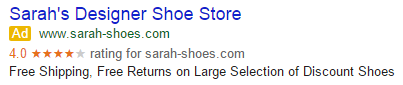
If you enable Seller Ratings, your seller ratings will appear within Google AdWords if you are a Google AdWords client, as shown in the following image:
If you are not an AdWords client, contact Google  for more information about becoming a client.
Complete the following steps to verify your company's home page web address (URL) in the Ratings & Reviews configuration hub. Bazaarvoice uses the URL to sync Google AdWords with your seller ratings.
- In the configuration hub, select Getting Started > Technical Setup and select the Site Profile tab.
- In the Home Page URL field, confirm or enter the URL for the main page of your company's website.
Ensure customer records are up-to-date
Bazaarvoice sends seller ratings requests to customers based on transactional information. To send seller ratings requests correctly, ensure that your transactional information is up-to-date.
Send transactional information to Bazaarvoice in one of the following ways:
- Enable BV Pixel, which automatically collects transactional data and ensures Bazaarvoice always has current information. Bazaarvoice recommends this method.
- Send Bazaarvoice a purchase catalog. If you select this option, you must regularly send feeds to Bazaarvoice to ensure your customer information is up to date.
Whether you use BV Pixel or send a purchase feed, ensure your feeds are locale-specific so review requests are sent in the correct language.
Contact Bazaarvoice Support if you want to receive reports containing review content and contact information submitted by reviewers.
Common questions
Following are a few frequently asked questions about requirements for seller ratings:
Why was a review rejected?
Seller Ratings undergo a different moderation process than product ratings reviews. The moderation process for seller ratings is less flexible and is designed to comply with Google guidelines. If you believe that seller ratings content has been moderated incorrectly, submit a support ticket through the Support Community .
Can I modify the review submission form?
No, you cannot change the fields in the review submission form, nor can you change the reviews display. They are presently designed to comply with Google’s data requirements and guidelines.
Is there an SEO benefit to implementing Seller Ratings?
Yes. After you enable Seller Ratings in your Ratings & Reviews implementation, ratings and reviews about your company can appear in Google AdWords. Google estimates that seller ratings increase Google Adwords performance by approximately 17 percent. In addition, seller ratings can be displayed in Google Shopping and other Google products.
In general, seller ratings enhances your site's search engine optimization (SEO) because it enable you to:
- Stand out from the competition—third-party reviews encourage trust and interest in your company from new customers.
- Improve your position in search results—customer reviews are SEO-indexed and refreshed on a daily basis, providing fresh content to search engines.
How often is the Seller Ratings display module updated?
It is updated every 24 hours.
Can I send the Review Request to only some of my customers?
No. Seller Ratings requires that you ask all customers to leave a seller rating.
Why are the data rights different for Seller Ratings than for other products?
The data rights for product and service reviews can be different than the data rights for seller ratings. For instance, Google reserves the right to use Seller Ratings data in any of its products. The data rights are defined in the Bazaarvoice terms and conditions for Seller Ratings as part of your contract.
If I use Bazaarvoice to collect seller ratings, will my existing ratings disappear? Can I import them into Bazaarvoice?
Bazaarvoice does not import data from legacy providers to meet standards for data rights and to prevent duplication of posted reviews. Check with your current provider for their guidelines about keeping existing ratings data.
Can I import Net Promoter Score (NPS) data into seller ratings?
No, standards for data rights and collection do not permit NPS inclusion.
Refer to Understanding your seller ratings for more information.
Why are my ads pointing to a different seller ratings URL than I want them to? I have seller ratings for English and French versions of my site, and Google shows the wrong version.
Check that you have ads for all of your display URLs. The ads link to the reviews associated with the display URL. Consult this Google AdWords Help Center article for more information about how Google uses seller ratings. Contact Google AdWords Support if you have questions regarding editing or updating ads.
How do I change the logo on my ratings.bazaarvoice.com page?
You can change the logo using the Ratings & Reviews configuration hub, by navigating to Settings > Messages. Refer to Edit the email template for more information about customizing your email template.
