You can use the default text message template for collecting review requests and review request reminder messages. Enable the text message template while configuring to send or receive messages by SMS/MMS.

Note: If you have selected text messages as a preference for sending review requests, you still need to configure your email templates.
Enable review request text messages
Note: Before you begin, ensure the review requests feature is enabled and configured for your site. For instructions to enable and configure review requests, refer to Enable and configure review requests.
-
Sign in to the Bazaarvoice Portal
 .
.
-
From the upper-right corner, select the settings icon
 .
.
- Under Configuration, select Ratings & Reviews. The Site Manager lists all your active deployment zones and implementations.
- Under Implementations, edit the implementation for which you want to modify email templates.
- Select Configure Messages in the Collect Reviews section of the page.
- Select the Messages tab.
-
To enable notifications for the Review Request or Review Request Reminder message type:
-
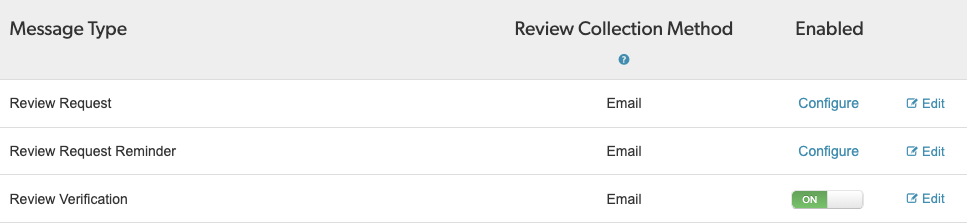
Go to the desired message type and select Configure in the Enabled column as shown below:
-
Go to the desired message type and select Configure in the Enabled column as shown below:
Note: To enable or disable other individual message types, select the toggle in the Enabled column.
Edit text message templates
Text message template is a built-in default template that allows you to request reviews from the customers.
To edit a text message template, follow these steps:
-
Sign in to the Bazaarvoice Portal.
-
From the upper-right corner, select the settings icon .
- Under Configuration, select Ratings & Reviews. The Site Manager lists all your active deployment zones and implementations
- Under Implementations, edit the implementation for which you want to modify the text message templates.
- Select Configure Messages in the Collect Reviews section of the page.
- Select the Messages tab.
- From the list of message types, select Edit to open the text message template editor.
- Under Review Collection Method, select Text Message.
-
Edit the template options.
- Opt-in Message(Optional)—Turn the toggle on or off to enable or disable the Opt-in Message.
- Text Message—Type the notification or action text related to the template. Your text message cannot exceed 160 characters.
- Upload Image—Upload the images of the product. The maximum size of the image file must be 600 KB.
- Preview the edited template in the right panel.
- Select Send Test Message
- Enter a valid phone number to send the review request text message.
- Select Send Message.
Supported special characters for text message template
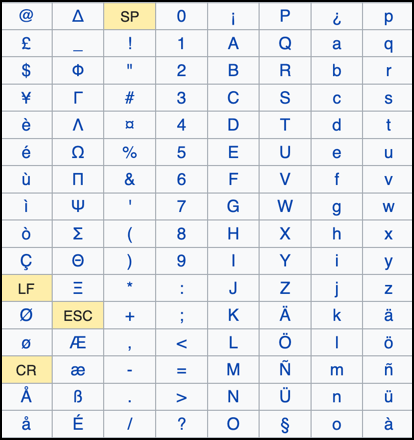
Bazaarvoice currently supports the following special characters in the text message template: