The photo and video upload features allow consumers to include images and videos when submitting reviews. Uploaded media is displayed in the carousel on your website alongside the associated review content. To enable this feature, contact Bazaarvoice Support.
Upload photos
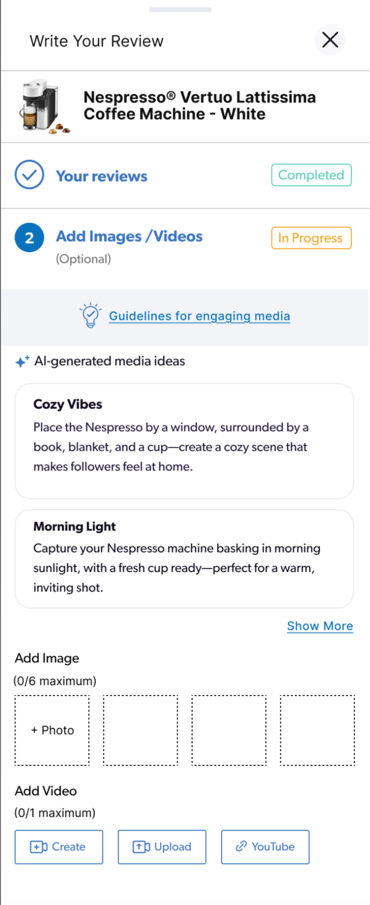
The photo upload feature allows your consumers to upload images when they submit reviews. After selecting Add images/videos in the submission form, consumers select the photos they want to include. You can allow consumers to upload up to six photos to a single review. Once submitted, these photos appear in your website’s carousel alongside the review content.
How consumers upload photos
- In the Submission form, under Add Images, consumers select the photo thumbnail.
- Select the photo from their device to begin the upload. Consumers can upload a maximum of six photos.
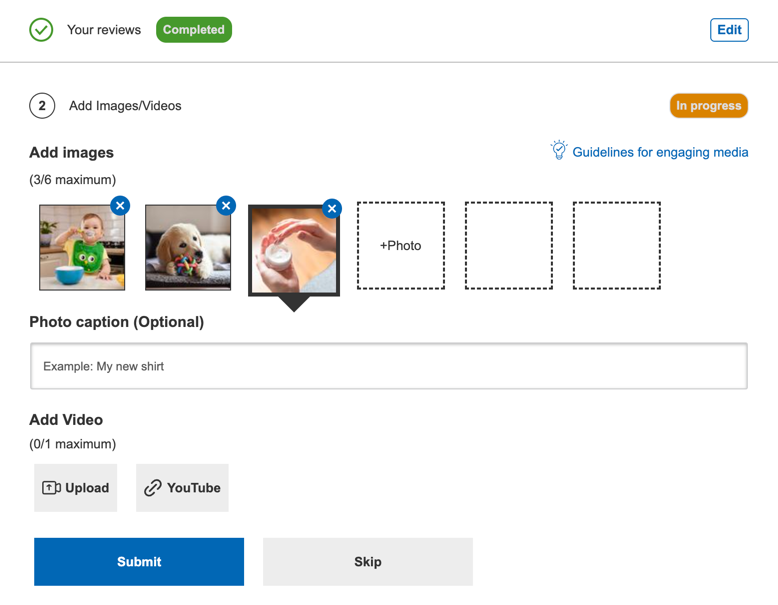
To review submission requirements, consumers can select Guidelines for engaging media to view the Guidelines, Examples, and Technical tabs. As consumers upload photos, they may see feedback icons on their photos suggesting clarity or lighting improvements. To learn more about this real-time coaching, refer to the Media quality feedback section in the Visual content coach article.

Configure mandatory photo upload
To require consumers to upload photos during the submission process:
-
Sign in to the Bazaarvoice Portal
 .
. -
From the upper-right corner, select the settings icon
 .
. -
Under Configuration, select Ratings & Reviews. The Site Manager lists all your active deployment zones and implementations.
- Under Implementations, select Edit next to the desired implementation.
- In the User Experience section, select Display Options.
- Select the Ratings & Reviews tab.
- Under Review Submission, select Mandatory photo upload (Multi-product & Review Submission Forms). The Add images option will then appear in the mandatory section of the Review Submission Form.
Technical requirements
When consumers upload images, Bazaarvoice automatically resizes them into standard and thumbnail sizes. This ensures optimized display across the product details page (PDP), including the photo carousel and review sections. Photos must meet the following technical specifications:
- File size—Maximum of 30 MB.
- File name—Must be a single word without spaces or special characters.
- Dimensions—Meet minimum width and height requirements (refer to Calculating thumbnail and normal image size).
- Supported formats—The following file types are accepted:
- PNG
- GIF
- JPG
- HEIC
- TIFF
Upload Native and YouTube videos
The v2 form allows consumers to upload videos directly from their devices or include YouTube links. This feature helps build trust and can increase conversion rates. To enable this feature, contact Bazaarvoice Support.
- Videos must be 200 MB or smaller.
- The system supports most common video formats on major browsers and devices. To learn more about the supported video formats, refer to the Supported video formats section below.
- Videos can only be created using a mobile device.
- If required, users can delete the uploaded video after submission.
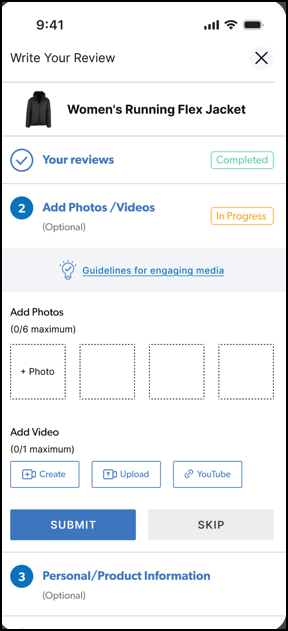
Upload a native video
- In the submission form, under Add Video, select Upload.
- Select a video from the device storage.
- Select Open to start uploading the video.The video will upload automatically if it meets the required guidelines.
Create a video (Mobile devices only)
- In the submission form, under Add Video, select Create.
-
Record a video:
- If the consumer has already granted the necessary permissions, the video recording screen will open immediately.
- If permissions are not granted:
- Chrome (iOS & Android): A message guides the consumer to enable camera access. A similar message appears if recording is canceled. For details, refer to the Camera permission message (Chrome on mobile).
- Other mobile browsers: A 5-second banner reminds the consumer to allow camera permissions in their device settings before returning to the form.
- If permissions are not granted, consumers will see a message that appears for 5 seconds, reminding them to update permissions in their device settings. Consumers can update the permissions in their device settings and then return to the form.
- After recording, the video upload starts automatically and a loading screen appears.
Camera permission message (Chrome on mobile)
In Chrome on iOS and Android, a camera permission message appears when a consumer selects Create and then performs one of the following:
Cancels the recording
Denies camera access:
Android: The consumer selects Don’t allow in the Chrome prompt.
iOS: The camera screen is black and consumer closes it.
From the message, consumers can select:
Create a quick video to try recording again.
Upload an existing video to choose a video from their device.
Trouble recording video? to view the steps for turning on camera permission in their device settings.
Link a YouTube video
- In the submission form, under Add Video, select YouTube.
- Enter the URL for the YouTube video you wish to include. Consumers can use standard YouTube video or YouTube Shorts links.
Supported video formats and compatibility
Most commonly used video formats are supported in Chrome, Safari, and Firefox, and on Android, macOS, and iOS devices. The table below lists the supported video formats along with browser and device combinations.
| Video formats | Chrome | Safari | Firefox |
|---|---|---|---|
| 3GP/3G2, AVI, MOV, MP4/F4V, MPEG/MPG, QuickTime (QT), and WMV | All devices | All devices | All devices |
| ASF | Android, Mac desktop | Android, Mac desktop | Android |
| FLV | Android | All devices | All devices |
- On iOS devices, the video is saved in MOV format.
- On Android devices, the video is saved in MP4 format.
- Media quality feedback—Provides immediate, actionable AI-driven feedback on the submission form to coach consumers on the quality of uploaded photos and videos.
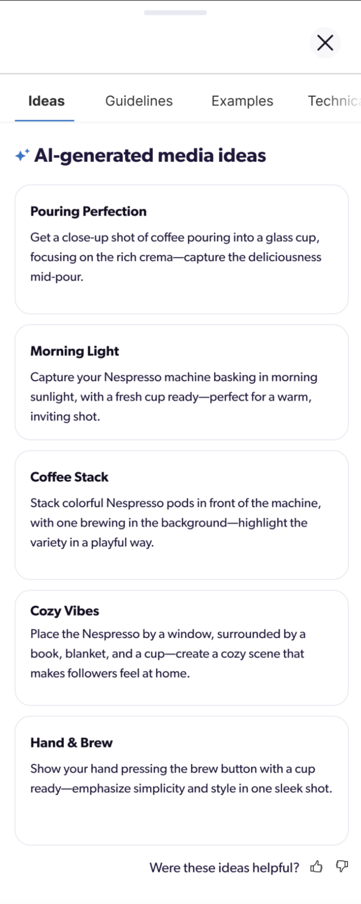
- AI-generated media ideas—Displays five AI-powered, product-specific ideas in the submission form.
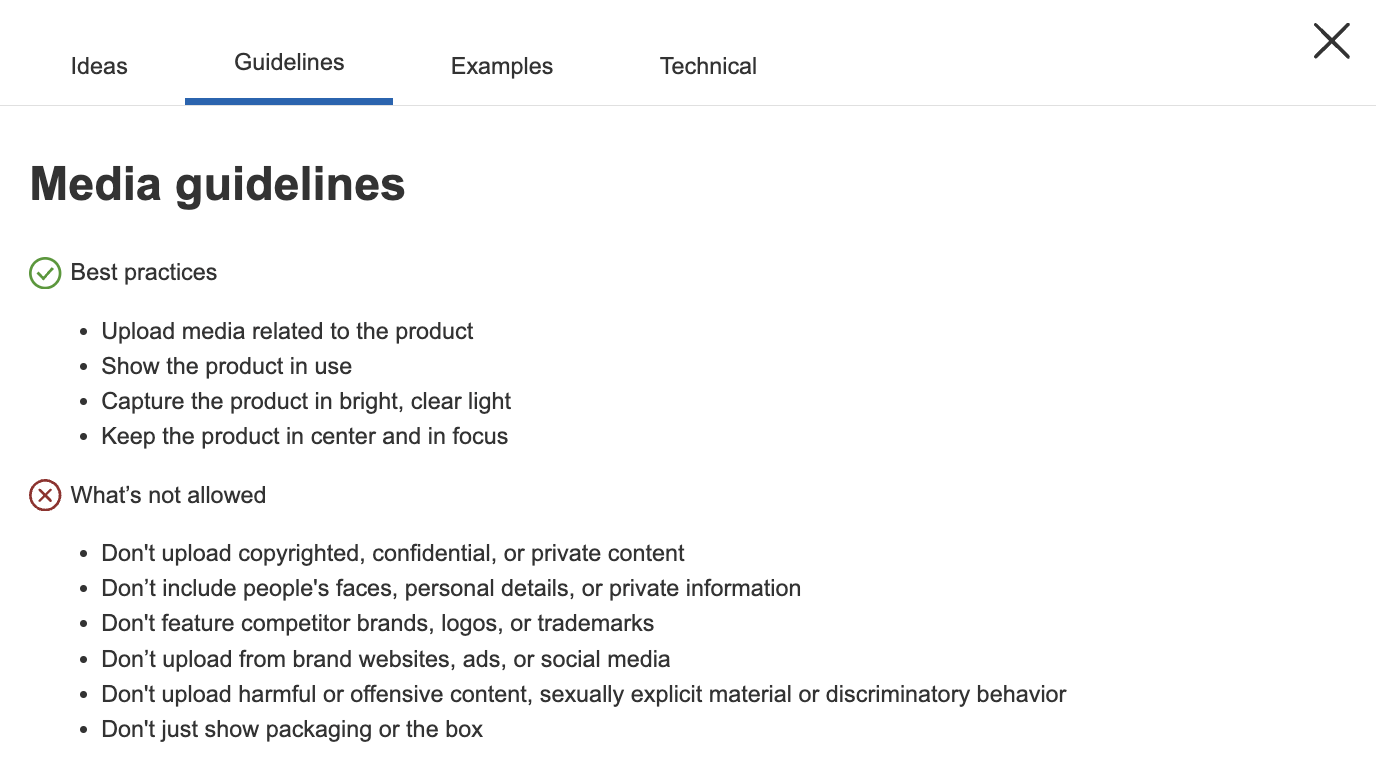
- Media guidelines—Displays brand-defined instructions (do’s and don’ts) in the submission form to set baseline expectations for media quality.
Media quality feedback
Shoppers increasingly rely on rich visual content to drive purchasing decisions. Low-quality user-generated content (UGC) may lower trust, weaken buyer confidence, and reduce conversion opportunities on product detail pages (PDPs). Currently, photo submissions have issues such as blurriness, poor lighting, AI generation, or the product being missing entirely.
The Media quality feedback feature provides proactive coaching support by evaluating the uploaded photos in real time. It removes the guesswork for shoppers, provides suggestions on quality media submissions, and lowers post-submission rejections.
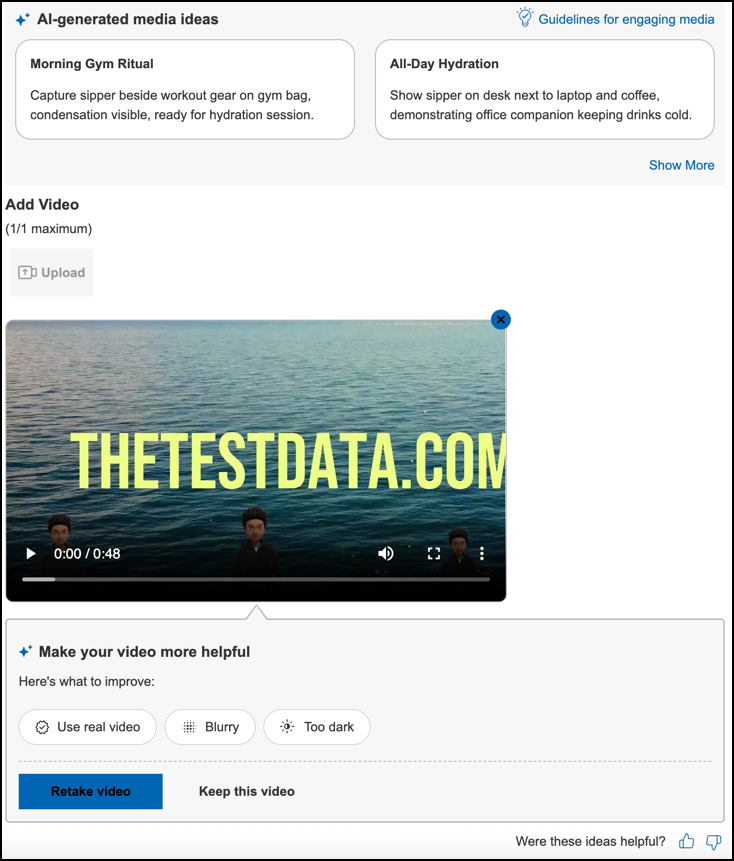
Video quality feedback provides near real-time, automated feedback on consumer-created product videos directly in the submission form. This feedback helps consumers record higher-quality review videos. High-quality, compliant media improves review quality, influences purchase decisions, and drives conversions
How media quality feedback works
-
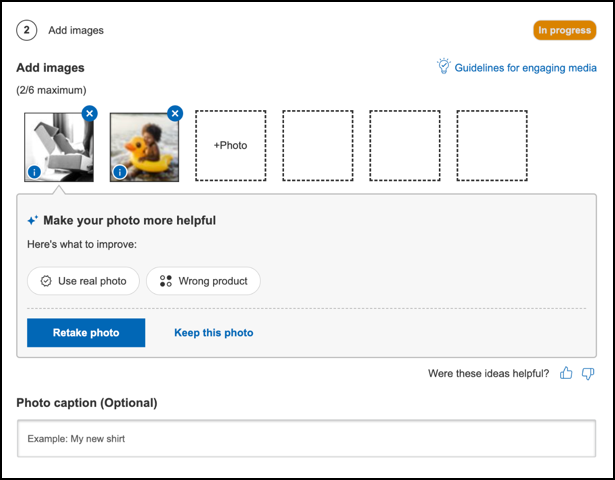
When a consumer uploads a photo, the visual content coach starts an AI evaluation across these areas:
- Authenticity
- Sharpness/Blur
- Product match
- Text overlay
- Lighting
- Resolution
- Product Visible
- Product In Use
- Background
- The Review submission form displays improvement suggestions under each uploaded photo.
- If the photo has quality issues, such as “Product not visible" or a blurry image, a permanent feedback icon appears on the thumbnail.
- The feedback icon remains visible as long as the photo has unresolved suggestions. To dismiss the uploaded photo, consumers may re-upload/replace the photo or select the Close button.
- These AI suggestions do not block the consumer from submitting their review if they choose to proceed without making changes. Consumers can select Retake photo to upload another photo or Keep this photo to continue submitting the review.
AI-generated media ideas
The Ideas tab displays five product-specific, AI-generated ideas in the review submission form to help consumers capture creative and helpful media. Supported locales are English, Spanish, French, and German.

When the feature is enabled, the submission form initially displays two AI-generated ideas. Clicking Show More opens the Ideas modal, which displays all five AI-generated ideas.

Media guidelines
The Guidelines tab displays two categories of guidance. Refer to the Visual Content Coach: Media Guidelines section in Configure Ratings & Reviews to edit these guidelines before deployment.
- Best Practices (Do’s): Guidelines to capture clear, well-lit, and focused media that effectively showcase the product.
- What's Not Allowed (Dont’s): Rules for avoiding unacceptable content (e.g., copyright violations, harmful material, or personal information). Consumers can follow these rules to ensure the submitted media meets the quality standards and is not rejected.
Reference photo library
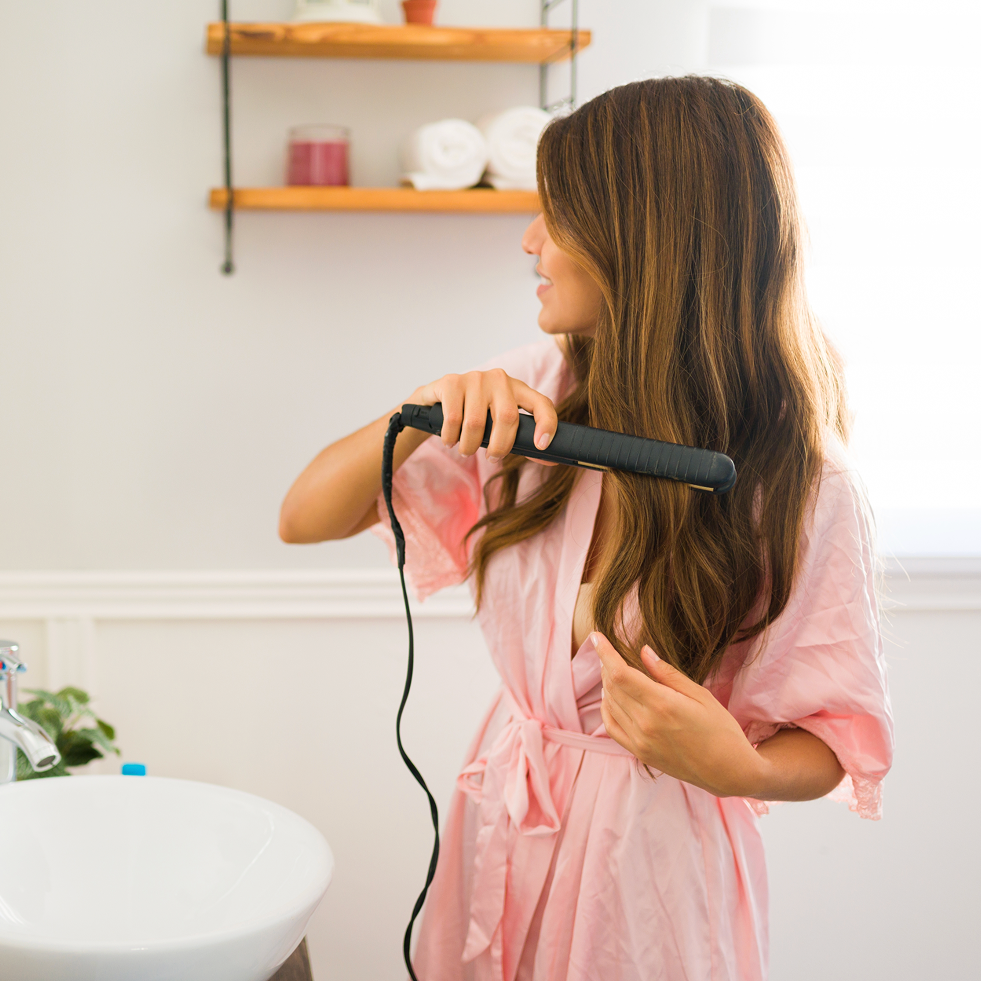
The Examples tab displays default images that consumers can use or refer to when capturing photos and videos. These images serve as clear visual guidelines for consumers, showcasing the difference between high-quality and unacceptable media submissions. To edit or replace these default images with media more aligned with your brand, refer to Upload Example Media: Best Practices and Upload Example Media: What's not Allowed in Visual Content Coach: Media Guidelines under Configure Ratings & Reviews.
Best practices
Examples of images that are rich and meet Bazaarvoice quality standards.









What’s not allowed
Examples of unacceptable images that are likely to be rejected (eg. blurred, excessive packaging, or prohibited content).









Technical
The Technical tab outlines the technical requirements of the media, such as the required file format, size, and other specifications for both videos and photos. You cannot customize the technical requirements.
