Use the Track email open rates setting to enable or disable the inclusion of the {{>open_tracker}} token in the Bazaarvoice emails. By default, this token is included in all Bazaarvoice email templates. The open tracker is a 1×1 transparent pixel embedded in the email. When a recipient opens the email and their email client loads the image, this triggers a request to the Bazaarvoice server, which records the email open event.
Bazaarvoice uses this event data to:
- Measure email open rates
- Track delivery funnel performance
- Display metrics in the Portal Insights dashboard
Email open-tracking compliance
By default, Bazaarvoice emails use the {{>open_tracker}} token to collect email open rate metrics. This tracker does not collect personally identifiable information (PII).
The Track email open rates setting allows you to enable or disable the inclusion of the {{>open_tracker}} token in emails. This setting helps you to meet with regional compliance requirements while continuing to use Bazaarvoice email templates.

Disable email open tracker
To disable email open tracker:
- Sign in to the Bazaarvoice Portal. Note: If you cannot sign in, contact Bazaarvoice support for assistance. Refer to Users and permissions to learn how solutions and roles are assigned in the Bazaarvoice Portal.
- Select the required client instance from the Instance Selector in the upper-right corner.
- Select the Settings icon.
- Select Ratings & Reviews.
- Under Implementations, select Edit next to the implementation you want to configure.
- Under Collect Reviews, select Configure Messages.
- Select the Settings tab.
- Scroll to the Email Tracking section.
- Under Track email open rates, select Disabled.
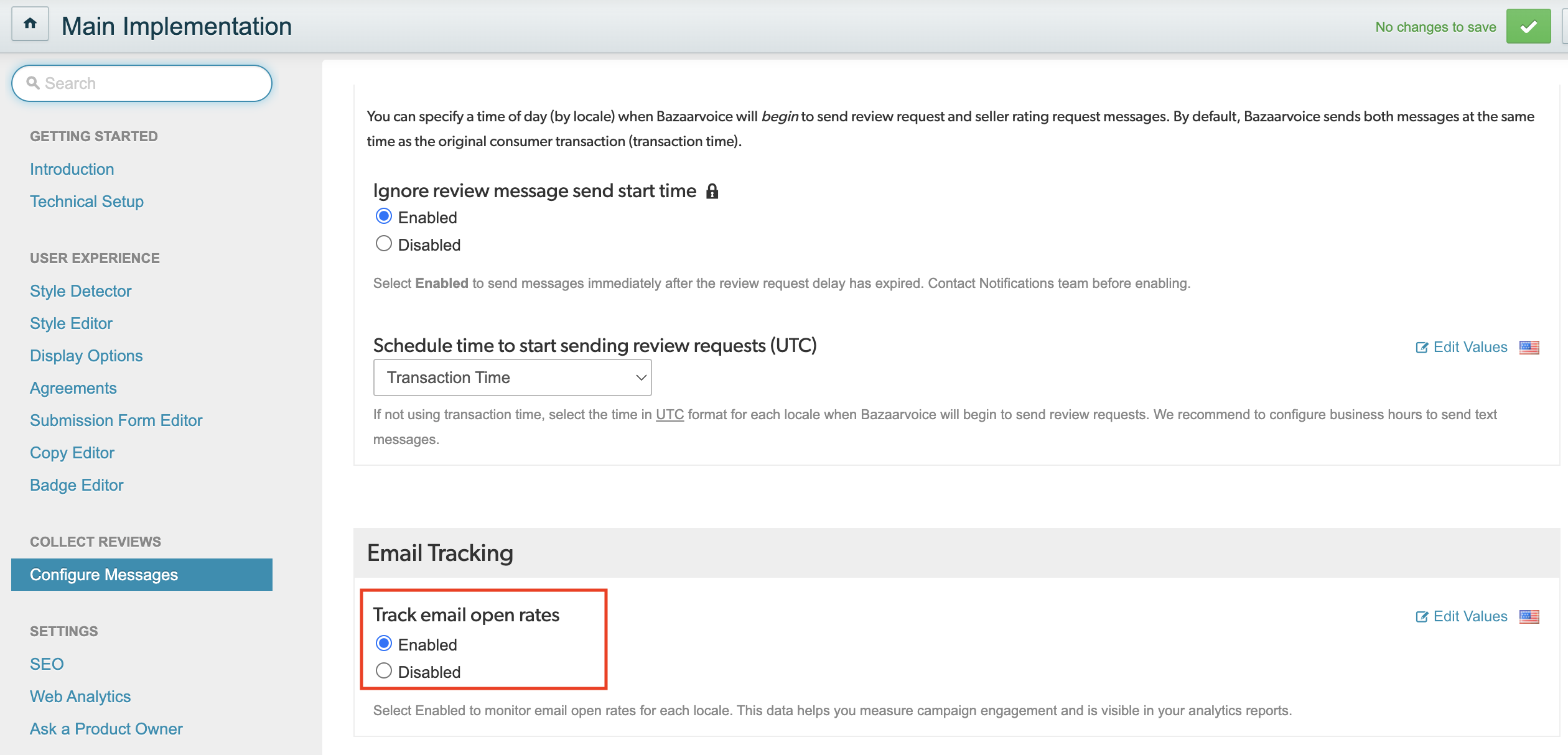
- Verify your changes.
- Deploy the changes to your implementation. Note: This is a locale-specific setting and is enabled by default. The change applies only to the deployment zone where the implementation is published and affects emails sent from that deployment zone only.

Impact on metrics
When the Track email open rates setting is disabled:
|
Impact area
|
Description |
|---|---|
| Historical data |
|
| Standard and In-mail templates |
|
| Custom email template |
|
Verify the configuration
After disabling the Track email open rates setting:
- Use the Send Test Email option within the template to send a test email to yourself.
- Open the email.
-
Open the raw HTML source depending on your email client
- Gmail: Select the ellipsis icon next to the reply button and select Show original.
- Outlook: Access the message options and select View message source.
-
Search the source text (using Ctrl + F or Cmd + F) for
a.gifortype=Opened.-
If the setting is still enabled: You will find a tracking pixel
<img>tag that looks like this:<img src="https://.../a.gif?cl=MessageLifecycle&type=Opened&messageId=...&client=...&source=letterpress" alt="" /> -
If the setting is disabled: The above
<img>tag will be completely absent. This confirms that the tracking pixel is no longer included in the Bazaarvoice email.
-
If the setting is still enabled: You will find a tracking pixel
