Use these solutions to see whether your content was approved or rejected and the reasons provided by the moderators.
Moderation process
All user-generated content (UGC) submitted through your site goes through a rigorous moderation process.
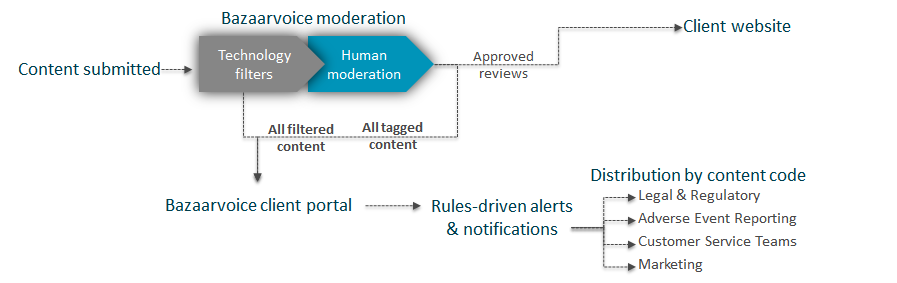
- Content is initially reviewed by a sophisticated Natural Language Processing (NLP) tool. If the NLP tool is highly confident that the content aligns with brand criteria, the content is automatically approved and published.
- If the content needs an additional review, the NLP tool will pass it on to Bazaarvoice human moderators, who will read and tag content for approval, rejection, or review.
The following flow chart shows the content moderation process:
- You can configure Ratings & Reviews to alert a consumer when they enter profanity in a submission form. Refer to Enable profanity moderation for details.
-
If a review is rejected by a moderator, the contributor receives an email notification but the message lacks an explanation by default. You can configure review resubmission to include moderators' reasons in the email message to the consumer.
-
Moderation guidelines for seller ratings require seller reviews to review the seller or shopping experience, not the product. Google requires following these guidelines when sharing content with it. In addition, note these important points:
- The guidelines have been approved for use by Google and cannot be altered, unlike product reviews content moderation guidelines.
- Your employees cannot leave a seller rating for your company.
- The guidelines cannot be customized.
- Any review that includes a price reference will be rejected. Seller ratings must be about the company as a whole, not specific products or prices.
Rejection codes
To reject a review, a moderator tags the content with one or more of the following rejection codes. Rejection codes are categorized as editable or non-editable:
-
Editable—Moderators use editable codes when a review contains useful content but also includes some forbidden information, such as a competitor's name or inappropriate media. When a review is tagged with one of these codes, the contributor receives an email with an editable copy of the original review and a submission link. The email lists the reasons for rejection and highlights them in the review text. The contributor can edit the review and resubmit it for moderation.
Here are the editable codes:
Note: Not all codes are available for all clients/situations.
Code Description Code Description CR Review contains references to competitors PRI Review mentions the price of the product IMG Review includes inappropriate images *SI Review includes shipping or fulfillment details MSR The star rating does not align with the review content VAC The content of the review is irrelevant or lacks substance PII Review contains personally identifying information (PII) -
Non-editable—Moderators use non-editable codes when a review lacks useful content, such as a duplicate or spam review. When a review is tagged with one of these codes, the contributor receives an email with an empty review form and a submission link. The contributor can then choose to submit a new review.
Here are the non-editable codes:
Code Description Code Description FL Review contains foreign language SPM Review appears to be a duplicate or spam GIU Review includes inappropriate or unsuitable content PUX Review lacks personal experience LI Review contains legally sensitive information WP The content of the review refers to a different product *CS Review mentions customer service details SAI Review contains suspected AI-generated content. Refer to AI detection guidelines.
France legal compliance: *CS/*SI moderation
To comply with French consumer law (effective July 9, 2024), reviews on French-facing sites can no longer be rejected as "irrelevant" if they focus on Customer Service (CS) or Shipping/Delivery (SI).
- Moderation policy: Content focused on these areas will now be Approved & Published locally on the client's site.
- Insight tagging: Reviews mentioning a shipping or customer service issue will be tagged with codes CSN or NSI instead. These codes can be used to power alerts or reports to notify internal teams for appropriate actions.
- Syndication: These reviews will not syndicate to other sites in the network, as they are considered specific to the local experience.
- Retroactive changes: Bazaarvoice is working to re-publish relevant reviews collected since July 9, 2024, that were previously rejected under old guidelines.

Review resubmission
To help contributors understand a rejection, use the review resubmission feature. The Review resubmission feature is a tool designed to turn a "rejected review" into a "corrected review" rather than losing the customer's feedback entirely. This feature ensures the moderator's specific rejection reasons are included in the notification email, encouraging the user to edit and resubmit their content.
Syndication stop codes
In addition to the general syndication guidelines, Bazaarvoice Content Network has defined additional guidelines for syndication. For example, some content may be syndicated for the sender, but not for the recipient. References to price, customer service, shipping/delivery, or the location of purchase that appear in multiple locations may create confusion or introduce friction, and therefore are not allowed to be syndicated.
| Code | Description |
|---|---|
| CSN | Indicates customer service experiences / interactions; not the focus of the review |
| NSI | Indicates shipping and fulfillment experiences |
| PRI | The price or cost of a product or service is included in the user's feedback |
| RET | Reference to named retailer where a product or service was purchased |
Authenticity codes
The Bazaarvoice Authenticity team uses sophisticated tools and systems to detect suspicious content. These authenticity processes allow the team to reject content identified as fraudulent or non-compliant with the Bazaarvoice Authenticity Policy.
You cannot edit authenticity codes yourself. If content has been rejected, only our Authenticity team can reverse that decision.
Content rejected by the Authenticity team will be marked with the following codes:
| Parent code | Code | POL codes | Description |
|---|---|---|---|
| AUTH |
The Authenticity team has rejected content
Note: The AUTH code will appear on all content that is rejected for any reason by the Authenticity team.
|
||
| NBD (legacy) | Review needs a badge to disclose relevant information to consumers | ||
| FRD | Content is rejected due to fraud concerns | ||
| POL |
Content is rejected for violating Bazaarvoice policy
Note: Content with this code will also have one of the following specific policy violation codes.
|
||
| DATA | Review is missing required authenticity data in accordance with Bazaarvoice contractual obligations | ||
| DUP | Multiple reviews for a single product by a unique user | ||
| INCENT | Incentivized review is missing the required incentivised disclosure badge | ||
| STAFF | Staff review is missing the required staff disclosure badge | ||
| SPAM | Review content is spam or was submitted from a restricted or sanctioned country | ||
| SPEC | Reserved for rare, non-standard rejections that do not fall under existing fraud or specific policy codes | ||
| PTEST | Test content submitted in the production environment |
Client codes
We use client codes to indicate client events that impact the content (for example, a review that the client has re-moderated).
| Code | Description |
|---|---|
| ABC | Indicates approval made by the client |
| RBC | Indicates rejection made by the client |
| REMOD | Denotes previously approved content that is reported by a user and returned through BV moderation |
Determine why content was rejected
Bazaarvoice moderators typically reject content that is either inappropriate or goes against review submission guidelines. From time to time, you may occasionally review Bazaarvoice-moderated content and find content we've rejected that you want to remoderate.
To understand why the content was rejected:
-
Sign in to the Bazaarvoice Portal
 .
.
- From the navigation bar, select Ratings & Reviews.
- To find rejected content, select the Moderation filter.
- From the drop-down list, select Moderation Status, and then select Rejected.
- Select Apply and close. The page refreshes to display a list of rejected reviews.
- Scroll through the list of rejected reviews.
- If a review appears that has been rejected incorrectly, select either the review title or View details to open it.
-
Read the review text and view any included visual content.
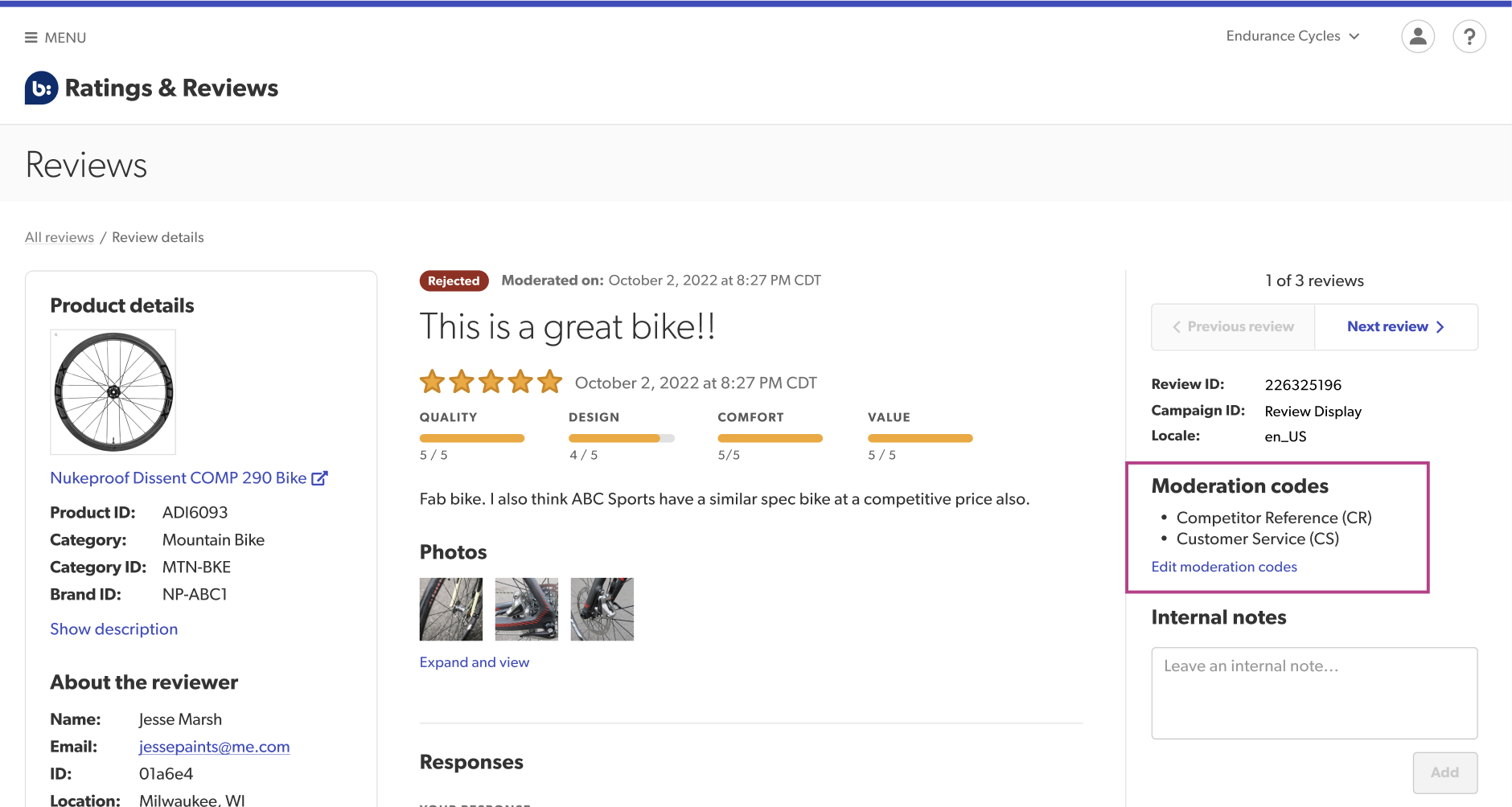 Note: In the panel to the right of the review content, you can view moderation codes detailing why this review was rejected.
 -
Select Approve to approve the review for publication.
Note: The Approved by Client (ABC) moderation code is applied and locked automatically to show that you approved the review. Once applied, this code will be permanently displayed with the review in Ratings & Reviews.
- (Optional) Add an internal note to share why you thought this review required remoderation.
Content authenticity and AI detection guidelines
To ensure your product reviews remain authentic and trusted, our moderators use the Suspect AI-generated content (SAI) code to reject reviews that don't show genuine "proof of life."
We evaluate submissions against several key authenticity markers, including:
- Residual AI prompts: We identify text that accidentally includes AI command remnants, such as "Write a 50-word review about..."
- Marketing-speak versus experience: We flag content that reads like a brochure, for example reviews using terms like "unparalleled performance" rather than a personal experience like "the lid was hard to open".
- Structure: We watch for the predictable "intro–bullet points–conclusion" pattern that is common in generative AI output but rare in organic feedback.
- Robotic cues: While a human might say a product is "great," an AI is more likely to use professional jargon like "seamless experience" or "cutting-edge aesthetics" .
Enable profanity moderation
You can alert a consumer when they enter profanity in a submission form on your product page. The consumer cannot submit the content until the profanity is removed.
Contact Bazaarvoice support to enable profanity moderation.
Before beginning, consider these best practices:
- Be thoughtful before removing a word from the profanity list. After you remove a word, it is no longer disallowed and the word might show up on your site.
- When adding a word to a list, consider benign uses of the word and how consumers might use the word.
- If you have optimistic publishing enabled, which is a configuration option for Questions & Answers, keep in mind that the list might affect what shows up on your site before moderation.
Enable optimistic publishing
Optimistic publishing provides a way to simultaneously display UGC on your site as soon as it is submitted and submit the content to Bazaarvoice moderation for insight and appropriateness tagging. This means consumers' UGC is published right away, and product display pages (PDP) are populated immediately with dynamic content for improved SEO. The content is also submitted for human moderation, which vets content for unrelated remarks, inflammatory or vitriolic statements, and non-compliant content.
Though a certain level of risk exists when publishing UGC prior to human moderation, all UGC is scanned for profanity and inappropriate slang before content is accepted and published. Content that ultimately fails Bazaarvoice moderation is removed from your site.
Contact Bazaarvoice support to enable optimistic publishing.
Configure moderation alerts
Some content may contain sensitive information that needs to be communicated to someone in your organization. For example, content that has been rejected for mentioning a safety issue may need to be sent to your legal department.
Follow these steps to set up rules that will automatically send certain content to specified people or groups:
From the Manage Alerts page, select Create alert in the upper-right corner. The Create alert modal appears:
- Select a Content category. For example, Ratings & Reviews. The relevant alert modal appears.
-
Configure alert settings:
- Set alert conditions: Select the filter conditions which will trigger your real-time alert. For example, select the LI moderation code which denotes Liability Issue.
Note: You must select at least one filter condition. Filters will vary based on the content type you selected. - Alert name: Enter an alert name. For example, "Reviews with liability concerns".
- Recipients: Enter email addresses for the Portal users you want to notify when an alert matches the filter criteria.
Note: Each recipient must have an active Portal account.
- Set alert conditions: Select the filter conditions which will trigger your real-time alert. For example, select the LI moderation code which denotes Liability Issue.


-
Select Create alert. Recipients will receive an alert email whenever content matches the specified filter criteria.
Enable re-moderation
Selecting Report review under a live review on your product page triggers re-moderation by Bazaarvoice human moderators. The review stays live and published unless rejected during re-moderation, at which point it is removed from your site.
Follow these steps to enable re-moderation:
-
Sign in to the Bazaarvoice Portal.
-
From the upper-right corner, select the settings icon
 .
.
- Under Configuration, select Ratings & Reviews.
- Under Implementations, select Edit next to the implementation you want to configure.
- Select Display Options on the sidebar, and select the Ratings & Reviews tab.
- Under Review Helpfulness Voting, select Enabled.
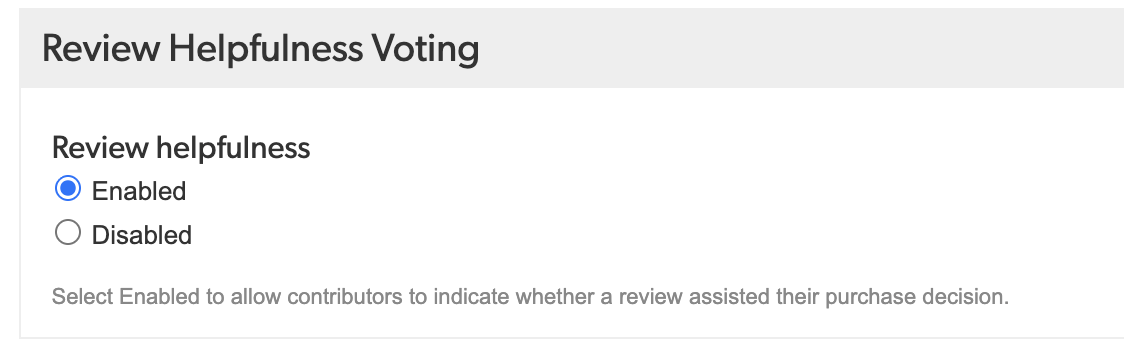
Each review can only go through this re-moderation process once, which is triggered the first time the Report link is selected. To adjust your site's reporting threshold limit, contact Bazaarvoice Support.
Change moderation guidelines
The option to customize your guidelines is dependent on your moderation package.
Should you wish to inquire about eligibility or discuss desired changes, filing a case is the best way to get in touch with us. A moderation specialist will address your request. Follow these steps to file a case:
-
Sign in to the Support Community.
- Select Open a Case.
- Select Feature Change Request.
- Briefly explain your concerns and intended objective.
- Select Confirm.
COPPA support
The Children's Online Privacy Protection Act (COPPA) is intended to control what information is collected from children under the age of 13. It applies to operators of commercial websites and online services that collect, use, or disclose information from site visitors.
For detailed information about COPPA, refer to the following:
- Children's Online Privacy Protection Act of 1998
- Frequently Asked Questions about complying with COPPA
Bazaarvoice gives you the option to block users under any age from contributing content to your sites. Although COPPA protections apply only to children under 13, you can choose to block all users under 18, for example.
Using the following methods, you can design Bazaarvoice content submission forms and profile pages to discourage users from falsifying their age, and to detect and block underage users:
Implement a neutral age-screening mechanism on the content submission form or profile page where:
- Users can select an age range, such as 17 or under.
- No indication or message is displayed that alerts a visitor that they must be 18 years or older to contribute.
Add a COPPA cookie for users under 18 years old, which recognizes the user agent or IP address and prevents the user from:
- Using the Back button to enter a different age.
- Using the same device and browser to sign in at a later time and submit content.
The cookie persists for 365 days.
